
Organizations that regularly upload large volumes of data into Oracle Fusion Cloud often require a faster and more efficient alternative to manual data entry. ADF Desktop Integrator (ADF-DI) provides a seamless way to upload, update, and manage Oracle Fusion data directly from Microsoft Excel.
The ADFDI full form is “Application Development Framework Desktop Integration.” It is a Microsoft Excel-based integration tool that connects Oracle Fusion applications with Excel spreadsheets, allowing users to perform bulk data operations while maintaining Oracle Fusion business rules and validations.
This guide explains how to install and configure ADF-DI in Oracle Fusion Cloud for Excel-based data uploads and integration. Whether you are looking for Oracle ADFDI setup, Oracle ADF Desktop Integration add-in for Excel download, or ADFDI Oracle Fusion setup instructions, the steps below will help you complete the installation successfully.
What is ADF-DI in Oracle Fusion?
ADFDI in Oracle Fusion is an Excel integration framework that enables users to download Oracle-managed spreadsheets, enter or update business data in Excel, and upload it directly back into Oracle Fusion Cloud applications.
Oracle ADF Desktop Integration works as an Excel add-in and is widely used across Oracle ERP, HCM, SCM, Procurement, and Financials modules for mass data maintenance activities.
Some common benefits of Oracle ADFDI include:
- Faster data uploads through Excel.
- Reduced manual data entry.
- Validation of records before upload.
- Improved user productivity.
- Easy integration between Oracle Fusion Cloud and Microsoft Excel.
Many organizations prefer Oracle Cloud ADFDI because it combines the familiarity of Excel with the security and validation framework of Oracle Fusion applications.
Prerequisites Before Installing ADF-DI
Before starting the Oracle ADF Desktop Integration add-in for the Excel installation process, ensure the following:
- Access to Oracle Fusion Cloud.
- Microsoft Excel is installed on your system.
- Administrative rights to install software.
- Internet connectivity.
- Permission to download Oracle ADFDI files.
It is important to note that ADF-DI works with Microsoft Excel and typically requires a Windows environment. The Oracle ADF Desktop Integration add-in for Excel download process installs components that integrate directly with Excel.
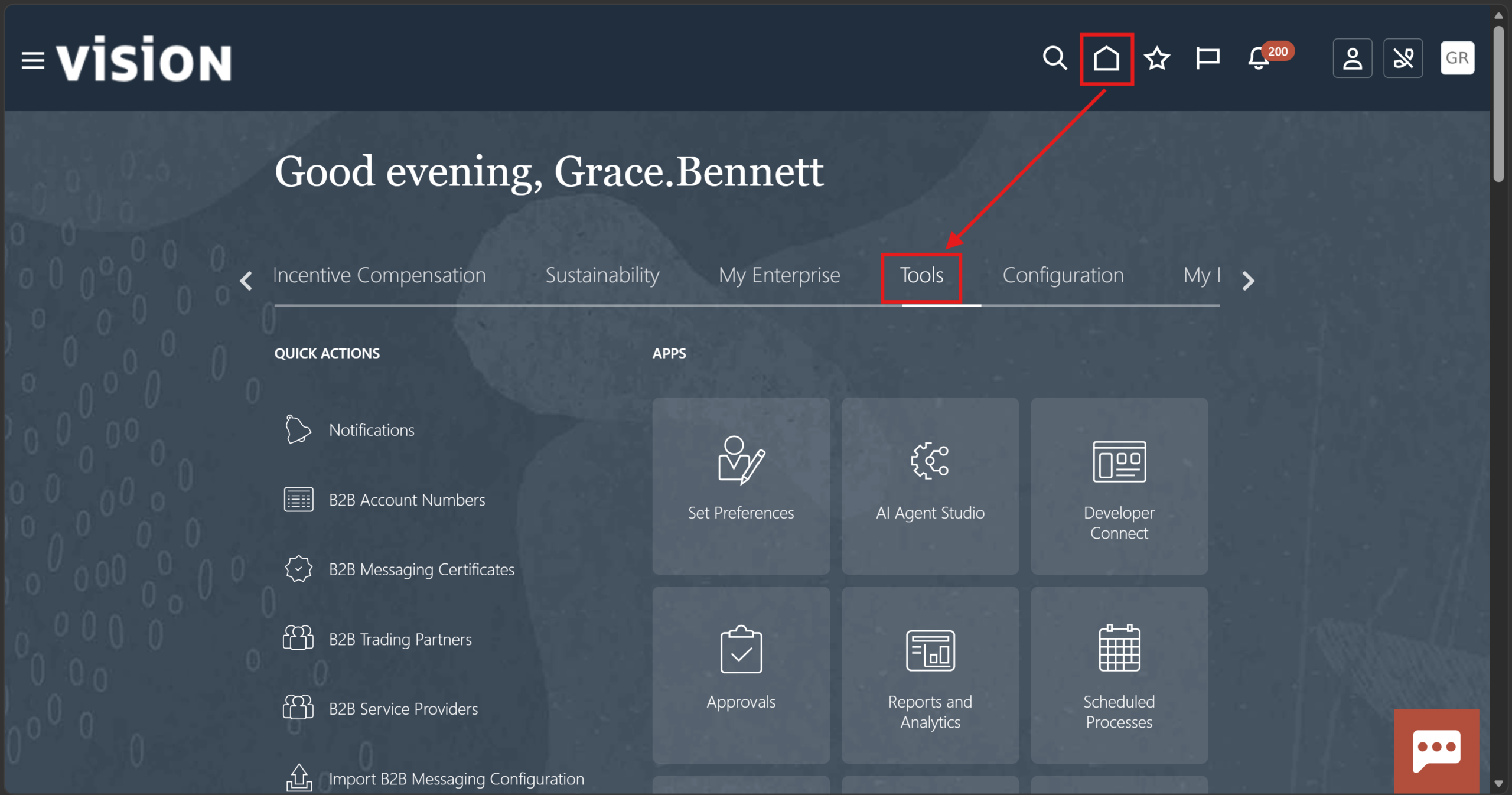
Step 1
Go to Fusion Home, click “Tools.”
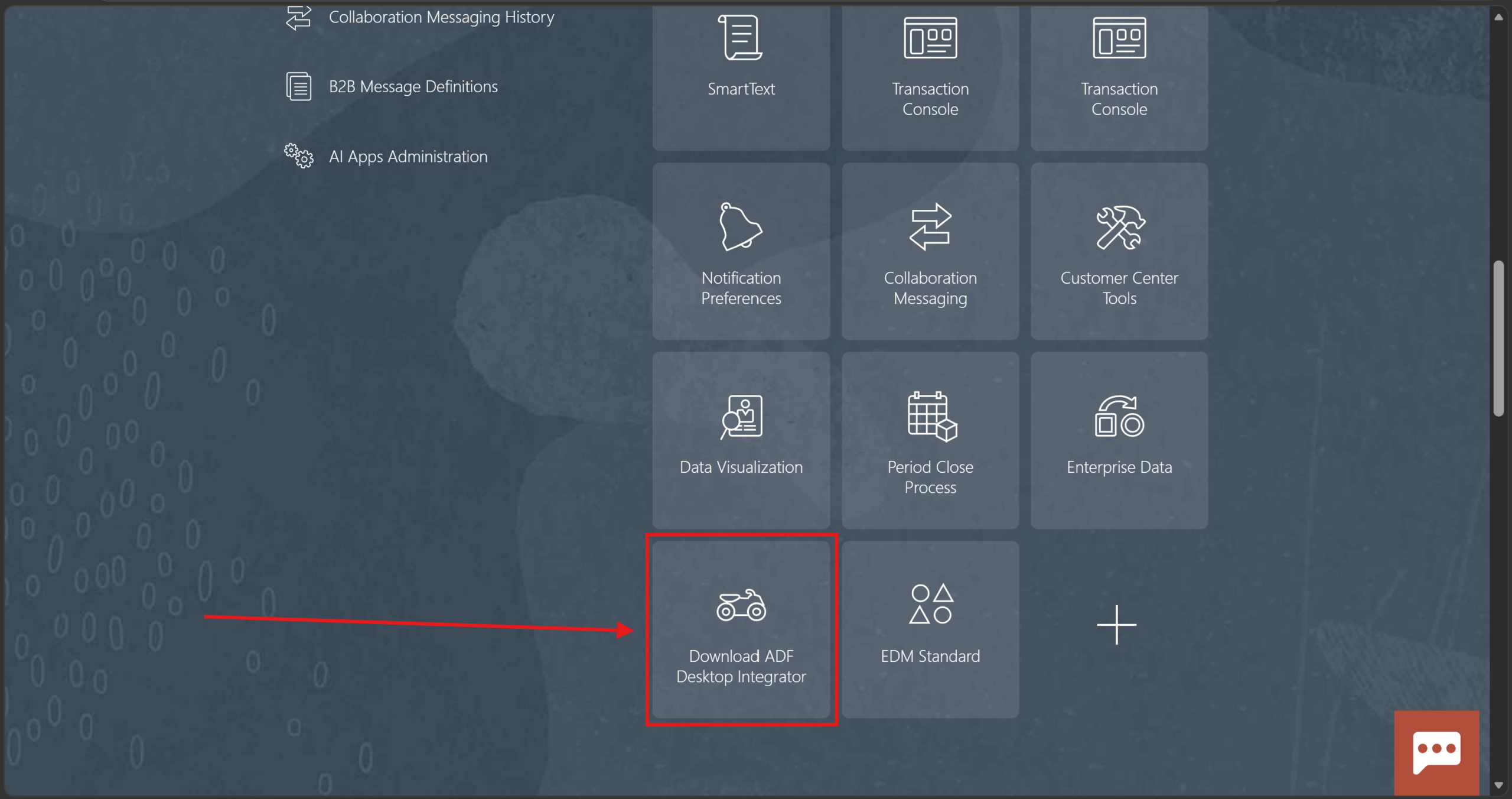
Step 2
Click “Download ADF Desktop Integrator”
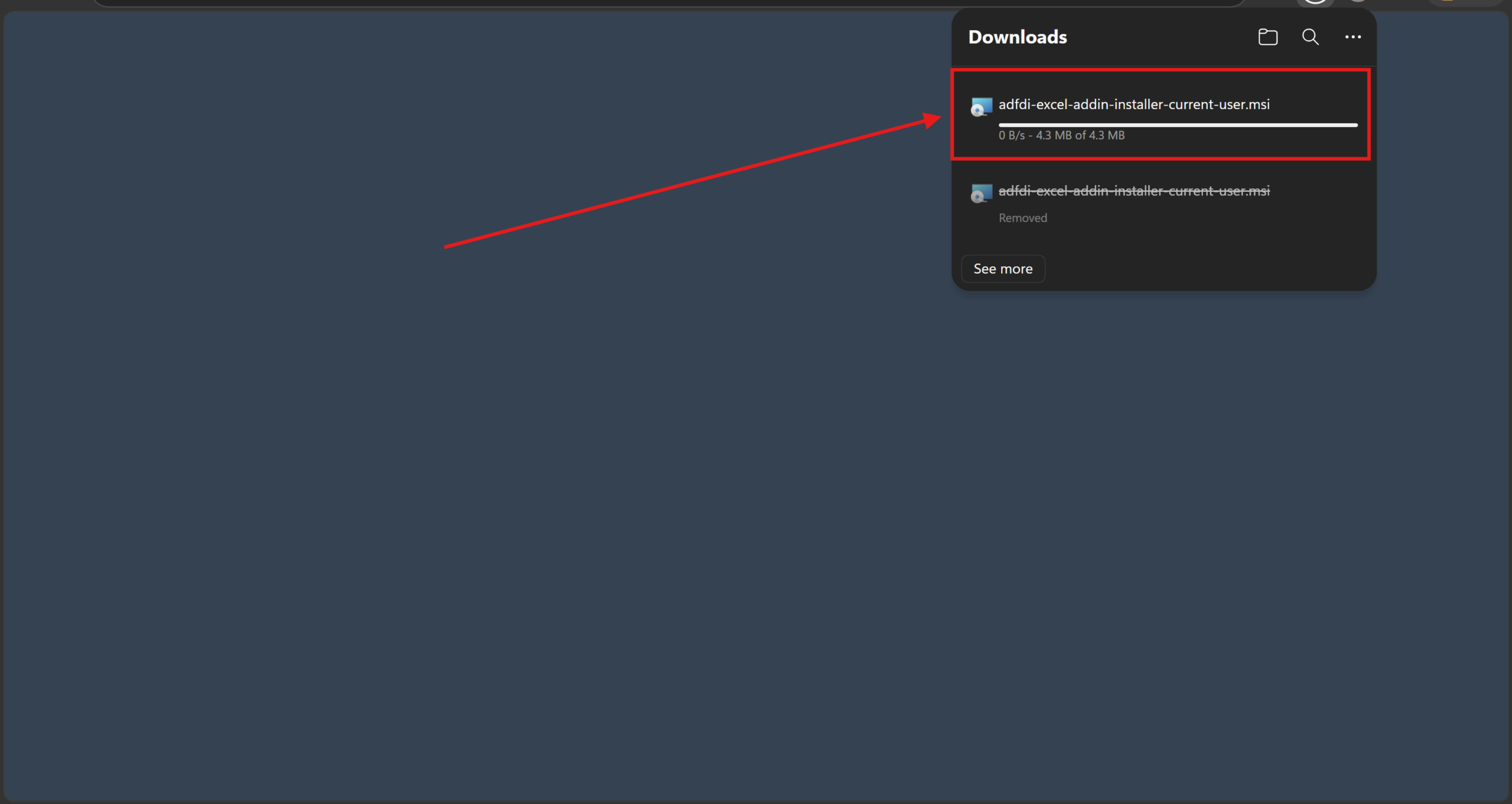
Step 3
ADF-DI plugin will get downloaded
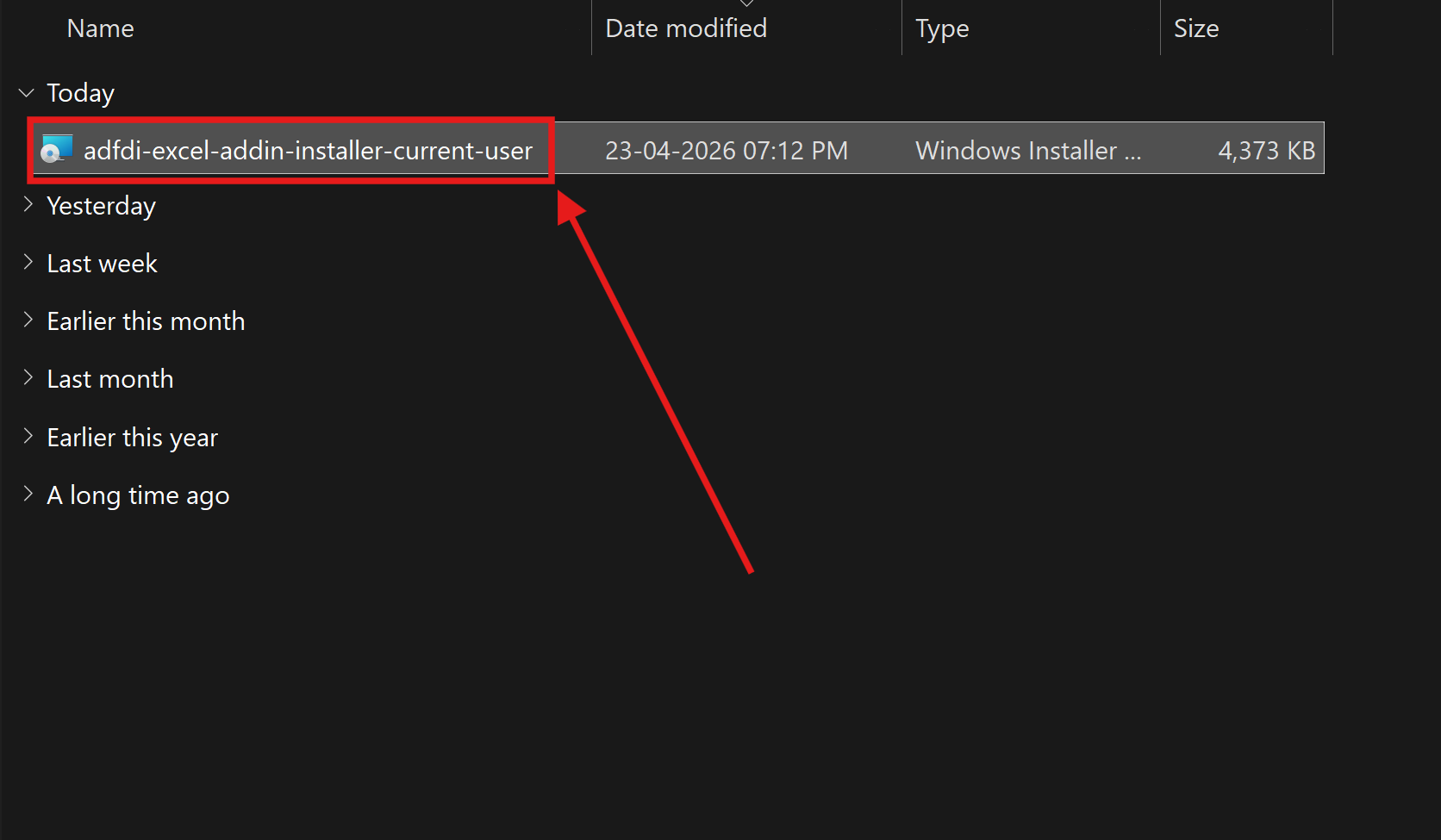
Step 4
Click on the downloaded file
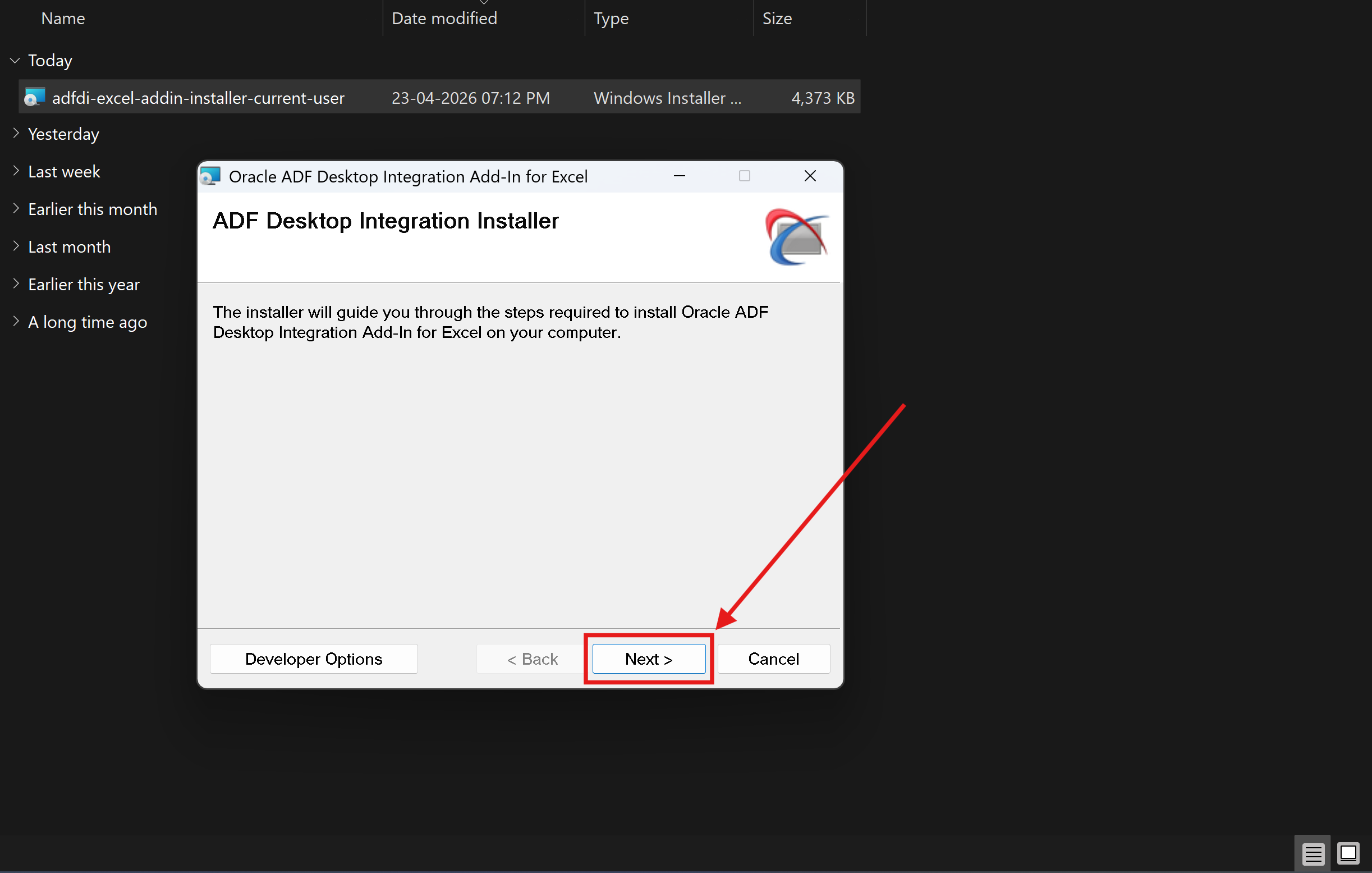
Step 5
Click Next
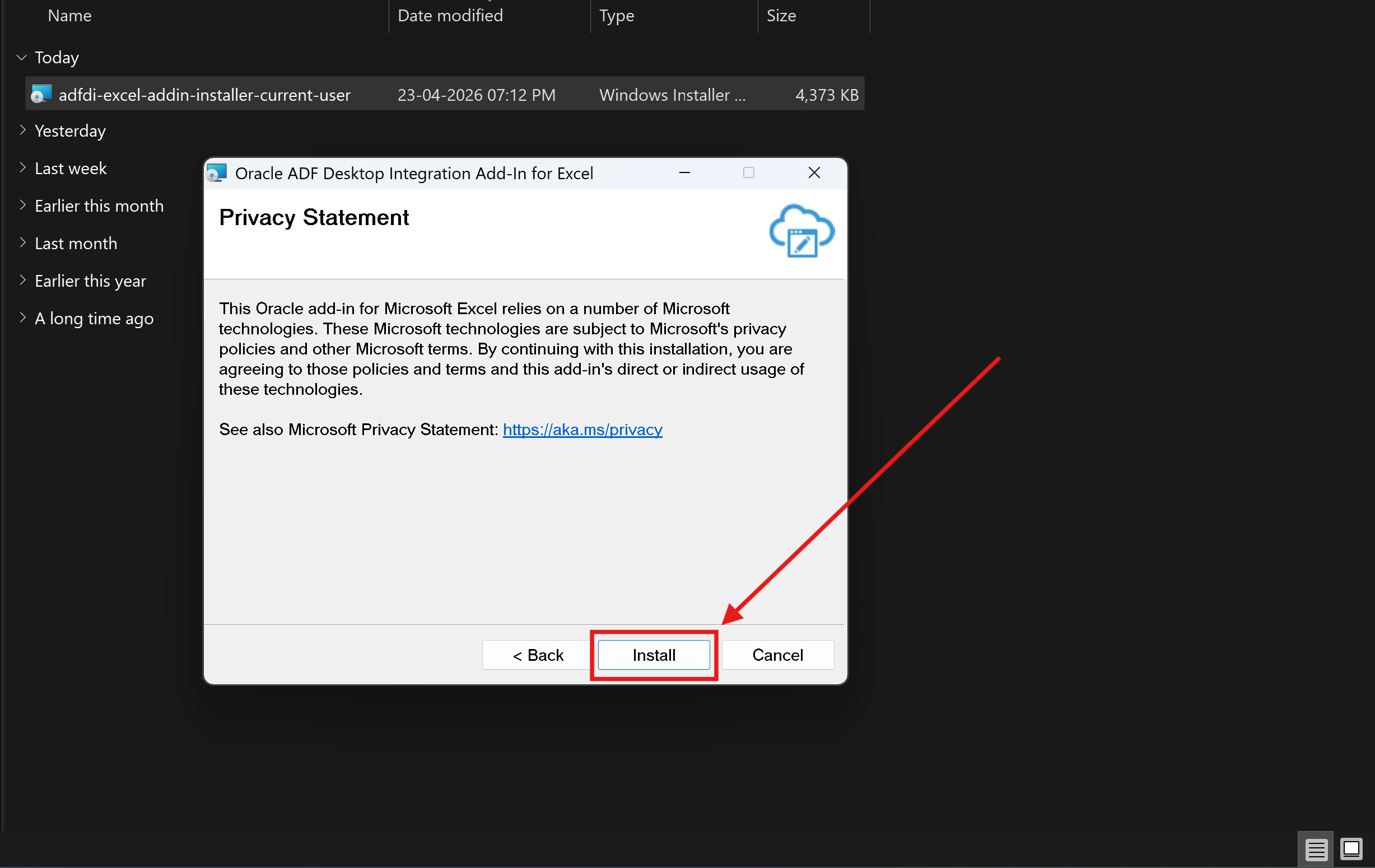
Step 6
Click Install
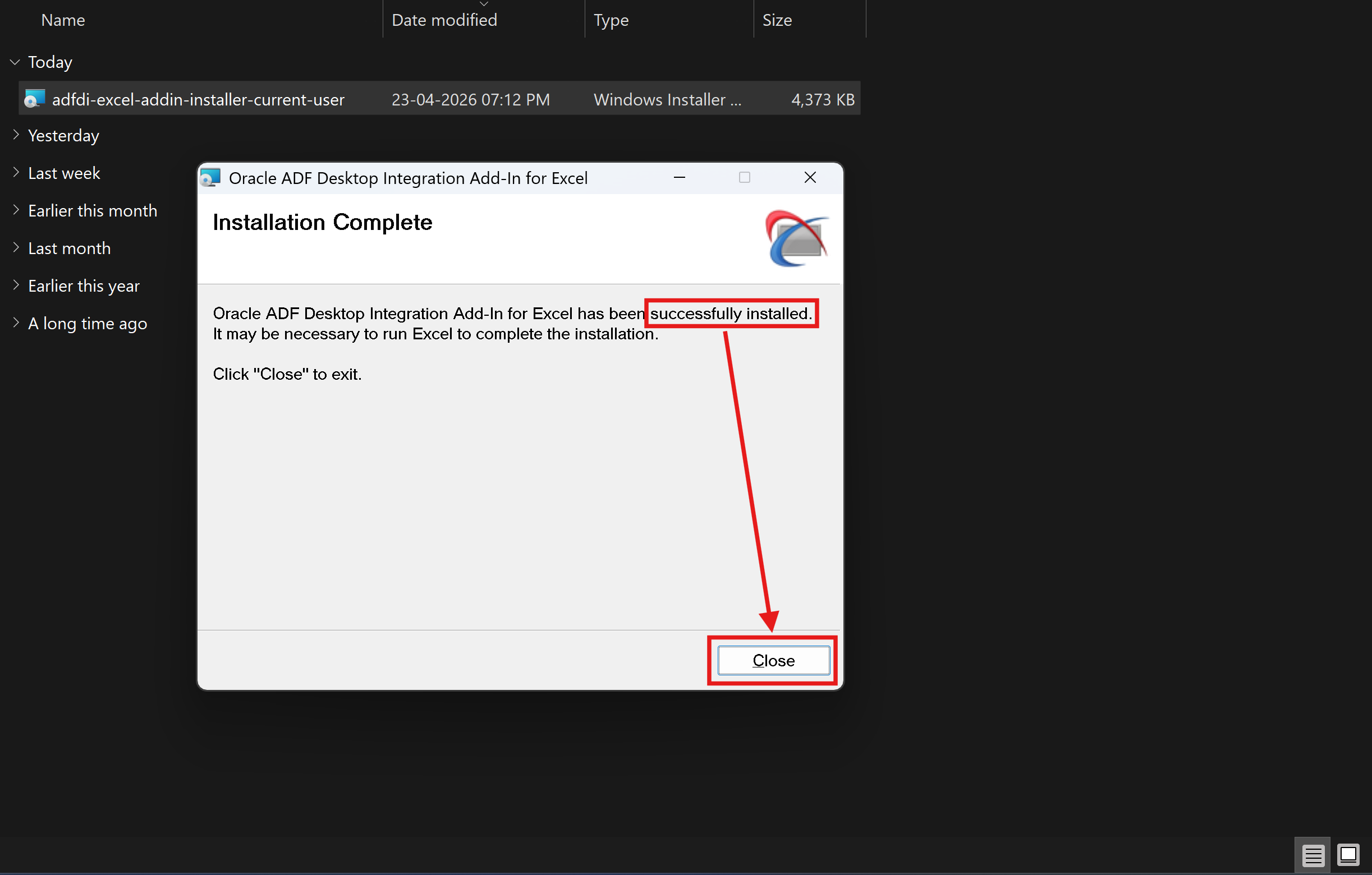
Step 7
Installation complete—close the window
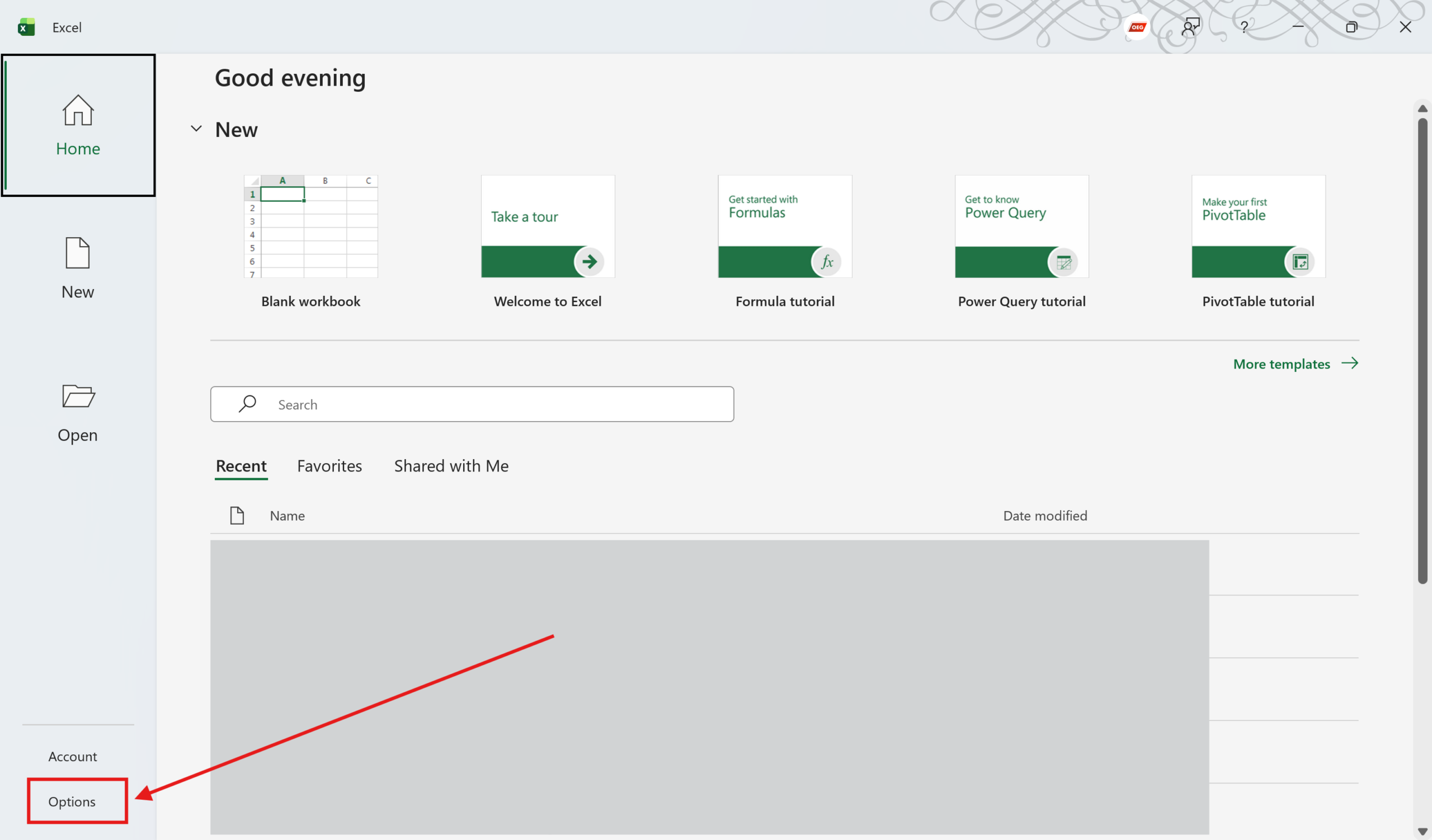
Step 8
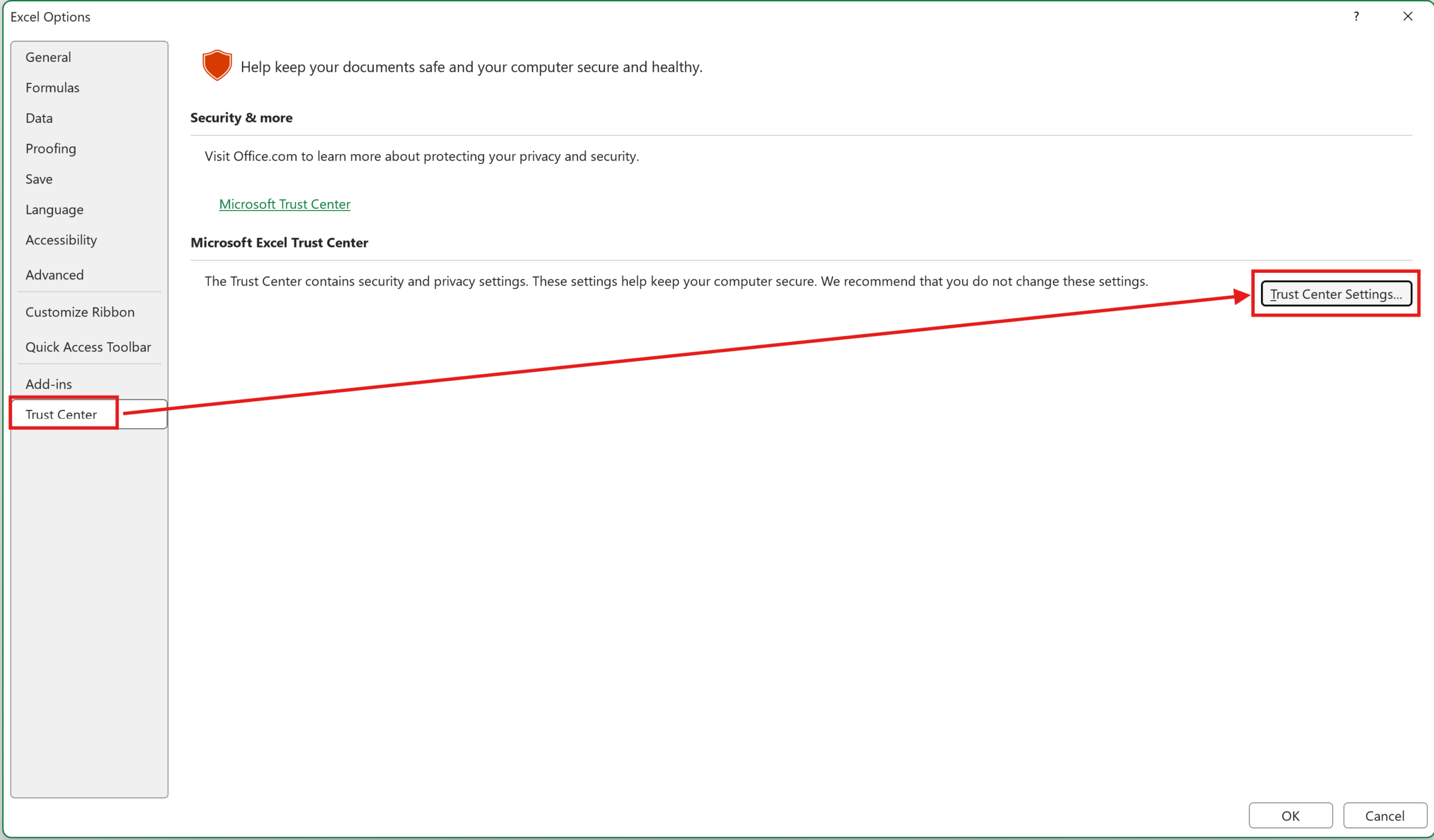
Open the Excel app (just the app, not a specific workbook) and go to “Options.”
Step 9
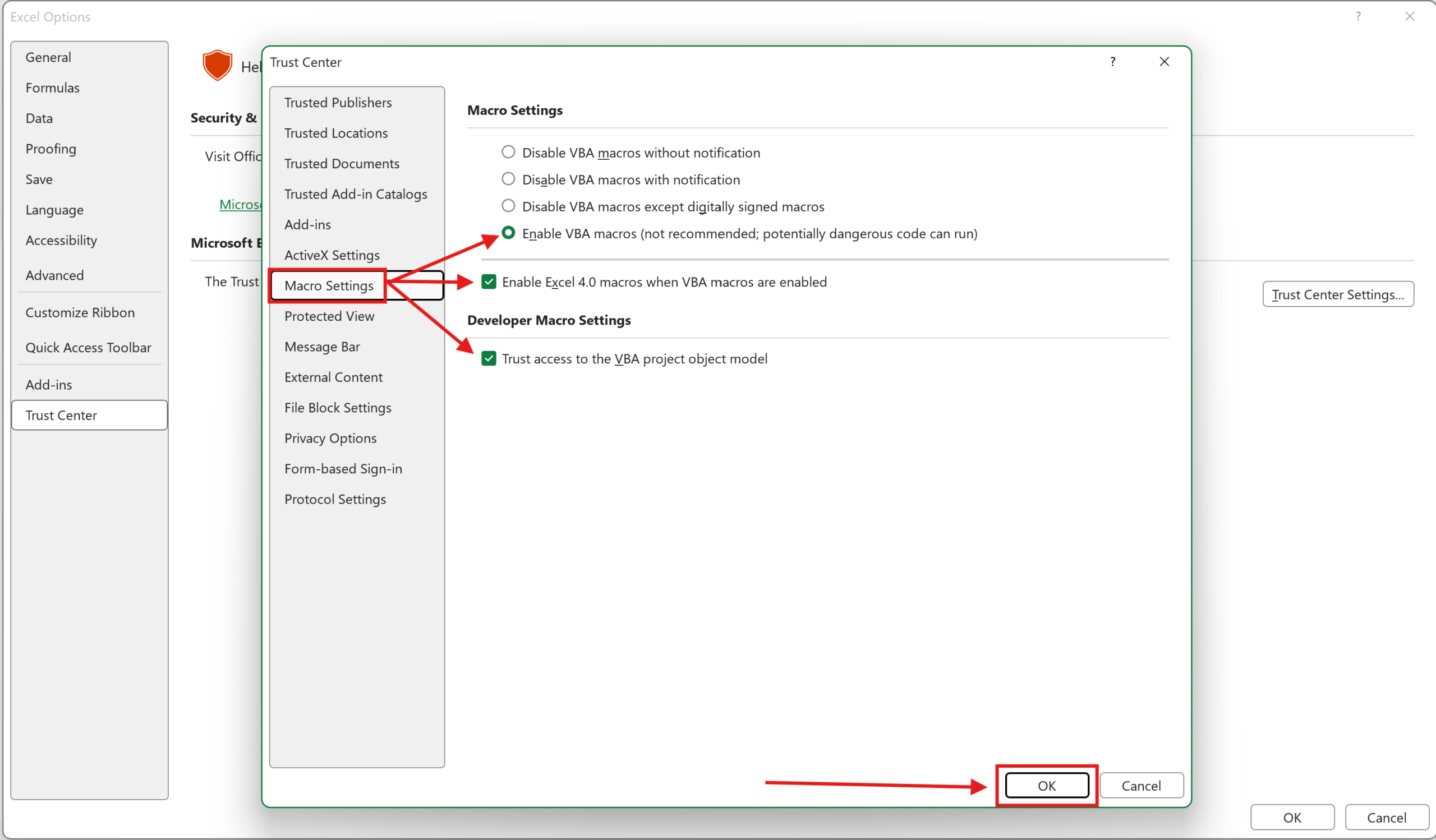
Select “Trust Center” from the left pane and click “Trust Center Settings” on the right
Step 10
Go to “Macro Settings” from the left pane, and enable the shown options
Step 11
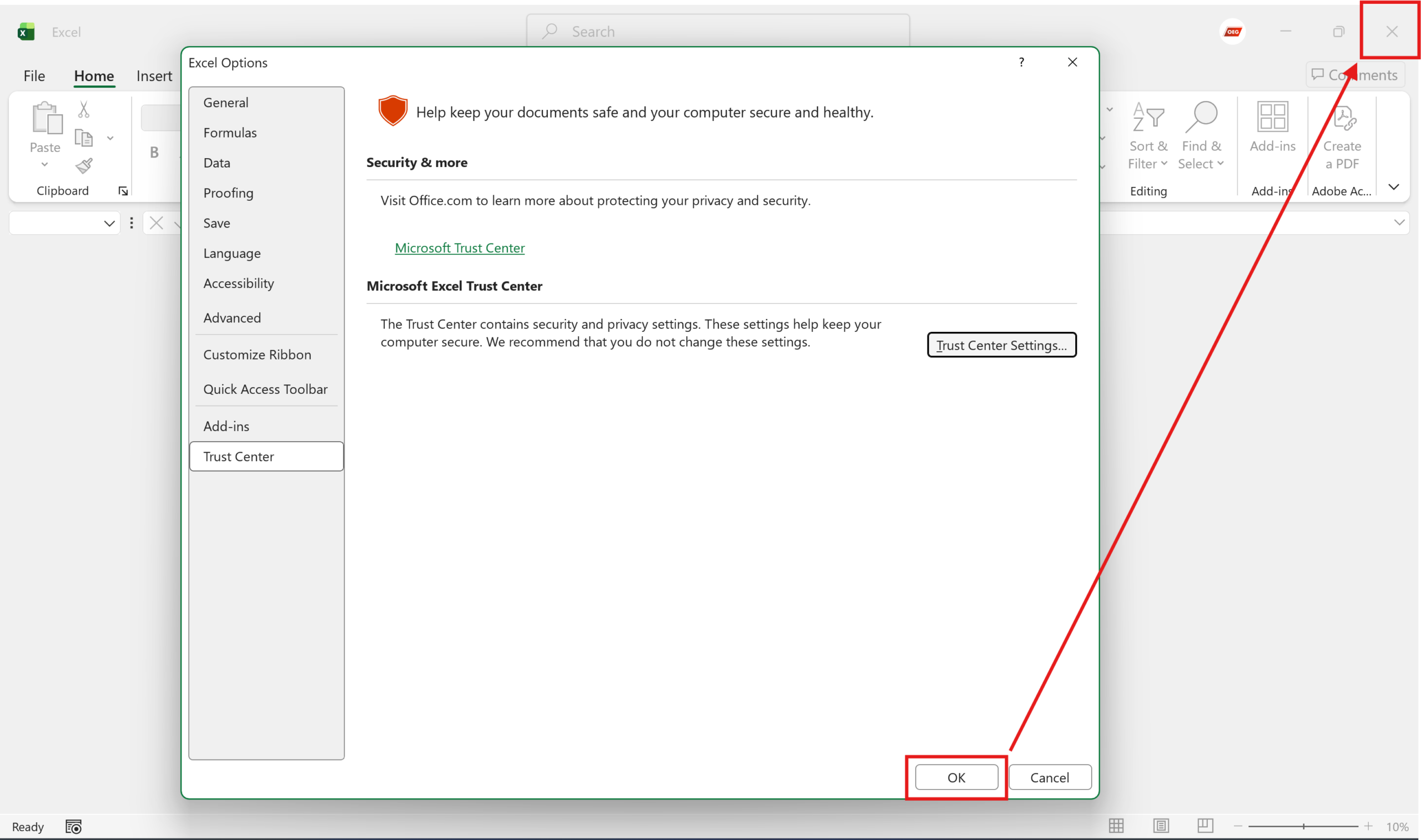
Click OK and close Excel
Step 12
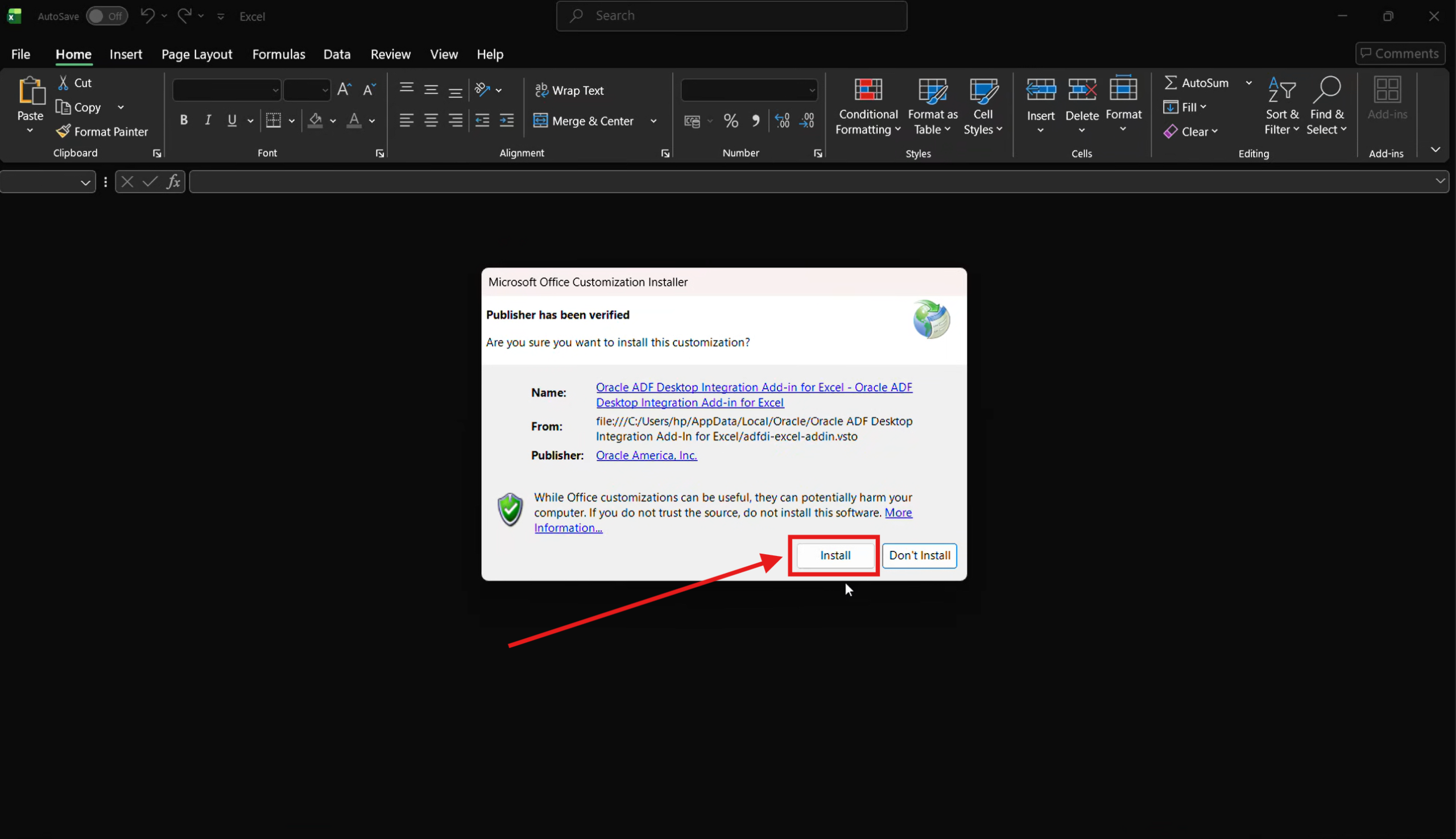
IMPORTANT: The next time you open an Excel with ADF-DI enabled, you will get this pop-up. Click Install (otherwise ADF-DI will not work). This is a one-time activity
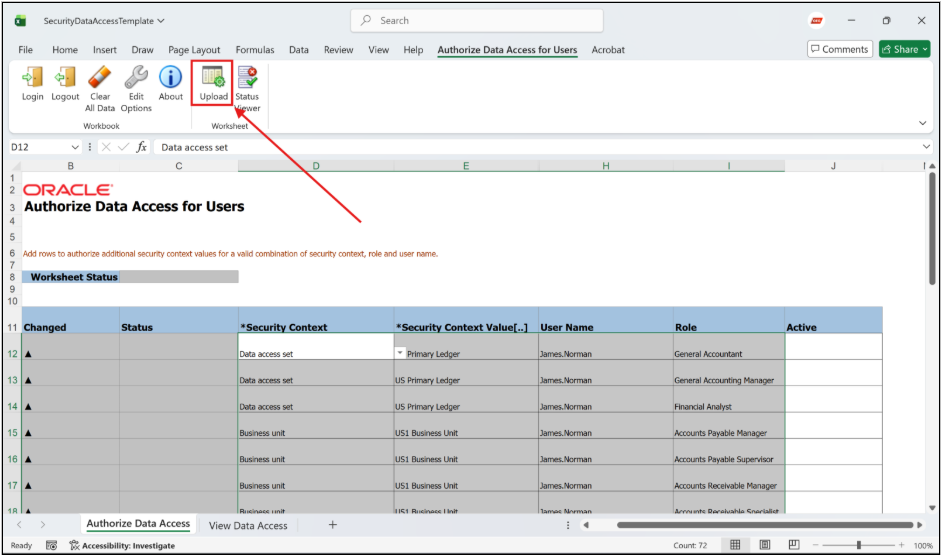
Step 13
Click “Upload.”
Understanding Oracle ADF Desktop Integration
Oracle Application Development Framework Oracle ADF is Oracle’s strategic framework for building enterprise applications. ADF Desktop Integration extends these capabilities into Microsoft Excel and allows Oracle Fusion users to interact with application data without leaving Excel.
The Application Desktop Framework Desktop Integration architecture enables users to:
- Download Oracle-managed spreadsheets.
- Enter business data offline.
- Validate records before submission.
- Upload information directly into Oracle Fusion.
- Reduce dependency on manual form-based entry.
This functionality is particularly useful when managing large datasets such as suppliers, customers, journals, employees, assets, inventory items, and other business records.
Oracle ADFDI Download and Installation Benefits
Organizations frequently search for terms such as “Oracle ADFDI download,” “ADF Desktop Integration download,” “ADFDI Desktop Integrator download,” and “Download Oracle ADF Desktop Integration Add-In for Excel” because the tool significantly simplifies Oracle Fusion data management.
Key advantages include:
- Bulk record creation and updates.
- Improved upload accuracy.
- Built-in Oracle validations.
- Faster transaction processing.
- Reduced administrative workload.
- Better user adoption through familiar Excel functionality.
Once the Oracle ADF Desktop Integration Add If In for Excel is installed correctly, users can work directly with Oracle-generated spreadsheets and perform uploads efficiently.
ADFDI Oracle Fusion Setup Best Practices
When performing an ADFDI Oracle Fusion setup, consider the following recommendations:
Enable Excel Macro Settings
ADF-DI relies on Excel macros and add-ins to communicate with Oracle Fusion. Ensure the required macro settings are enabled as shown during the setup process.
Complete the One-Time Add-In Installation
Many users encounter issues because they skip the installation prompt that appears when opening an ADF-DI workbook for the first time. Always click Install when prompted.
Use Oracle-Generated Templates
For successful uploads, use only Oracle-provided ADF-DI spreadsheets. These templates contain embedded validation rules and integration logic.
Keep Excel Updated
Using a supported version of Microsoft Excel helps ensure compatibility with Oracle ADF Desktop Integration.
Verify User Security Access
Successful uploads require appropriate Oracle Fusion roles and permissions. If upload errors occur, verify that the user has access to the relevant business objects.
ADFDI and FBDI: Understanding the Difference
Many Oracle Fusion users compare ADFDI and FBDI when selecting a data loading approach.
ADFDI
- Excel-based integration.
- Interactive validation.
- Real-time communication with Oracle Fusion.
- Ideal for smaller and medium-sized data loads.
- User-friendly interface.
FBDI
- File-Based Data Import method.
- Uses CSV files and ZIP packages.
- Suitable for large-scale data migrations.
- Typically used during implementations and conversions.
While ADFDI Oracle Cloud solutions are excellent for business users performing routine uploads, FBDI is often preferred for large-volume migration activities.
Limit of ADFDI
Although Oracle ADFDI is highly effective for day-to-day business operations, users should be aware of the limit of ADFDI in Oracle Fusion environments.
Some considerations include:
- Performance may vary with very large datasets.
- Workbook size limitations can affect upload efficiency.
- Upload duration depends on network connectivity.
- Security permissions impact accessible business objects.
- Certain business processes may still require FBDI for high-volume migrations.
Understanding these limitations helps organizations select the most appropriate data loading method for specific business requirements.
Common Issues During Oracle ADFDI Setup
Add-In Not Visible in Excel
If the Oracle ADF Desktop Integration Add-In for Excel does not appear:
- Restart Excel.
- Verify installation completion.
- Confirm Trust Center settings are configured correctly.
Upload Button Not Working
Check that:
- The workbook is ADF-DI enabled.
- Macros are enabled.
- The add-in installation prompt was completed.
Connection Errors
Verify:
- Oracle Fusion access.
- Network connectivity.
- User credentials.
- Required security permissions.
Conclusion
ADF Desktop Integration is one of the most effective tools available for managing Oracle Fusion Cloud data through Microsoft Excel. By completing the Oracle ADFDI setup process and configuring Excel correctly, users can perform uploads, updates, and maintenance activities more efficiently.
Whether you are searching for ADFDI Oracle Fusion, Oracle ADFDI Download, Oracle Cloud ADFDI, Oracle ADF Desktop Integration Add In for Excel Download, or information about Oracle ADF 11g Desktop Integration Add In for Excel, following the setup process outlined above will ensure a successful installation and a smooth data upload experience within Oracle Fusion Cloud.