
Managing user security manually in Oracle Fusion Cloud can become a time-consuming task, especially when multiple users require the same set of roles and permissions. Instead of assigning each role individually, Oracle Fusion provides a faster approach by allowing administrators to copy role memberships from existing users when creating a new user account.
This method helps reduce manual effort, improves consistency in role assignments, and minimizes the risk of missing required permissions. It is particularly useful when onboarding new employees, creating users for specific business functions, or setting up users who require access similar to existing team members.
In this guide, you will learn how to assign roles in bulk in Oracle Fusion Cloud by importing role memberships from existing users through the Security Console.
Why Use Bulk Role Assignment in Oracle Fusion?
User security is a critical part of Oracle Fusion Cloud administration. Every user must have the appropriate roles to perform their job responsibilities. Assigning these roles individually can be inefficient when multiple users need identical access.
Using bulk role assignment provides several benefits:
- Reduces manual role assignment effort.
- Speeds up user onboarding.
- Maintains consistency across similar user profiles.
- Minimizes security configuration errors.
- Simplifies Oracle Fusion user management.
- Improves administrative efficiency.
By importing roles from existing users, administrators can quickly replicate security access without manually searching for and assigning each role.
Prerequisites Before Assigning Roles in Bulk
Before beginning the process, ensure that:
- You have access to Oracle Fusion Security Console.
- You have the required security privileges to create users.
- Existing users with the correct role assignments are already available.
- You know which users contain the role memberships required for the new user.
- Mandatory user information is available for account creation.
Step 1
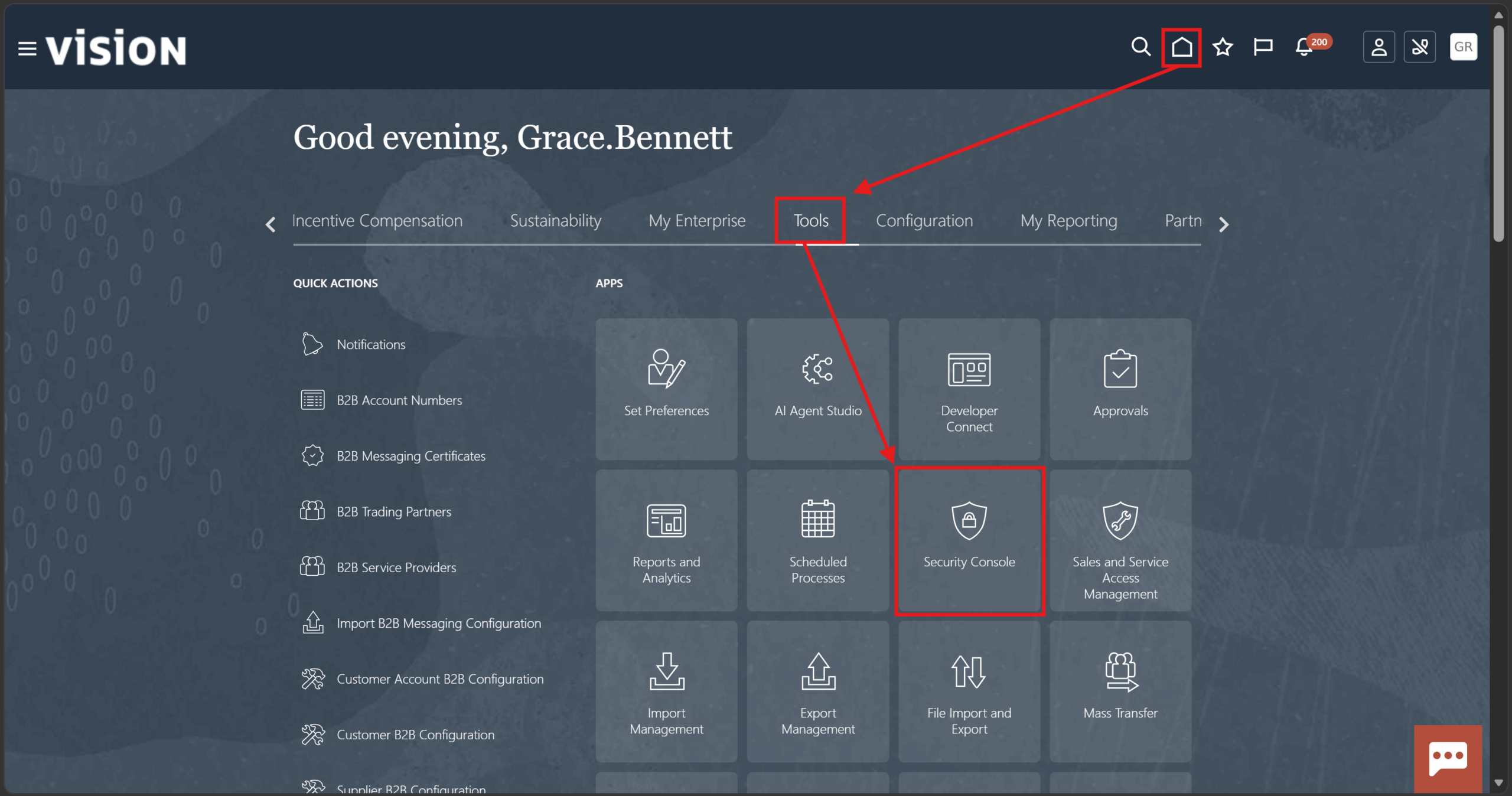
Go to Fusion Home > Tools > Security Console
Step 2
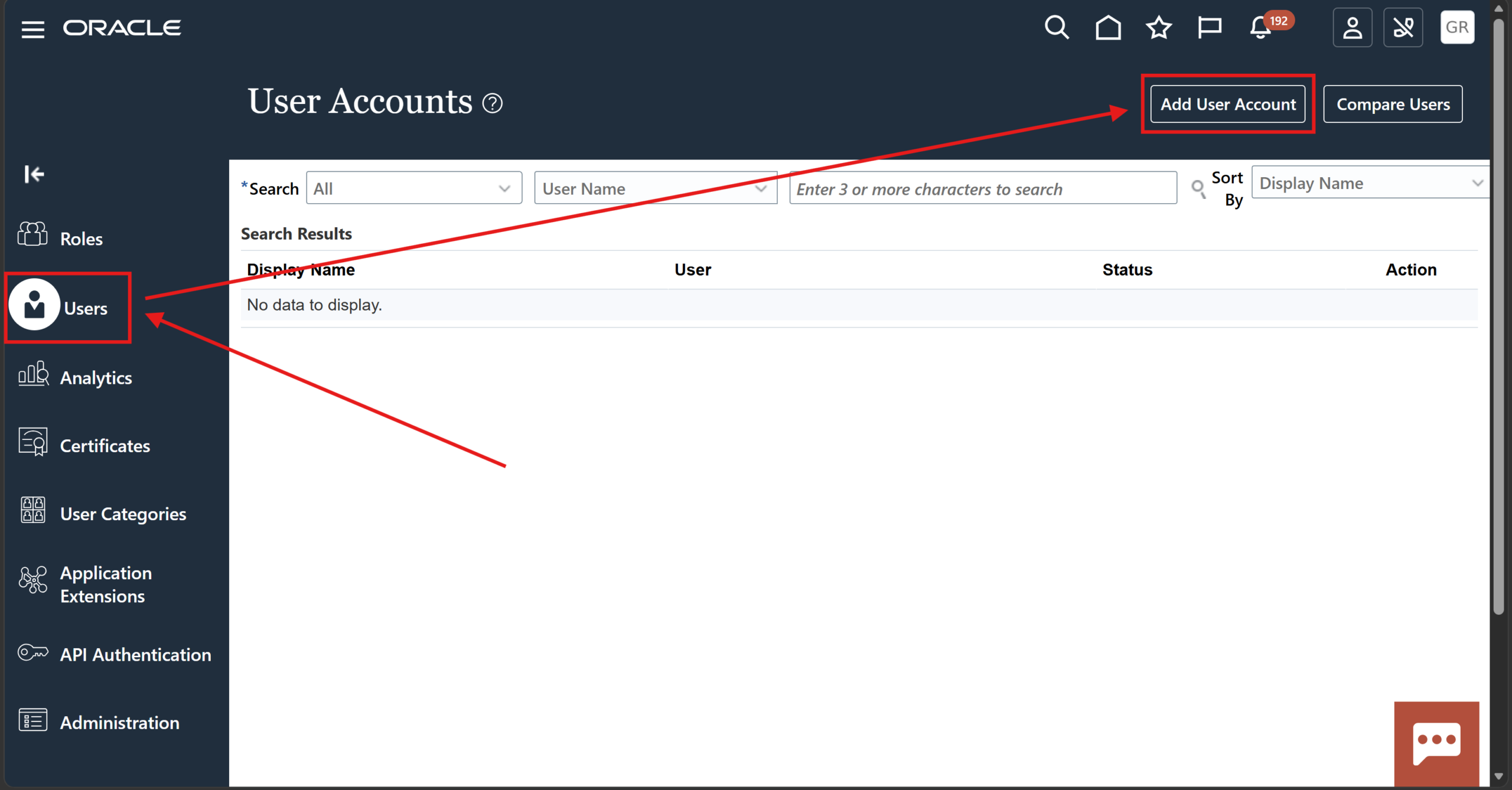
In the left pane, select the “Users” tab and then click “Add User Account” button
Step 3
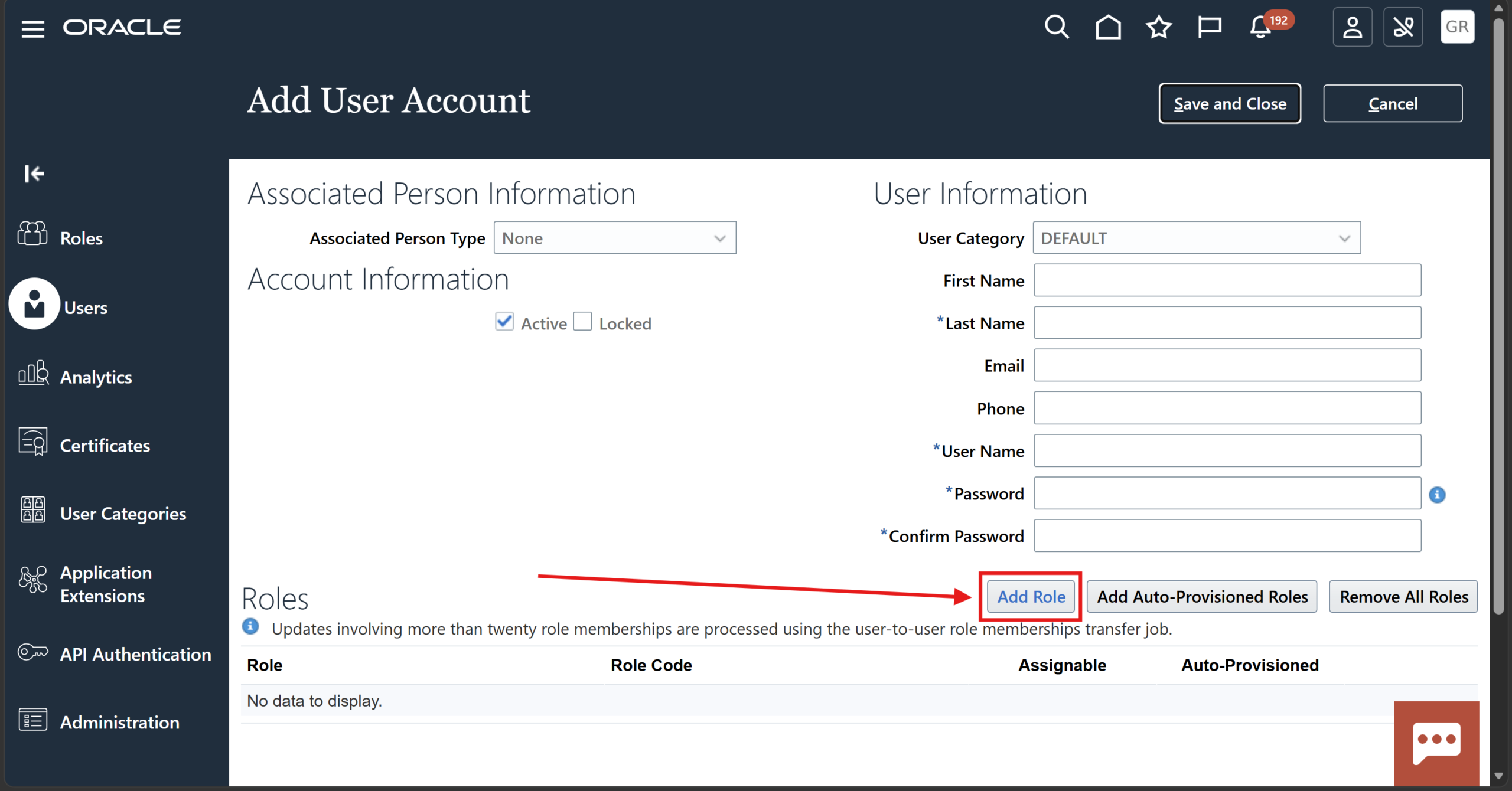
Click “Add Role.”
Step 4
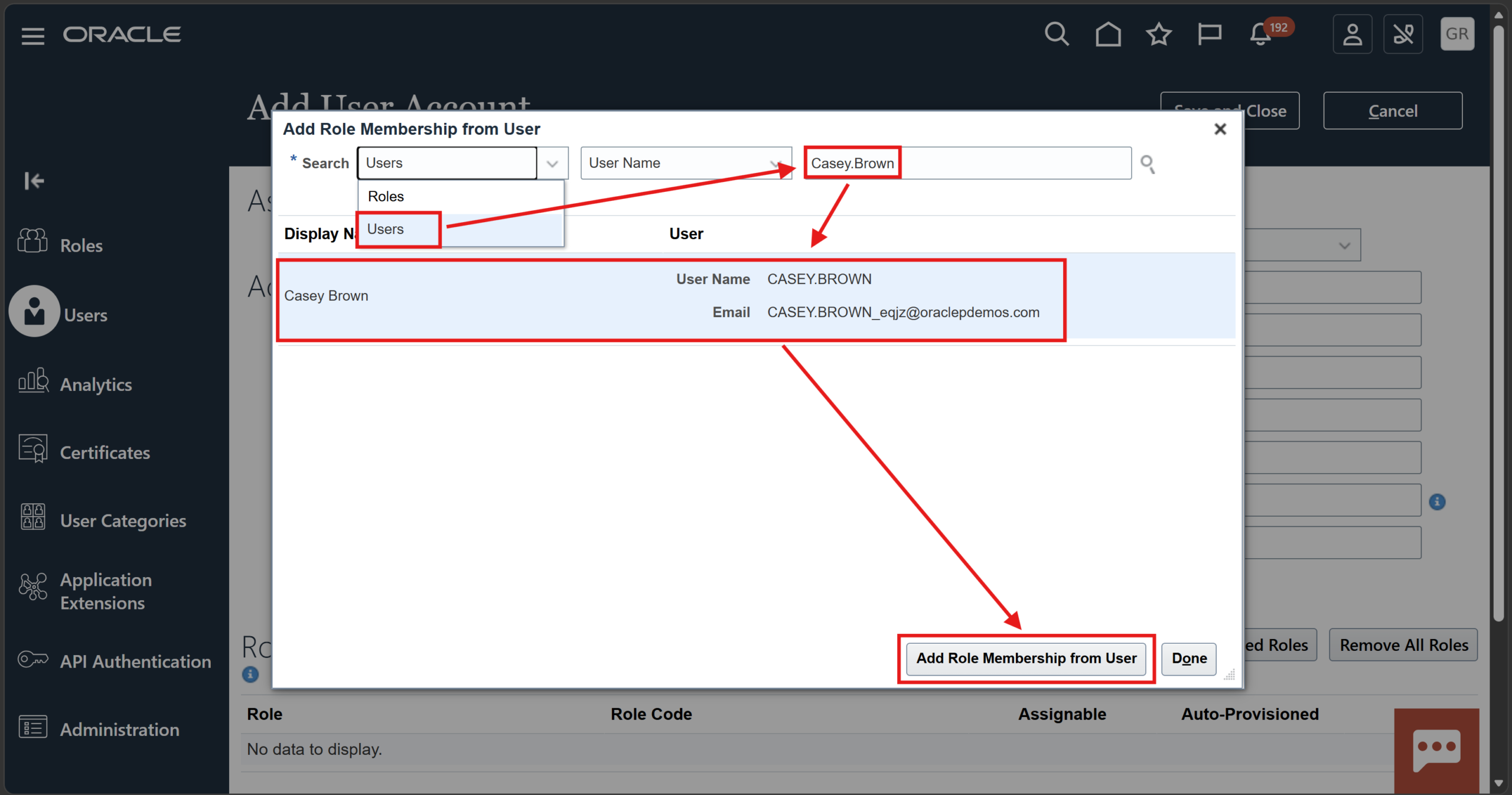
Change the dropdown from “Roles” to “Users,” search the relevant username, select the result and click “Add Role Membership from User.”
Step 5
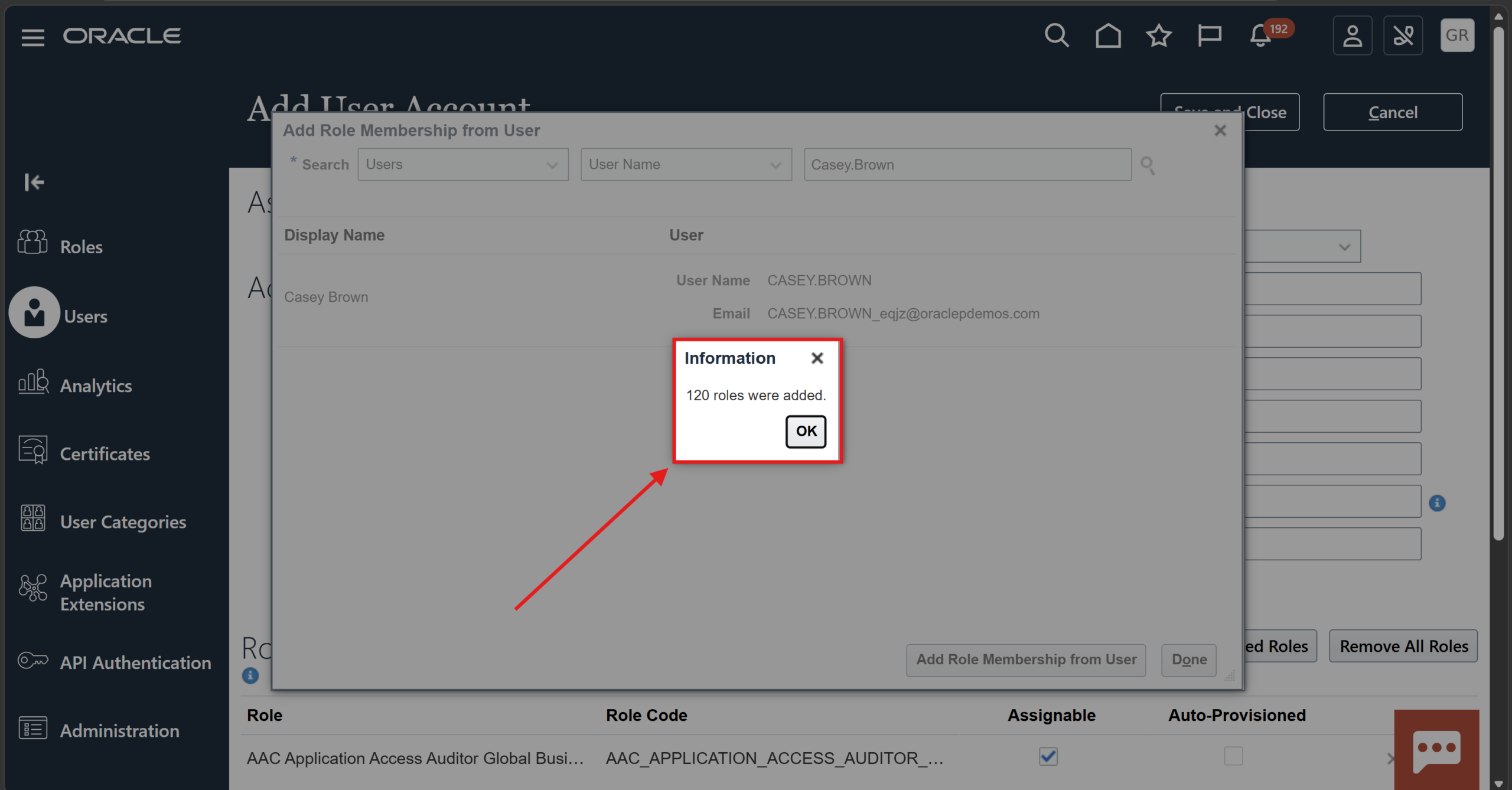
See the confirmation of all the added roles
Step 6
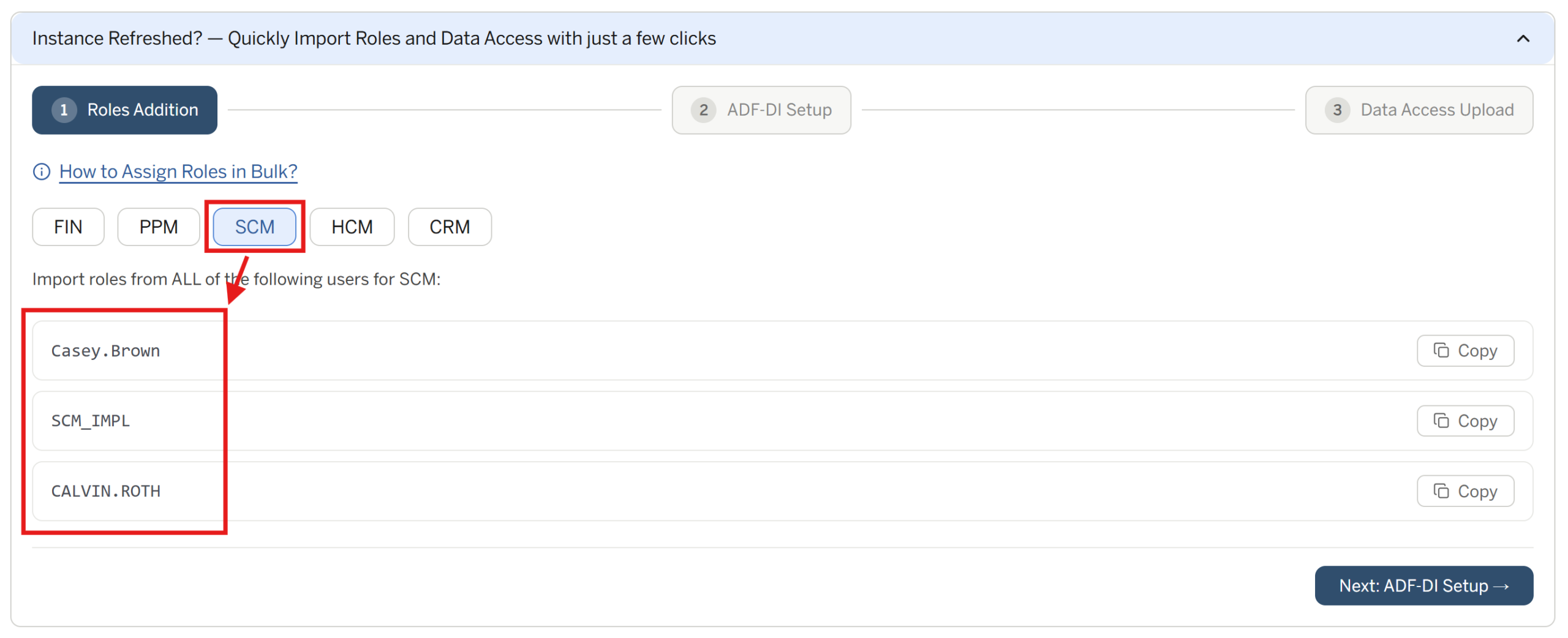
Ensure that you import roles from ALL the provided users for your specific module (NOT just Casey.Brown)
Step 7
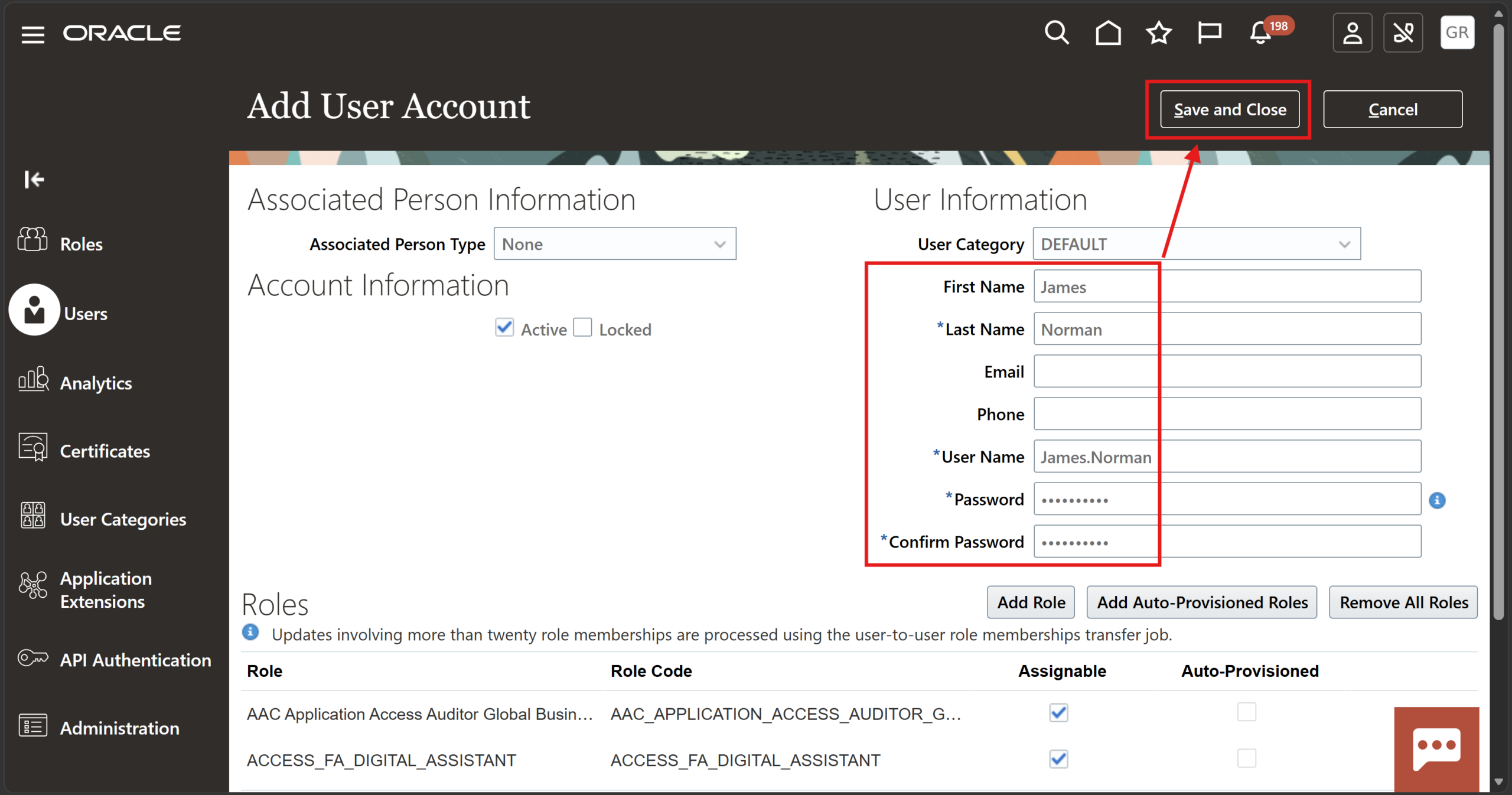
Enter the mandatory user creation details and click “Save and Close” (It may take up to 2 minutes to save this)
Step 8
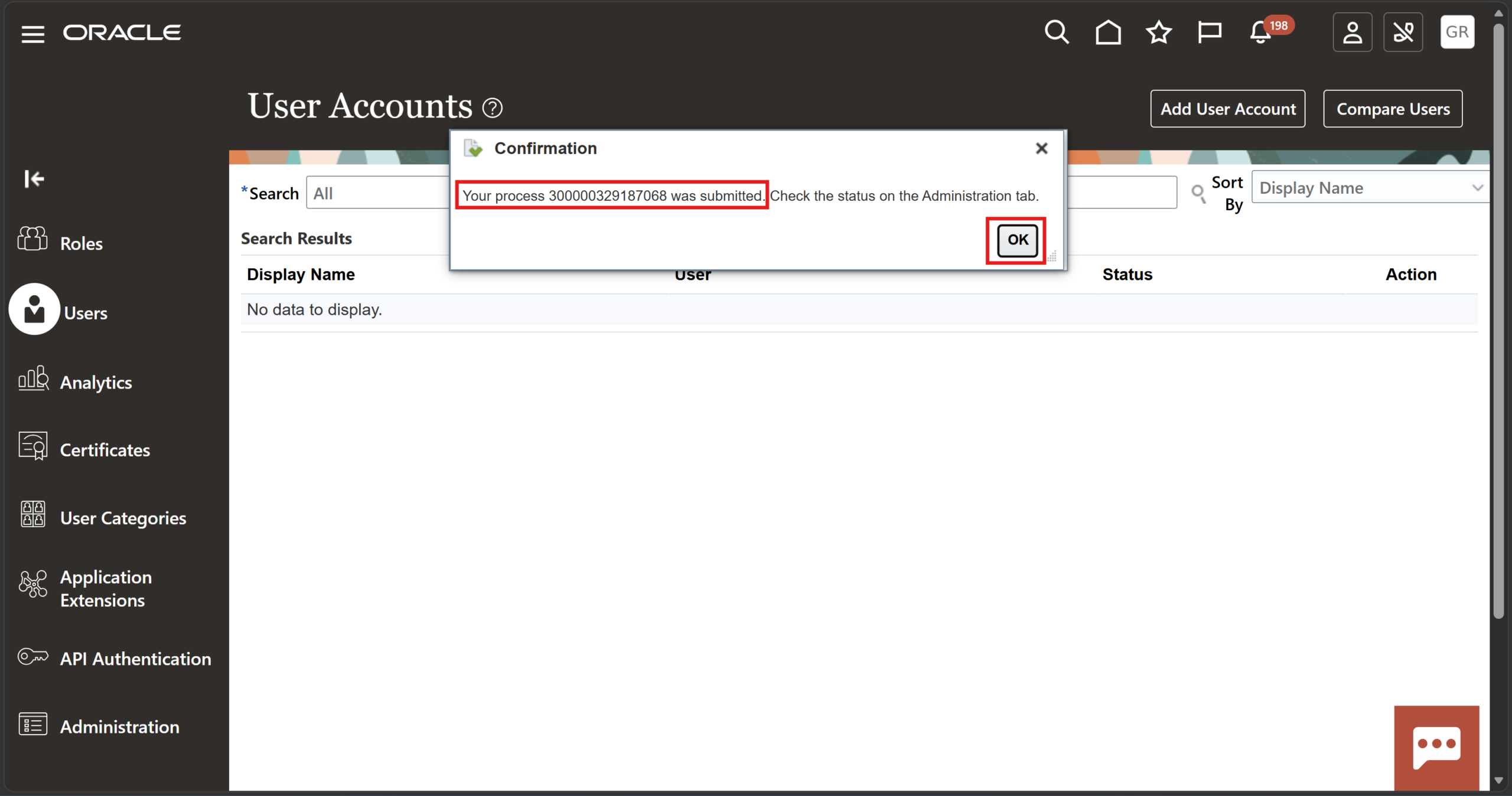
See that the process is submitted, which will import all these roles to the user you just created
Understanding Role Membership Import
The role membership import feature in Oracle Fusion Cloud allows administrators to copy security roles from existing users rather than assigning each role individually.
When you select a user and choose the option to add role memberships, Oracle Fusion automatically imports the security roles assigned to that user into the new user account being created.
This functionality helps ensure that:
- Security access remains standardized.
- New users receive the correct permissions.
- Administrative tasks are completed faster.
- Human error during role assignment is reduced.
Best Practices for Oracle Fusion Role Assignment
To ensure successful role management, consider the following recommendations.
Review Existing User Access
Before importing roles, verify that the source user has the correct security access. Any unnecessary roles assigned to the source user may also be copied.
Import Roles from All Required Users
In some business modules, permissions may be distributed across multiple users. Ensure you import role memberships from all relevant users as indicated in the process.
Validate User Access After Creation
Once the user account is created and the role import process completes, review the assigned roles to confirm all required permissions have been successfully applied.
Follow Security Governance Policies
Organizations should periodically review user access and role assignments to maintain compliance and reduce security risks.
Use Standardized Security Templates
Where possible, establish standard user profiles for different business functions and use those profiles as the source for role imports.
Common Use Cases for Bulk Role Assignment
Bulk role assignment is commonly used in the following scenarios:
New Employee Onboarding
When a new employee joins a department, administrators can quickly replicate the security profile of an existing employee with similar responsibilities.
Department Expansion
If multiple users are being added to the same business function, importing role memberships helps streamline setup activities.
Project-Based User Creation
Temporary project users often require access similar to existing team members. Bulk role assignment reduces setup time.
Security Standardization
Organizations use role imports to maintain consistent access across users performing similar job functions.
Common Issues and Troubleshooting
Missing Roles After Import
If expected roles are not imported:
- Verify the source user has the required roles.
- Ensure all relevant users were selected during the import process.
- Confirm that the role assignment process completed successfully.
Save Process Taking Longer Than Expected
Oracle Fusion may require additional processing time to create users and assign security roles. Waiting up to two minutes is normal in some environments.
User Cannot Access Required Functions
If the new user cannot access specific functionality:
- Verify that all required roles were imported.
- Review data security policies.
- Confirm role provisioning completed successfully.
Security Console Access Issues
Only users with appropriate administrative privileges can create users and assign roles. Ensure your account has the necessary permissions.
Benefits of Bulk Role Assignment in Oracle Fusion
Organizations that use the role membership import feature benefit from:
- Faster user provisioning.
- Reduced administrative workload.
- Improved security consistency.
- Lower risk of manual errors.
- Simplified access management.
- Better compliance with security standards.
As Oracle Fusion environments continue to grow, efficient user management becomes increasingly important. Bulk role assignment provides a practical and scalable solution for managing user security across the organization.
Conclusion
Assigning roles individually can be a lengthy and error-prone process, particularly when users require multiple security roles. Oracle Fusion Cloud simplifies this activity through the role membership import feature available in the Security Console.
By following the steps outlined in this guide, administrators can quickly create users, import role memberships from existing users, and ensure consistent access across business functions. This approach improves efficiency, reduces manual effort, and supports better security management within Oracle Fusion Cloud.