
Managing user security manually in Oracle Fusion can become time-consuming, especially when multiple roles, ledgers, and business units need to be assigned across users. The bulk upload feature for Data Access helps streamline this process by allowing administrators to upload user data access through Excel instead of configuring each access individually. This approach improves efficiency, reduces manual effort, and helps maintain consistent Oracle Fusion security management across the organization.
In Oracle Fusion Financials, Data Access controls which ledgers, business units, and financial information users can view and manage. Proper access data management is essential for maintaining security, compliance, and operational efficiency. Rather than assigning permissions for one user at a time, administrators can use bulk upload functionality to manage access data for multiple users quickly and accurately.
This guide explains how to upload Data Access in bulk using the Manage Data Access for Users task in Oracle Fusion Financials.
What Is Data Access in Oracle Fusion?
Data Access determines the financial data, business units, and ledgers that a user can access within Oracle Fusion. Effective data access management ensures that users can perform their responsibilities while maintaining proper security controls.
Organizations often need to assign access to multiple users across different business units and ledgers. Performing these updates manually can be time-consuming and prone to errors. Bulk upload simplifies data -accessing activities by allowing administrators to update access permissions through a spreadsheet.
Common types of data access in Oracle Fusion include:
- Ledger access
- Business Unit access
- Financial Reporting access
- Asset Book access
- Cost Organization access
Using the bulk upload process helps administrators manage access database permissions efficiently while maintaining consistency across the system.
Prerequisites Before Uploading Data Access
Before starting the process, ensure the following requirements are met:
- Access to Setup and Maintenance.
- Appropriate security privileges to manage user data access.
- Oracle ADF Desktop Integrator (ADF-DI) installed and configured.
- Microsoft Excel is available on a Windows machine.
- Access credentials provided through the implementation portal.
- The user account for which Data Access will be assigned.
Note: The downloaded spreadsheet uses Oracle ADF Desktop Integrator technology. Ensure ODAC and other required Oracle client components are installed if required by your organization’s environment.
Benefits of Bulk Data Access Upload
Using the bulk upload functionality offers several advantages:
- Reduces manual configuration effort.
- Improves accuracy of access assignments.
- Enables faster user onboarding.
- Simplifies access data management.
- Supports large-scale Oracle Fusion ERP implementations.
- Ensures consistency across multiple users and business units.
How to Upload Data Access in Bulk
Follow the steps below to complete this process:
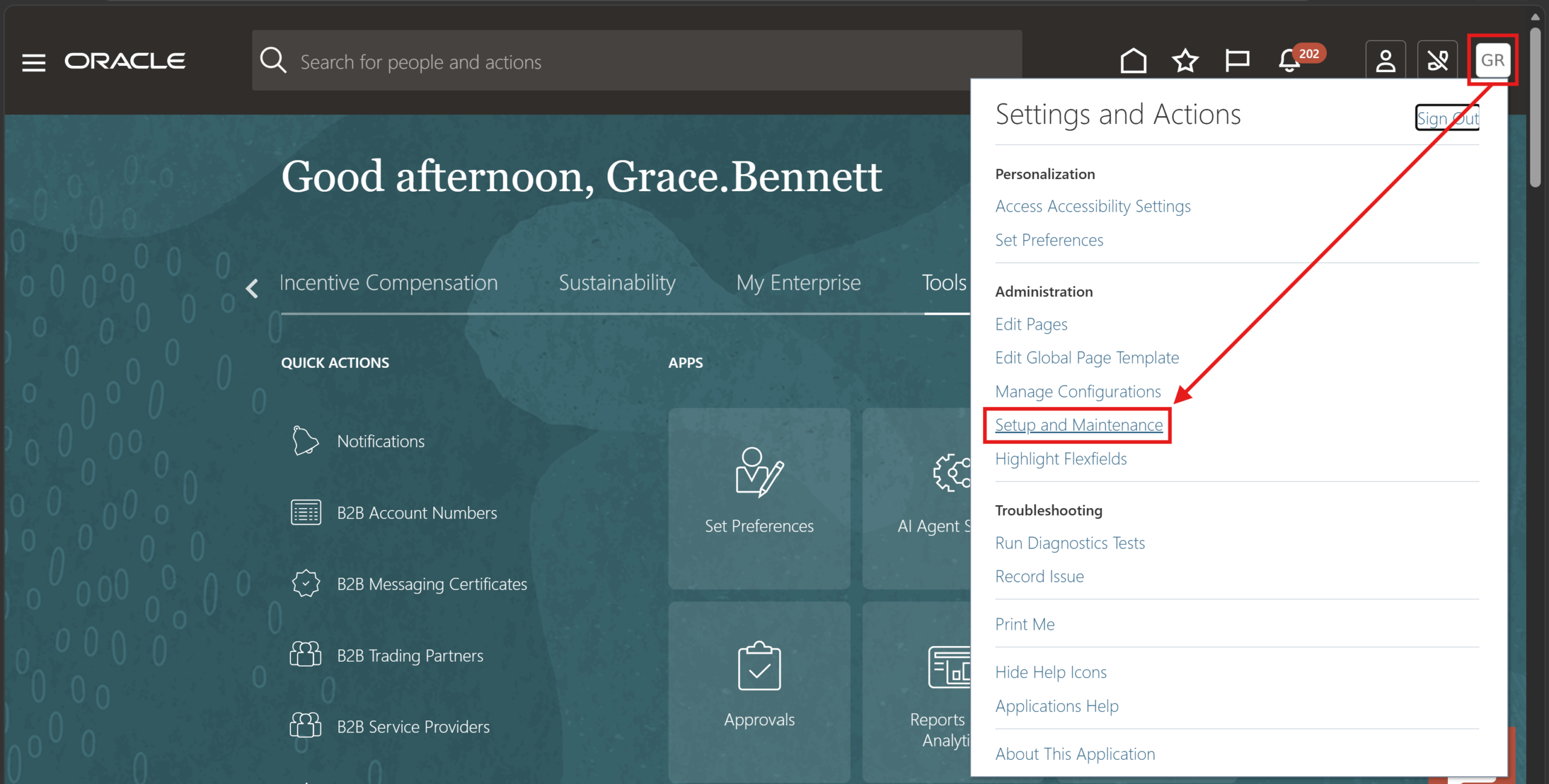
Step 1
Click on your username and go to “Setup and Maintenance”
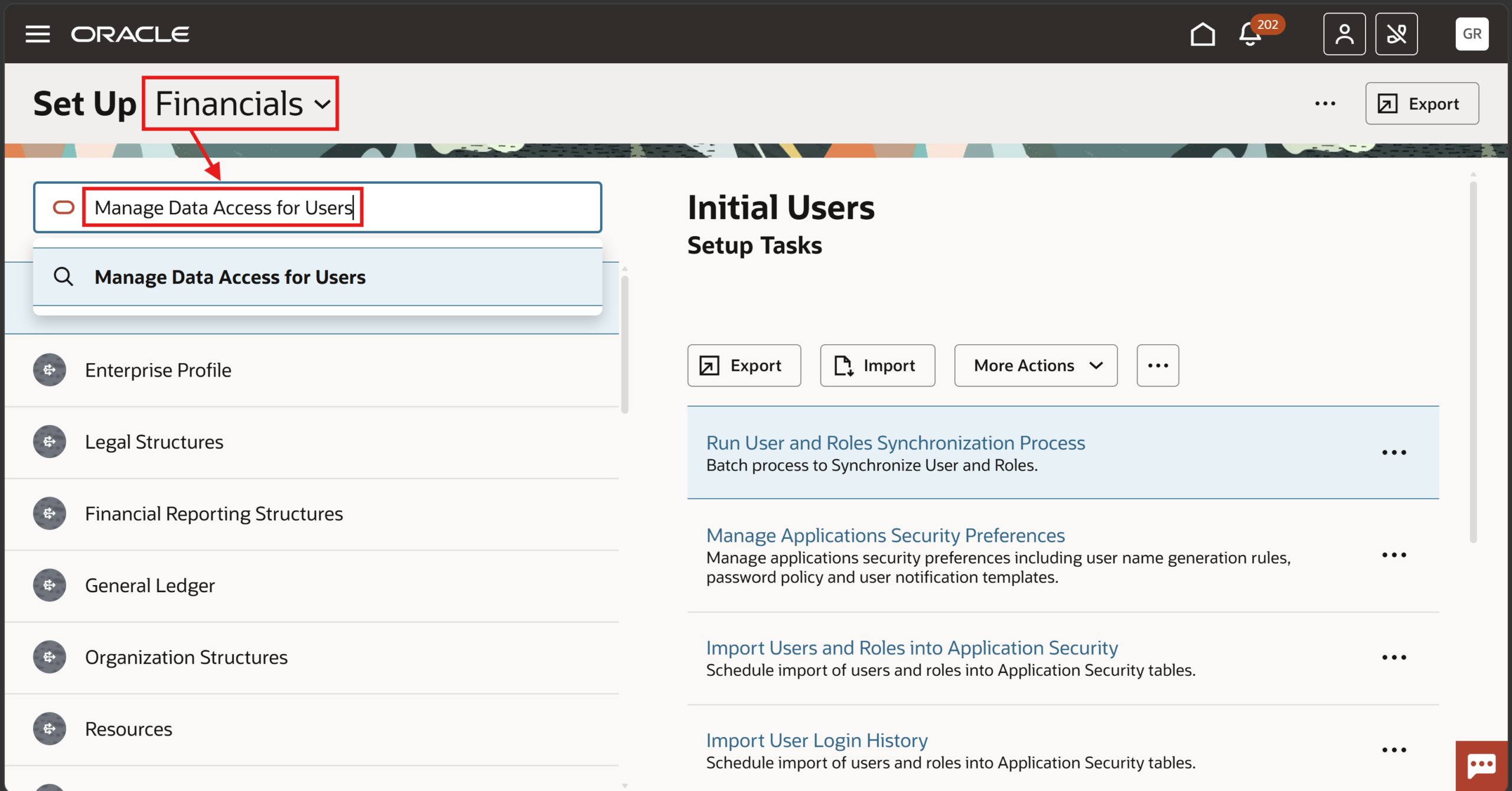
Step 2
Select “Financials” and search for the task and select “Manage Data Access for Users”
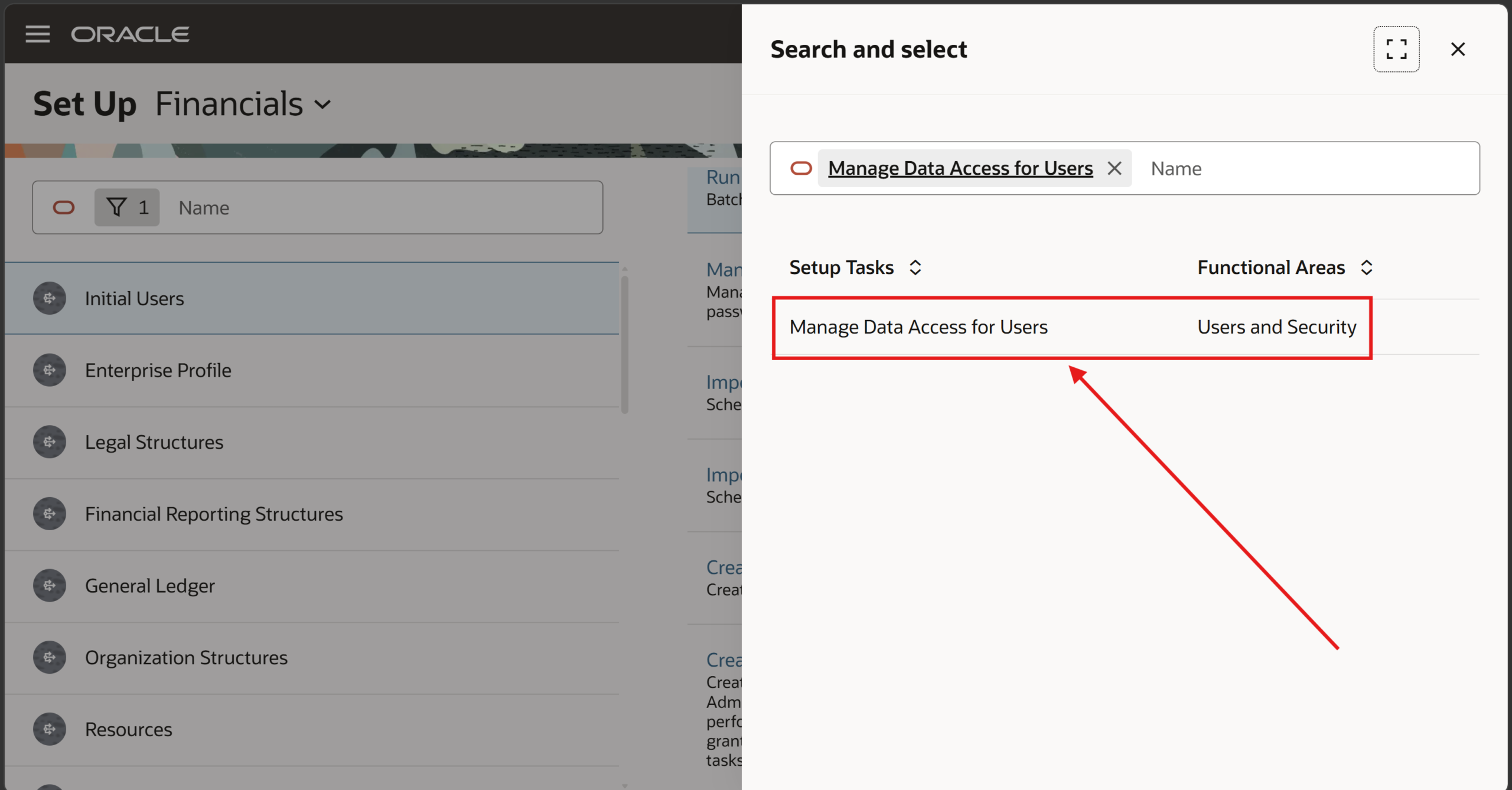
Step 3
Select the task
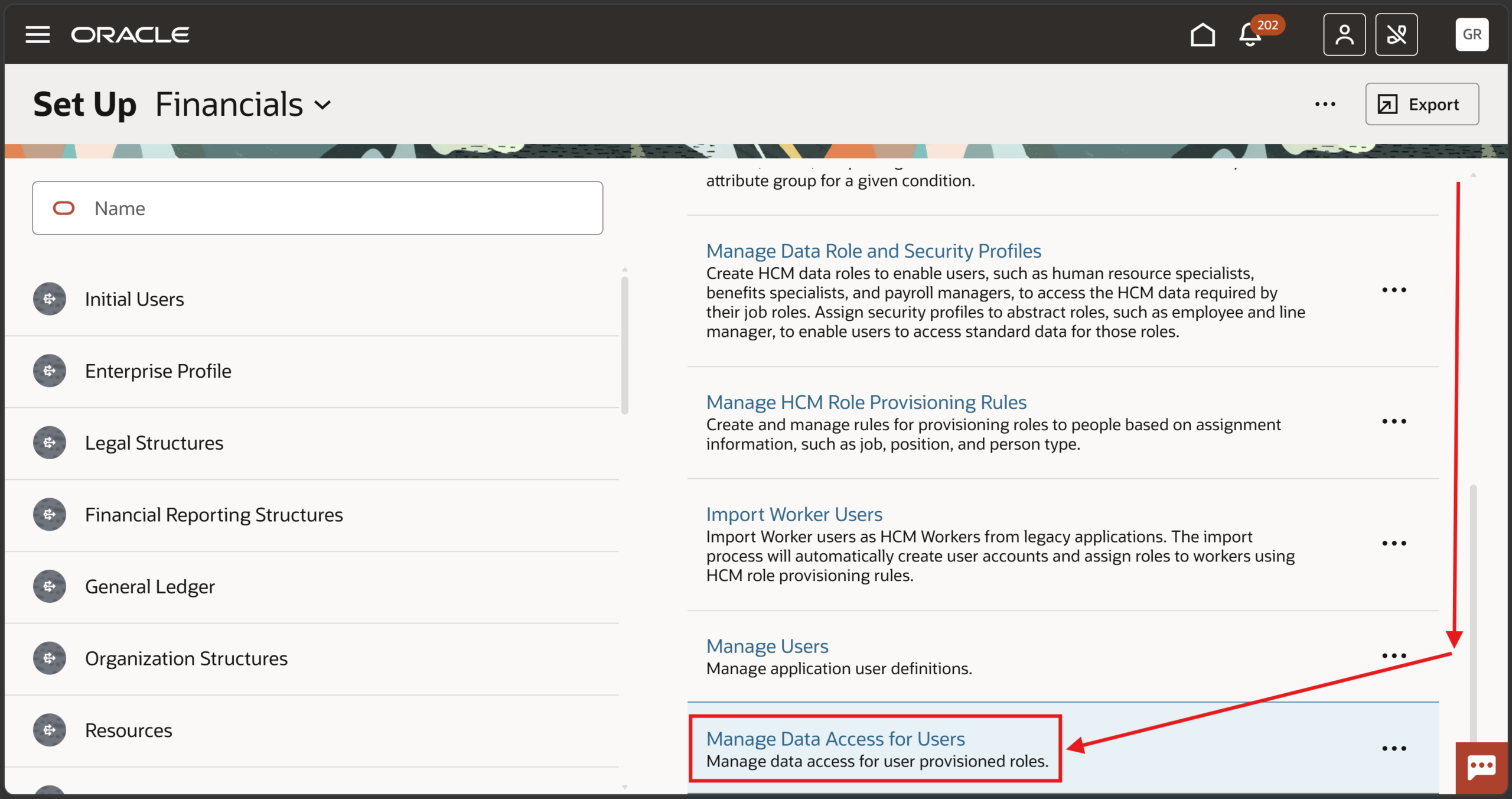
Step 4
Scroll down and select the task
Step 5
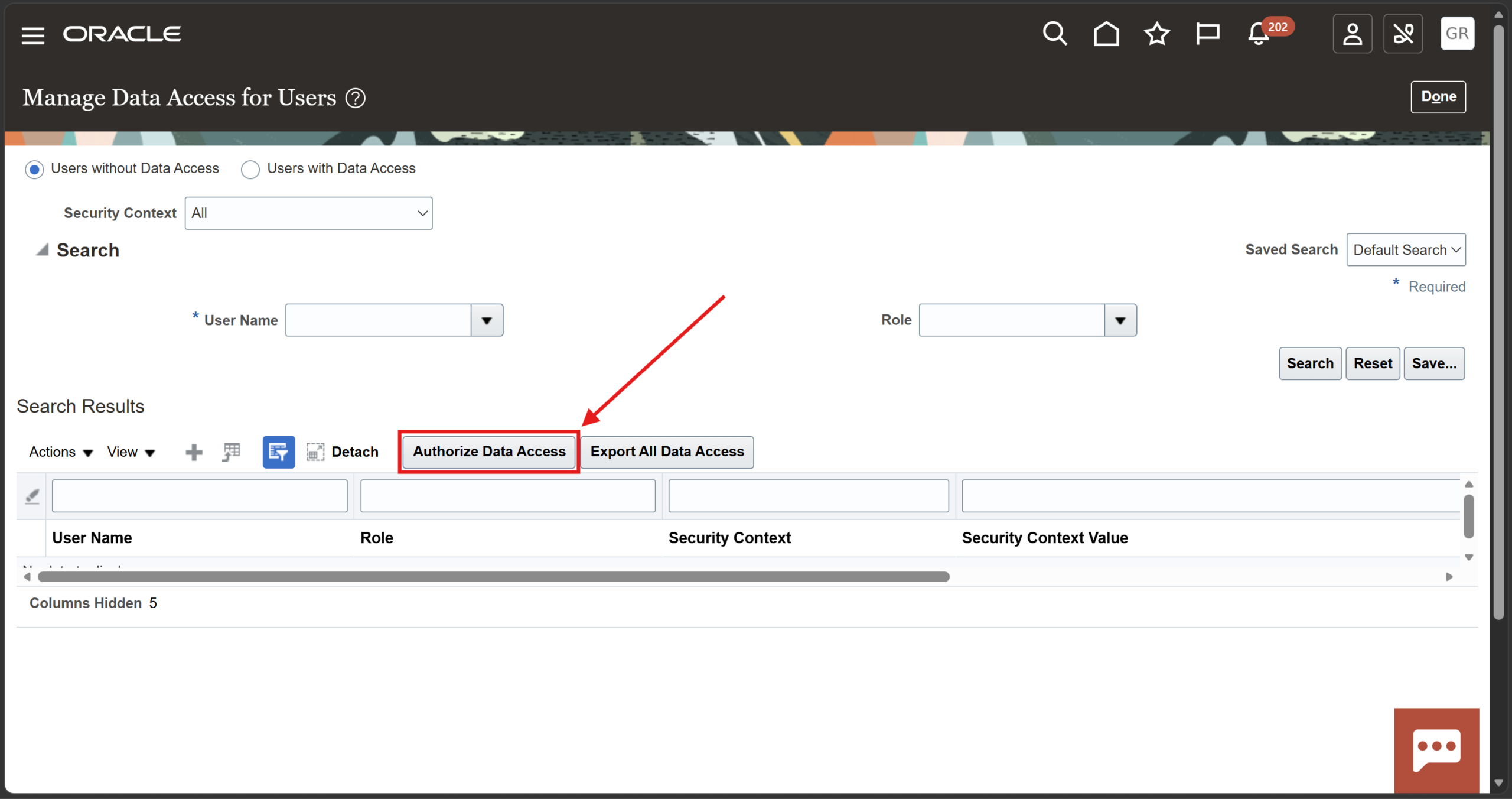
Click “Authorize Data Access”
Step 6
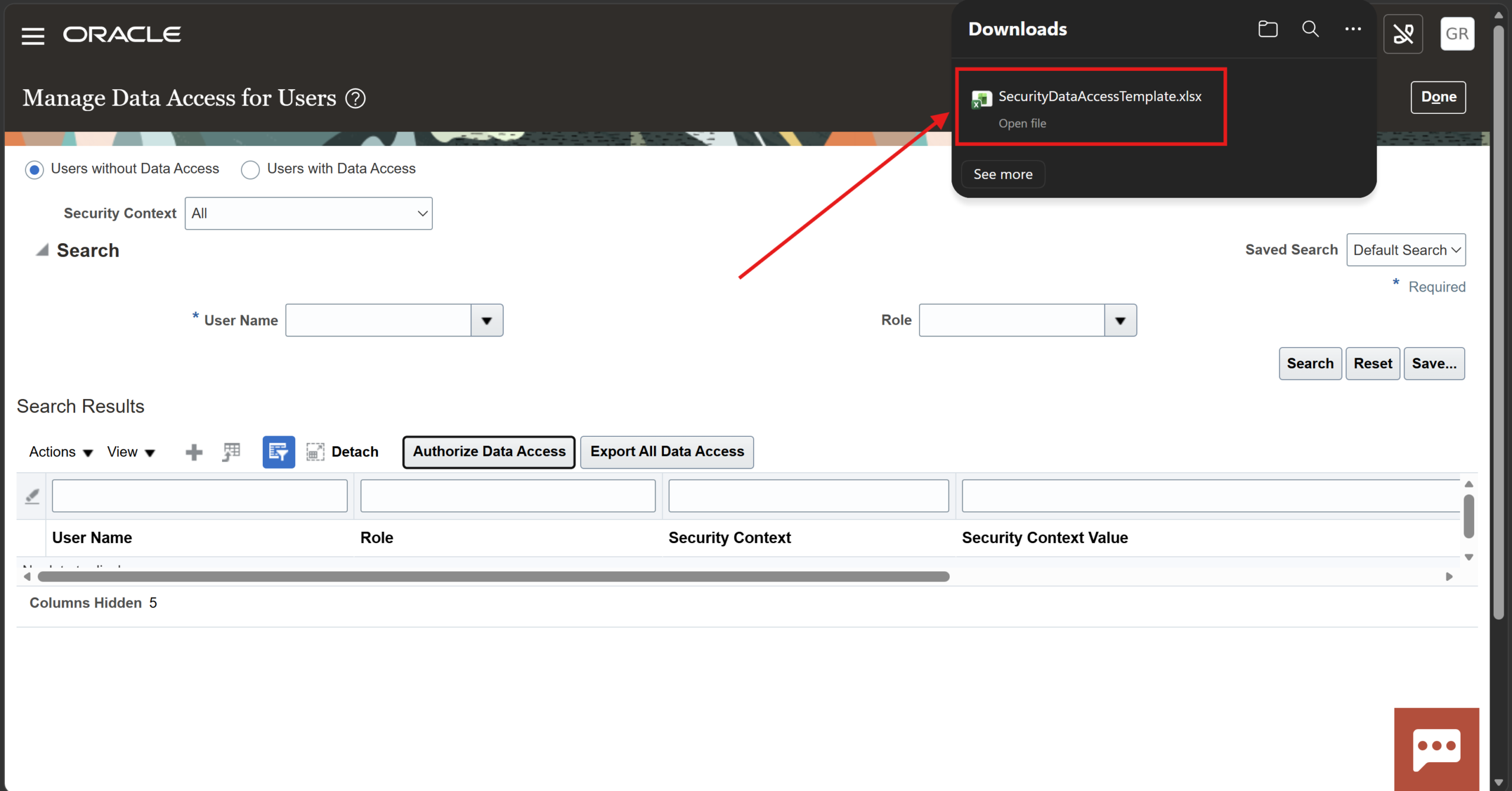
An excel workbook will be downloaded. Click on it to open
Step 7
You will get a pop-up for connecting the sheet with the instance. Click Yes
Step 8
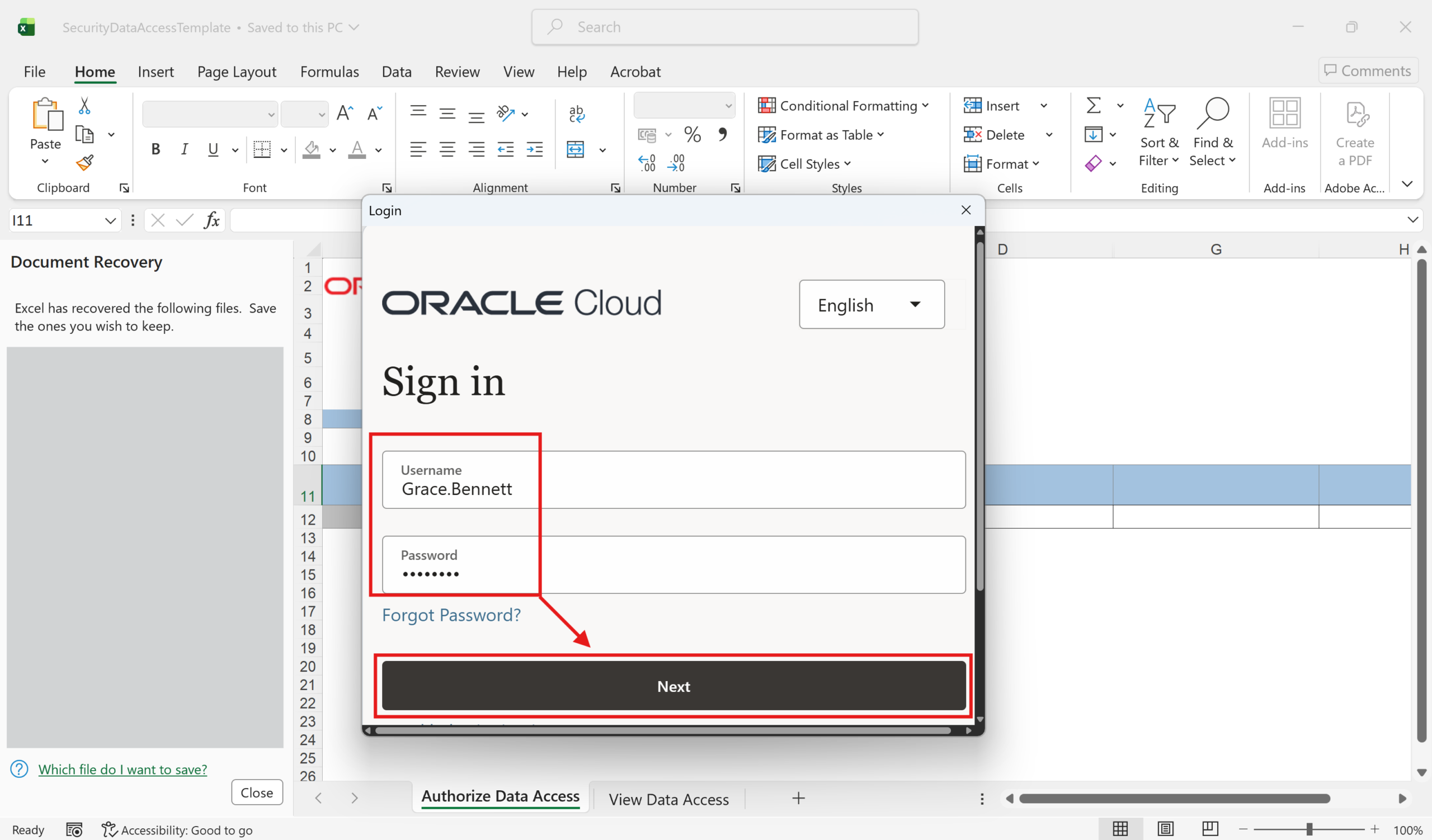
Enter the user credentials provided on PORTAL (NOT the user you recently created). Wait for the loading to complete
Step 9
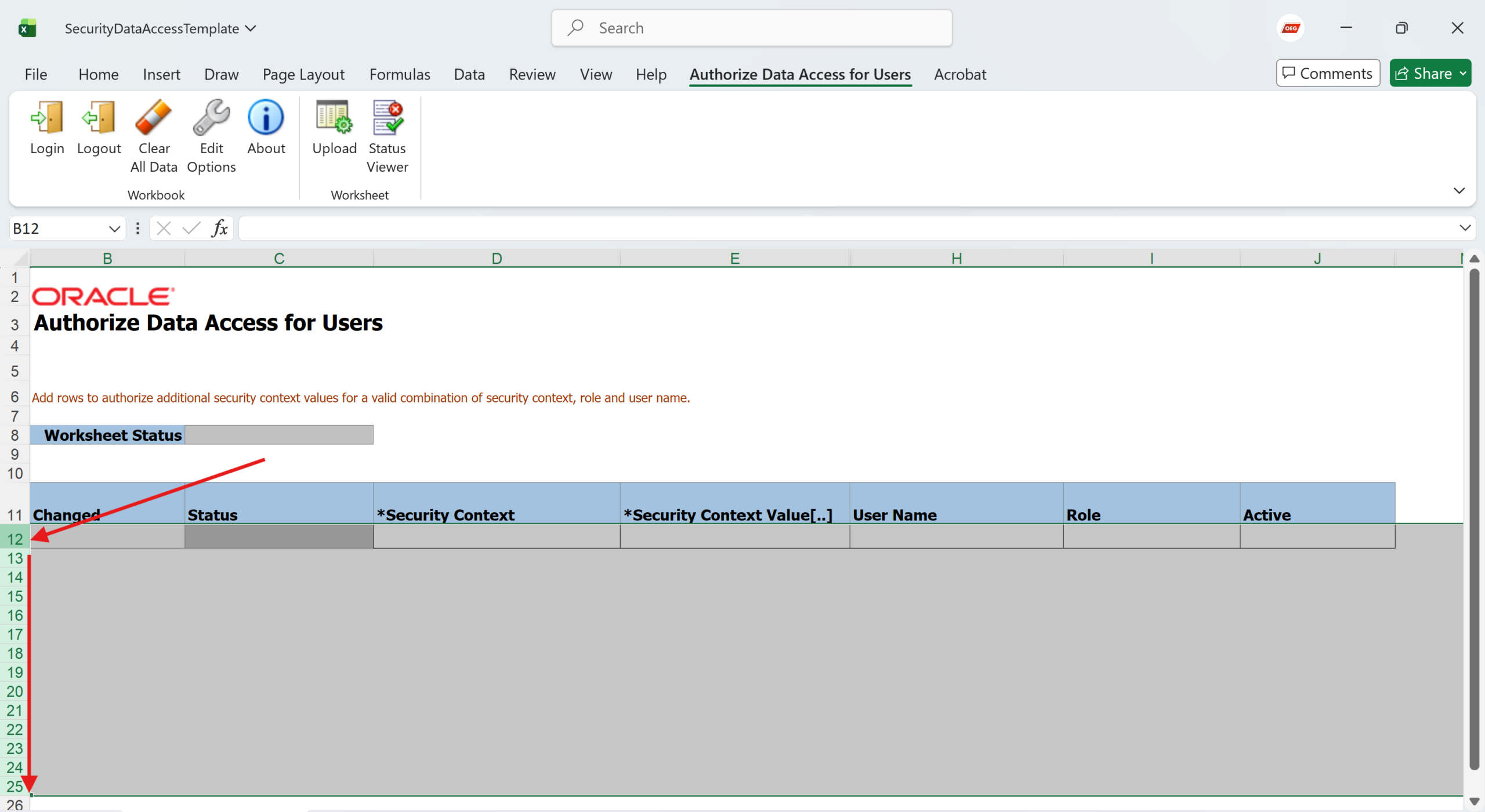
Select rows from 12. Add enough rows to accommodate the entire selection
Step 10
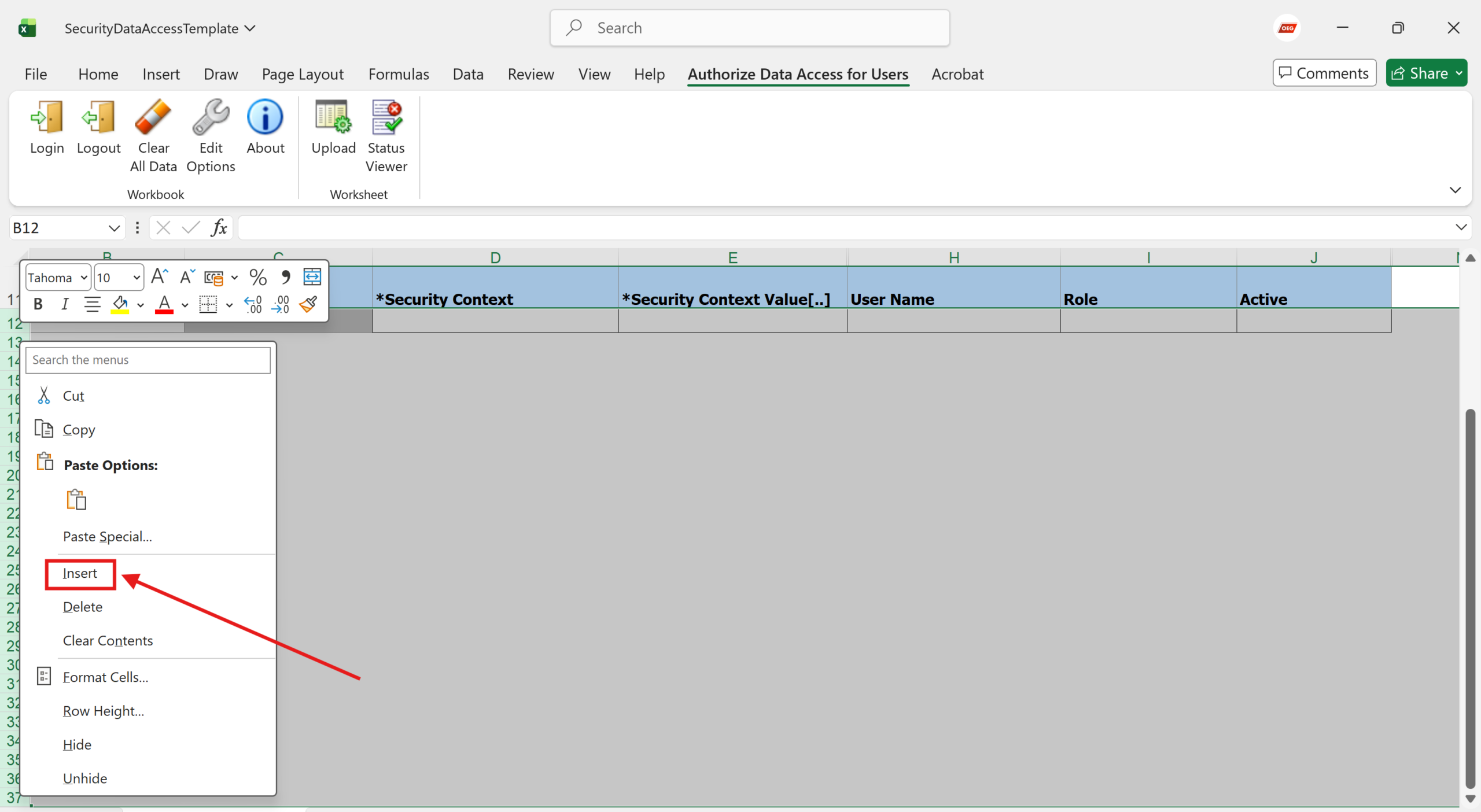
Right click and click “Insert”
Step 11
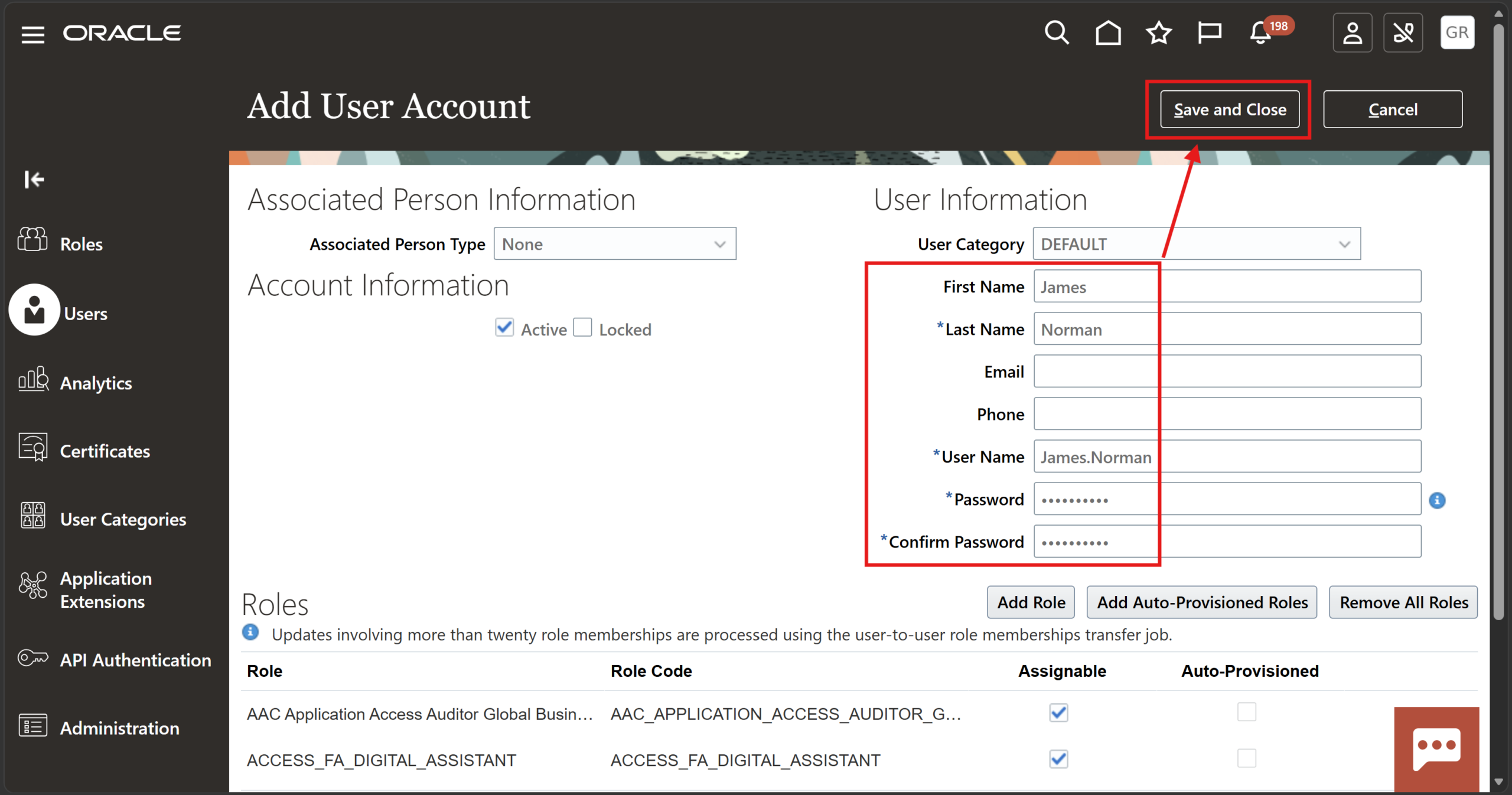
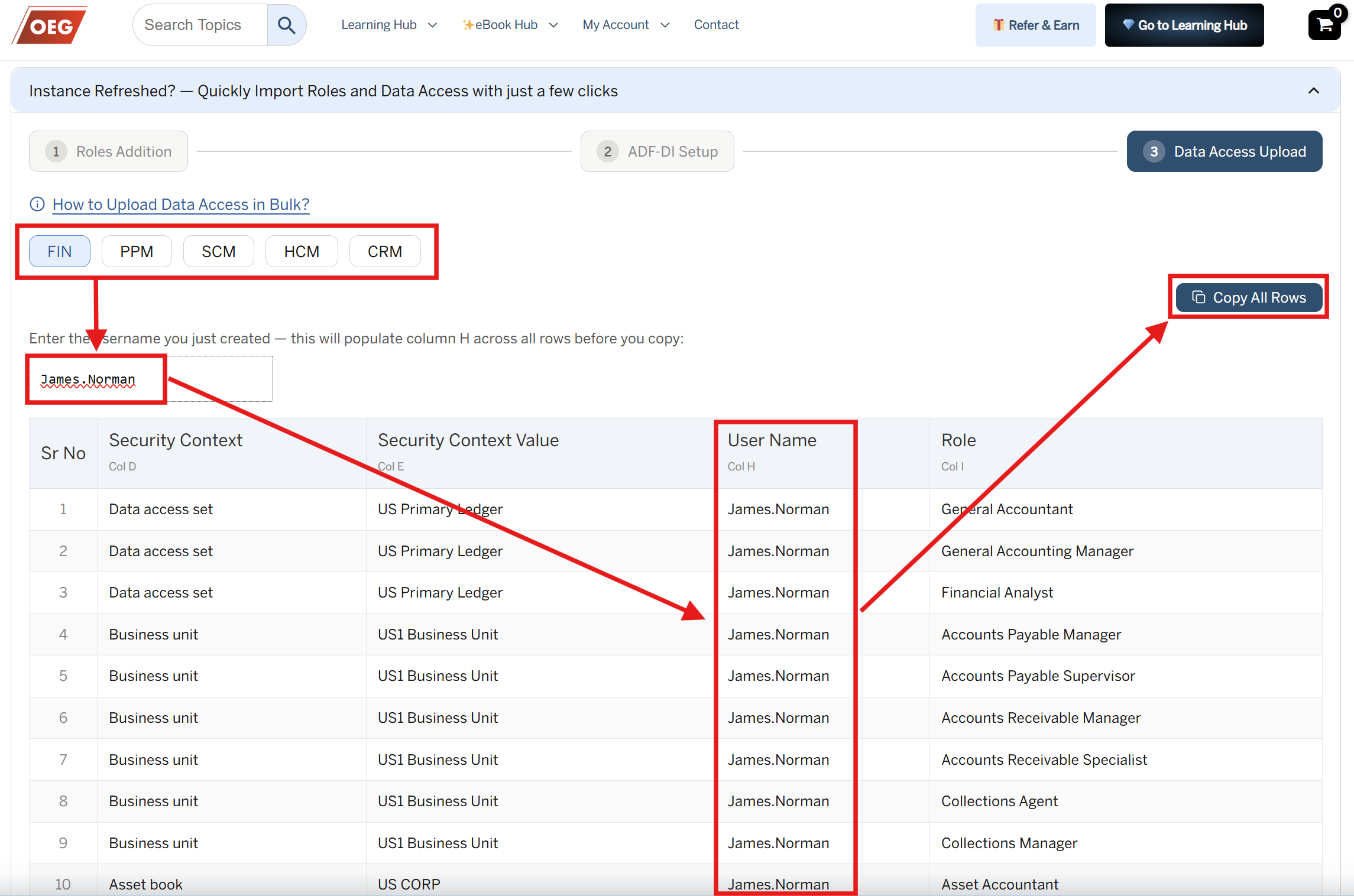
Select the relevant module tab, enter your recently created username in the provided field (NOT the one provided on portal), see that your username appears in the table and click “Copy All Rows”
Step 12
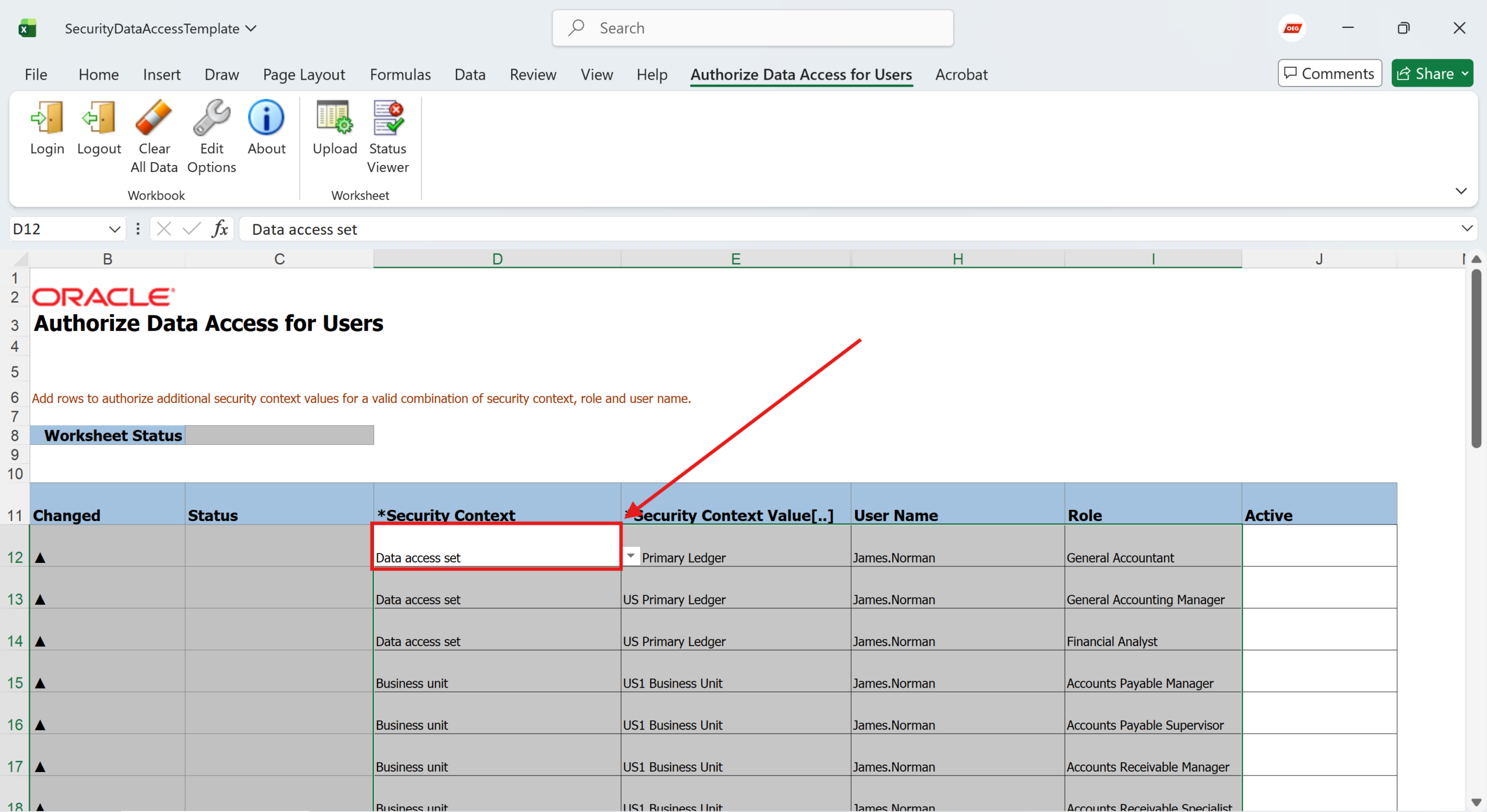
Go to the excel sheet, place your cursor as shown and press “Ctrl + P” to paste the selection
Step 13
Click Upload
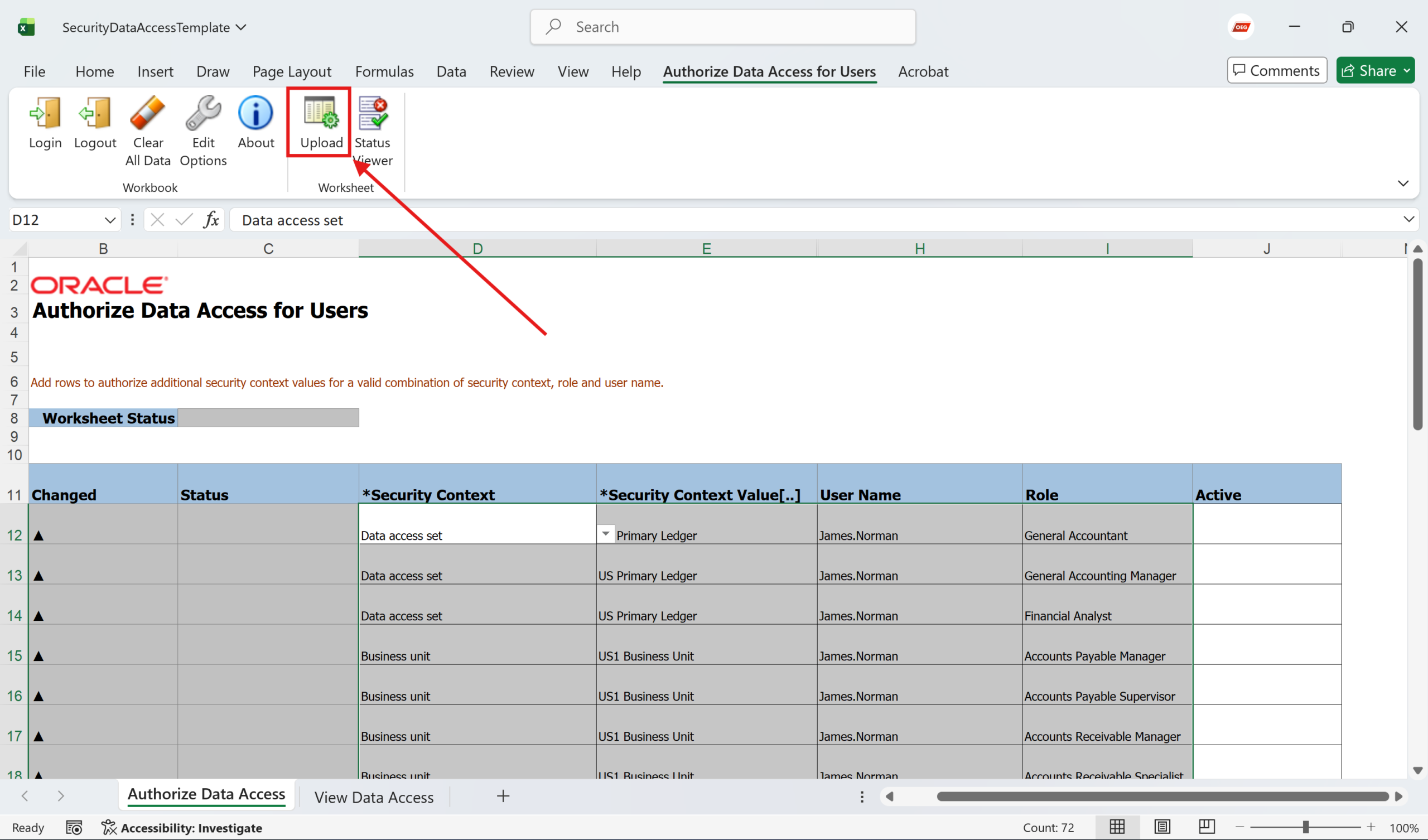
Step 14
See that the rows are inserted successfully. If some data access already exists, that row will fail, ignore that
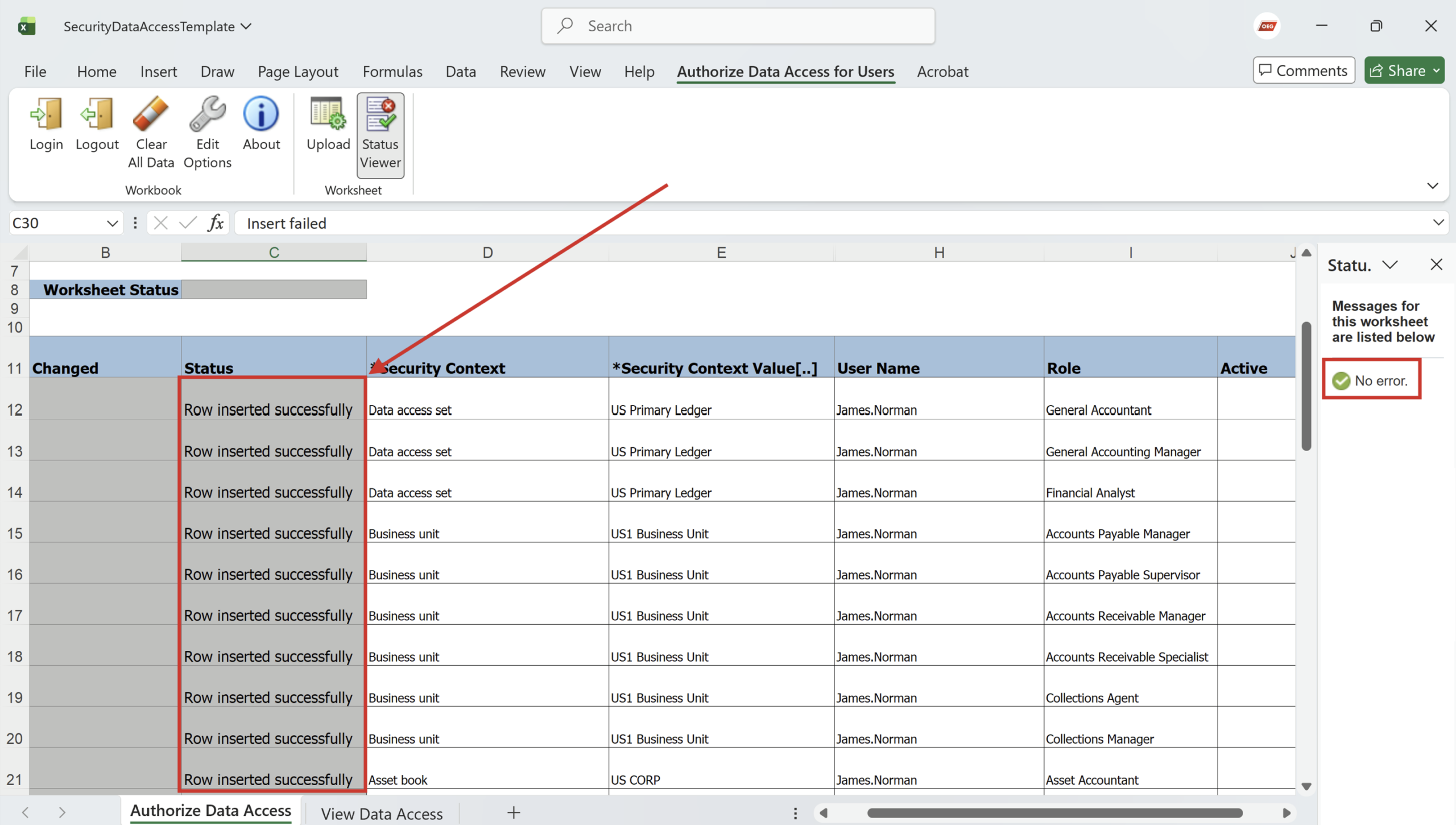
Step 15
If there are any blank rows, it will show “Insert failed” for that row. Ignore it
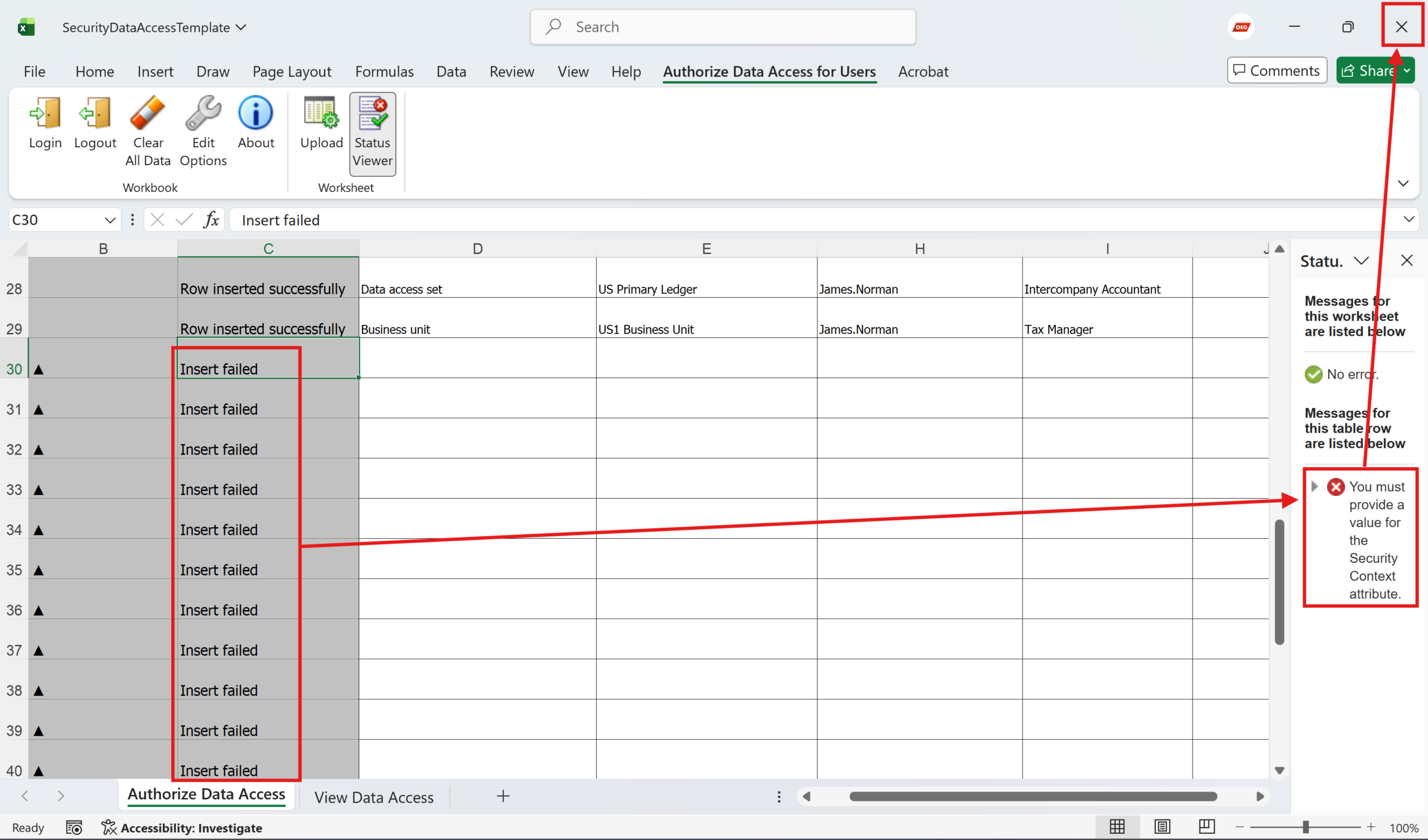
Step 16
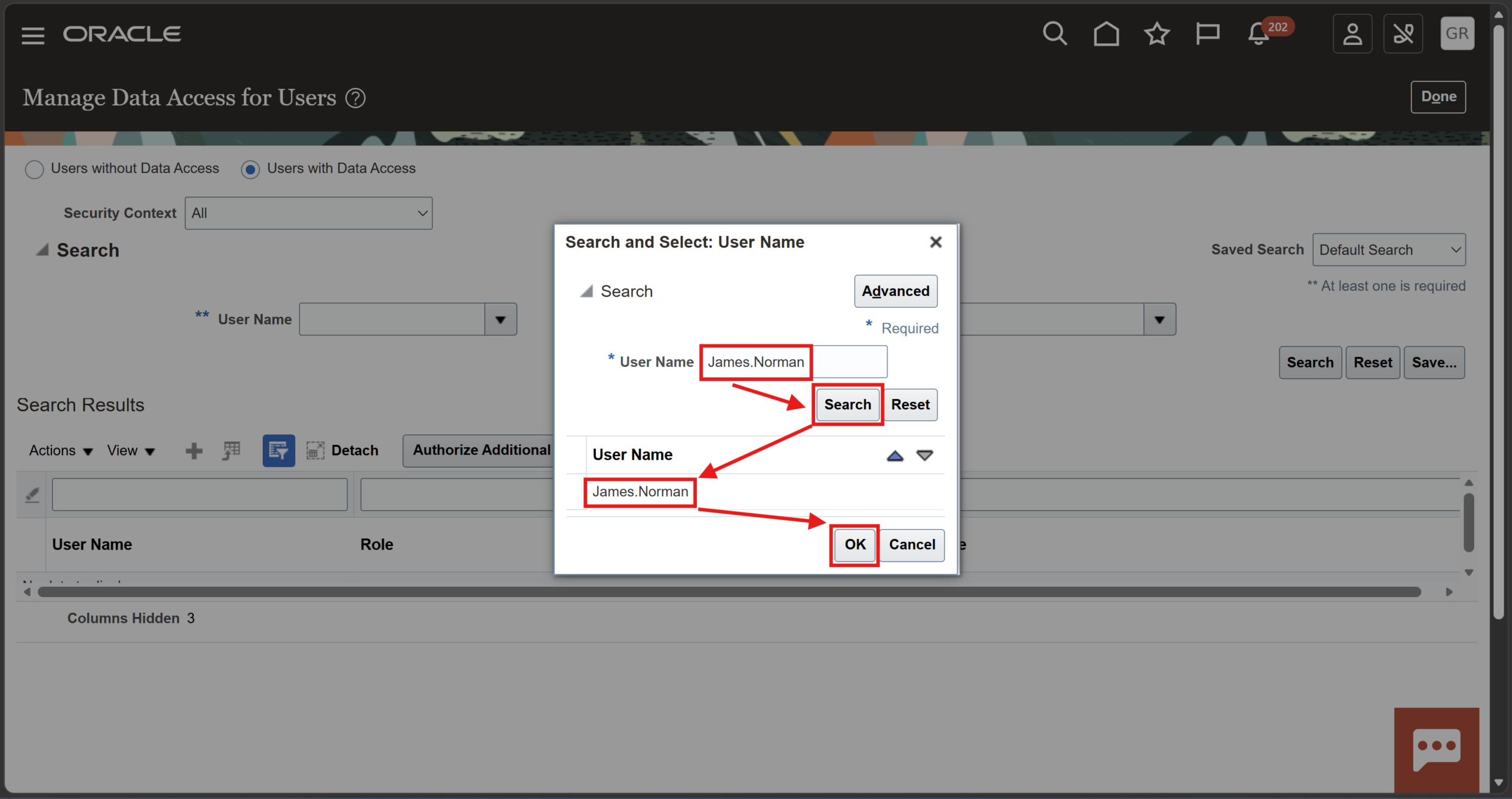
Go back to the instance, select “Users with Data Access”, open User Name area and click “Search”
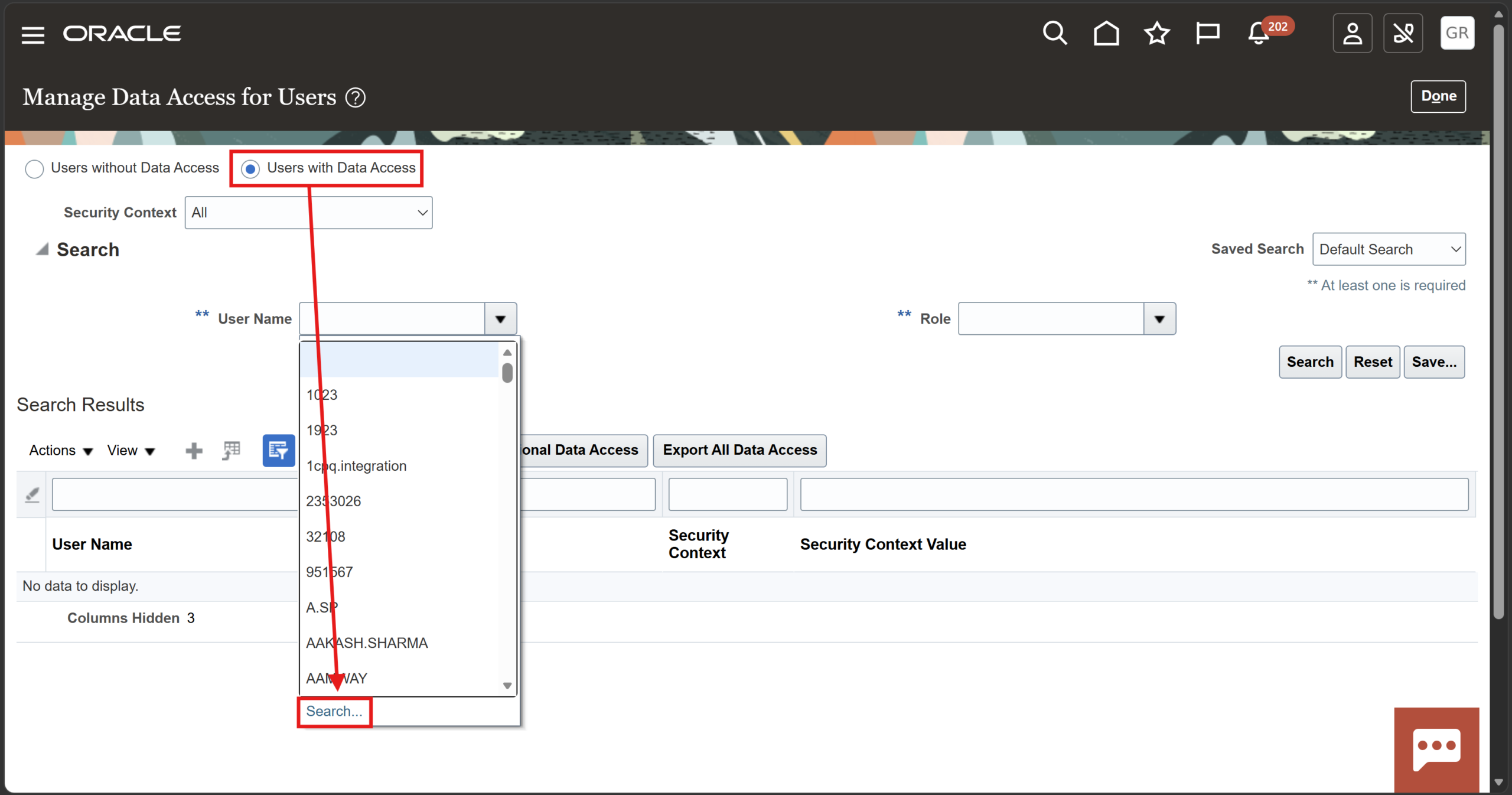
Step 17
Search and select the user you newly created and click OK
Step 18
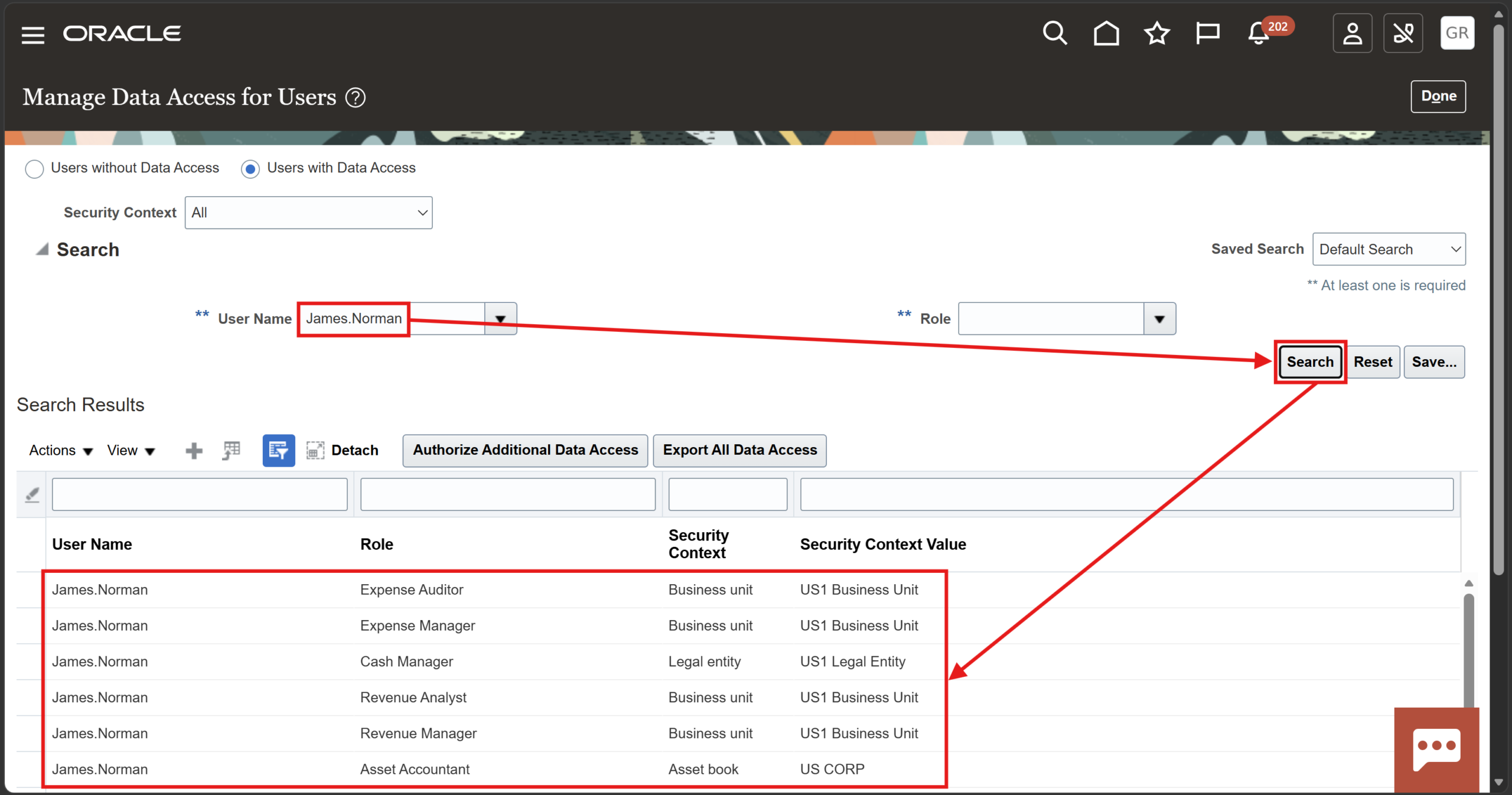
Click “Search” and see that all the data access as per the sheet are added to your user successfully
Common Upload Errors and Troubleshooting
Existing Data Access
If a user already has specific access assigned, the corresponding row may fail during upload. This behavior is expected and does not indicate a system issue.
Blank Rows in Excel
Blank rows often generate “Insert Failed” messages. These errors can typically be ignored if the required records were uploaded successfully.
Login Credential Issues
Ensure you use the portal-provided credentials when connecting the spreadsheet to Oracle Fusion, not the newly created user account.
ADF Desktop Integrator Issues
Verify that Oracle ADF Desktop Integrator is installed correctly, and that Microsoft Excel supports the integration.
Best Practices for Data Access Management
When managing Data Access in Oracle Fusion, consider the following recommendations:
- Validate user information before uploading.
- Remove unnecessary blank rows from spreadsheets.
- Test uploads in a non-production environment first.
- Review assigned access after every upload.
- Maintain documentation of access changes.
- Follow organizational security policies and segregation of duties requirements.
Proper access data management helps ensure users receive the correct permissions while maintaining compliance and security standards.
Conclusion
Bulk uploading Data Access in Oracle Fusion Financials provides an efficient method for assigning user permissions across ledgers, business units, and financial reporting structures. By using the Manage Data Access for Users task and the downloadable Excel workbook, administrators can simplify data accessing activities, reduce manual effort, and improve the consistency of security configurations.
Following the steps outlined in this guide will help organizations streamline access data management and maintain accurate user security across Oracle Fusion ERP environments.