Fusion API Integration and Database Update Process in OIC (Part 5)
Adding Fusion REST API Step
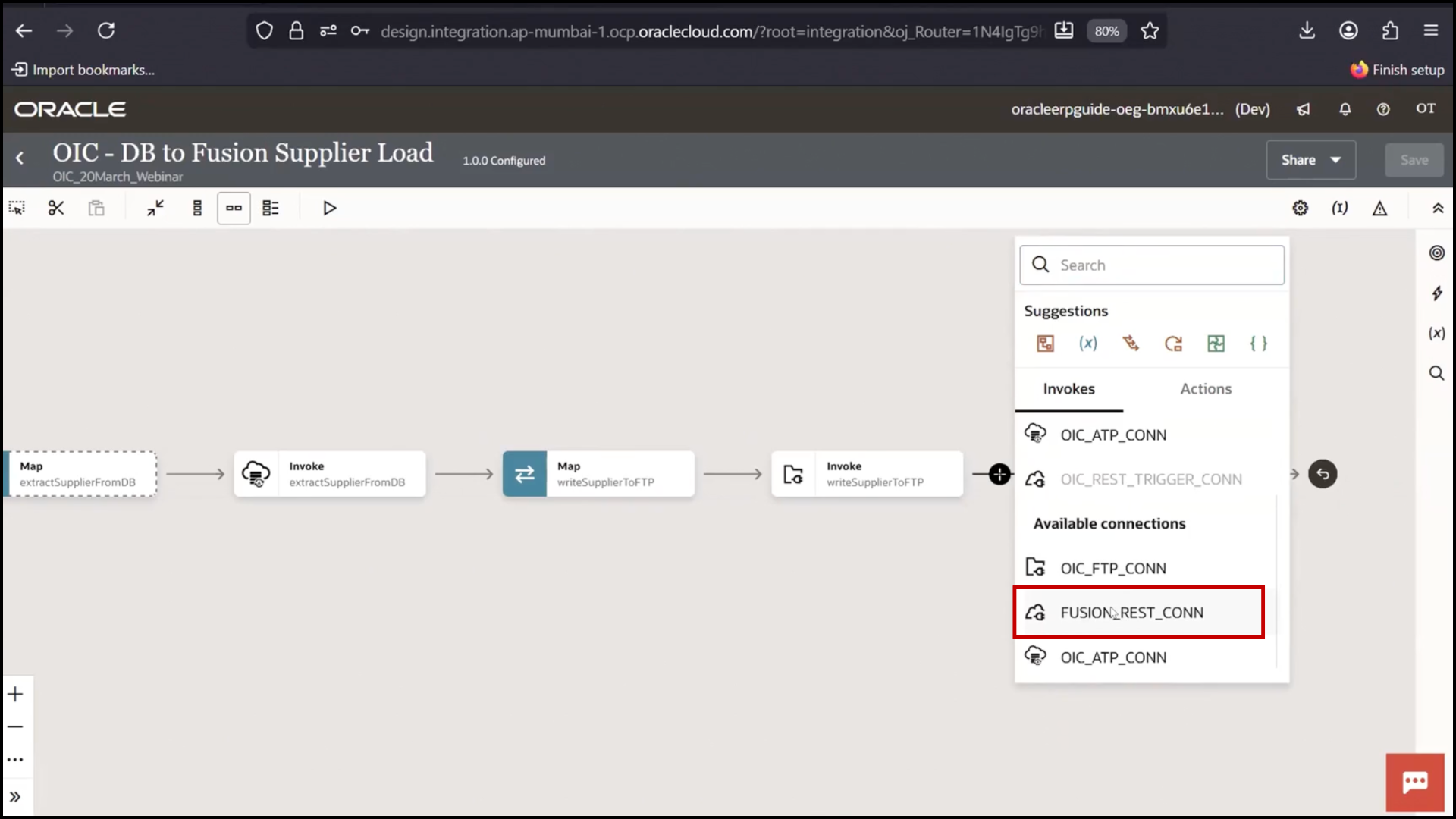
1. Click + icon
2. Select Fusion REST Connection
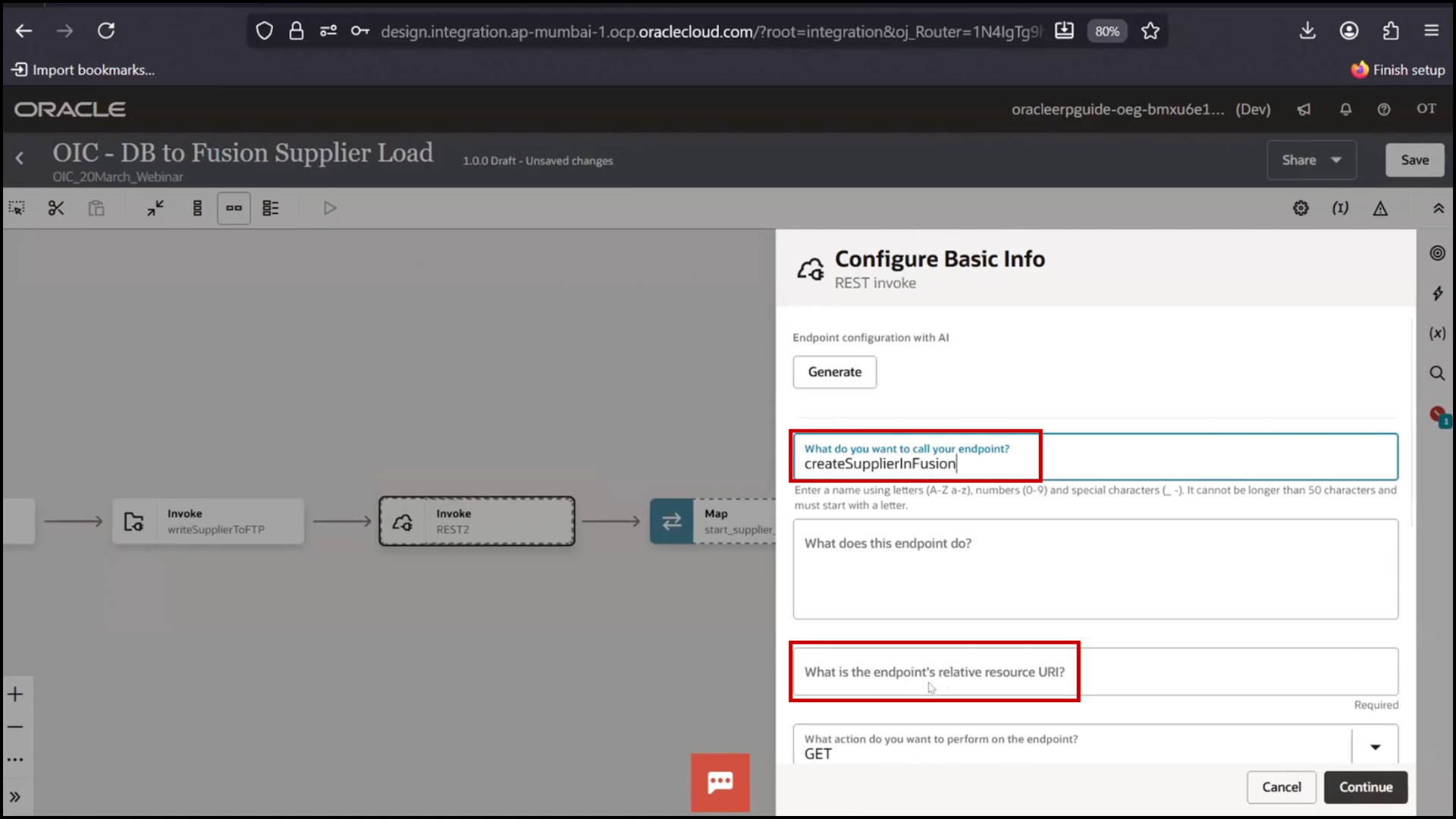
3. Enter name: Create in Fusion
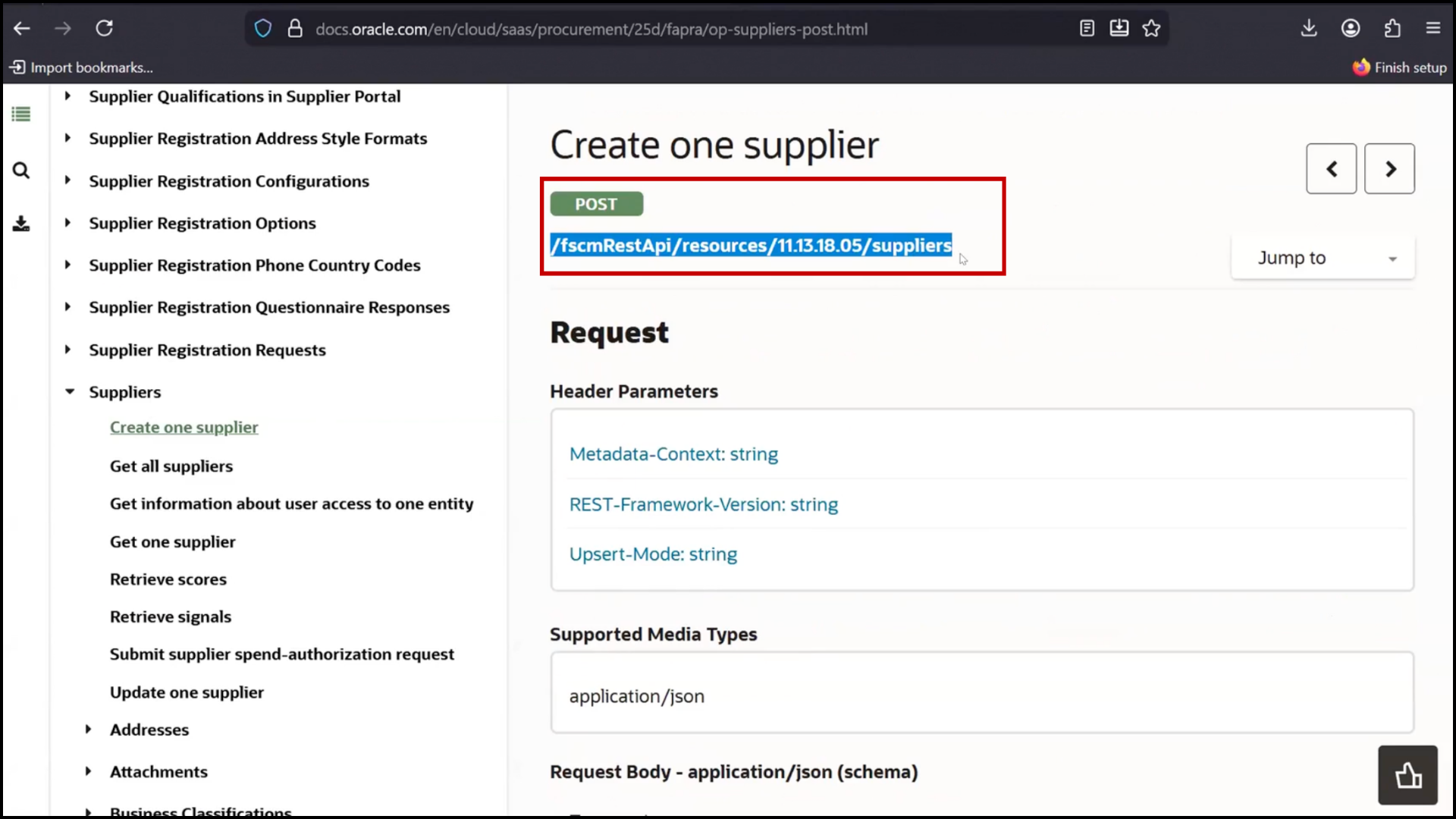
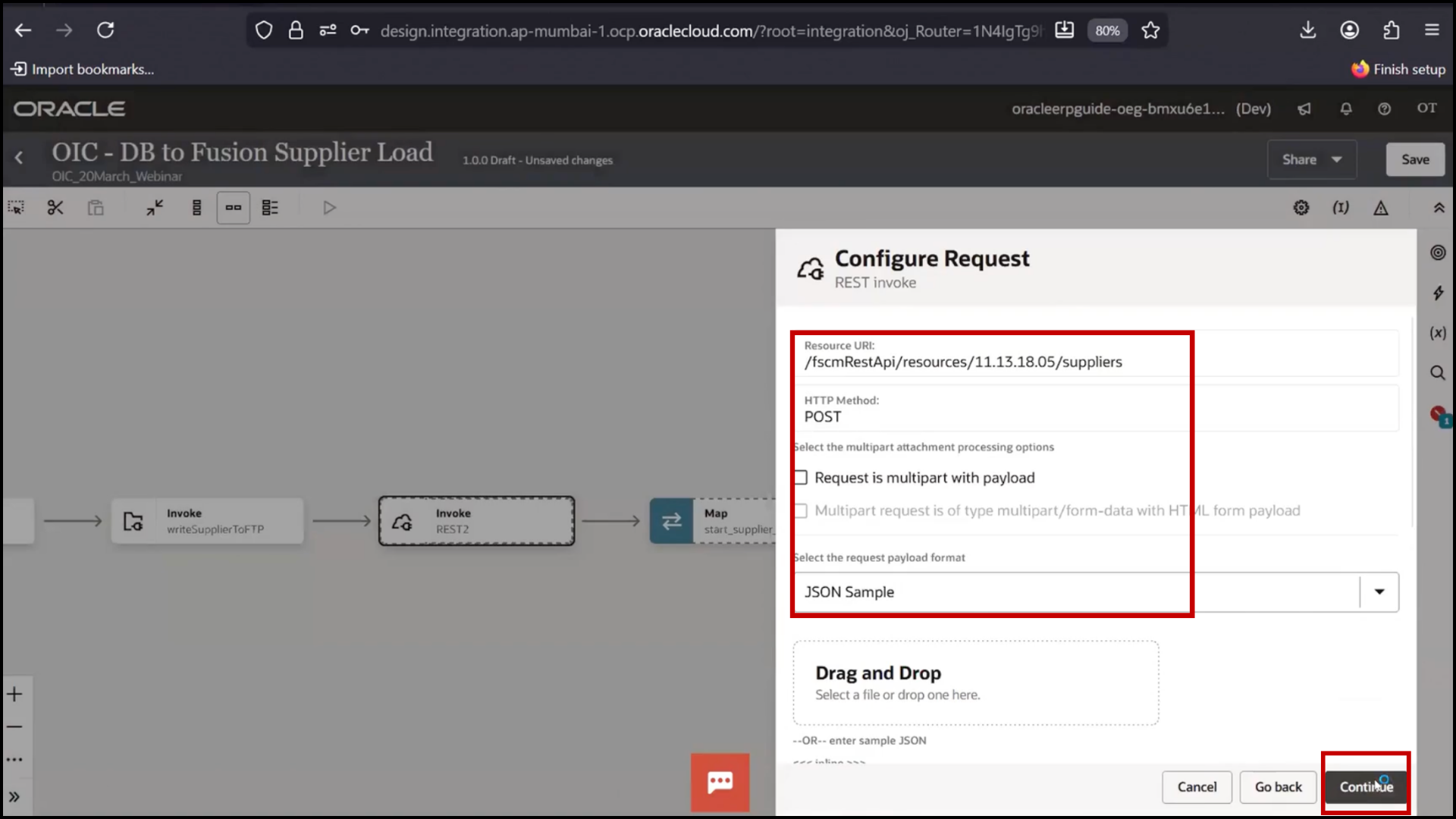
4. Enter relative endpoint URI
5. Select POST method
6. Click Continue
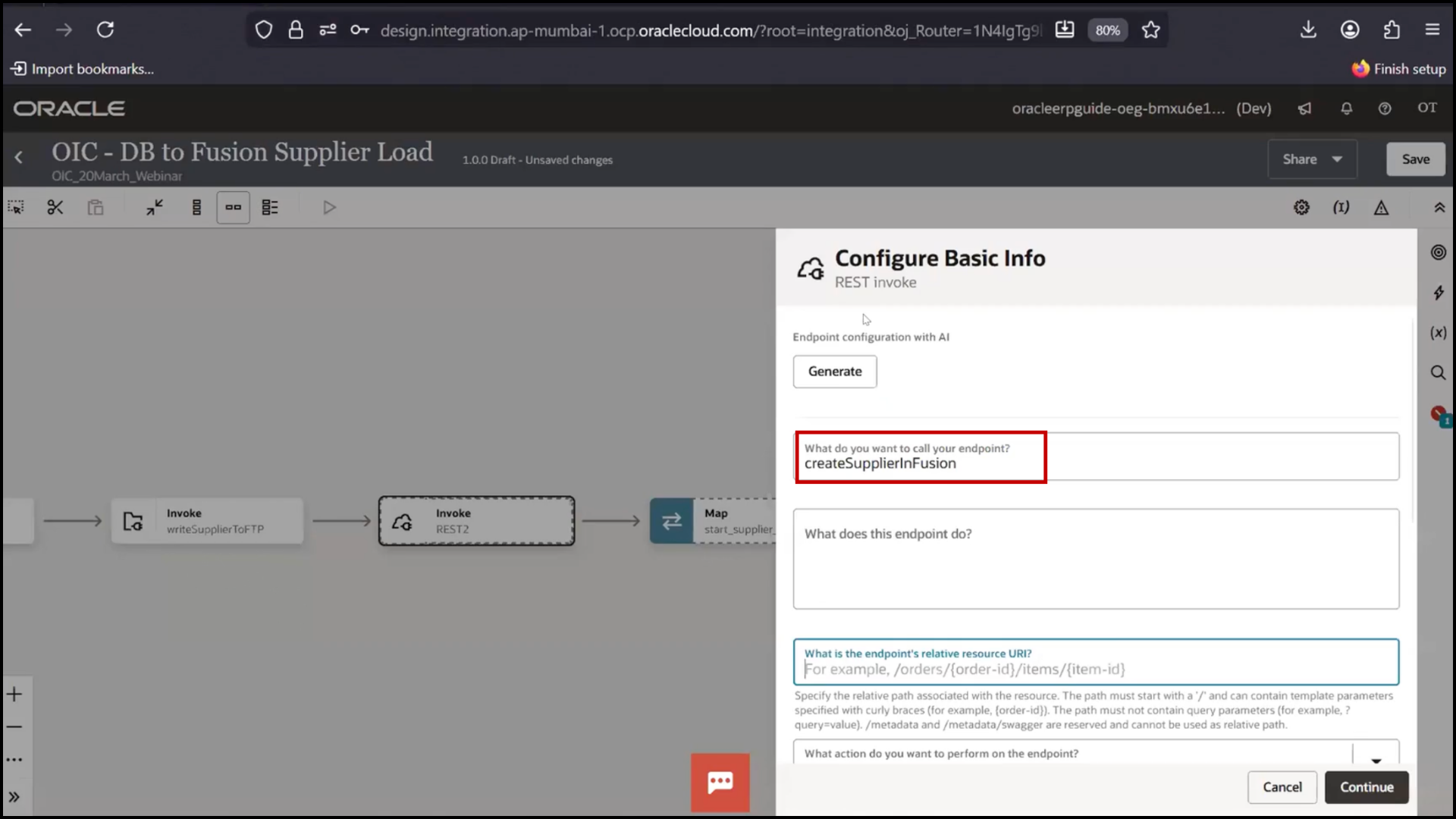
7. Enable Request Payload
8. Enable Response Payload
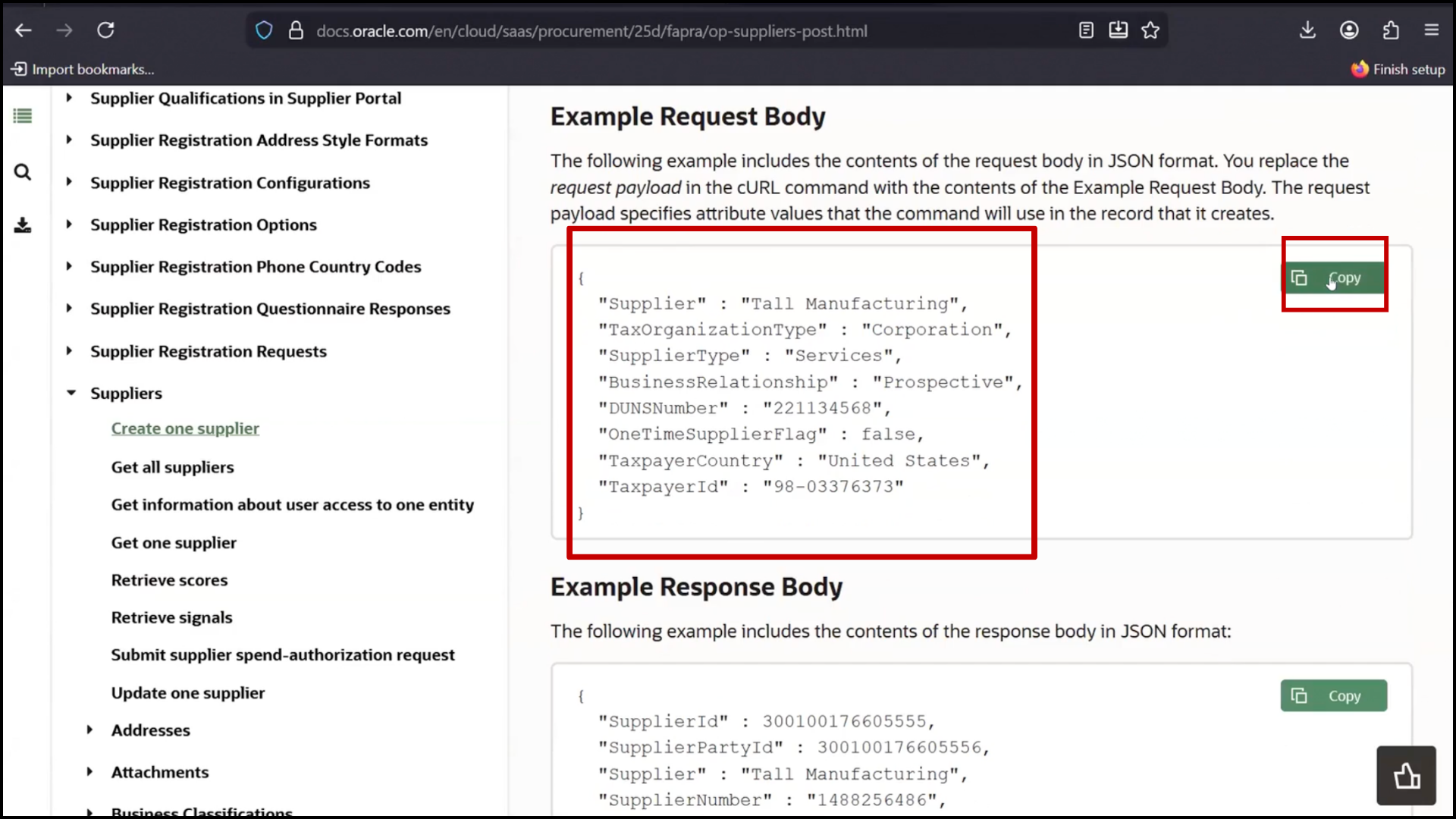
Configuring Request Payload
1. Copy sample JSON payload
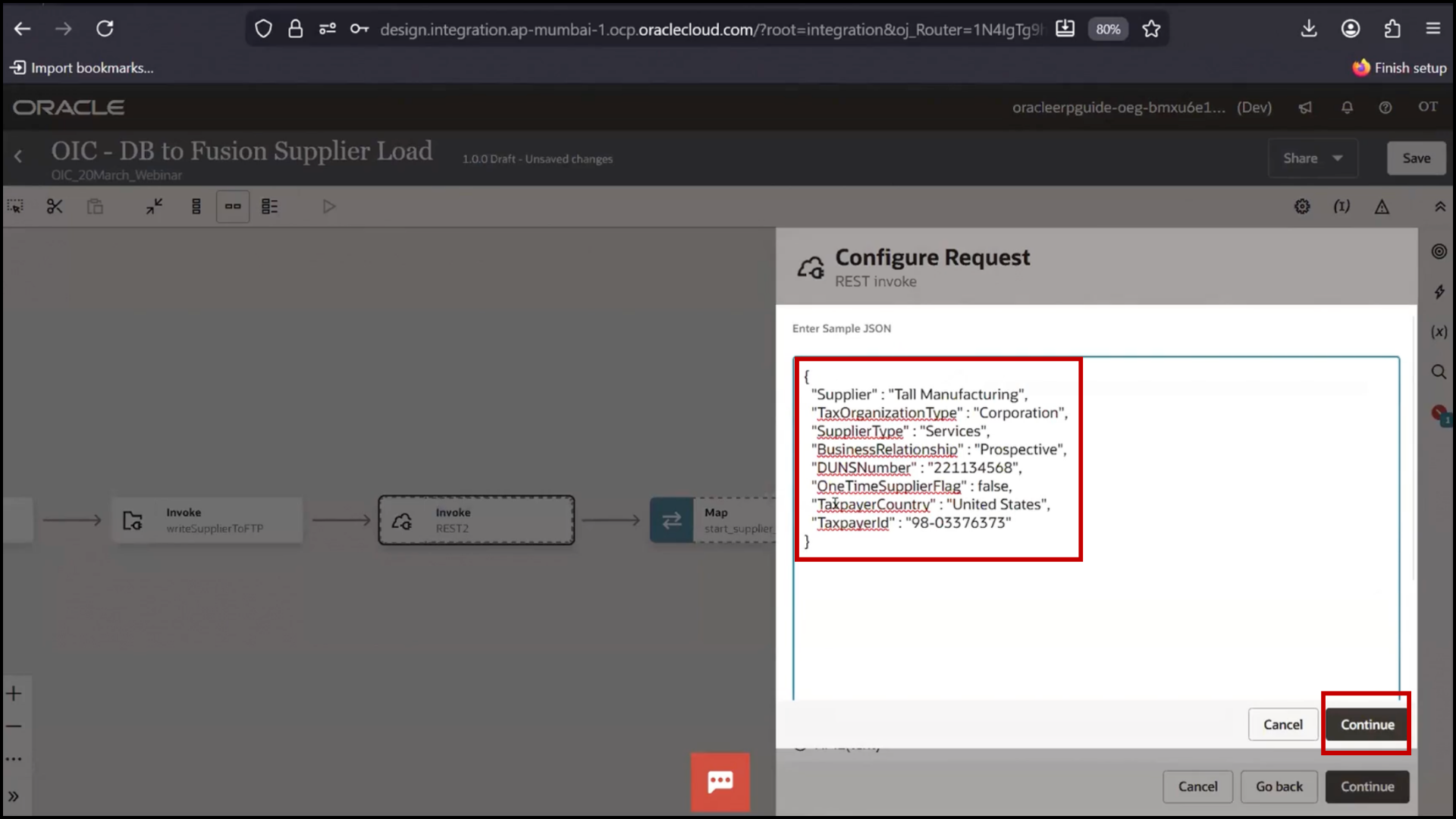
2. Paste sample JSON payload and click Continue
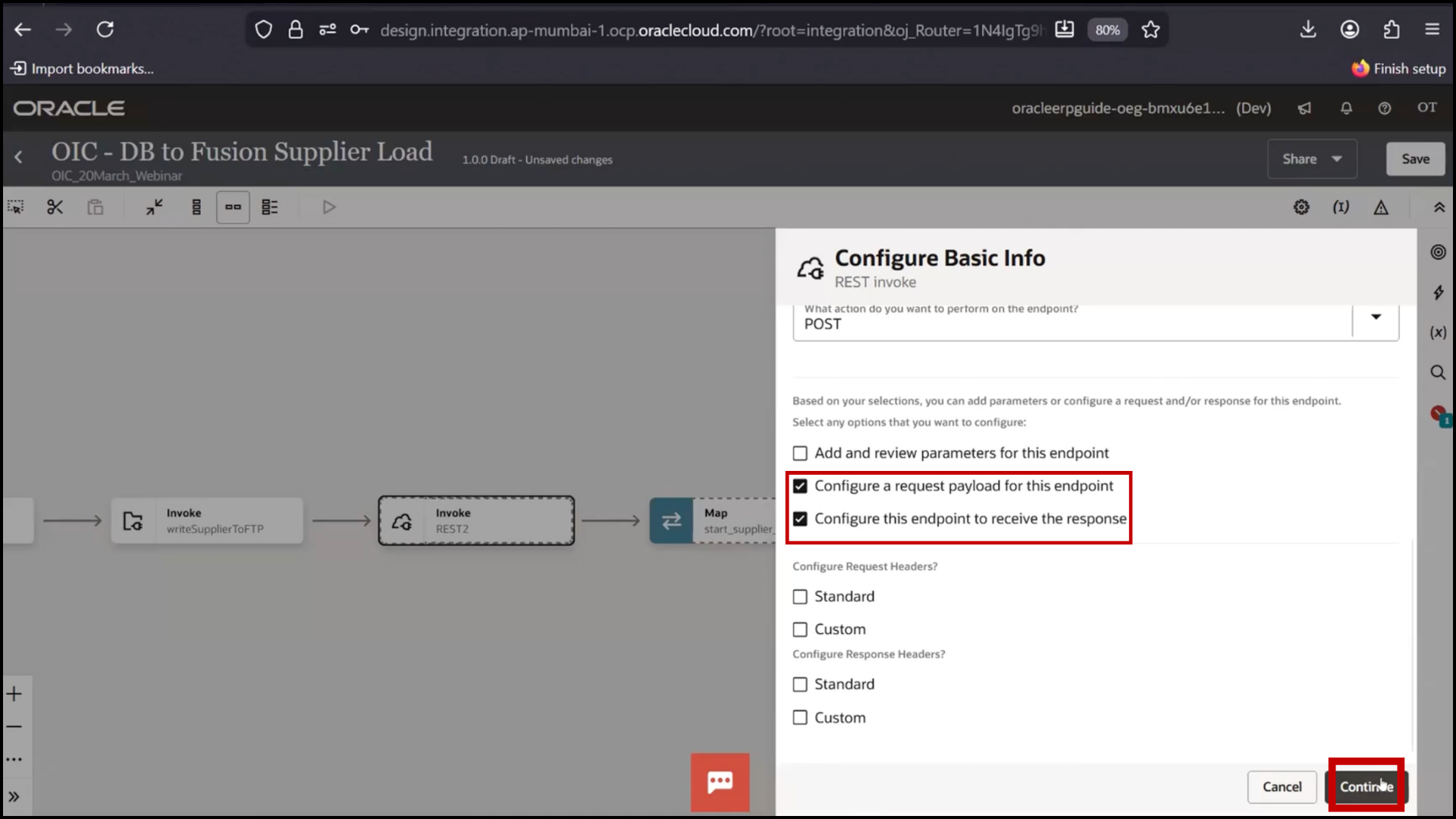
3. Enable Request Payload
4. Enable Response Payload
5. Include mandatory fields
6. Keep optional fields as needed
7. Click Continue
Configuring Response Payload
1. Copy sample response JSON
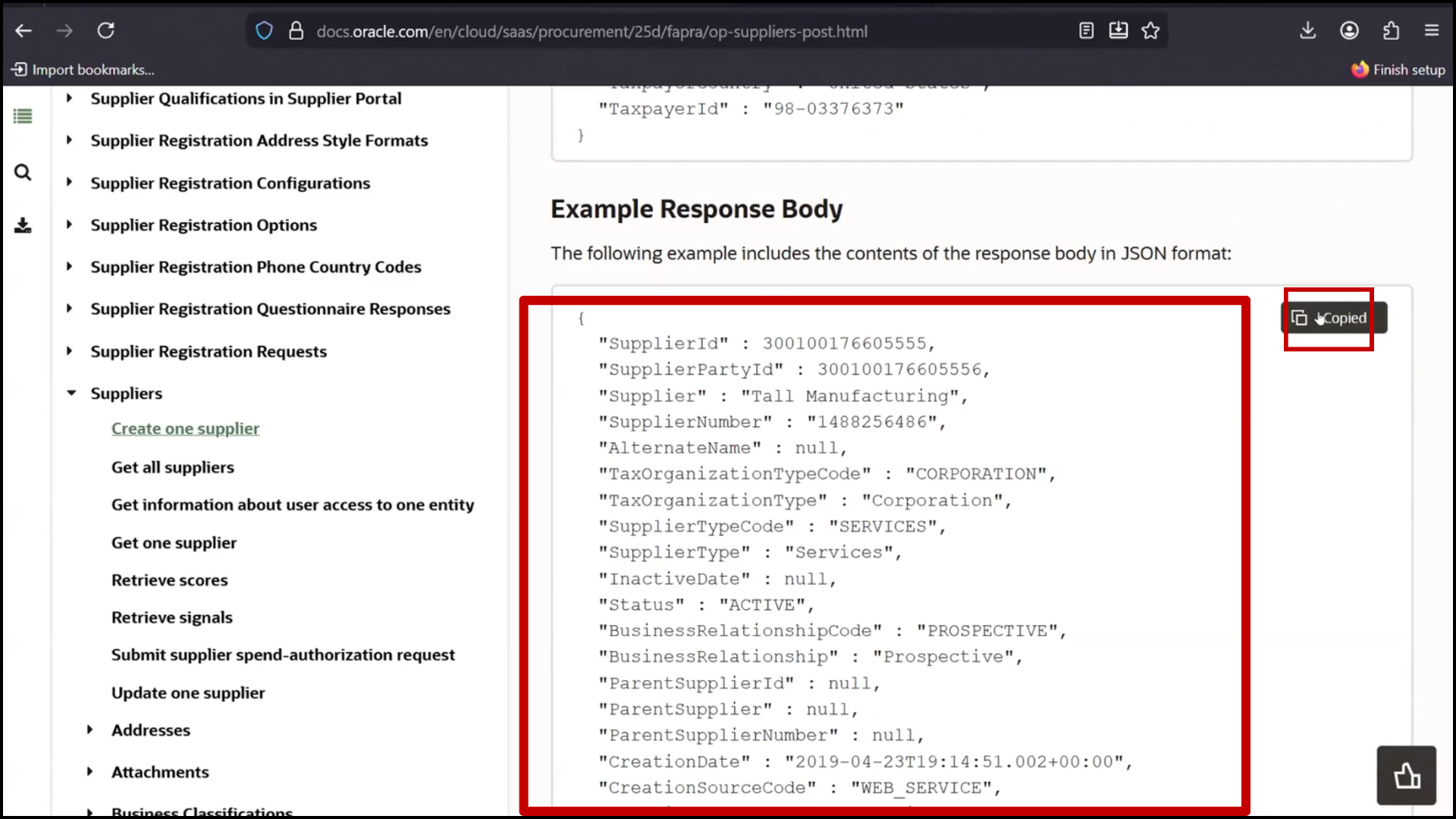
2. Provide sample response JSON and click Continue
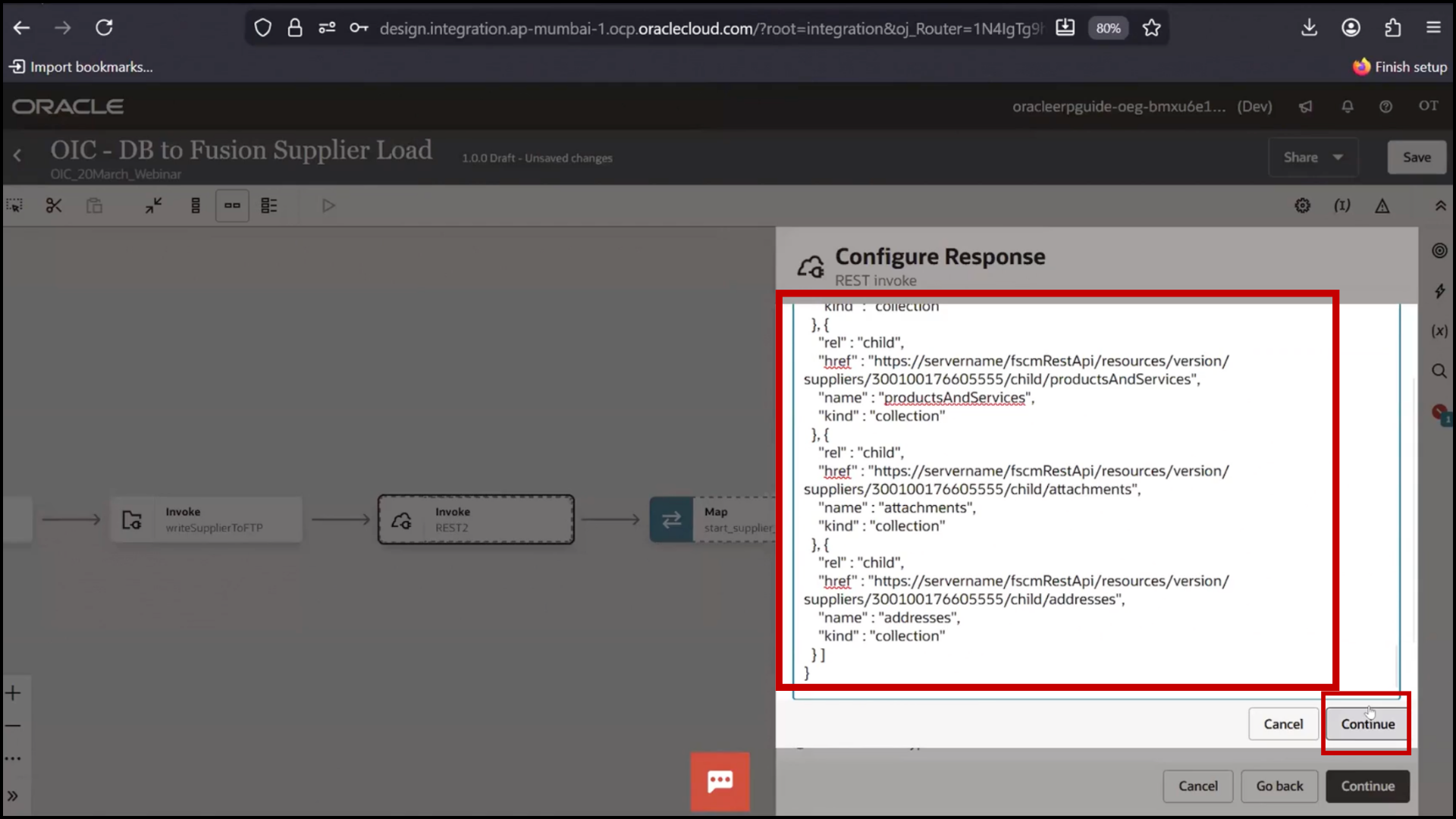
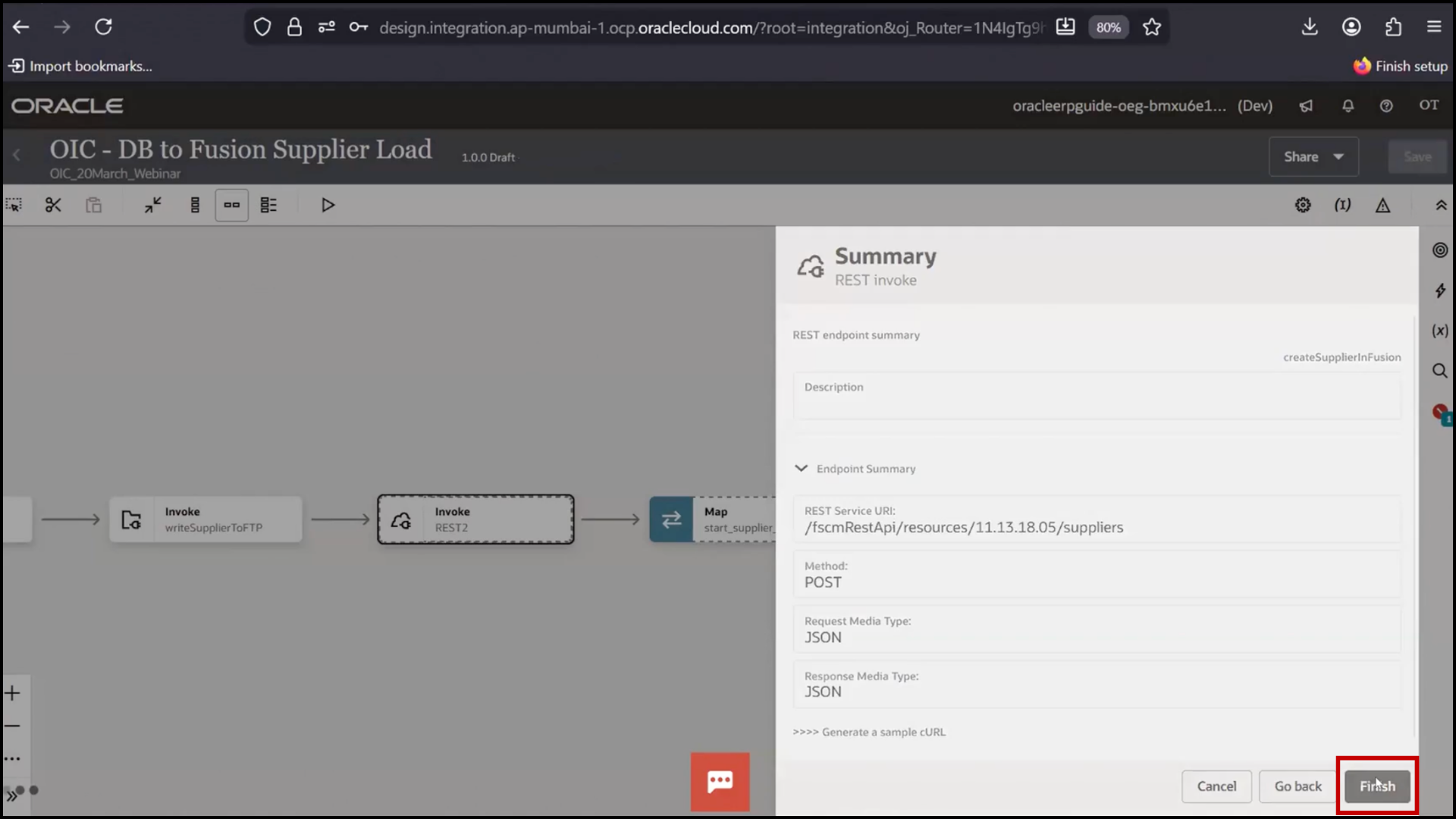
3. Review Summary
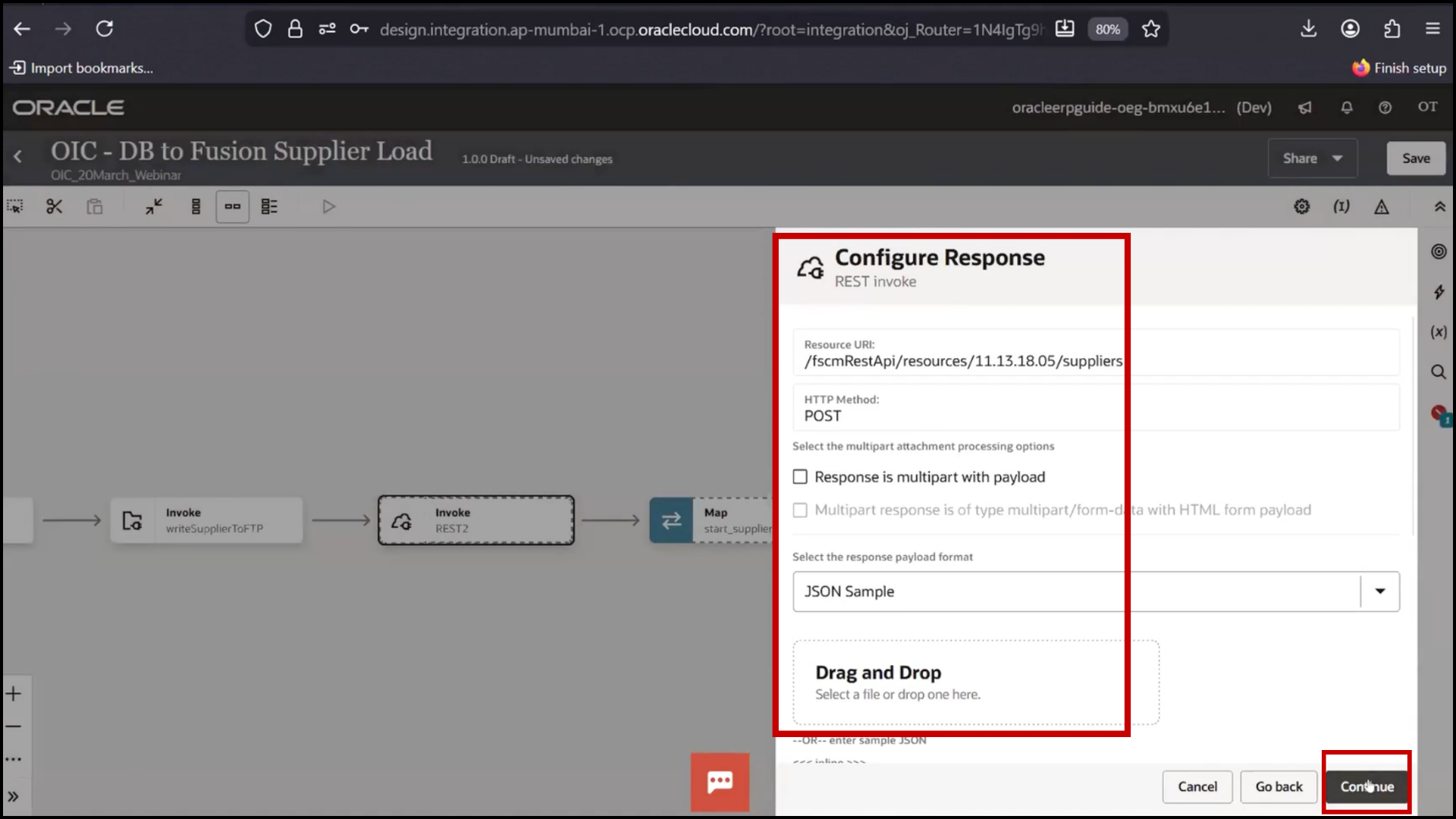
4. Click Finish
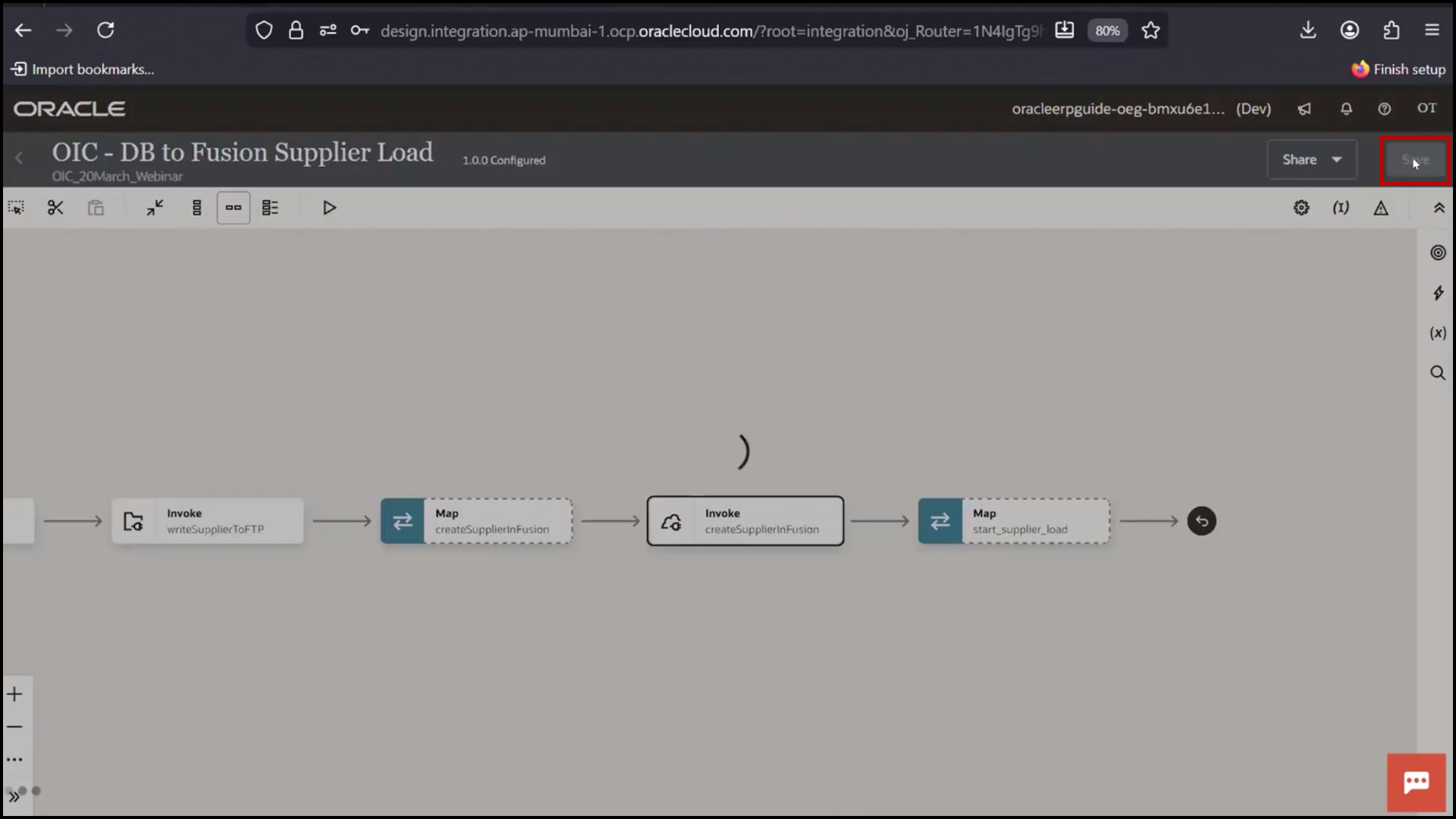
5. Click Save
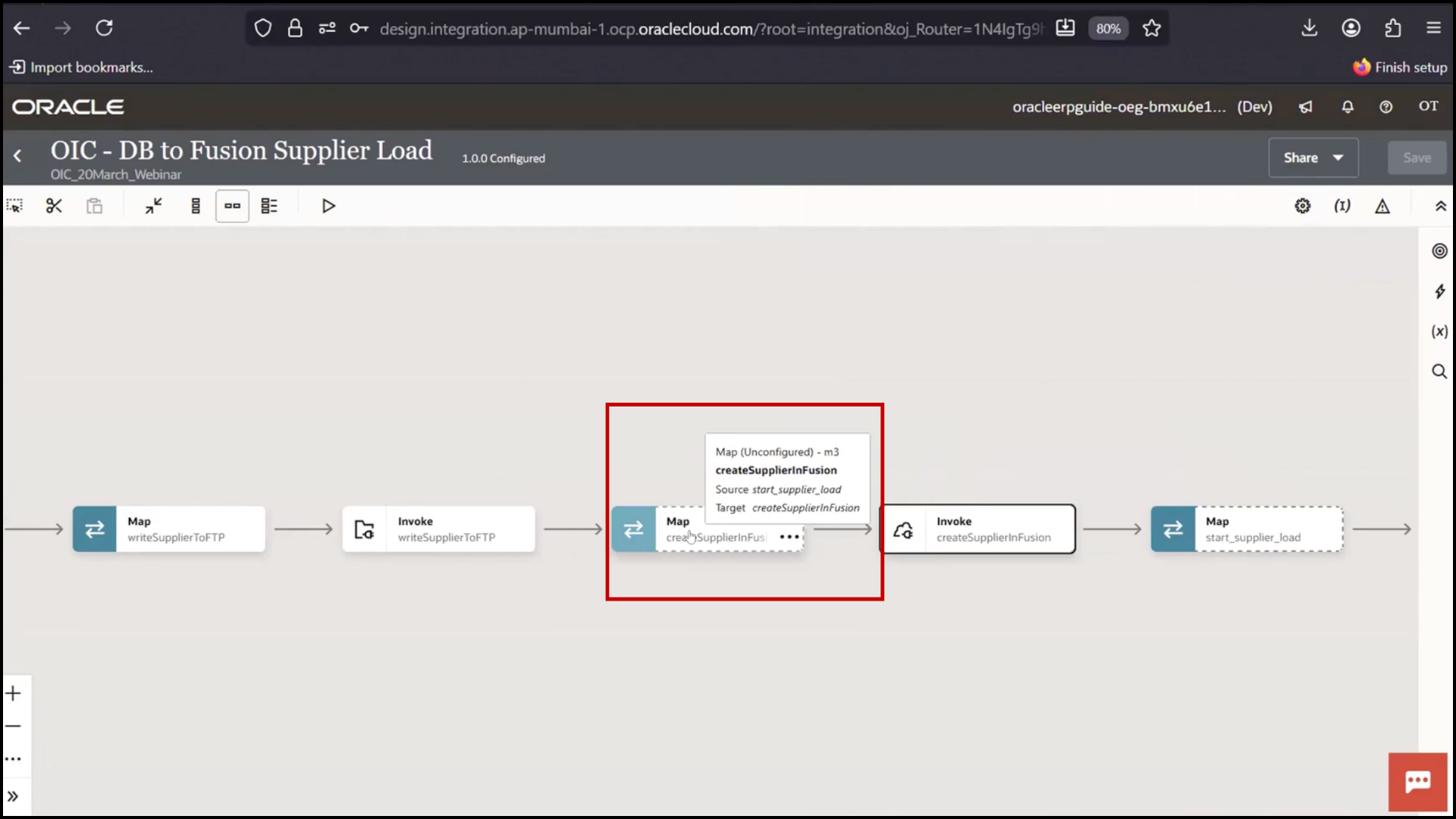
Mapping Data to Fusion
1. Open Mapper
2. Taxpayer Country
3. Business Relationship
4. Supplier Type
5. Tax Organization Type
6. Supplier Name
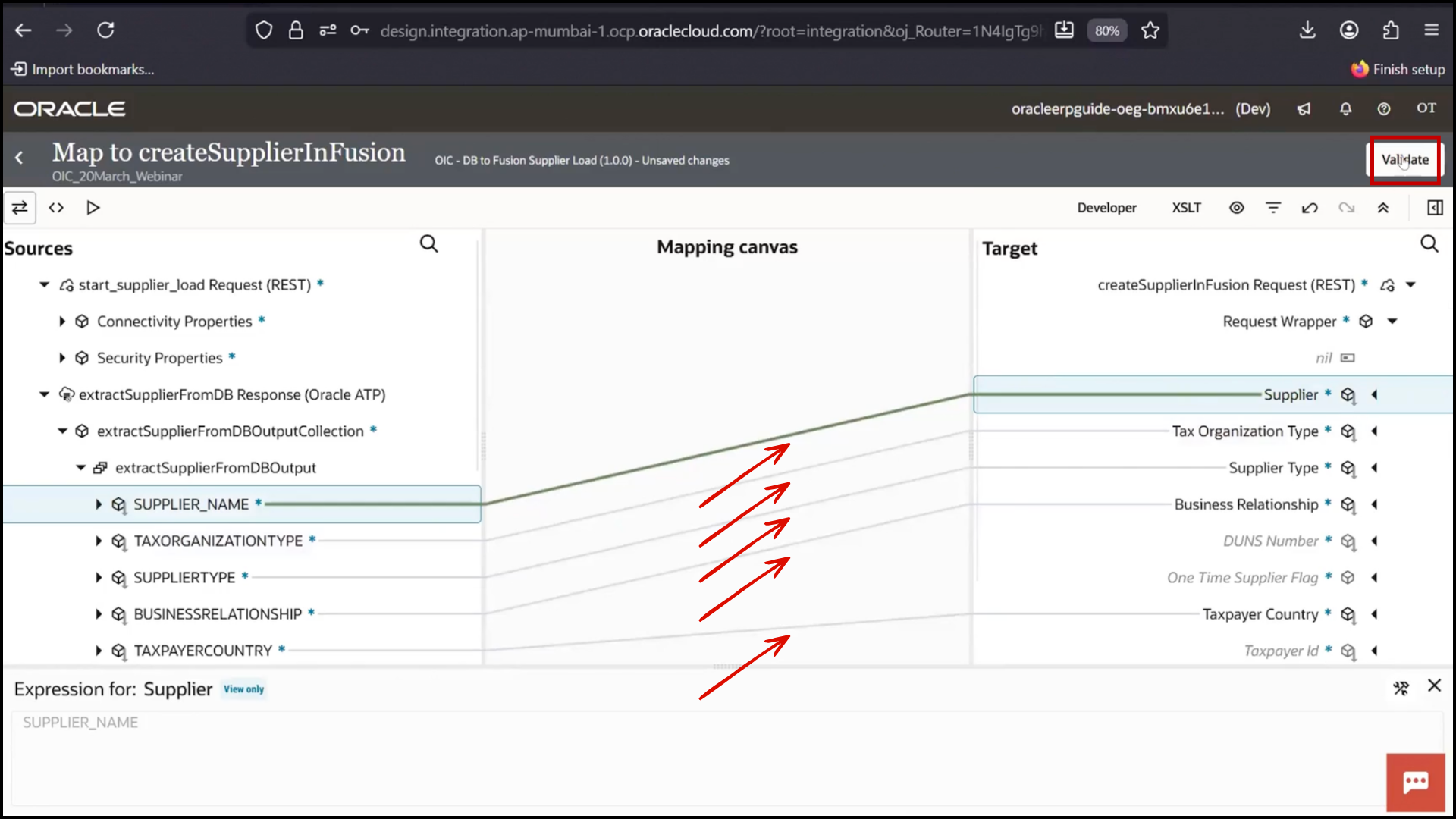
7. Click Validate
8. Click Save
Updating Database Status
1. Click + icon
2. Select ATP Connection
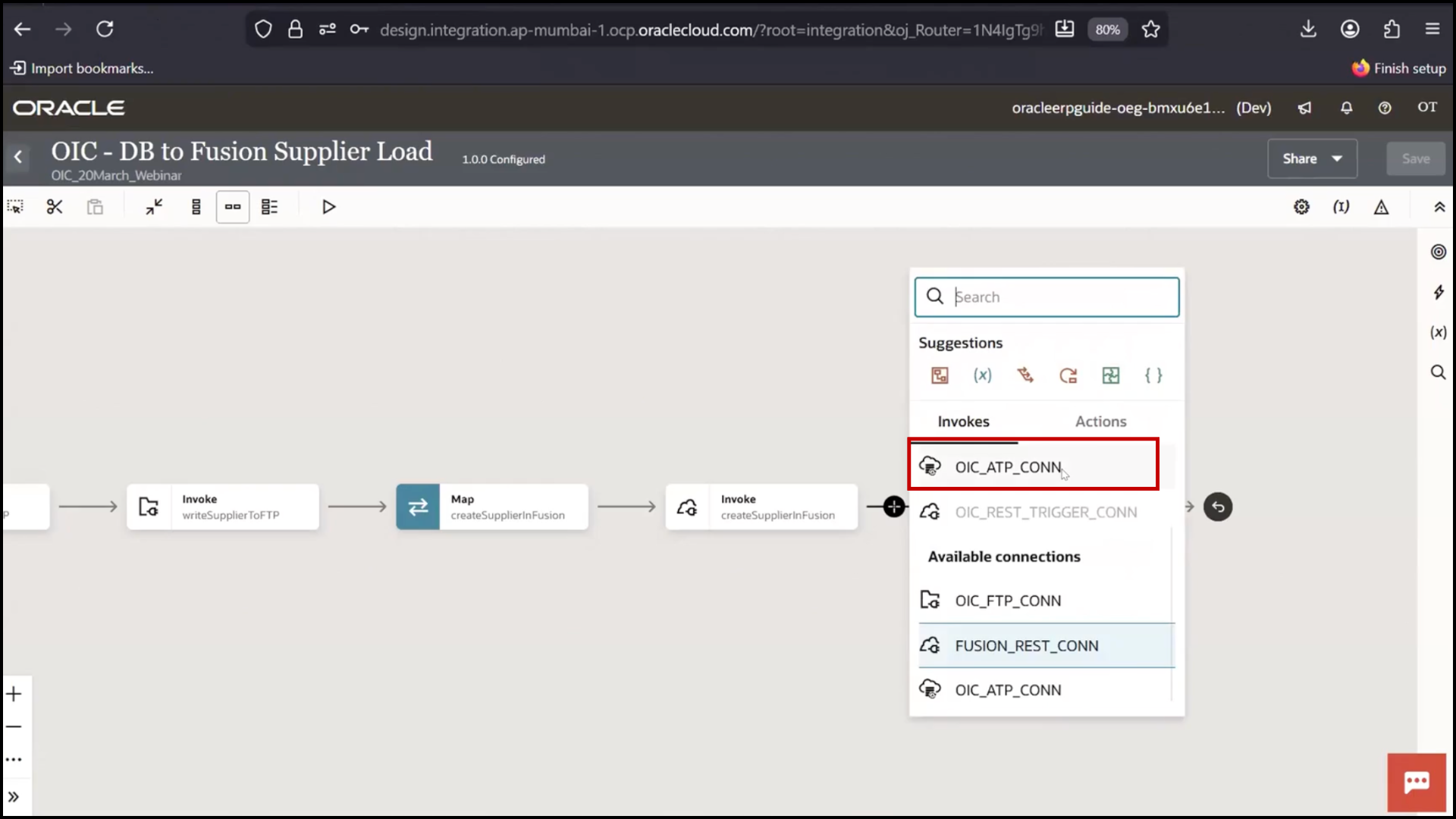
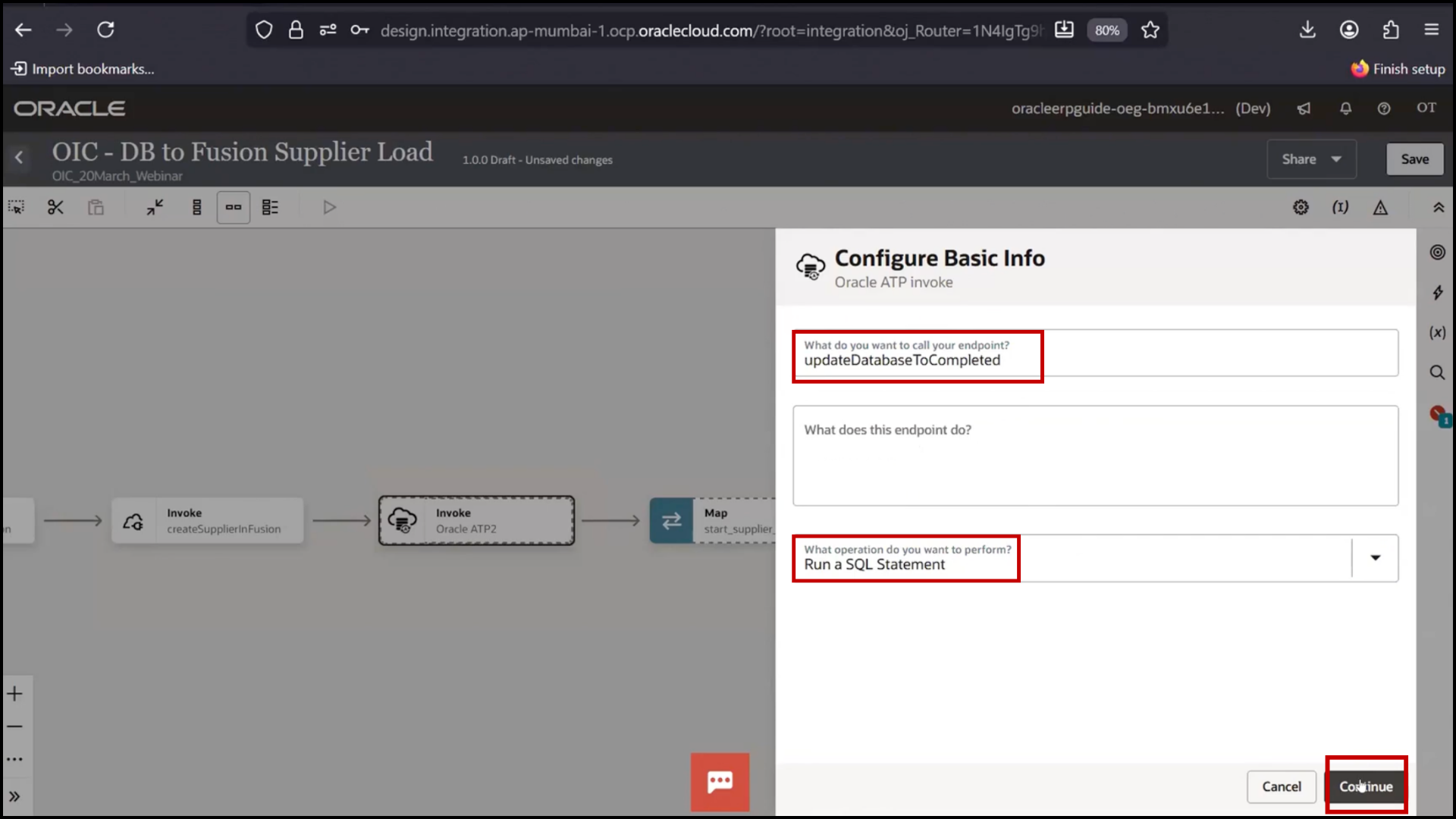
3. Enter name: Update Database to Completed
4. Select Run SQL Statement and Click Continue
Writing Update Query
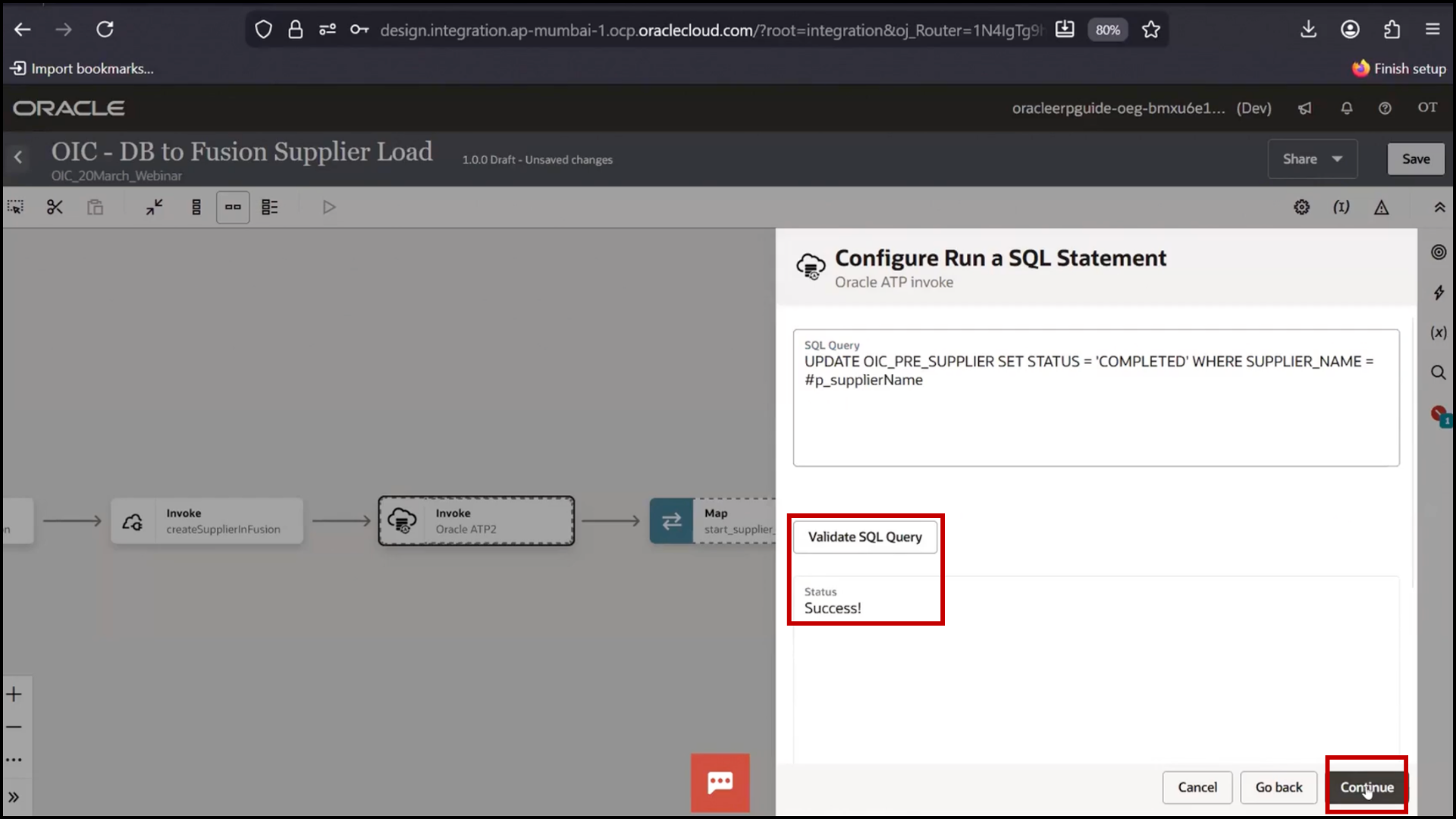
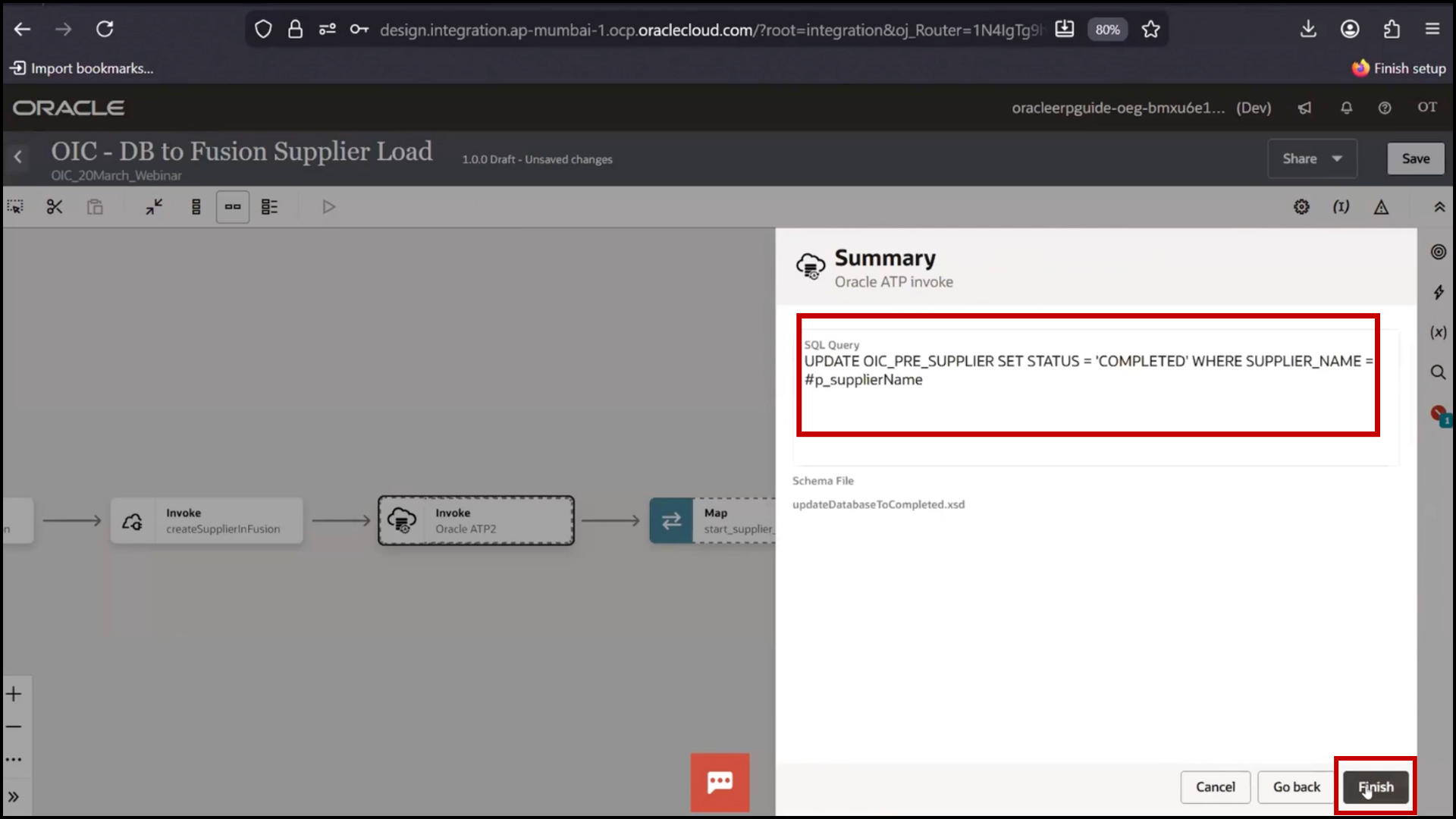
1. Write query:
Update table set status = ‘Completed’ where name = :p_supplier
2. Define bind parameter: p_supplier
3. Click Validate
4. Click Continue
5. Click Finish
6. Mapper has been saved
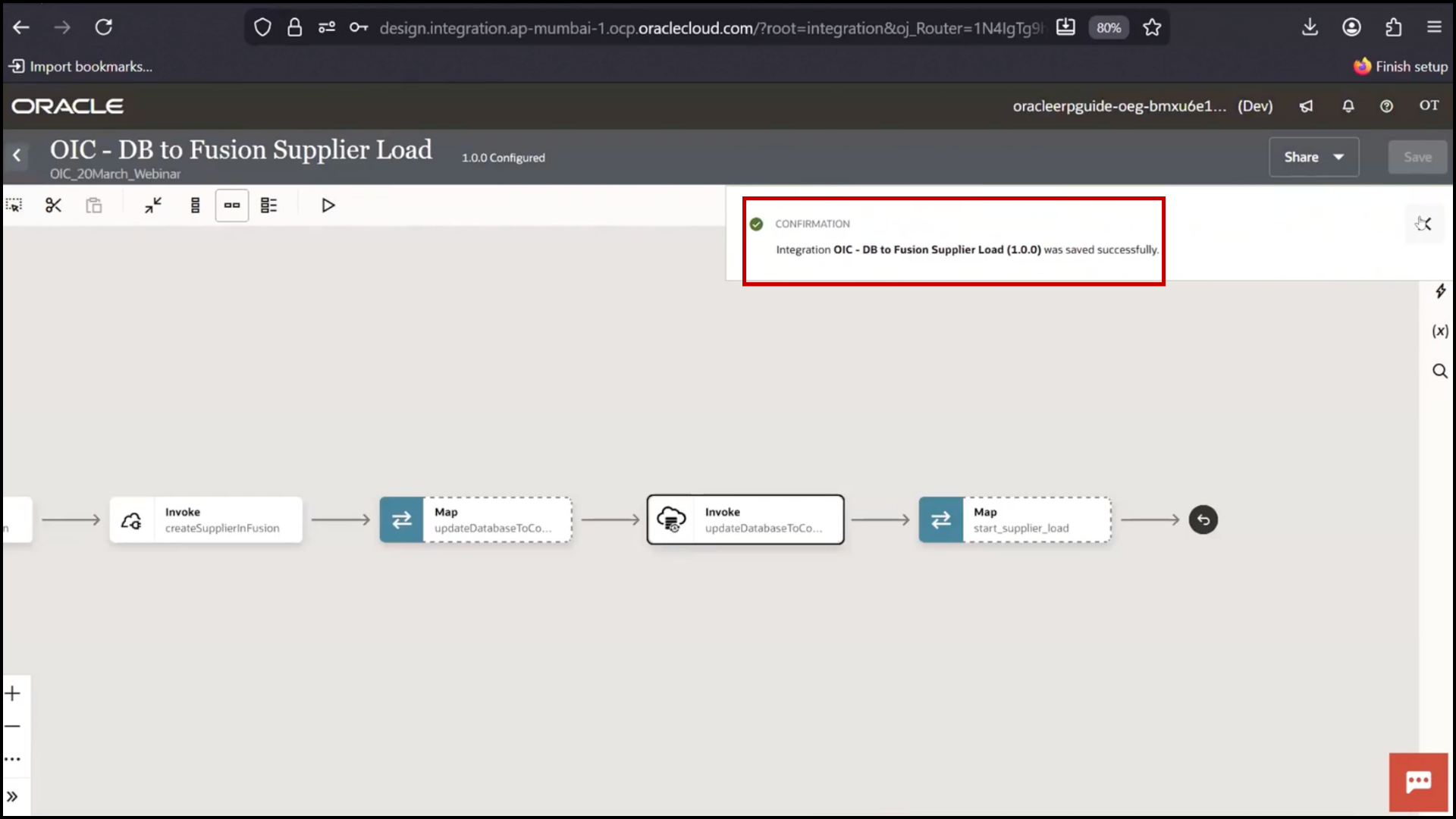
Mapping Update Parameter
1. Open Mapper
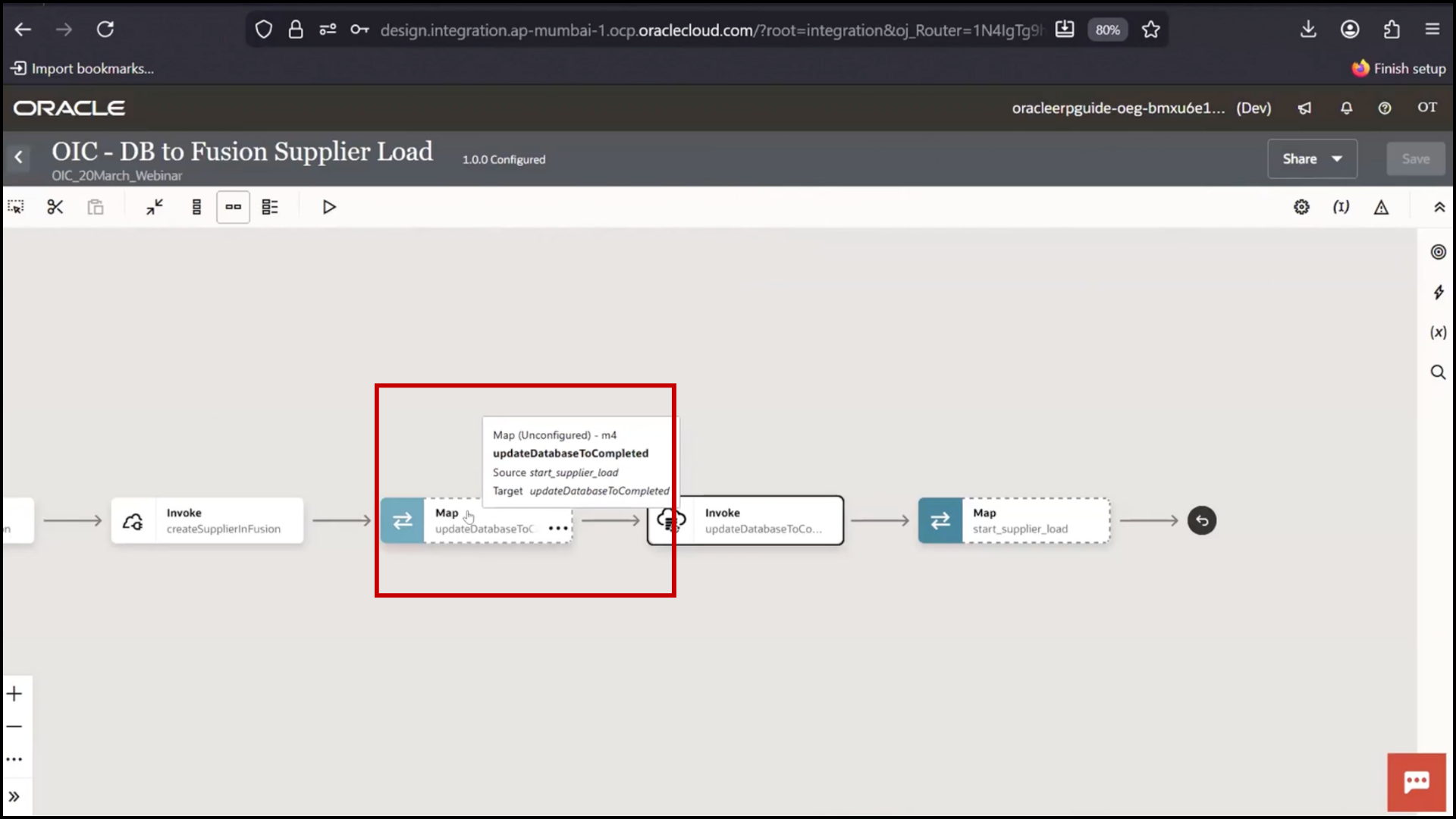
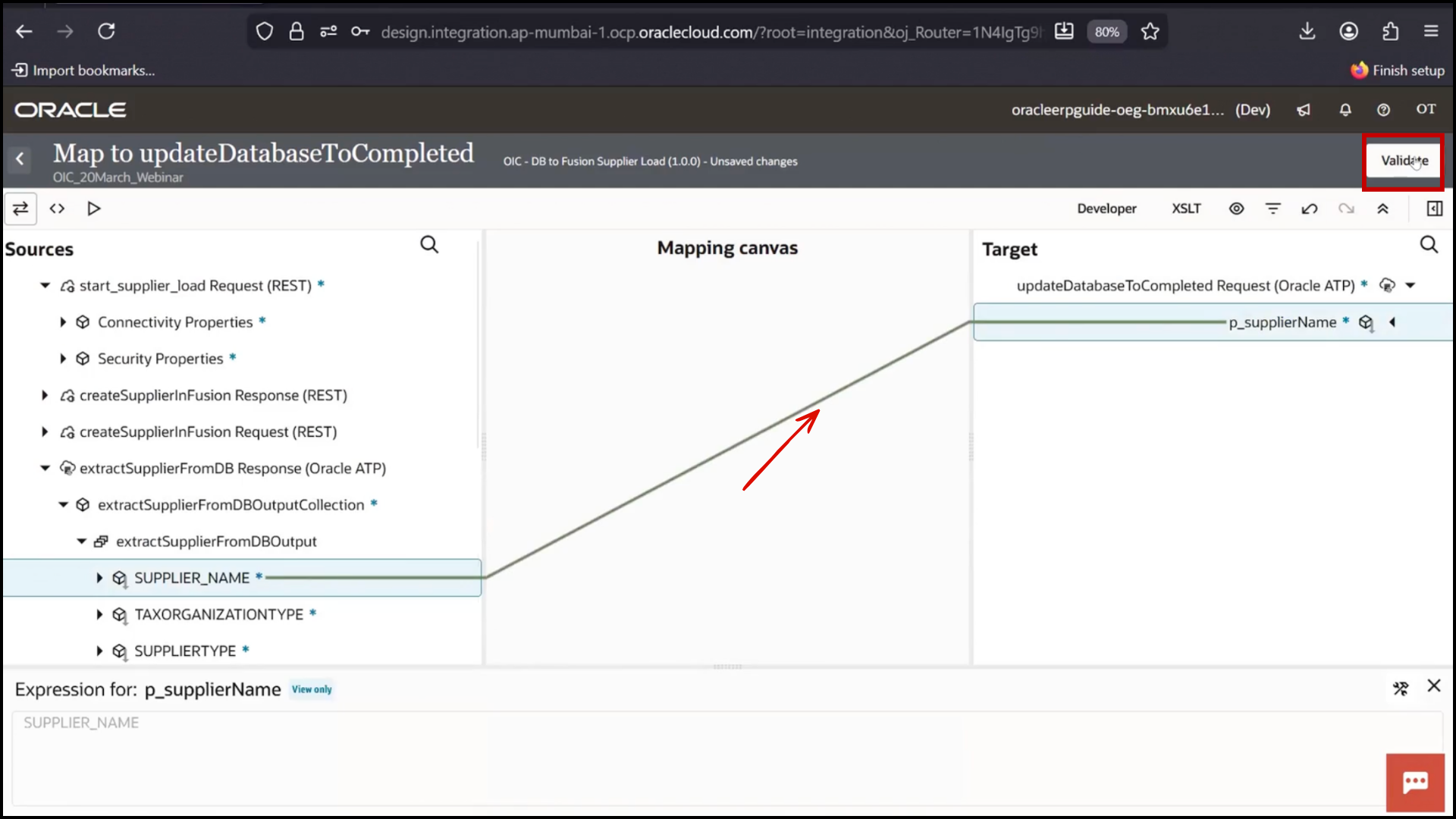
2. Map Supplier Name → p_supplier
3. Click Validate
4. Click Save
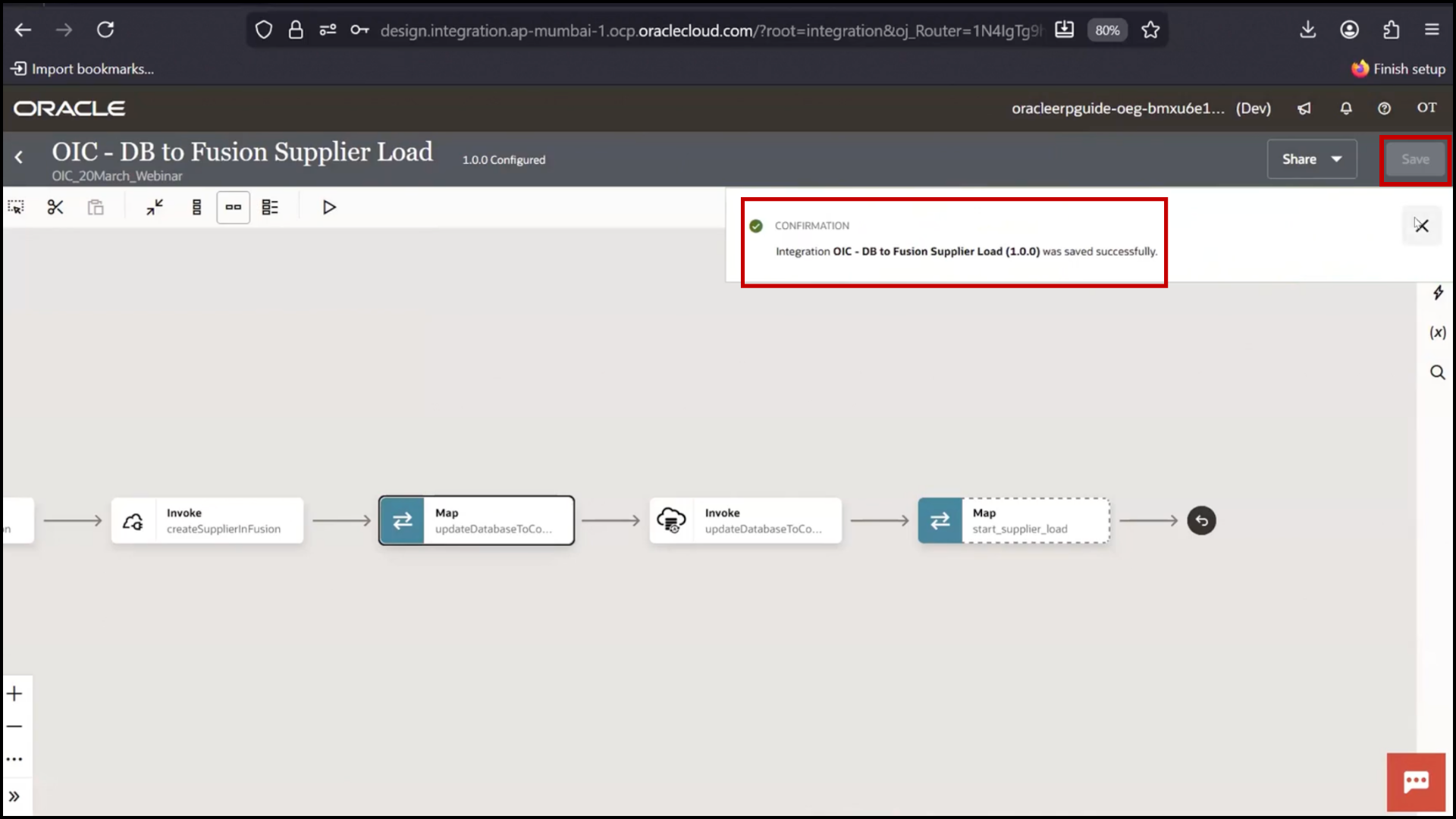
Final Execution
1. Click on Mapper
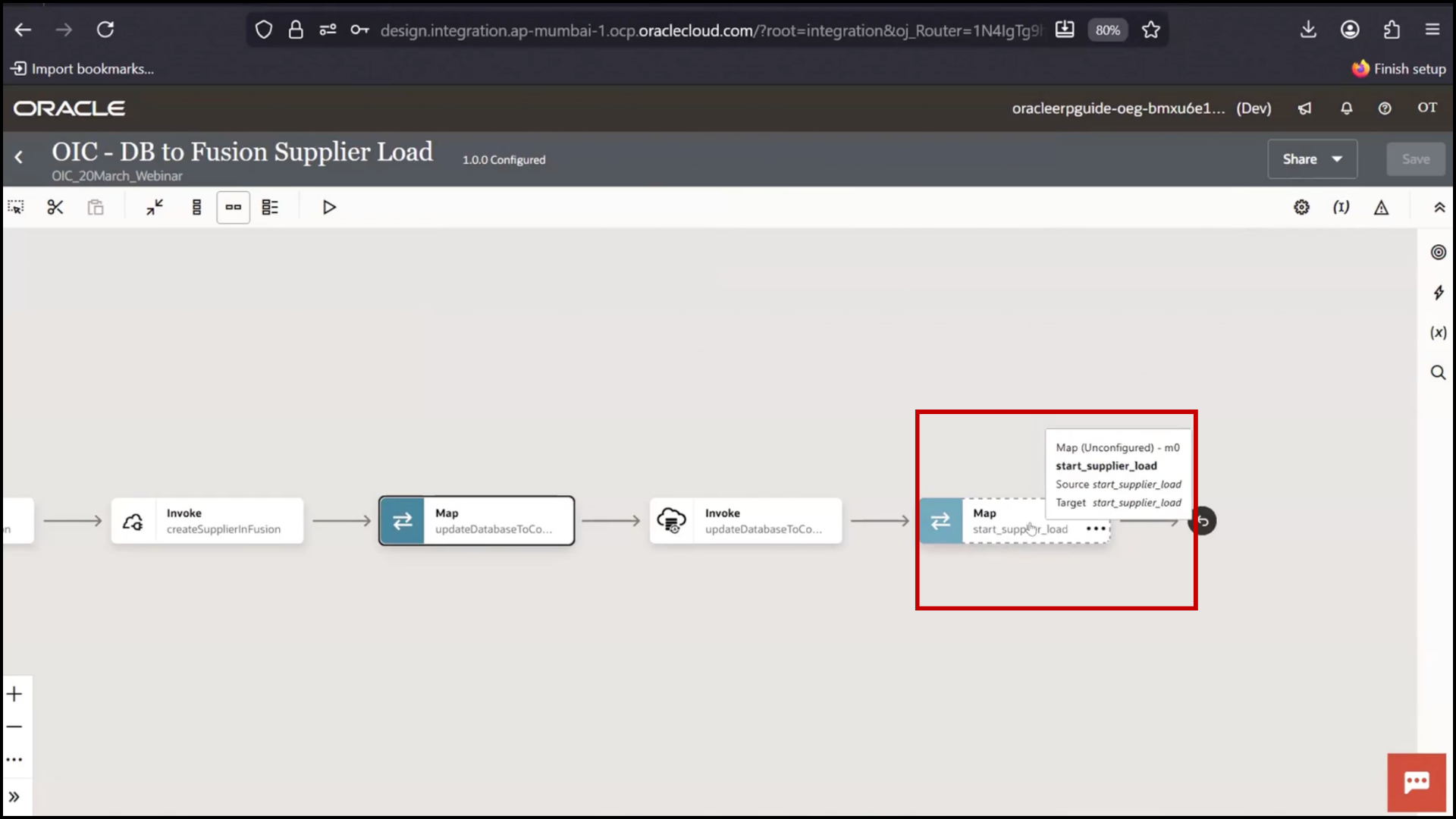
2. Click Activate
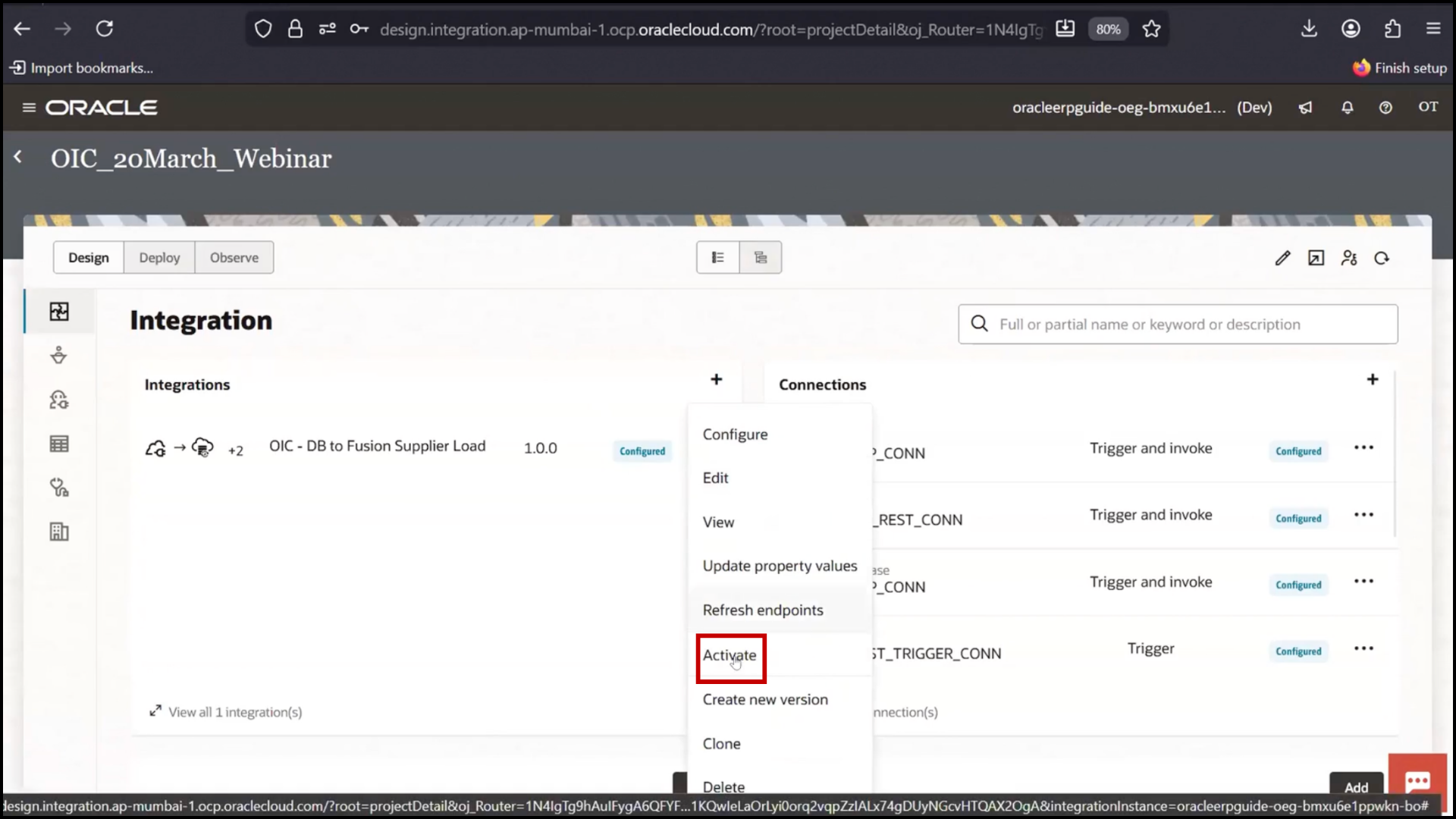
3. Click Activate again
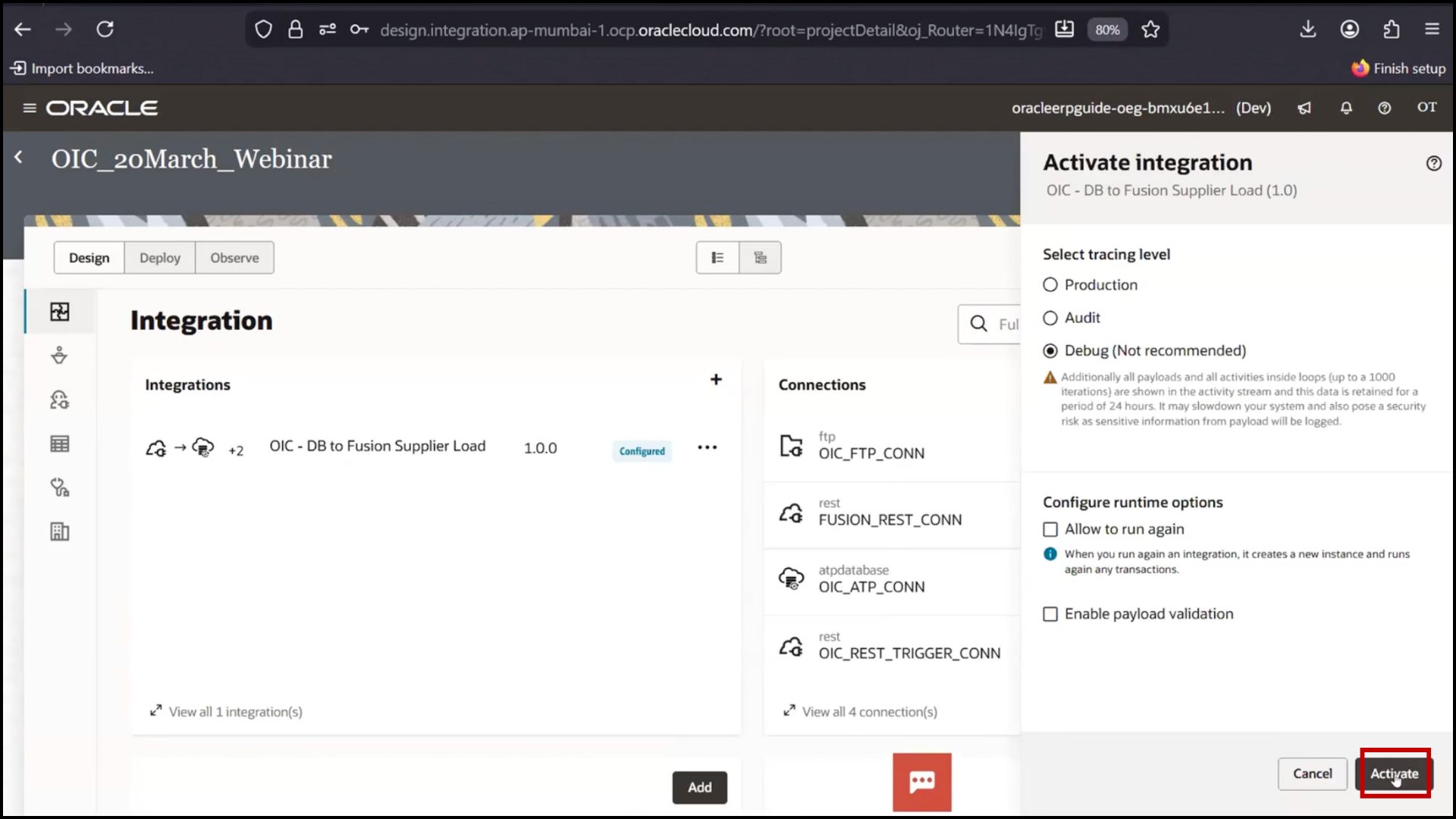
4. Click Refresh
5. Confirm status Active and Click Run
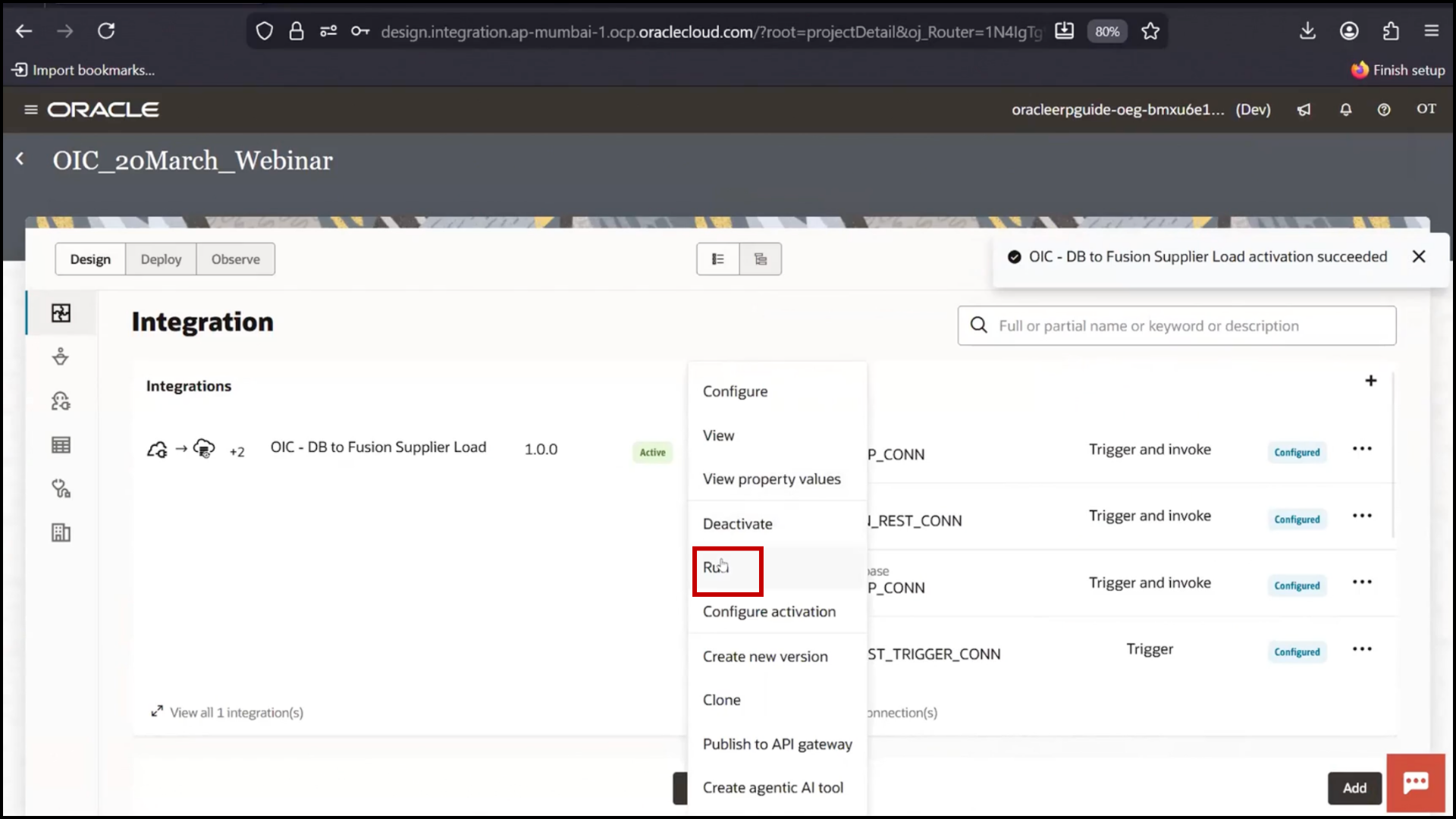
6. Click Run again
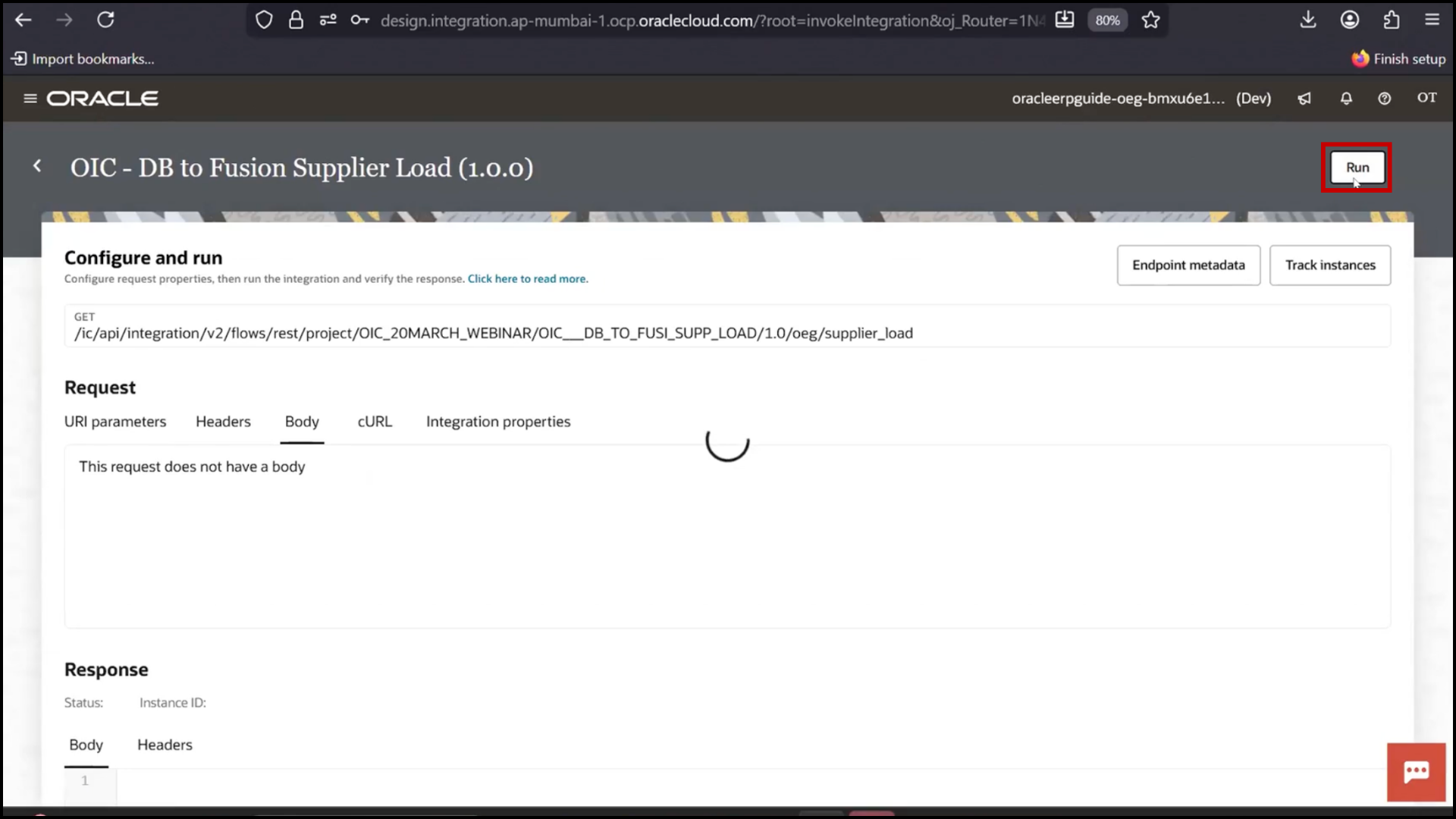
7. Check 200 OK
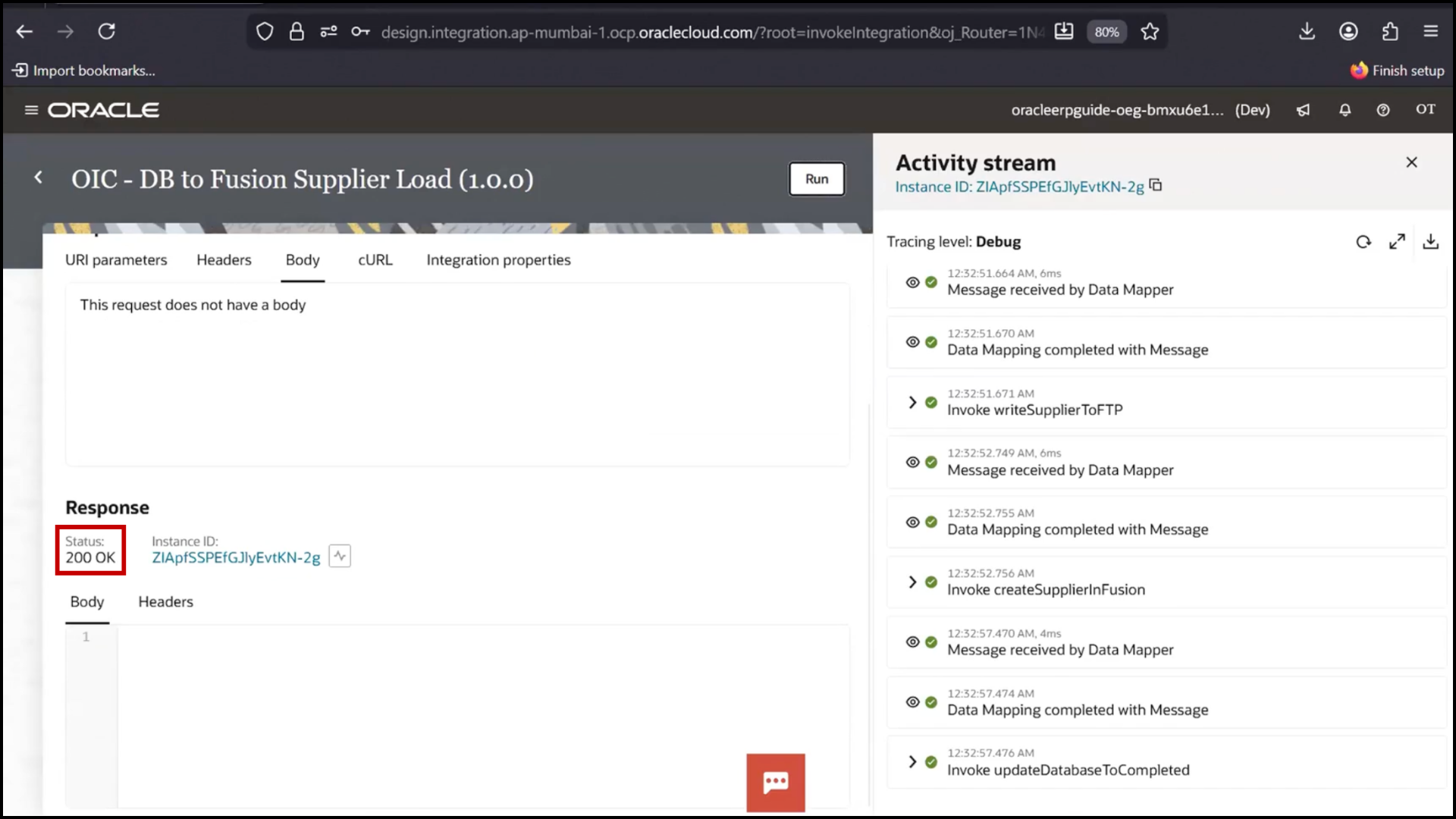
Final Verification
1. Login to Fusion
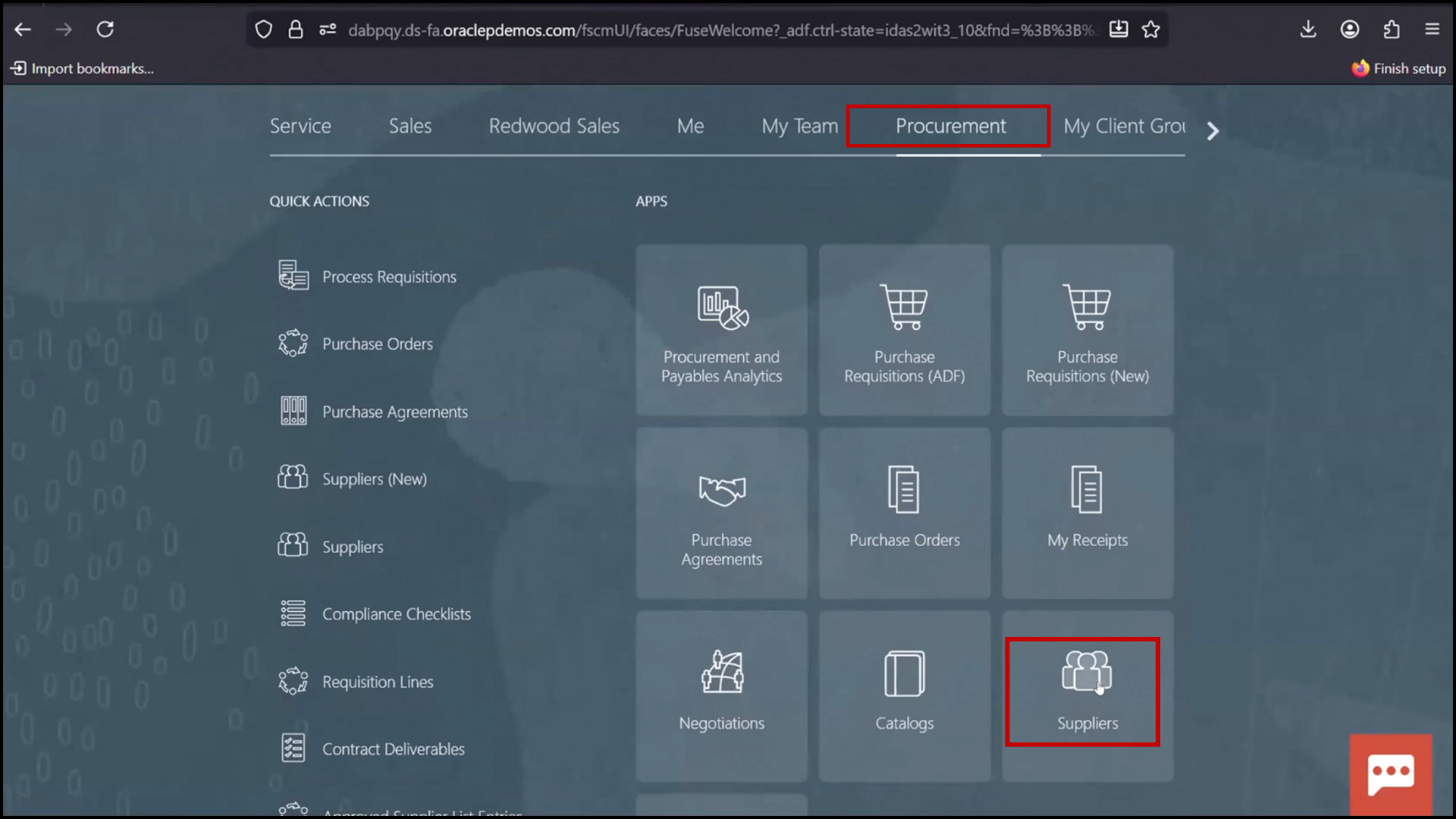
2. Navigate to Procurement and Click Suppliers
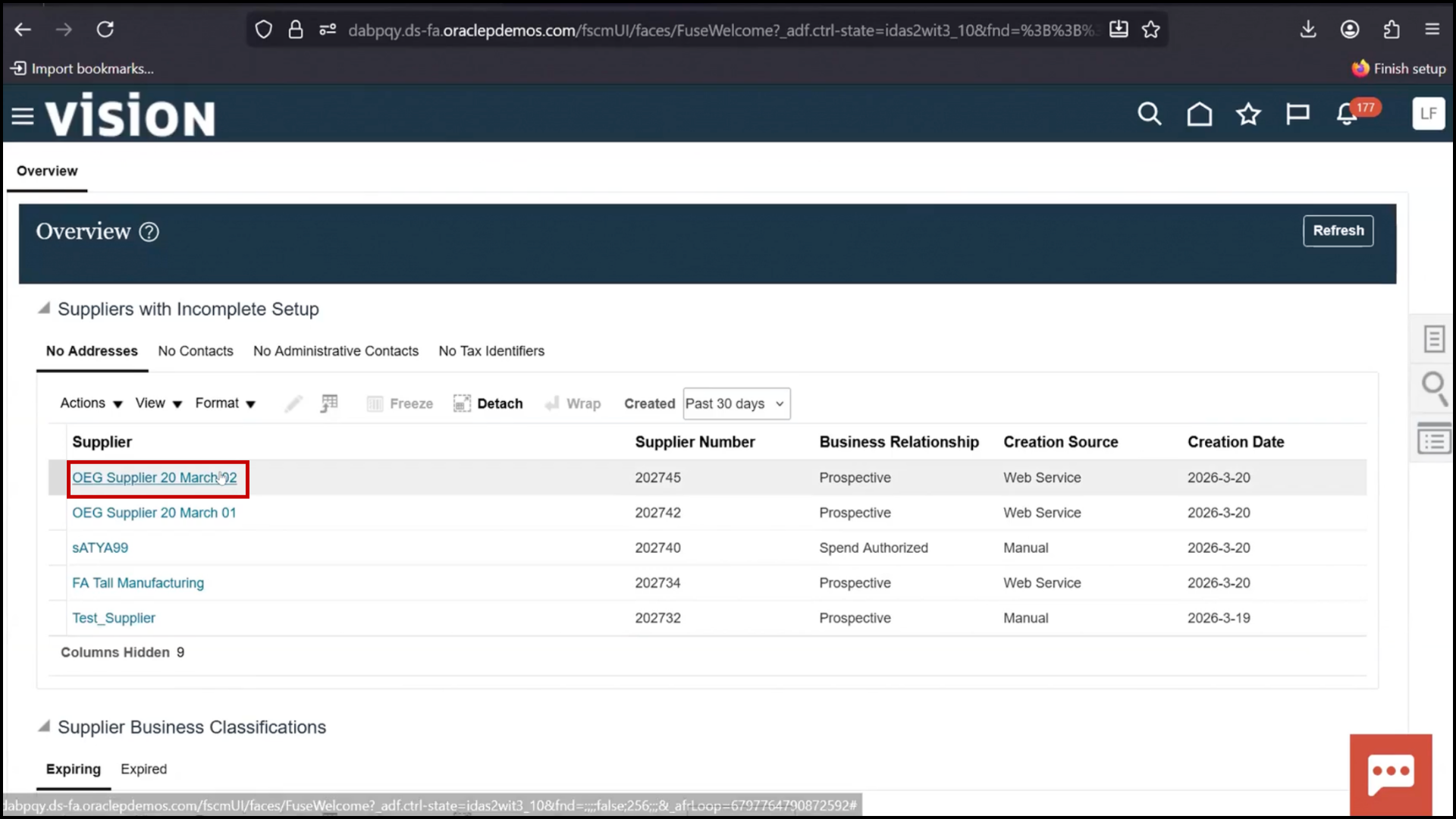
3. Click Manage Suppliers
4. Search using keyword (OEG)
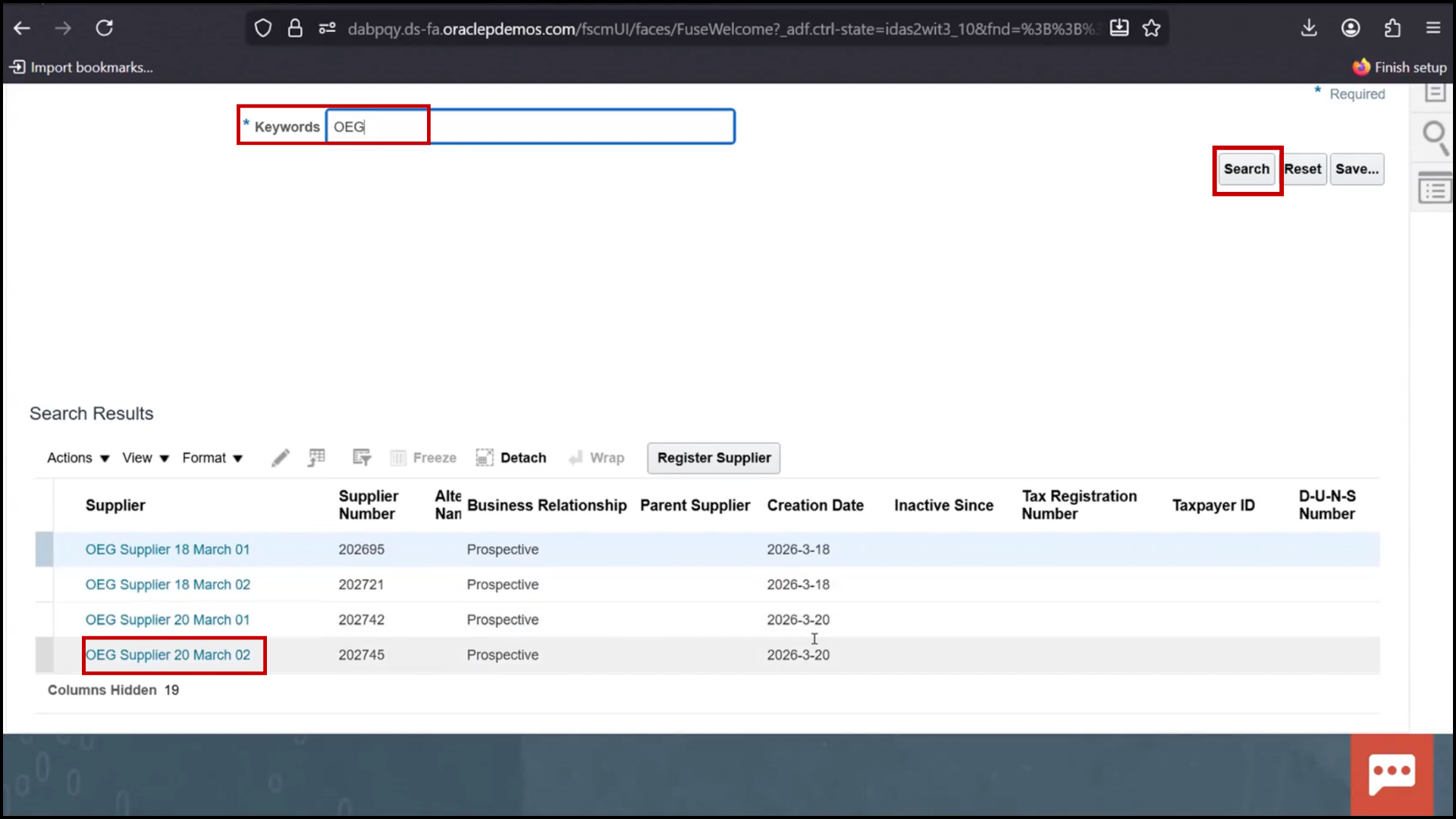
5. Verify new supplier created and Status Completed
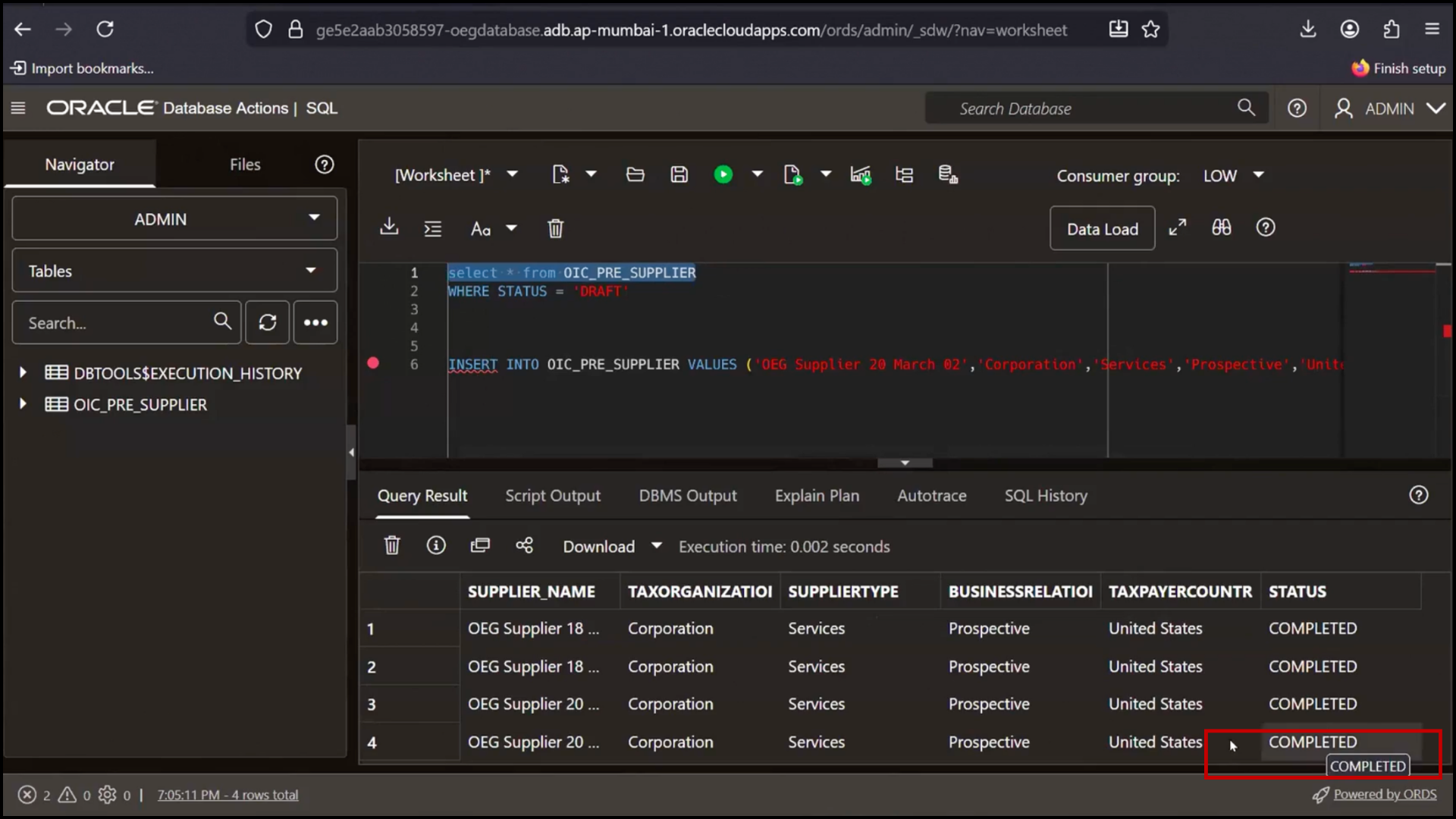
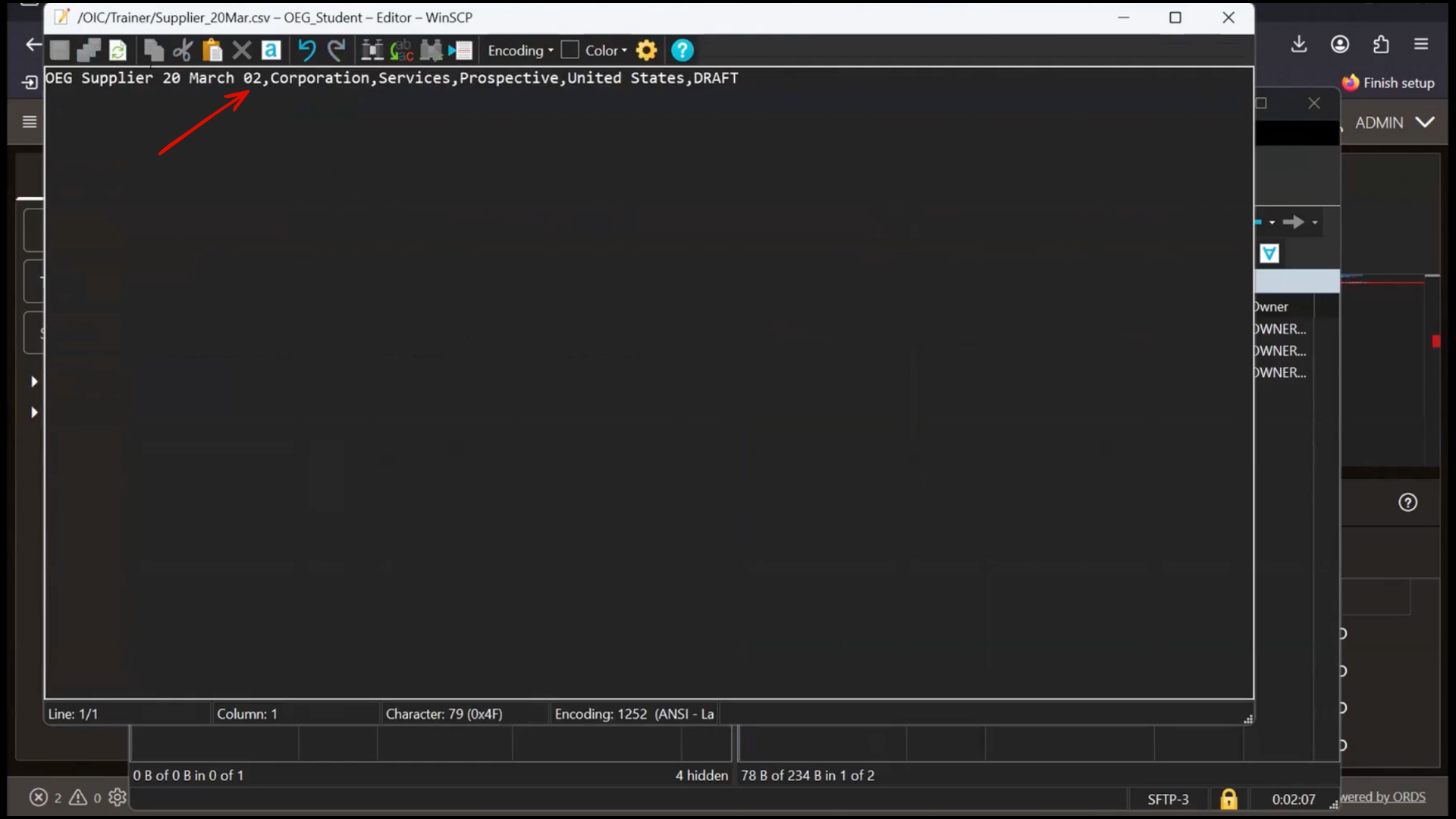
6. Open file
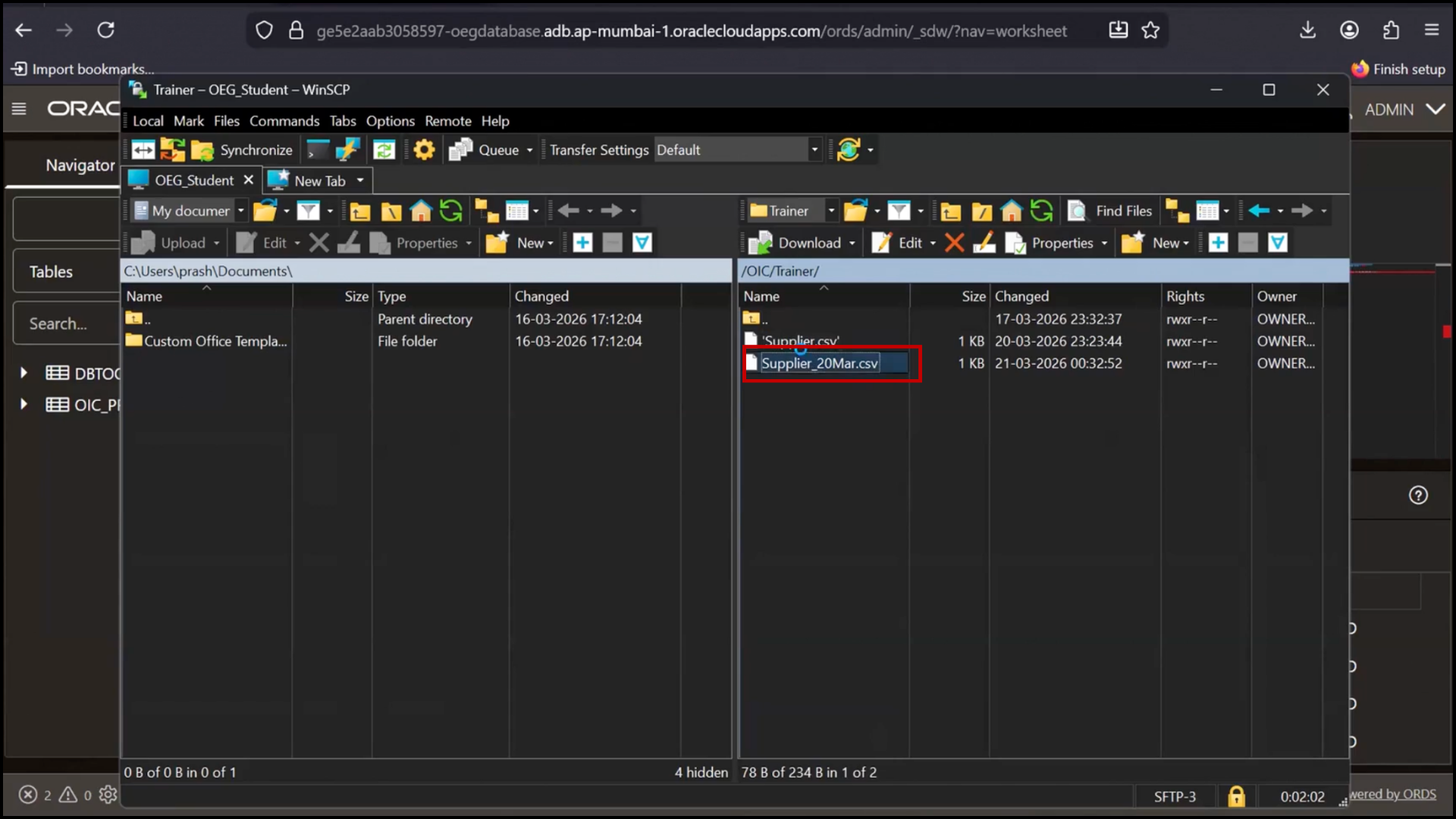
7. Verify new record present