FTP Integration and File Handling in Oracle Integration Cloud (Part 4)
Deactivation
1. Deactivating for Further Changes
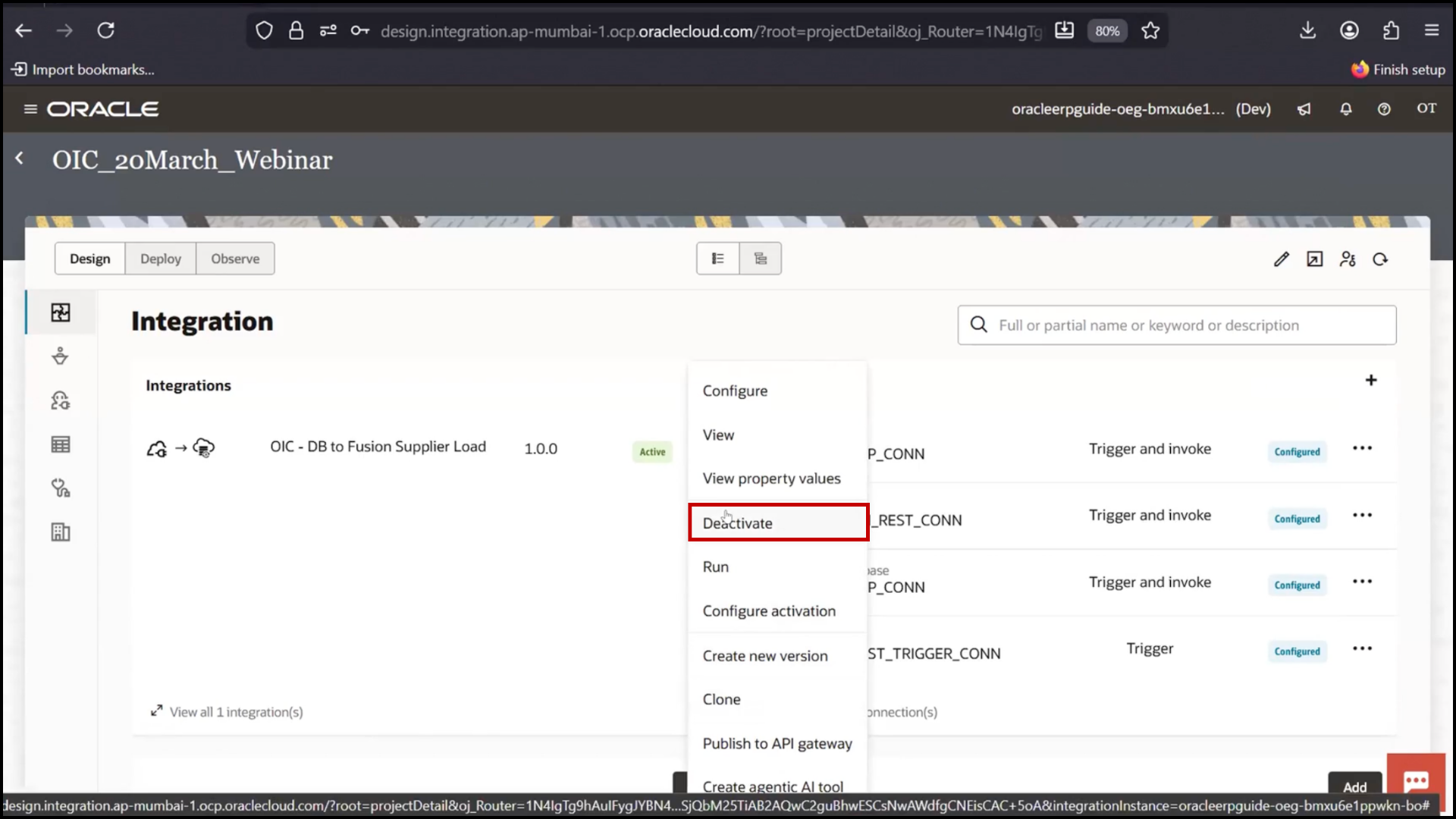
2. Click Deactivate
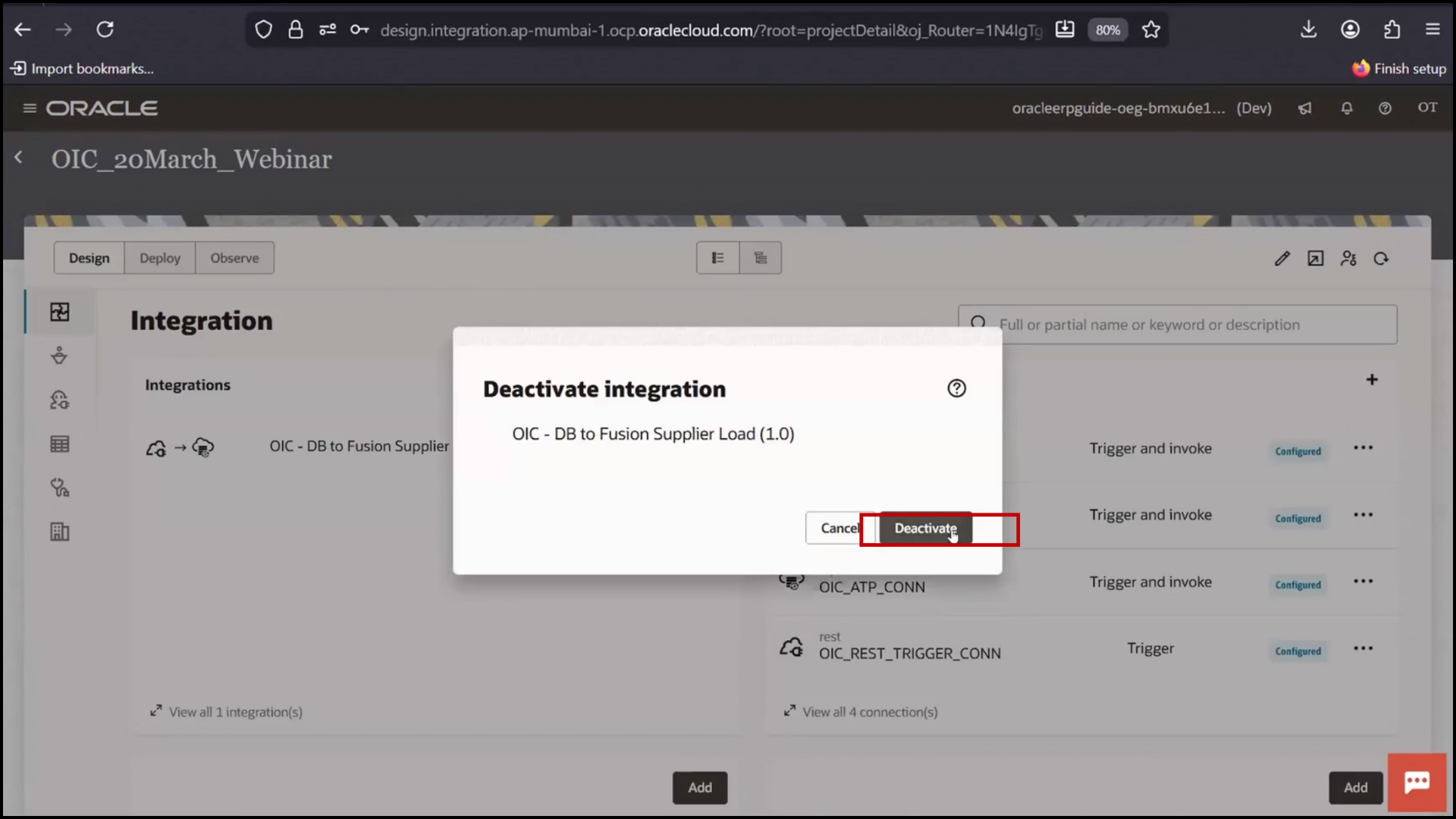
3. Confirm Deactivate Integration
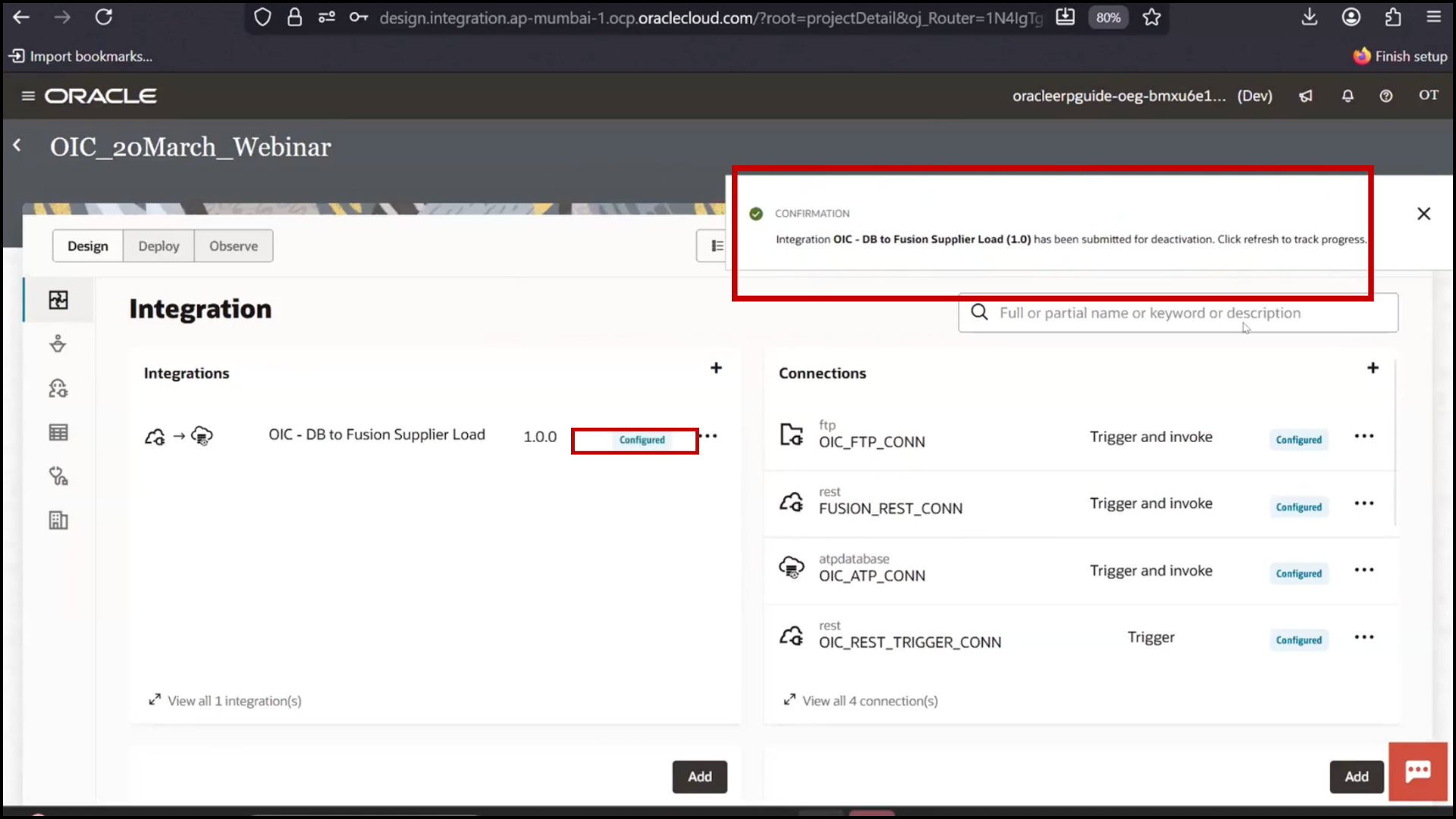
4. Wait for status change
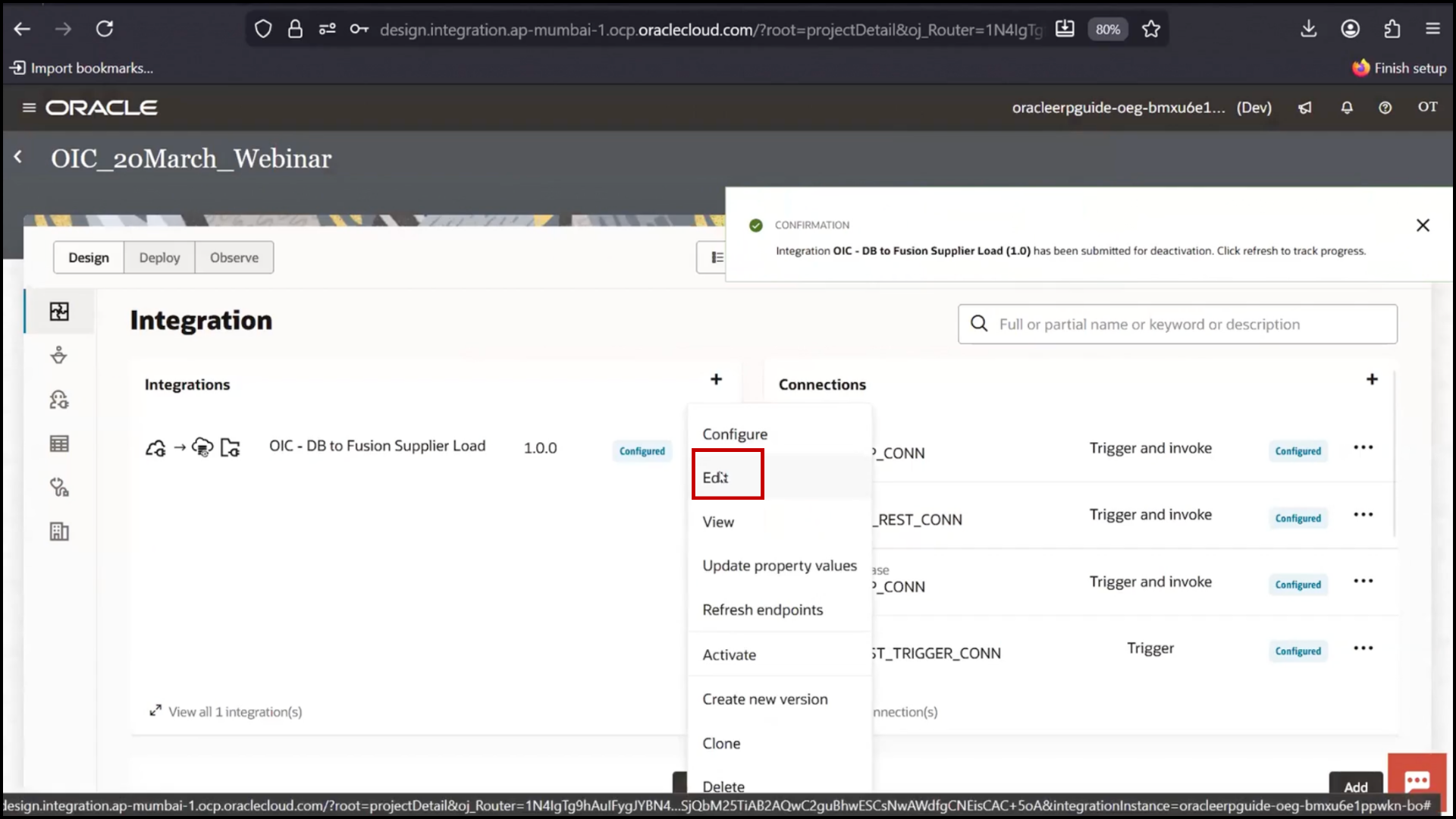
5. Click Edit
Adding FTP File Write Step
1. Click the ‘+’ icon.
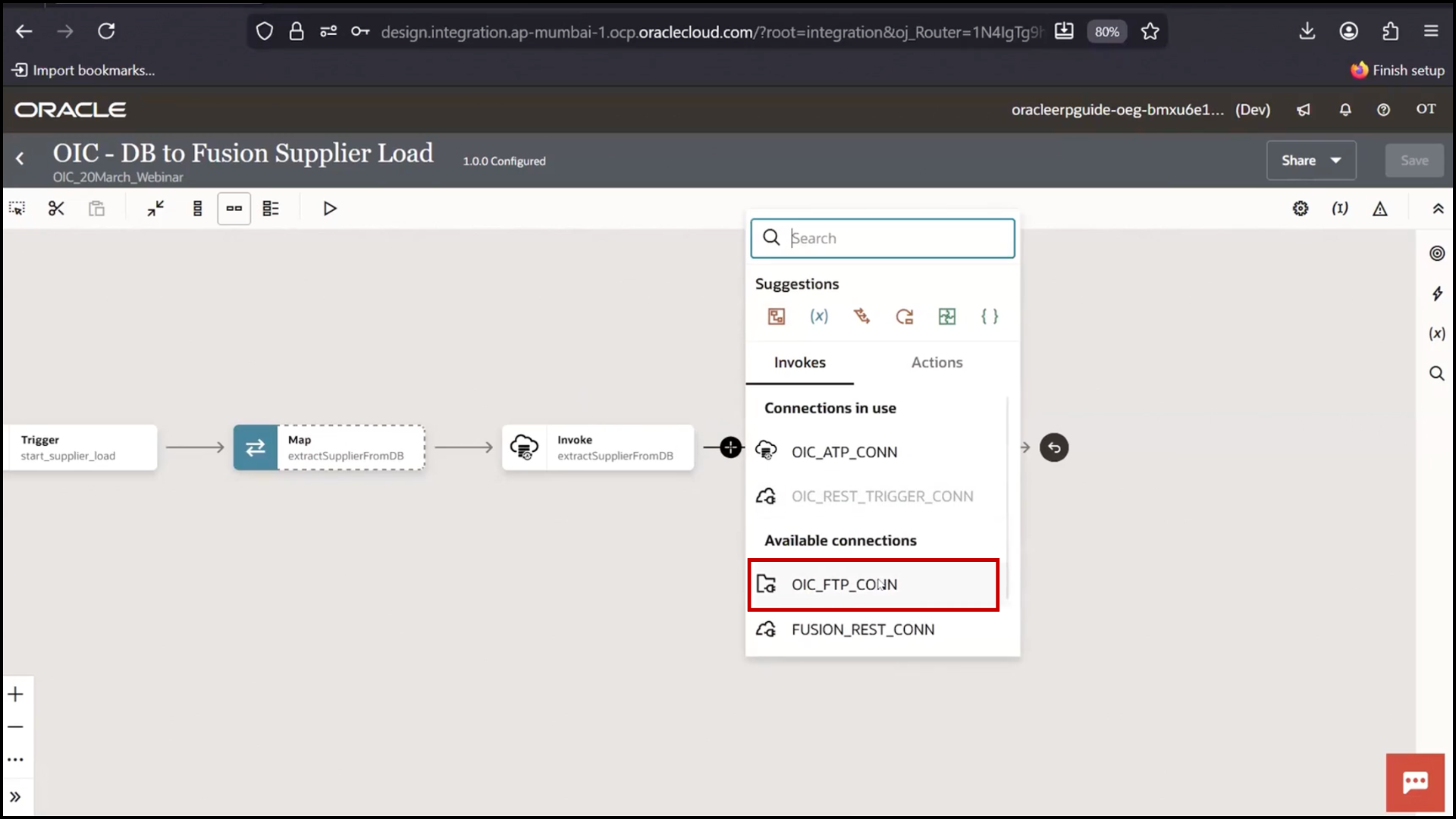
2. Select FTP Connection
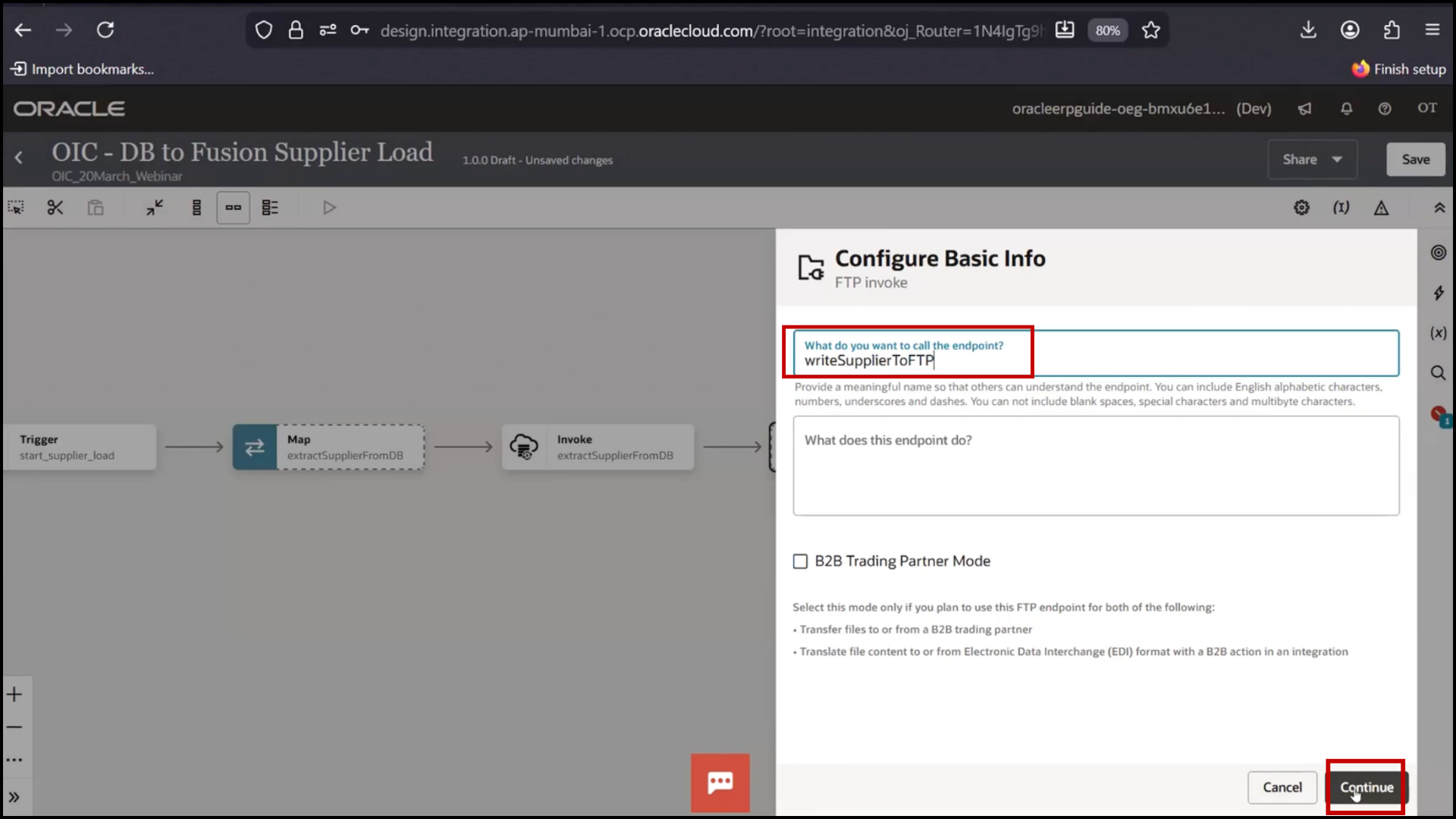
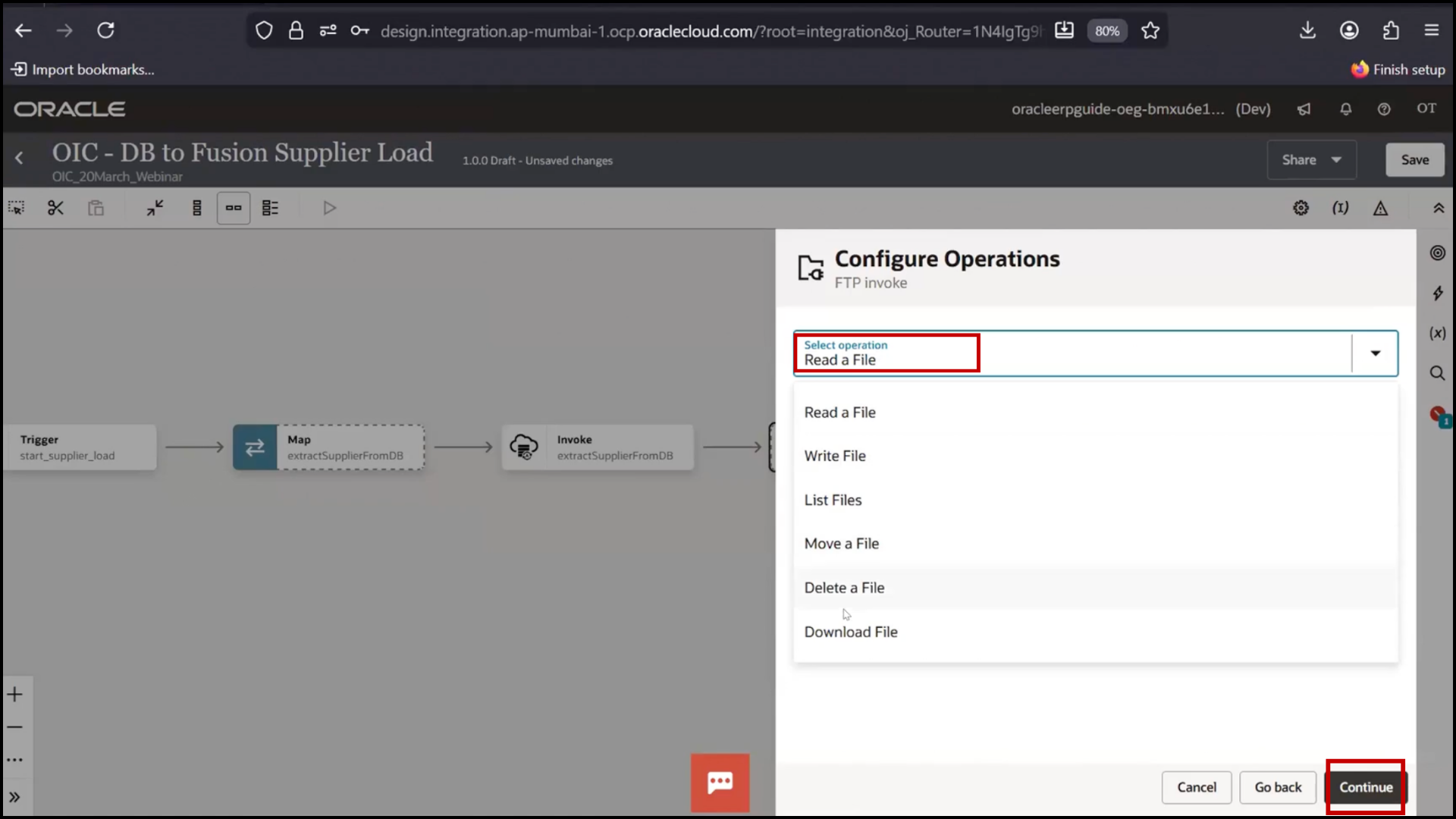
3. Select Read a file and Continue and Continue again, Select Operation to Write a File
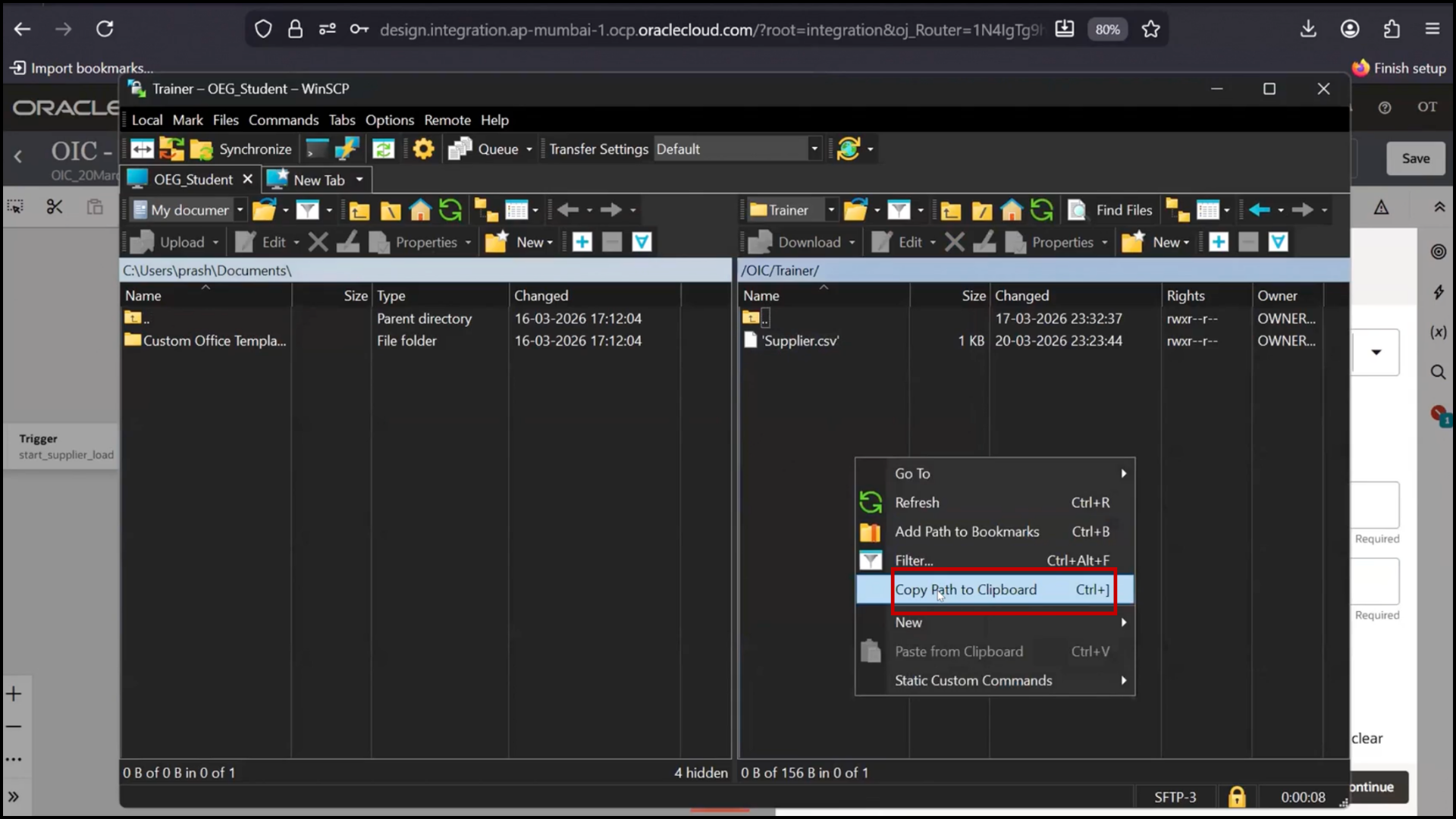
4. Copy FTP directory path
5. Enter file name: supplier_20march.csv
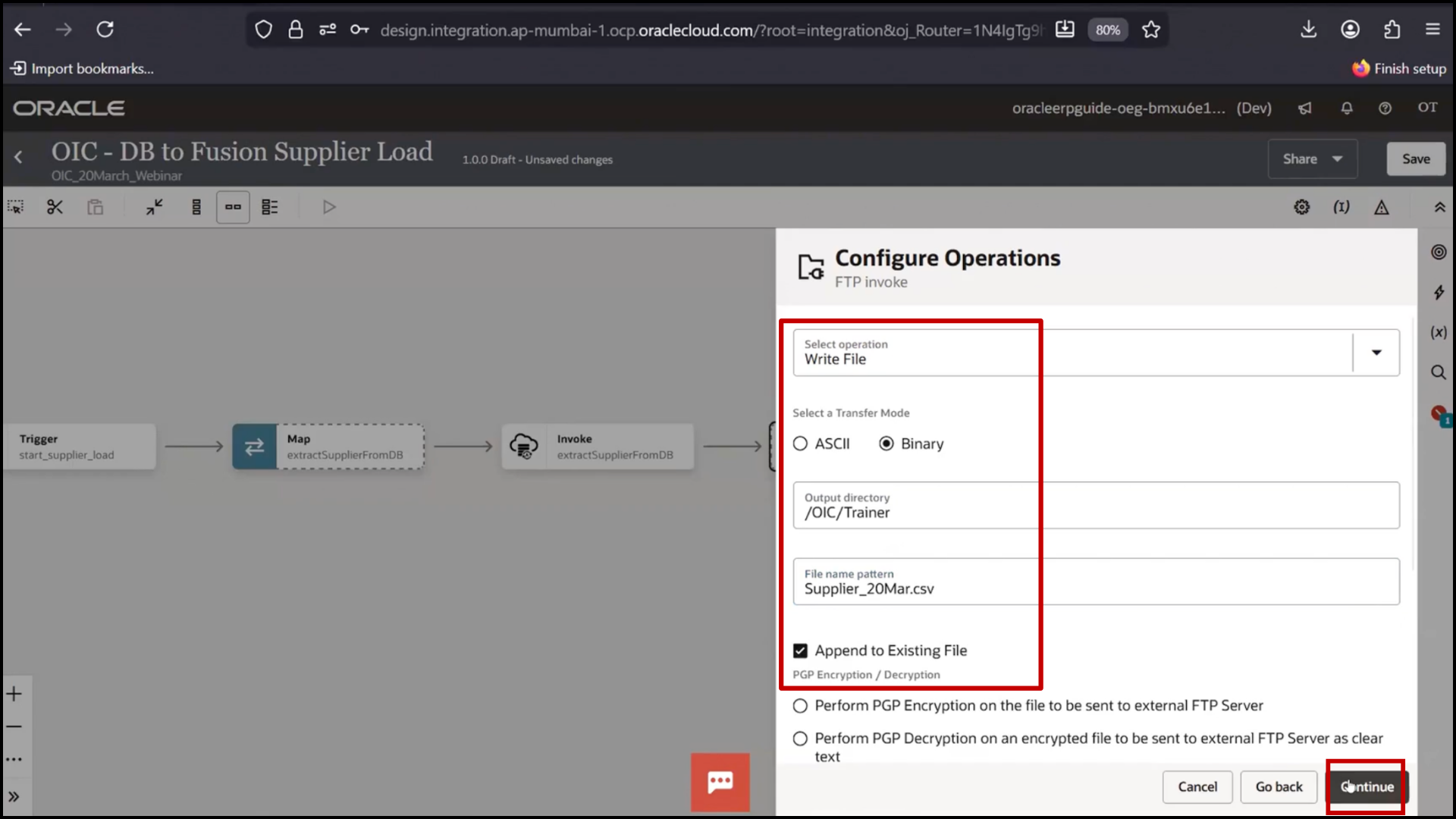
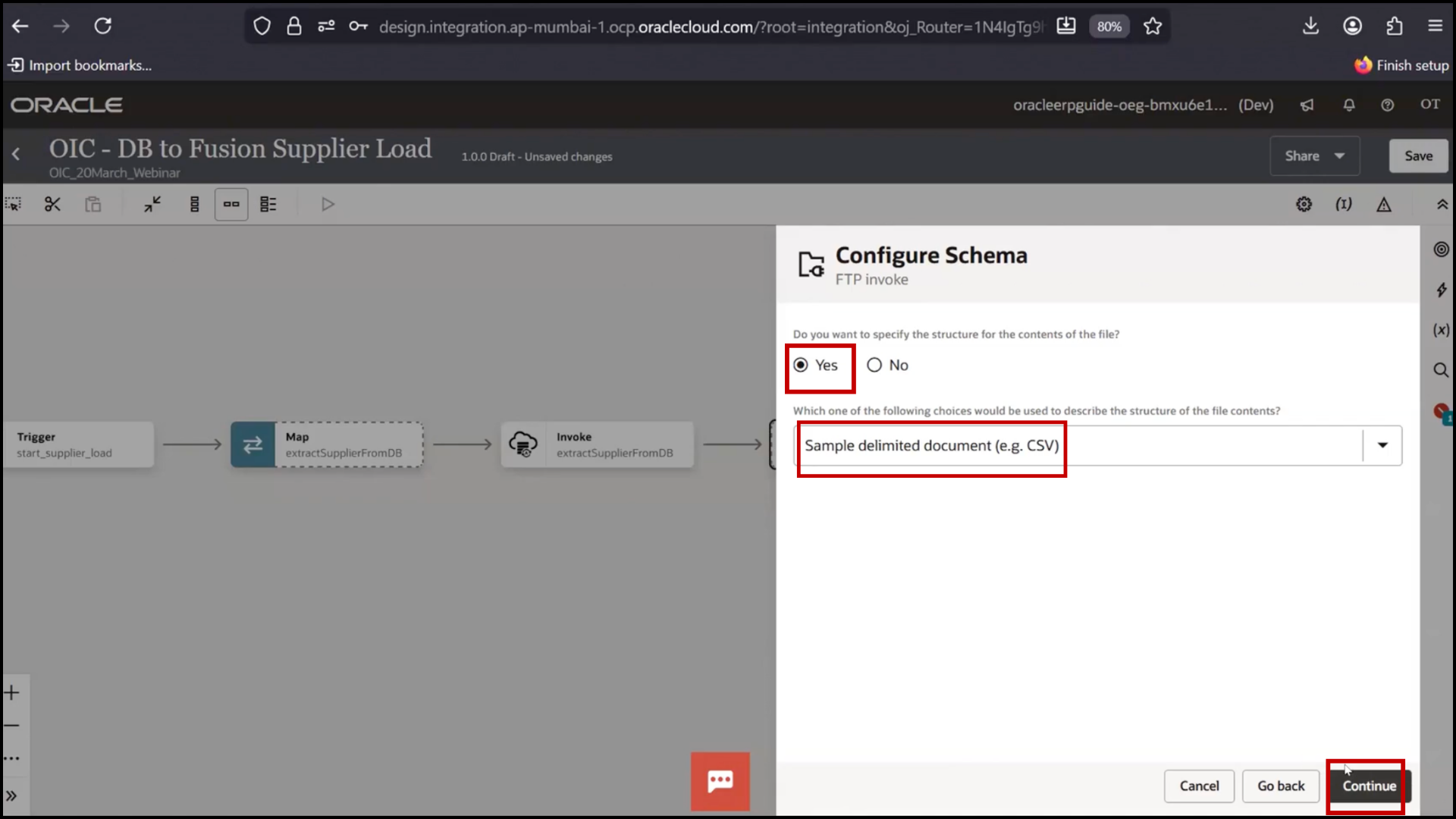
6. Select Yes for file content
7. Choose CSV format and Continue
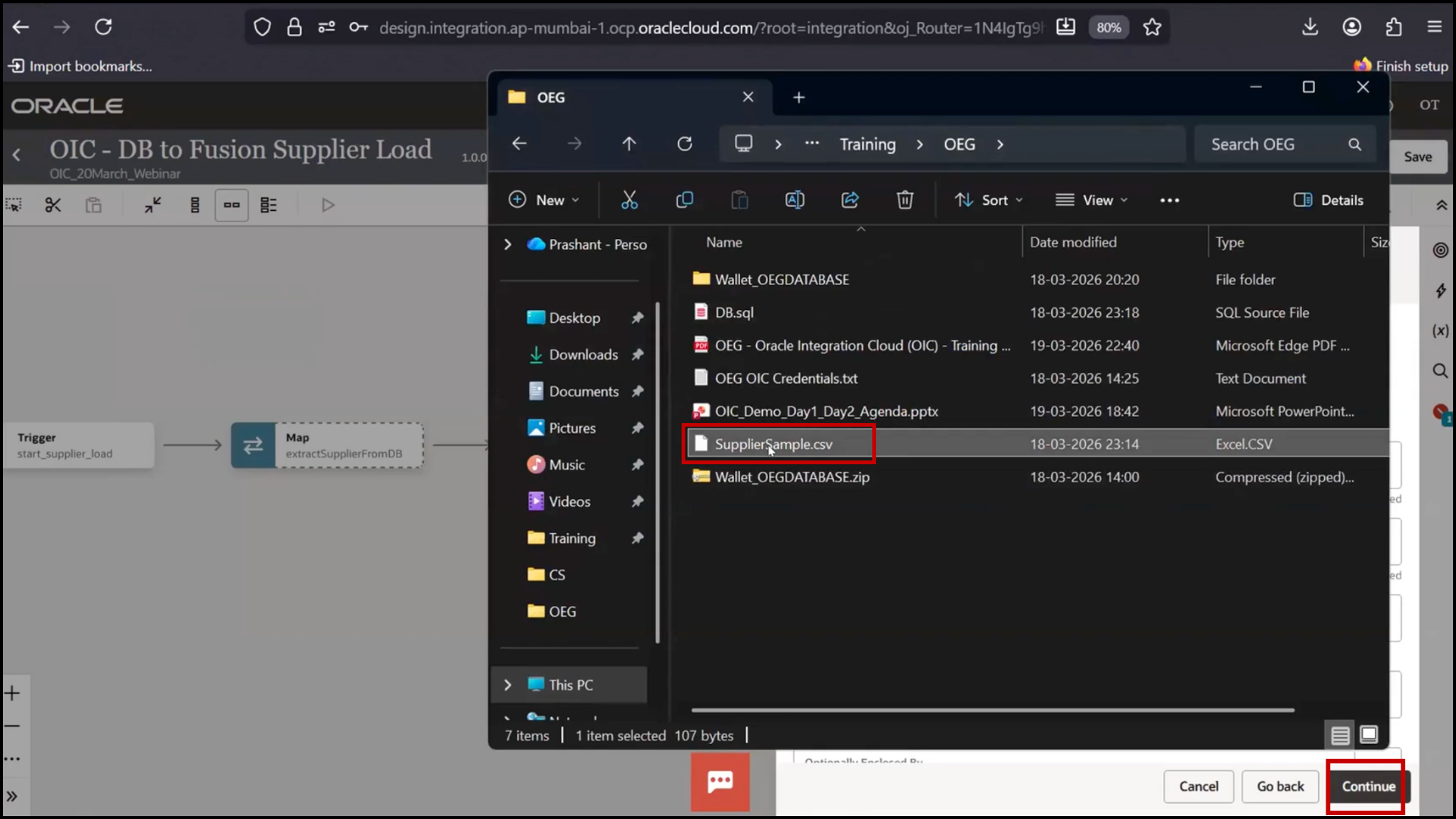
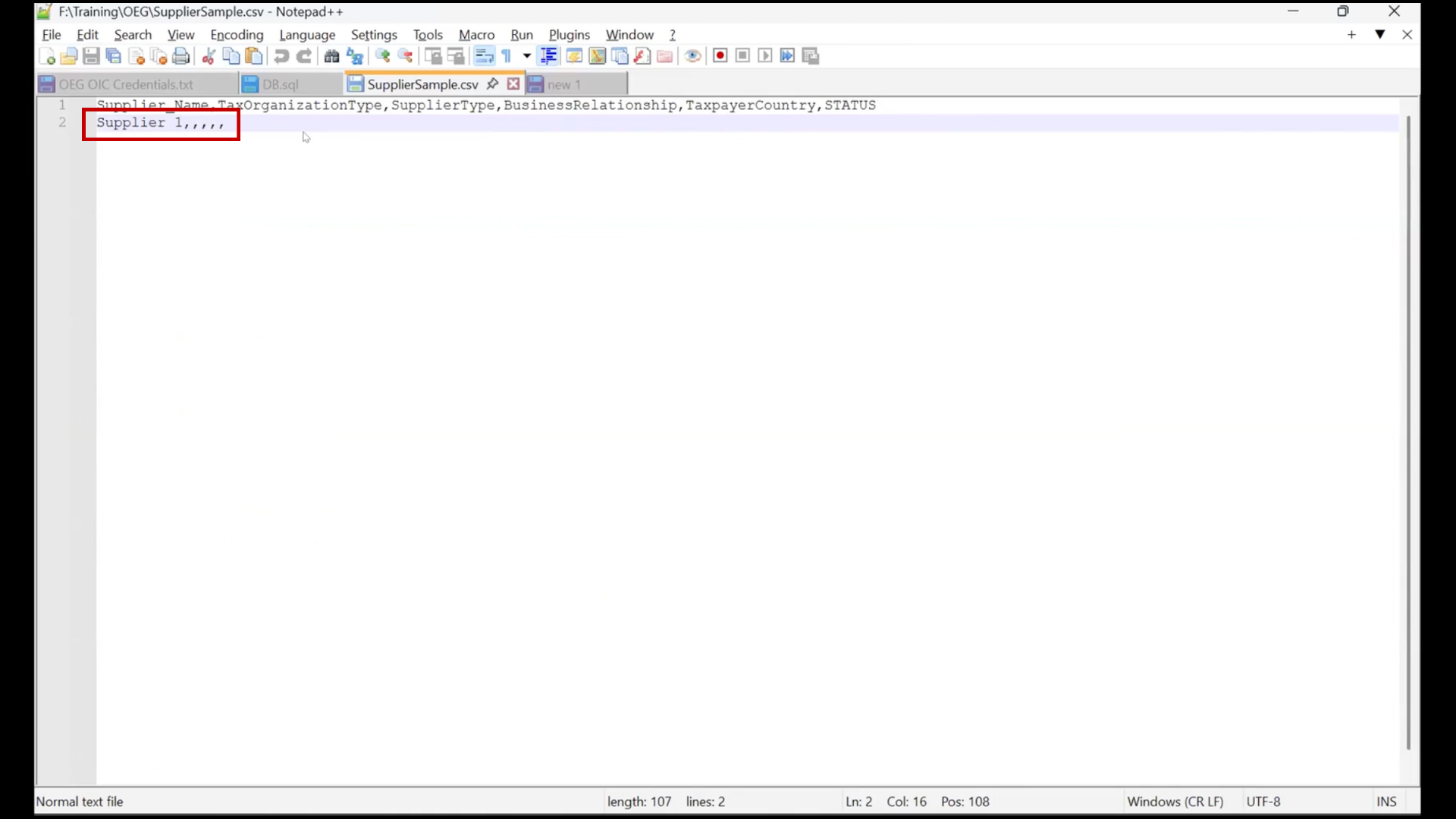
8. Sample file:
9. Upload sample file (drag and drop)
9. Enter Record Name: Supplier
10. Enter Record Set: All Suppliers
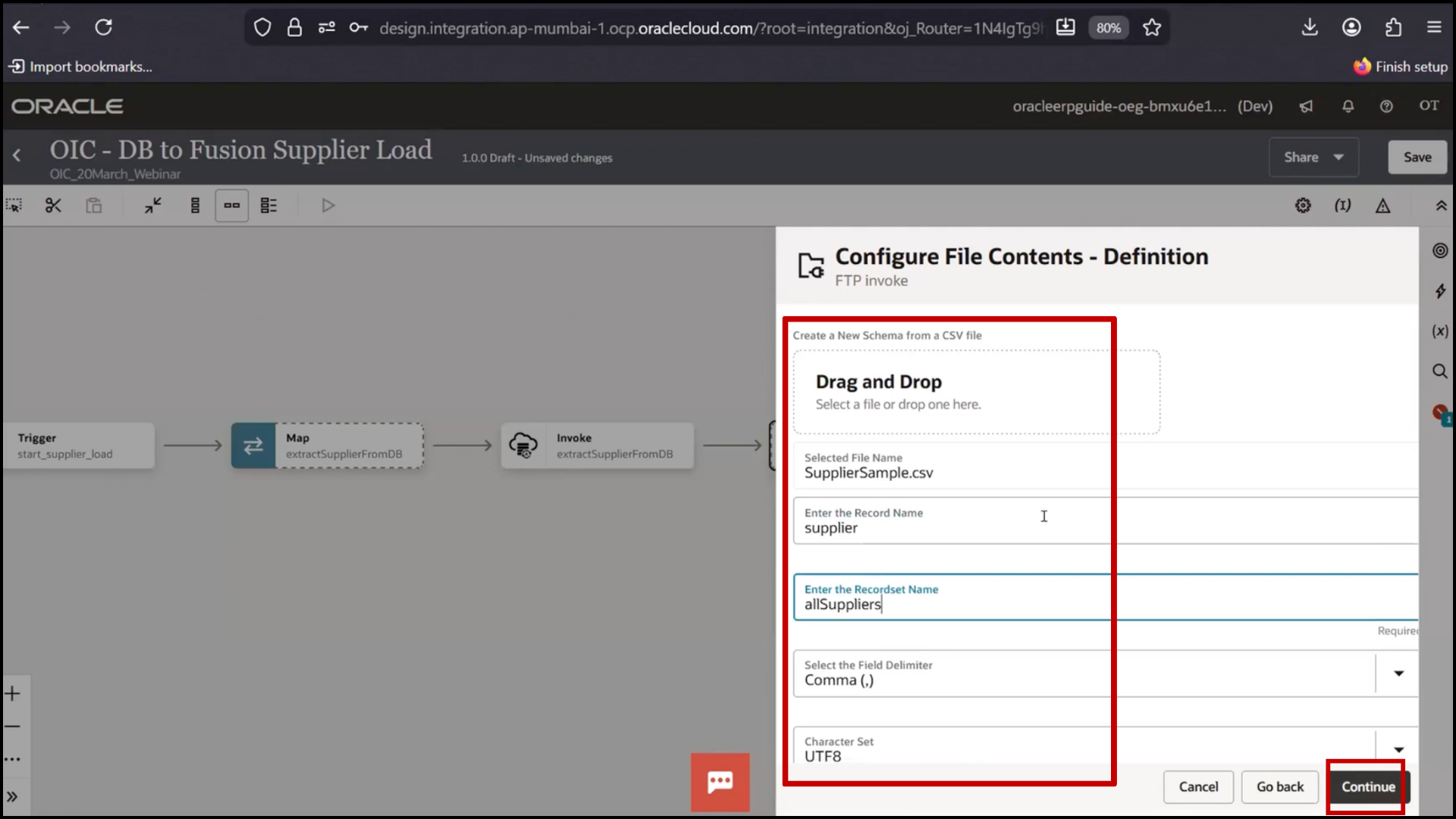
11. Mark all fields optional
12. Make at least one field mandatory (Supplier Name)
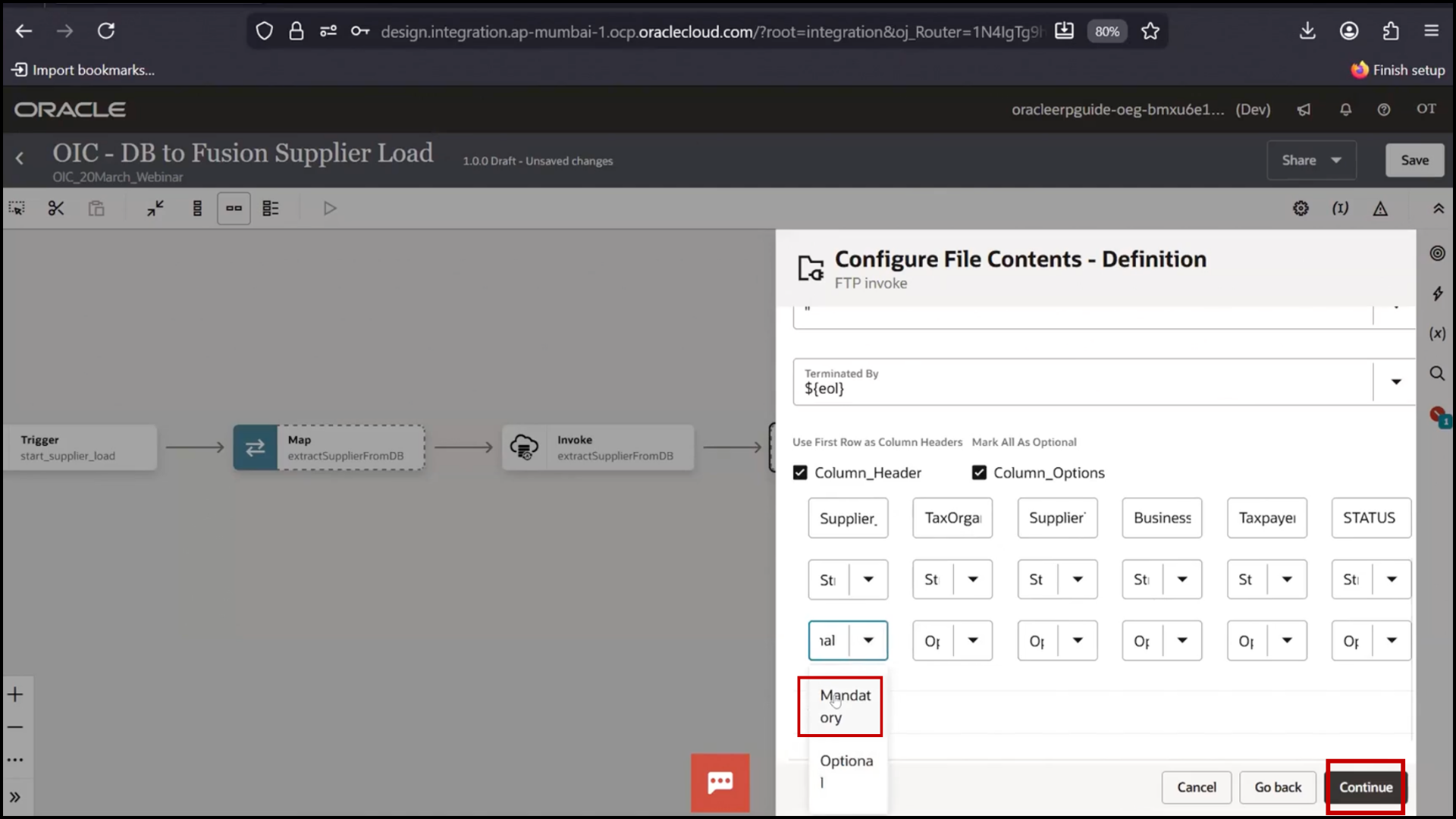
13. Click Continue
14. Click Finish
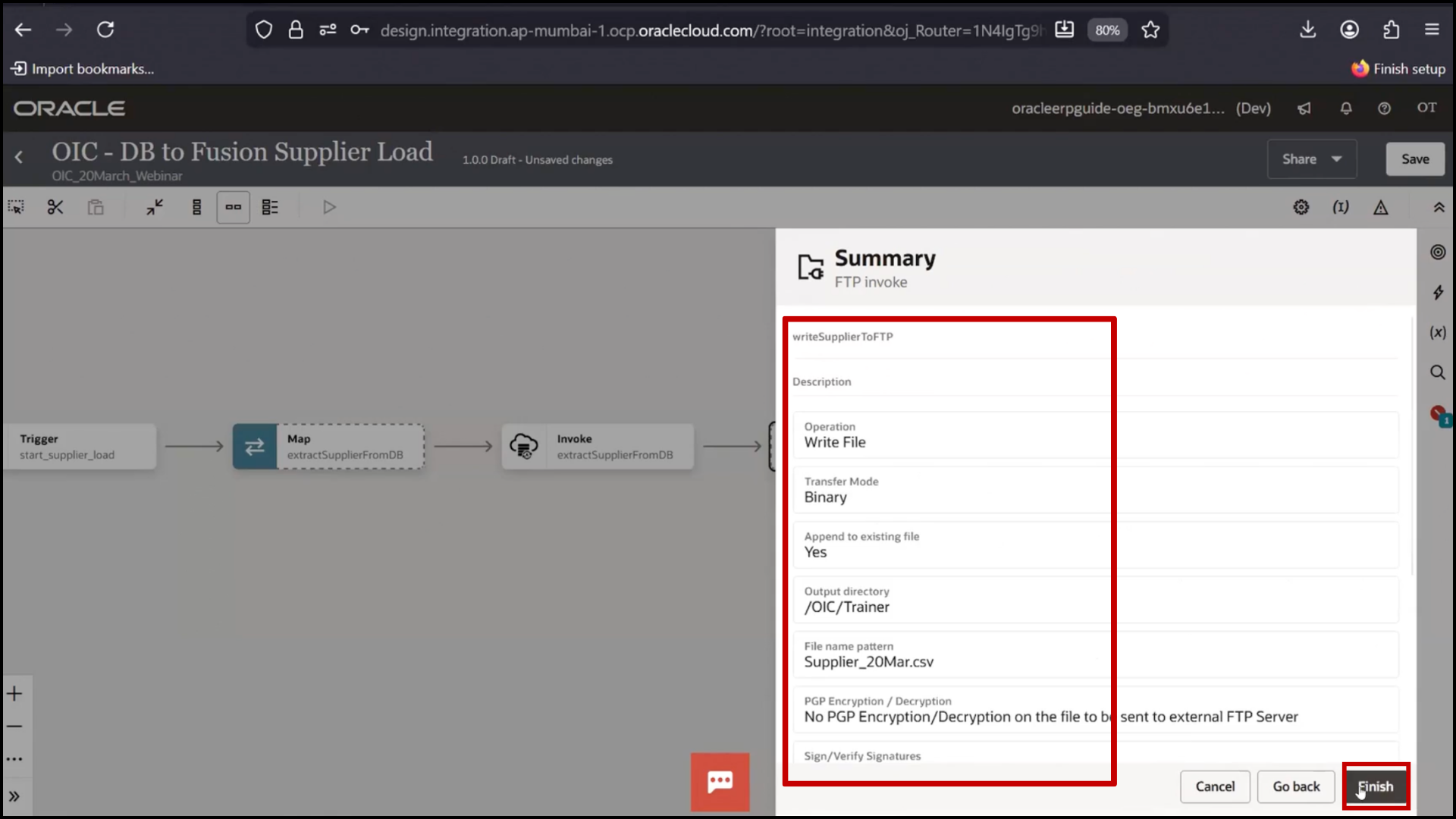
15. Click Save
Mapping Data to FTP
1. Open Mapper
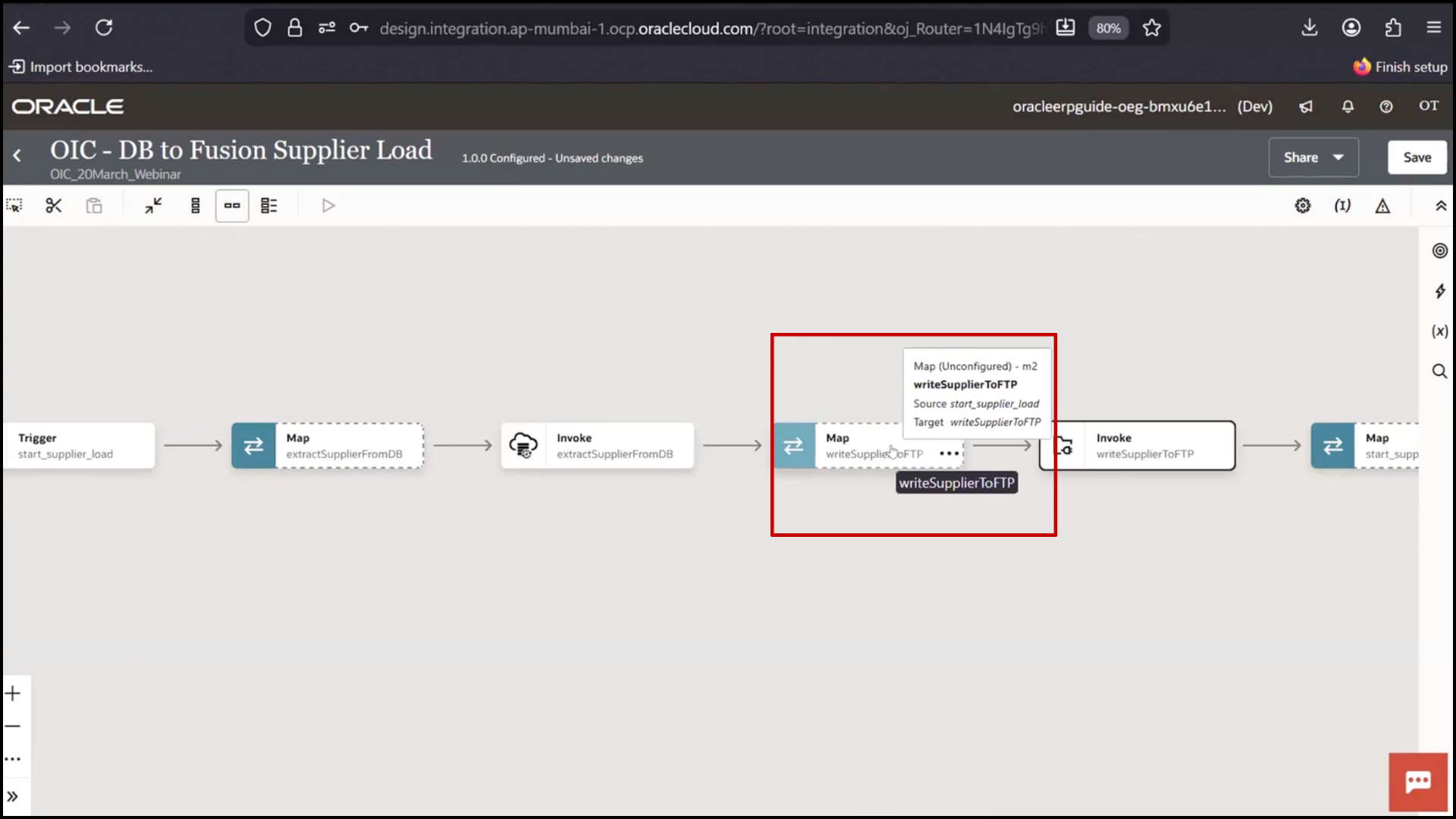
2. Expand DB response
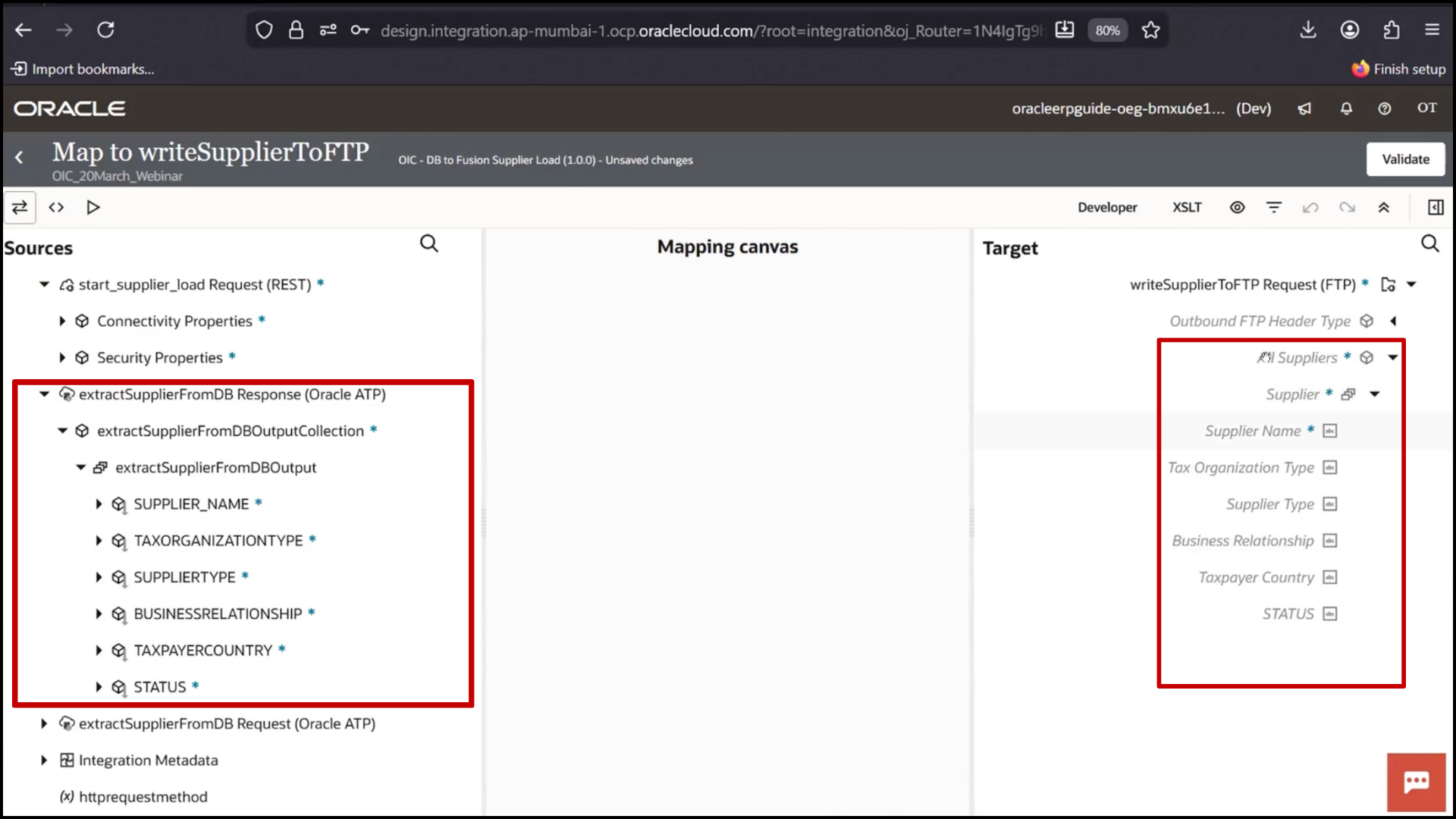
3. Map fields:
STATUS → STATUS
TAXPAYER COUNTRY → TAXPAYER COUNTRY
BUSINESS RELATIONSHIP → BUSINESS RELATIONSHIP
SUPPLIER TYPE → SUPPLIER TYPE
TAX ORGANIZATION TYPE → TAX ORGANIZATION TYPE
SUPPLIER NAME → SUPPLIER NAME
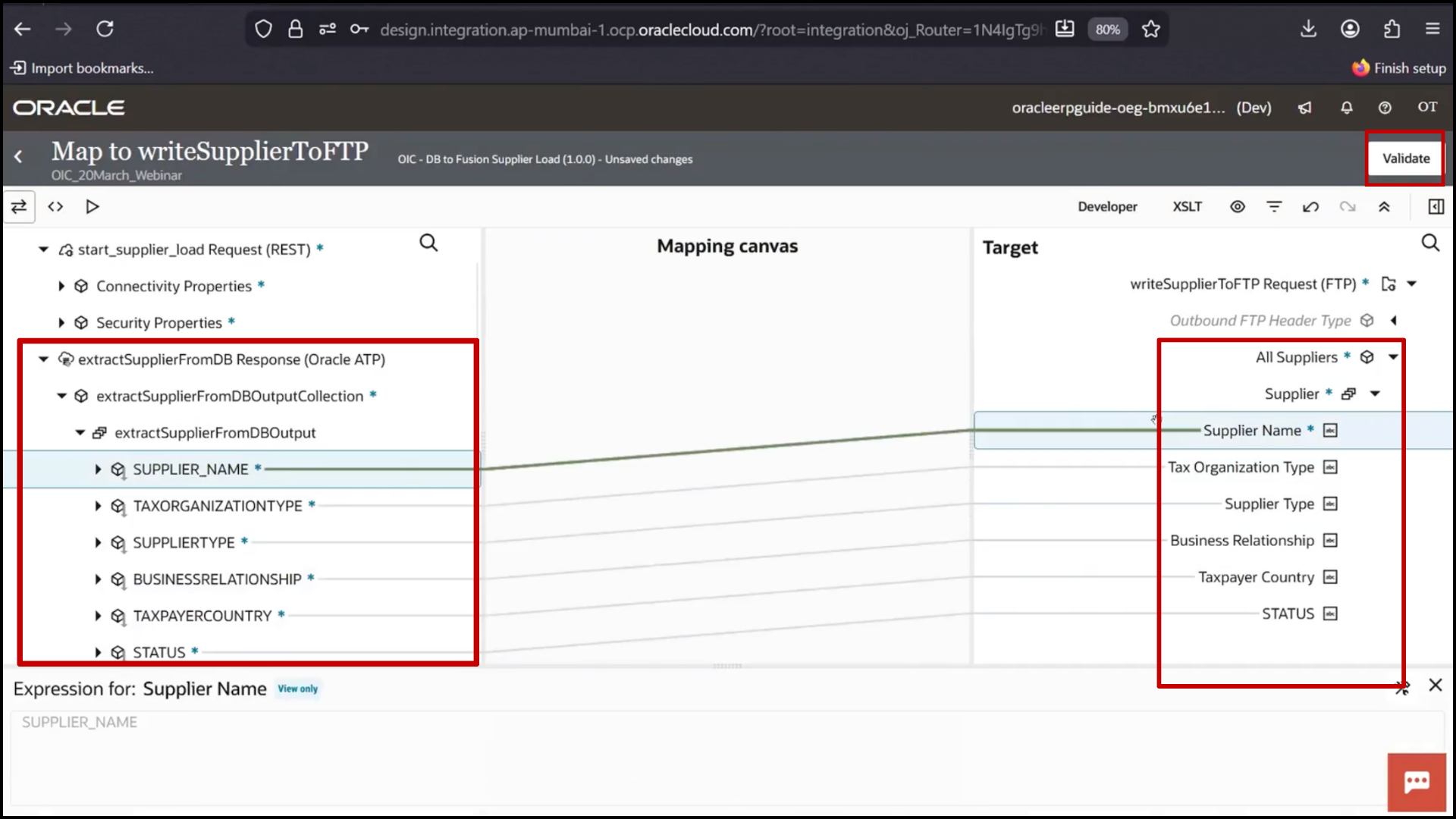
4. Click Validate
5. Confirm validation successful
6. Click Save
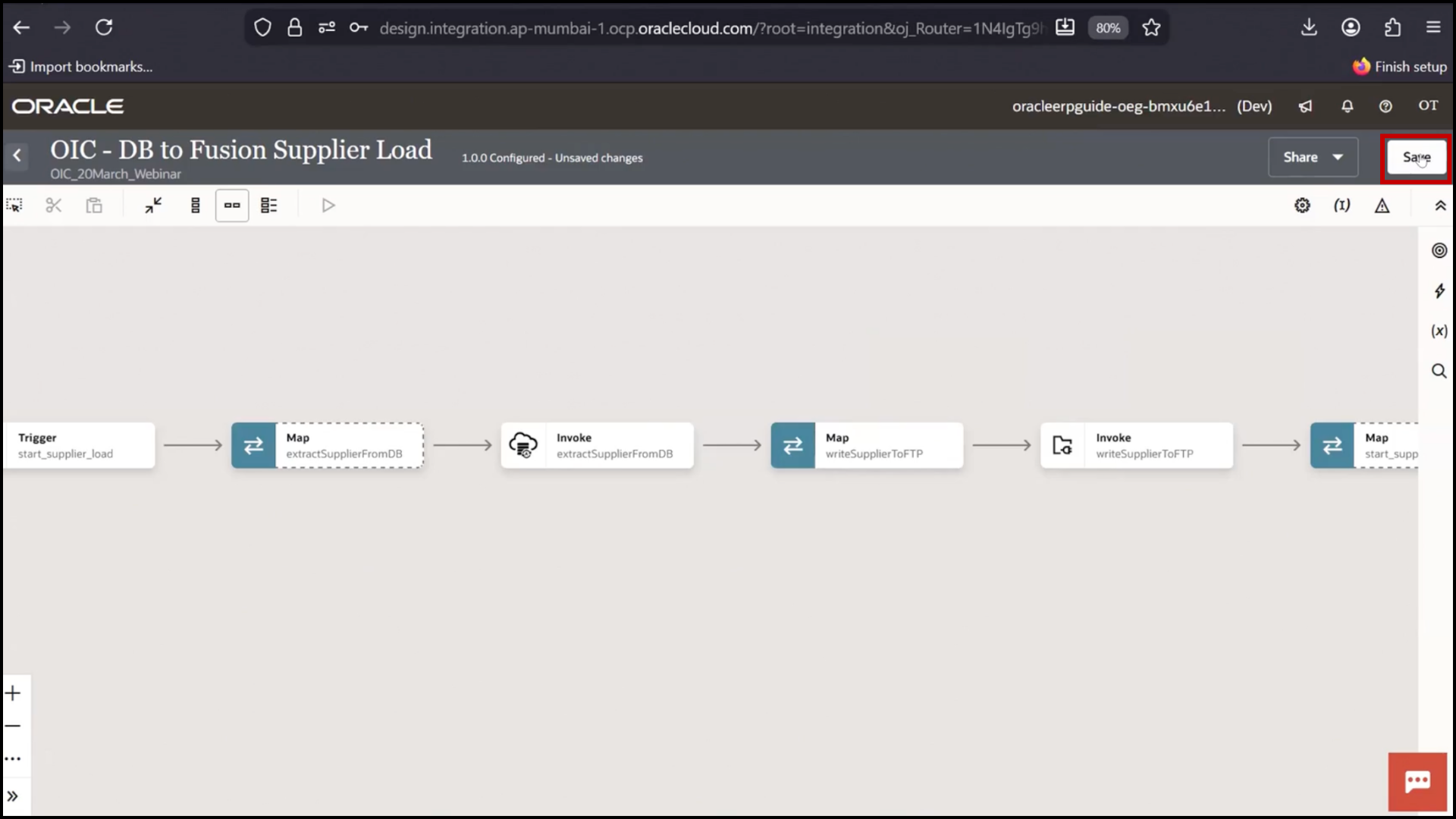
Testing FTP Flow
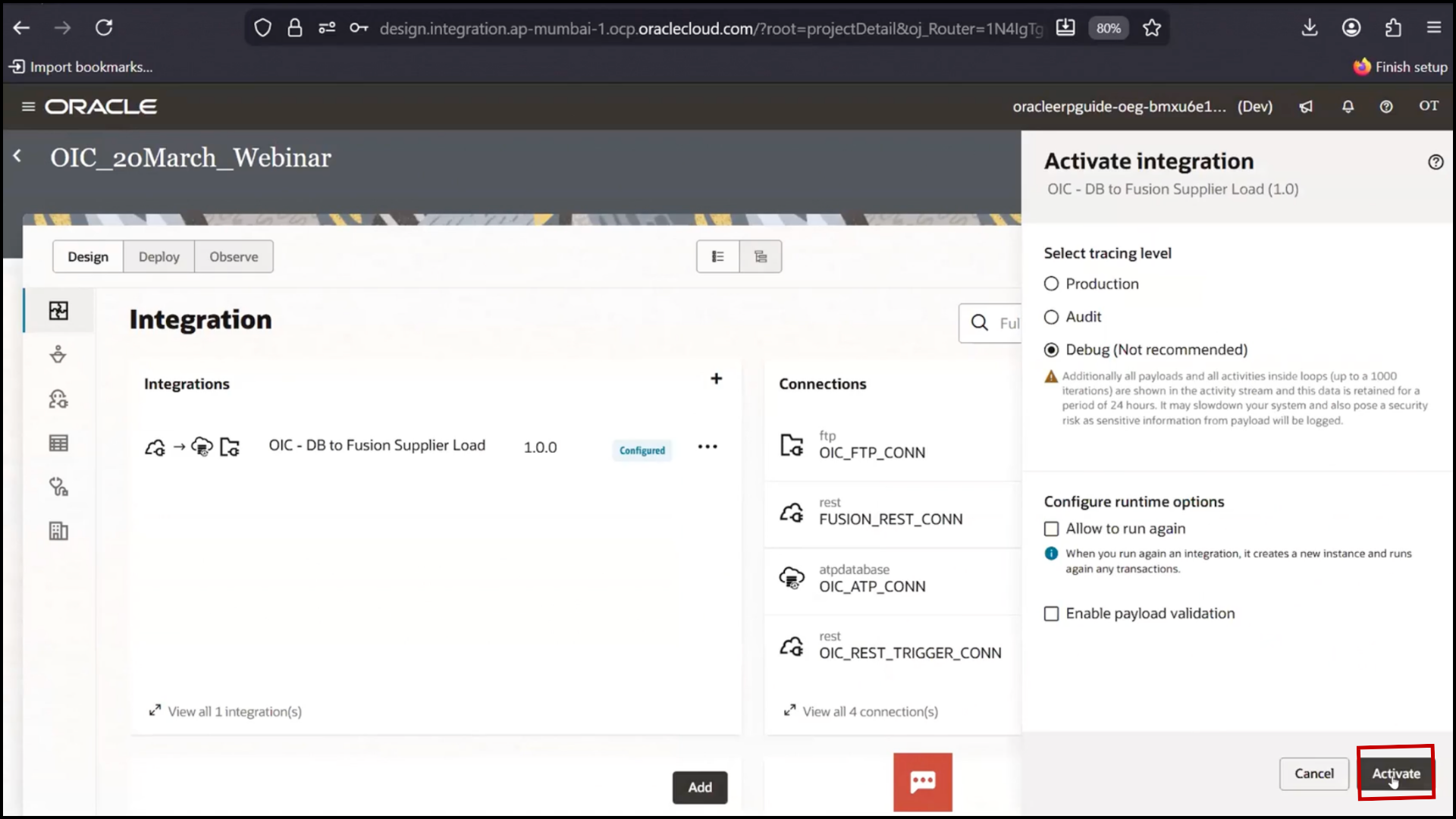
1. Click Activate
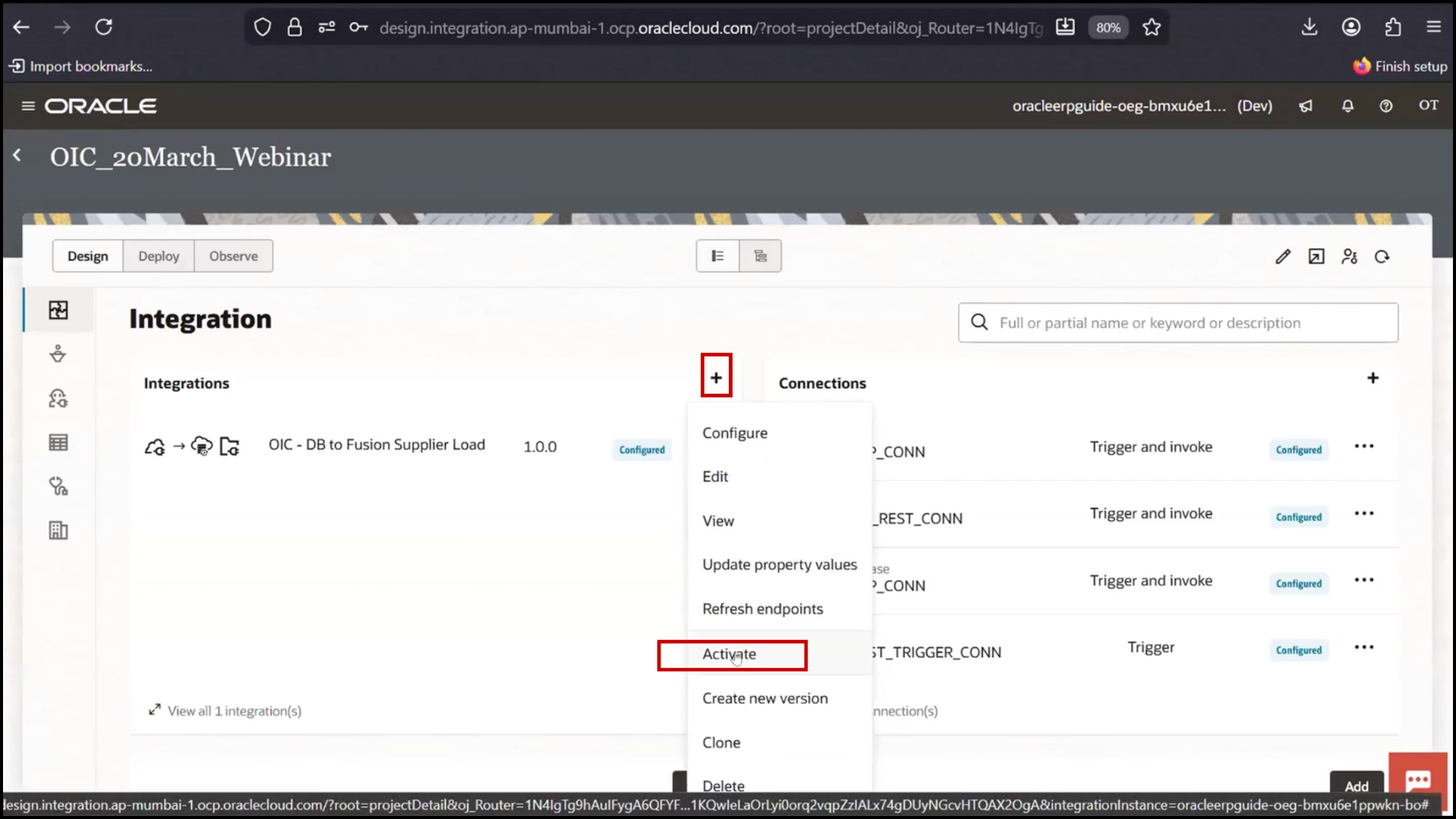
2. Click Activate again
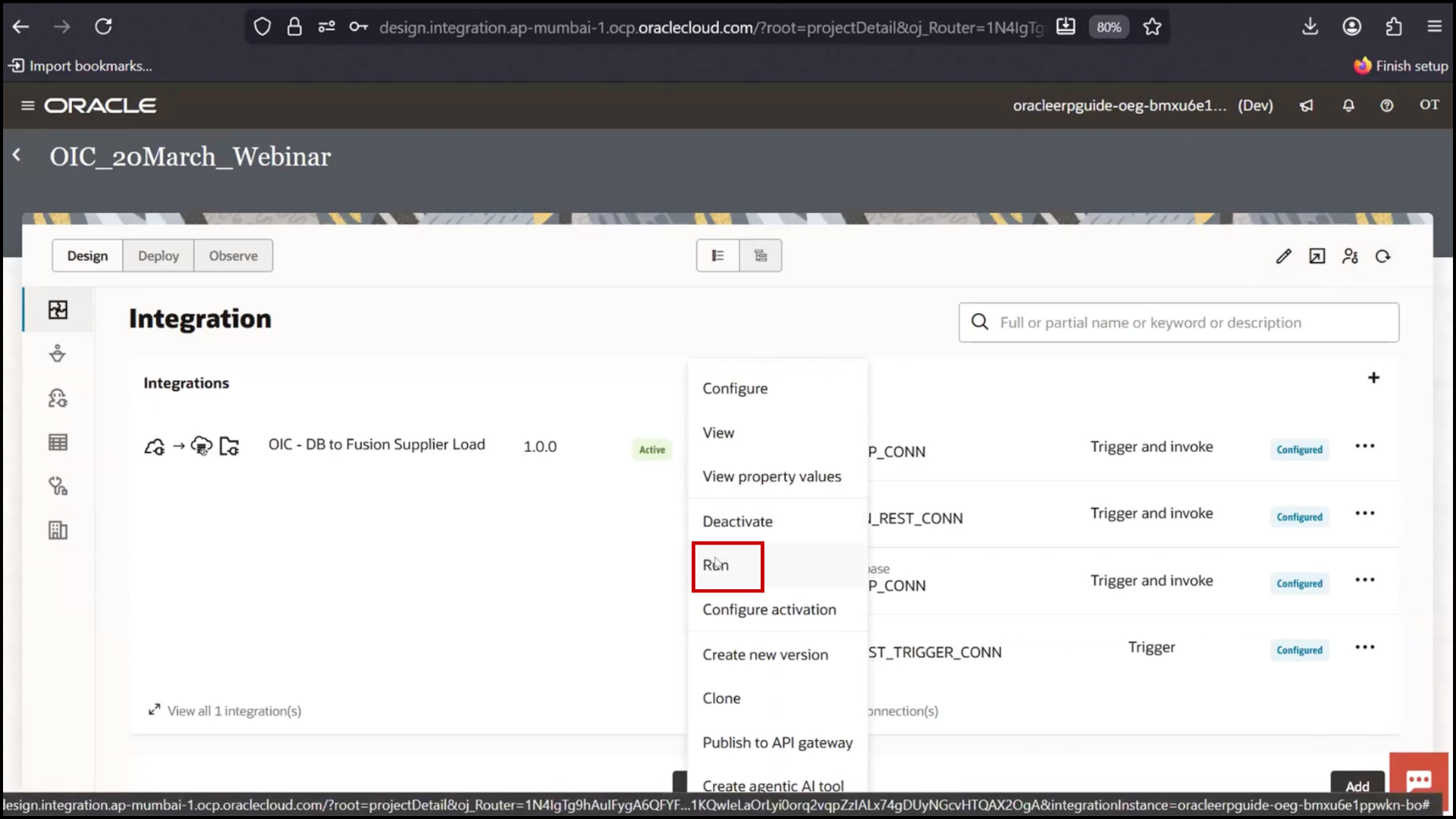
3. Click Run
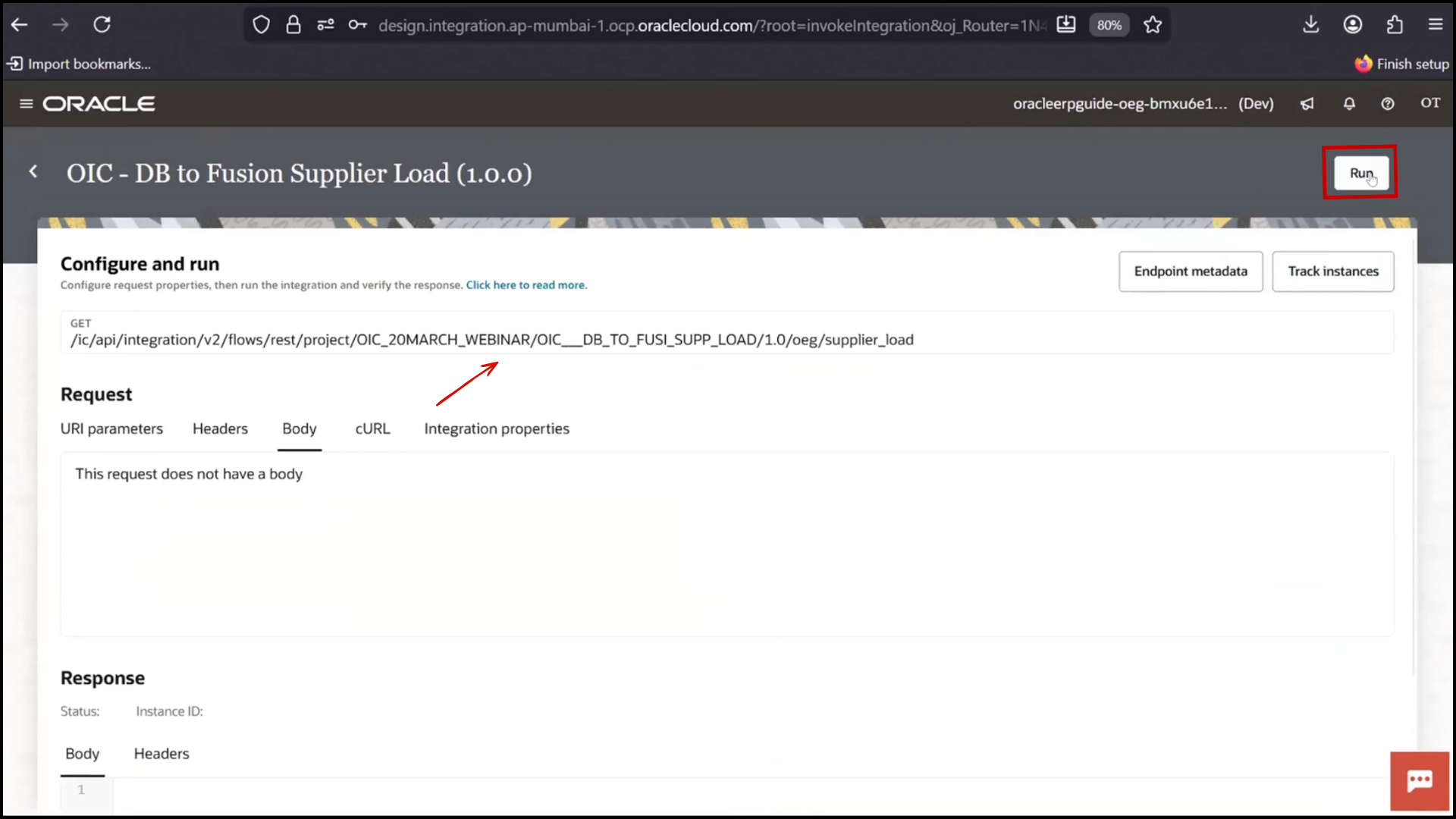
4. Click Run again
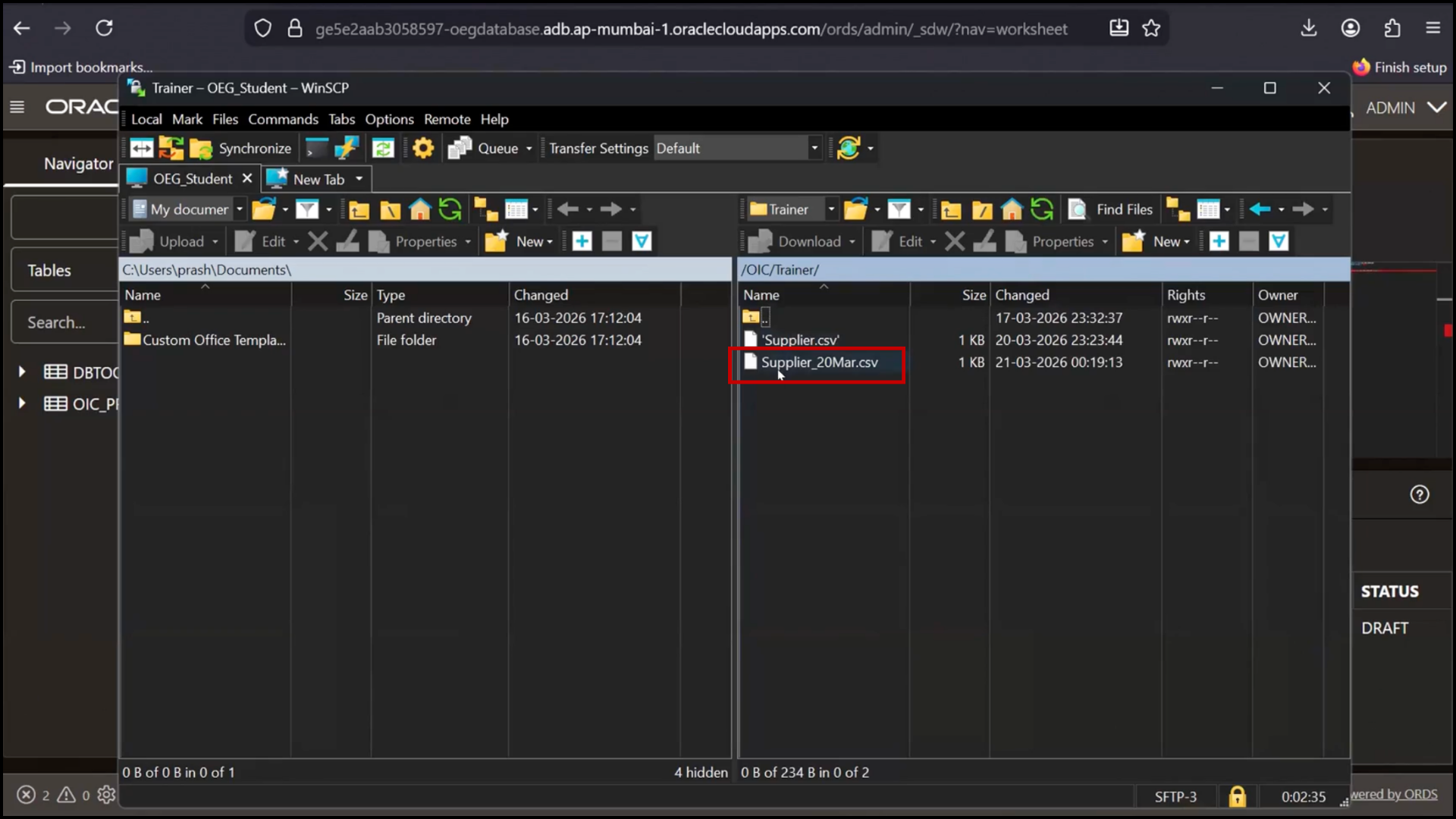
5. Go to FTP server
6. Click Reconnect
7. Verify new file created
8. Open file
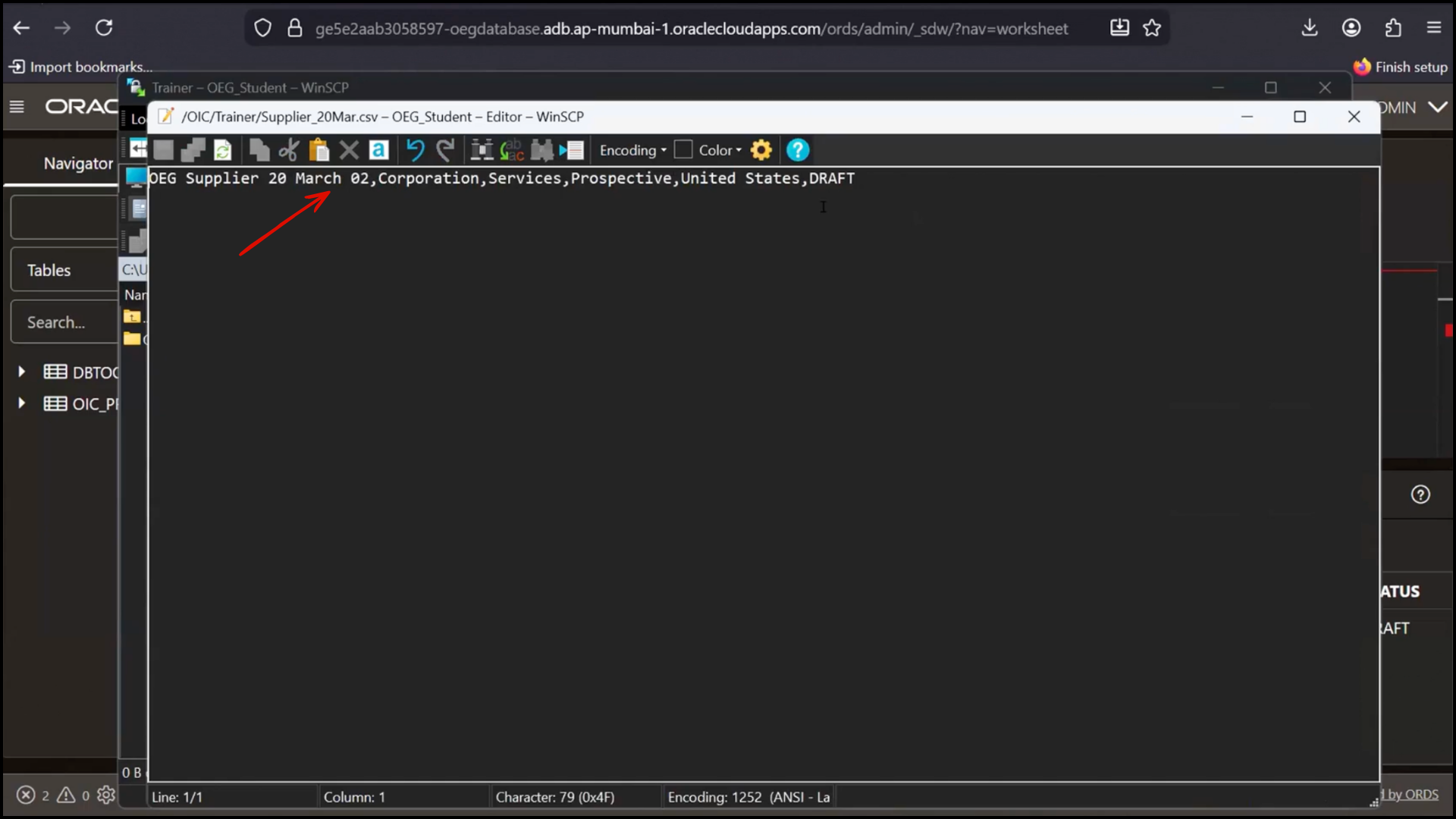
9. Confirm record is present
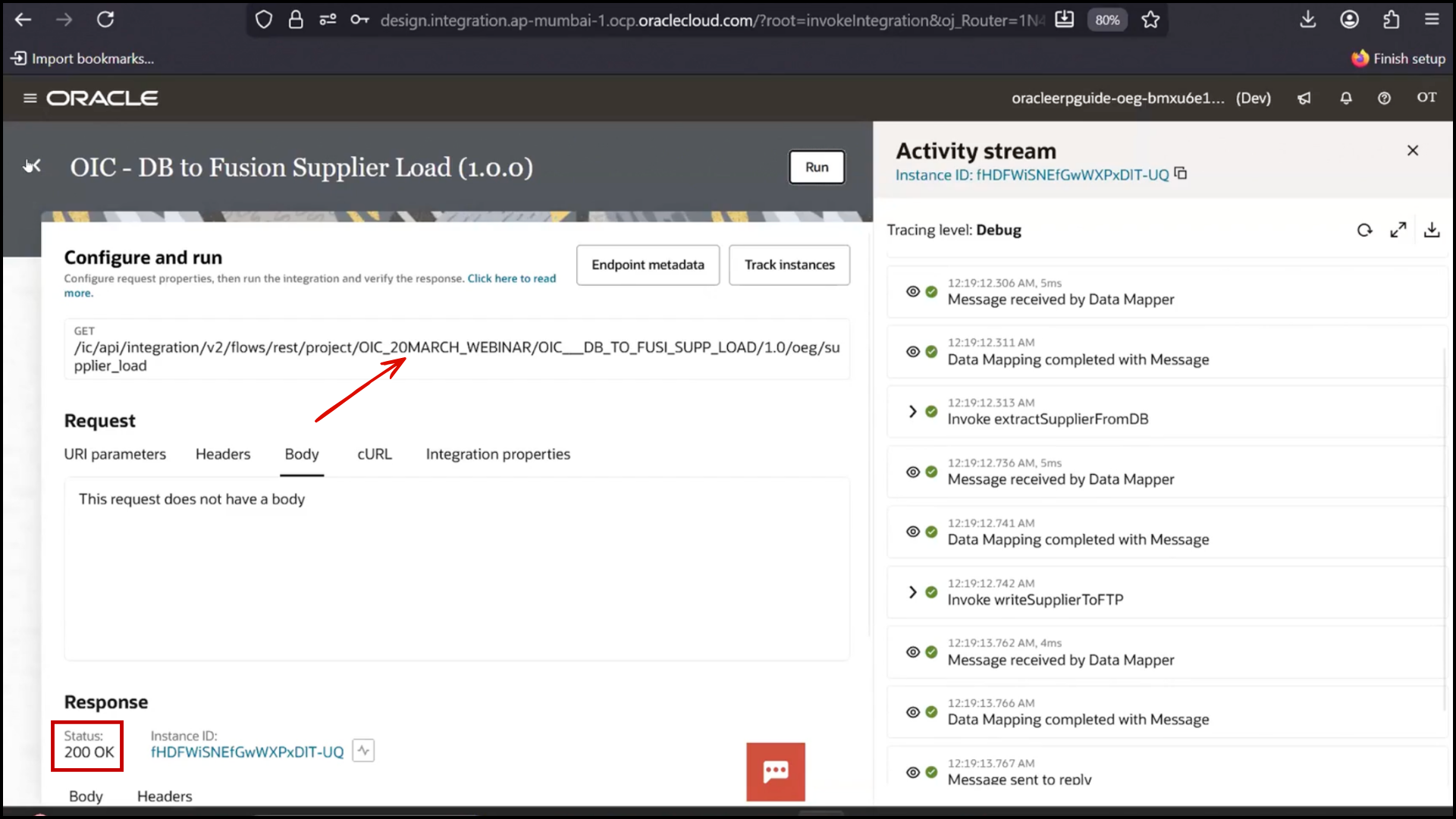
Cleaning and Preparing for Next Step
1. Delete test file from FTP
2. Return to OIC
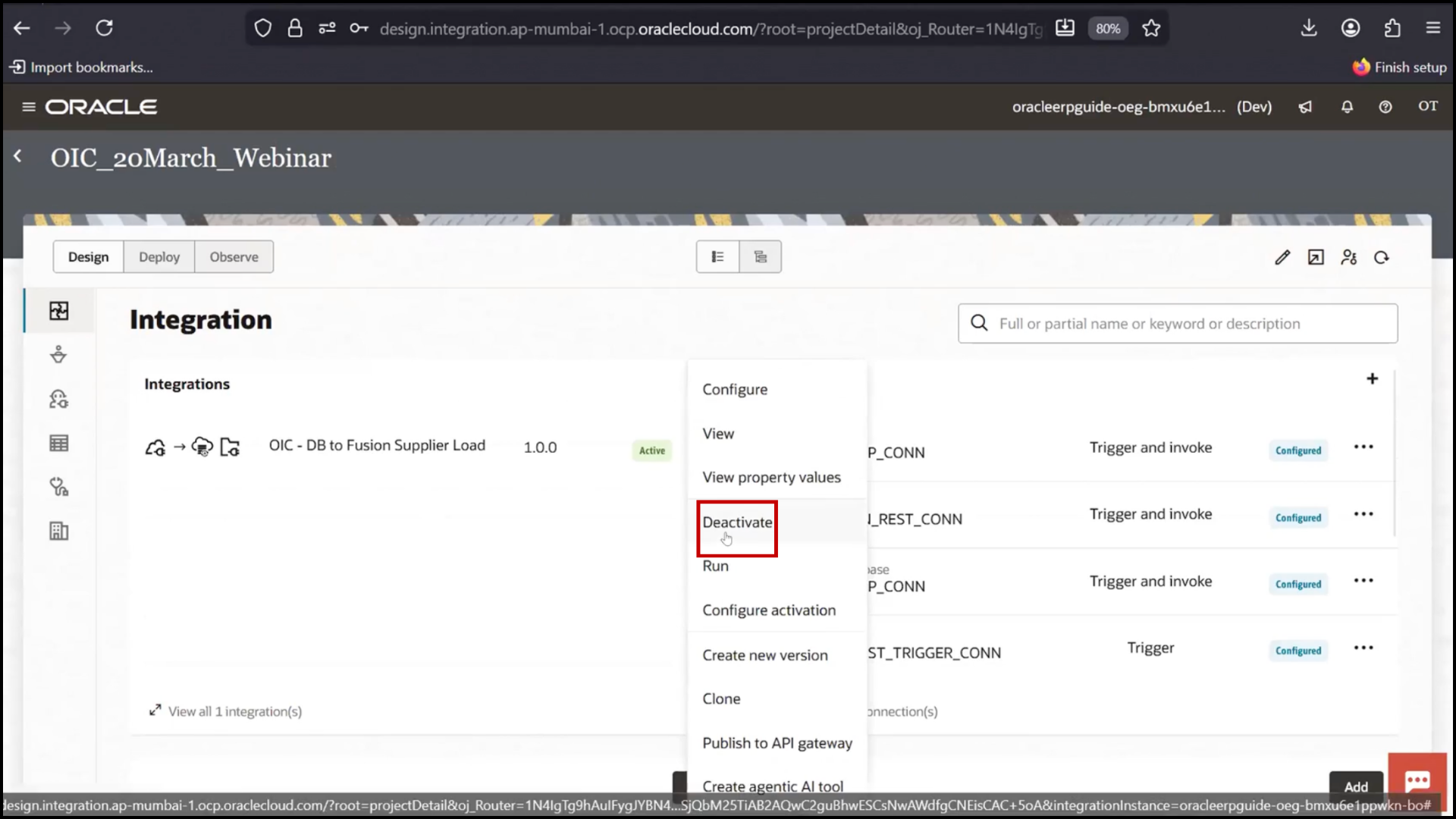
3. Click Deactivate
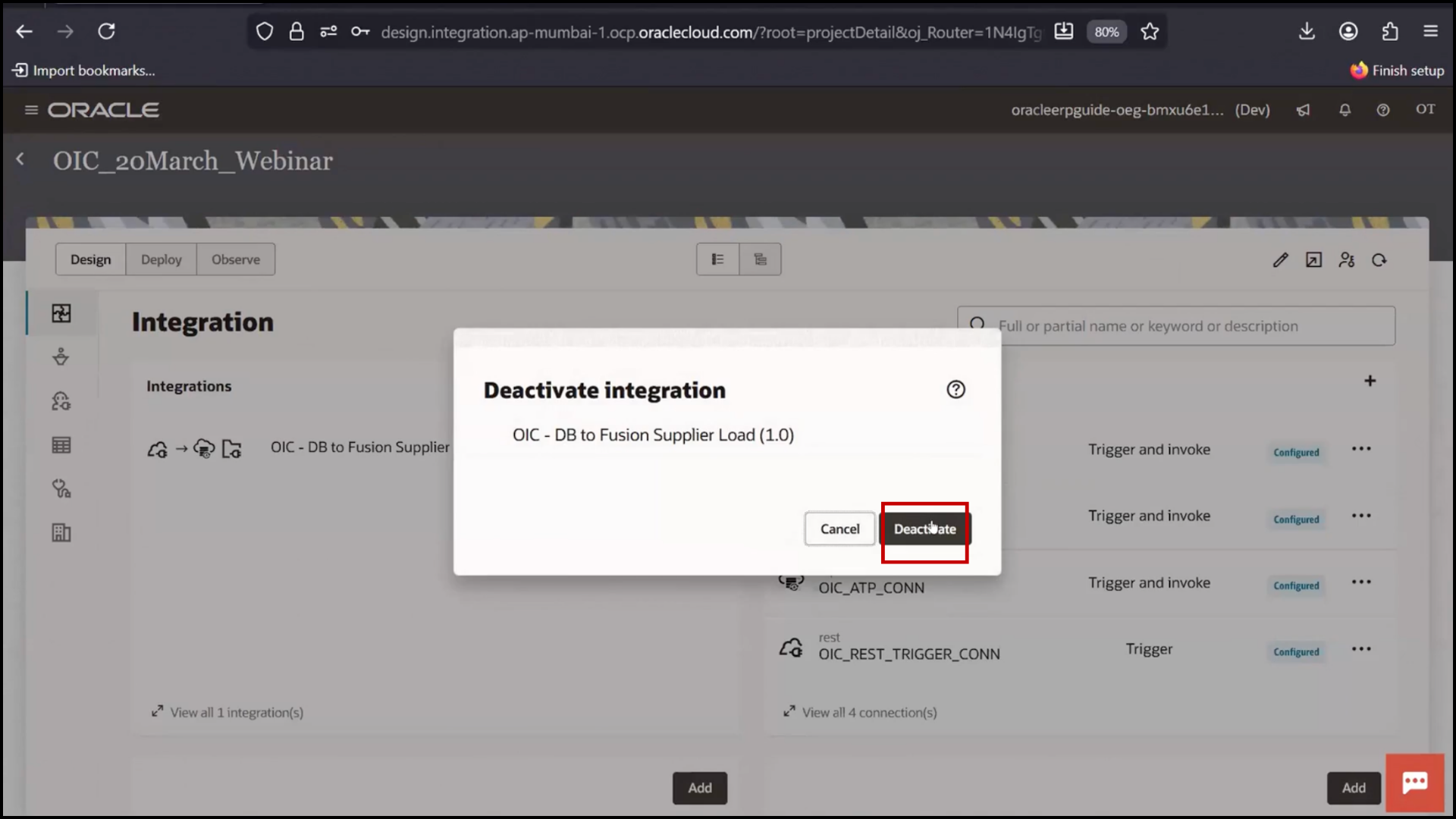
4. Click Edit