Creating Integration and Extracting Data from Database in OIC (Part 3)
Step 6: Creating Integration in OIC
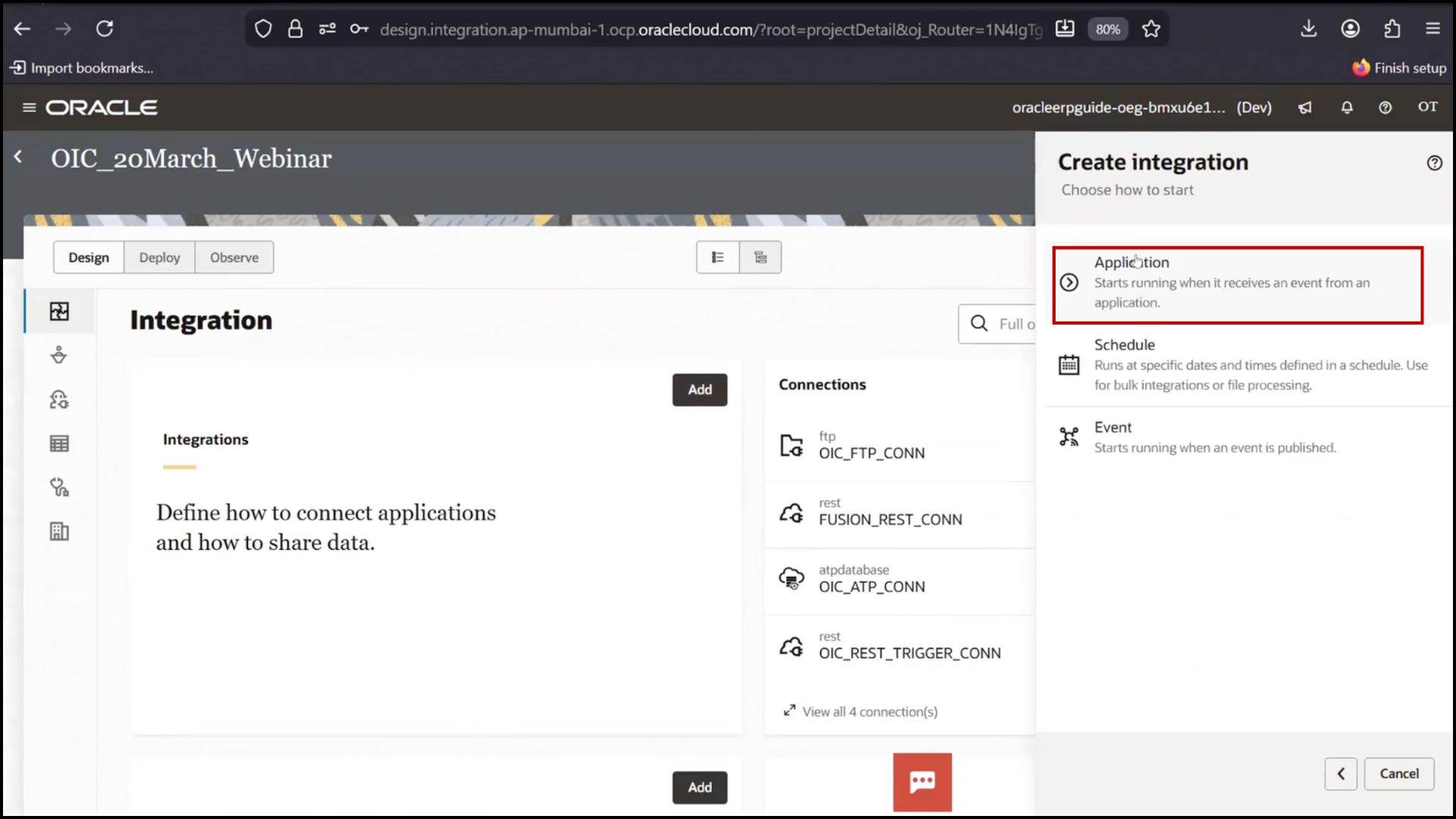
1. Click “Create Integration.”
2. Select Application Integration
3. Enter the name:
4. OIC DB to Engine Supplier Load
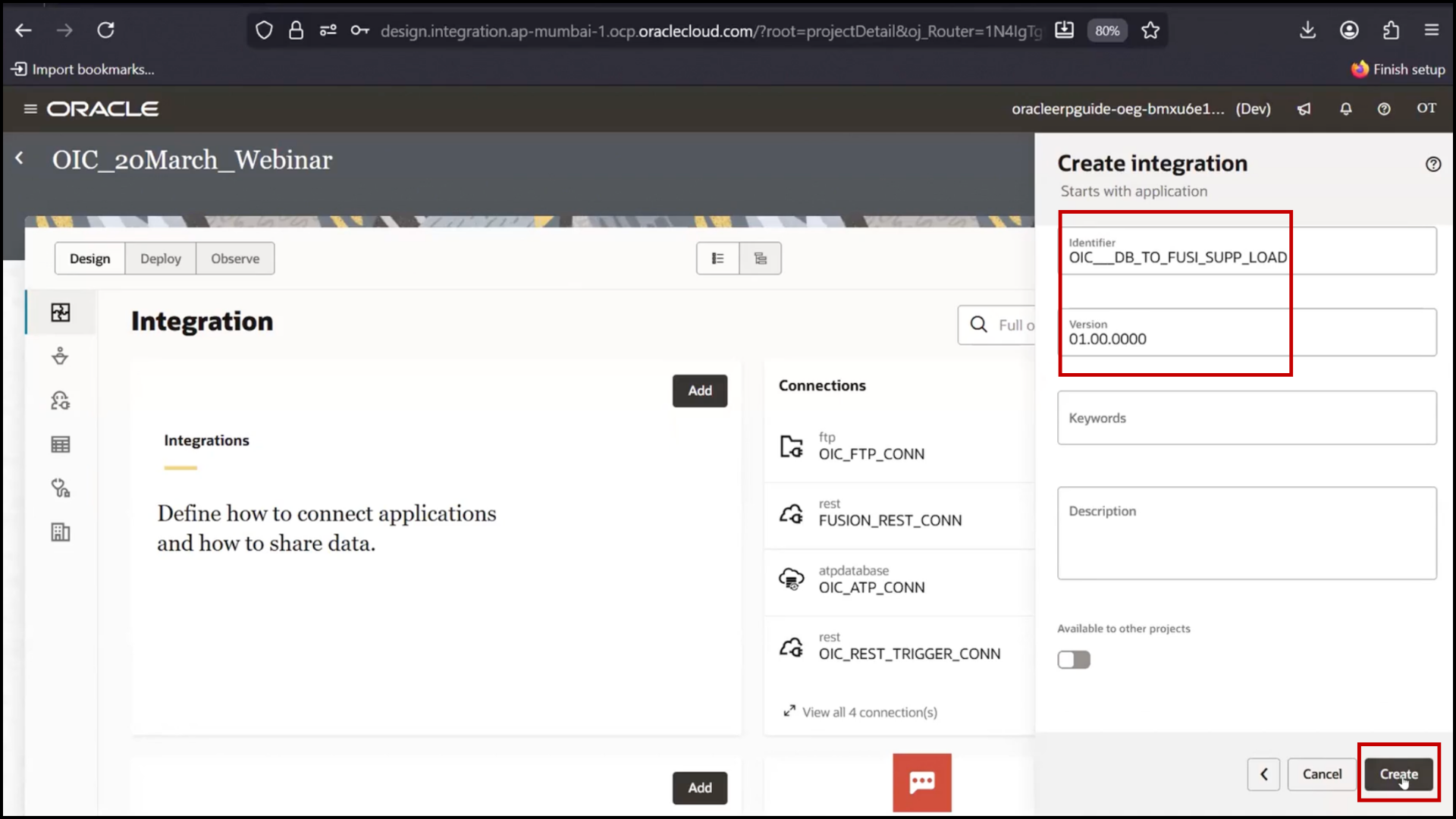
You can give your logical name as required
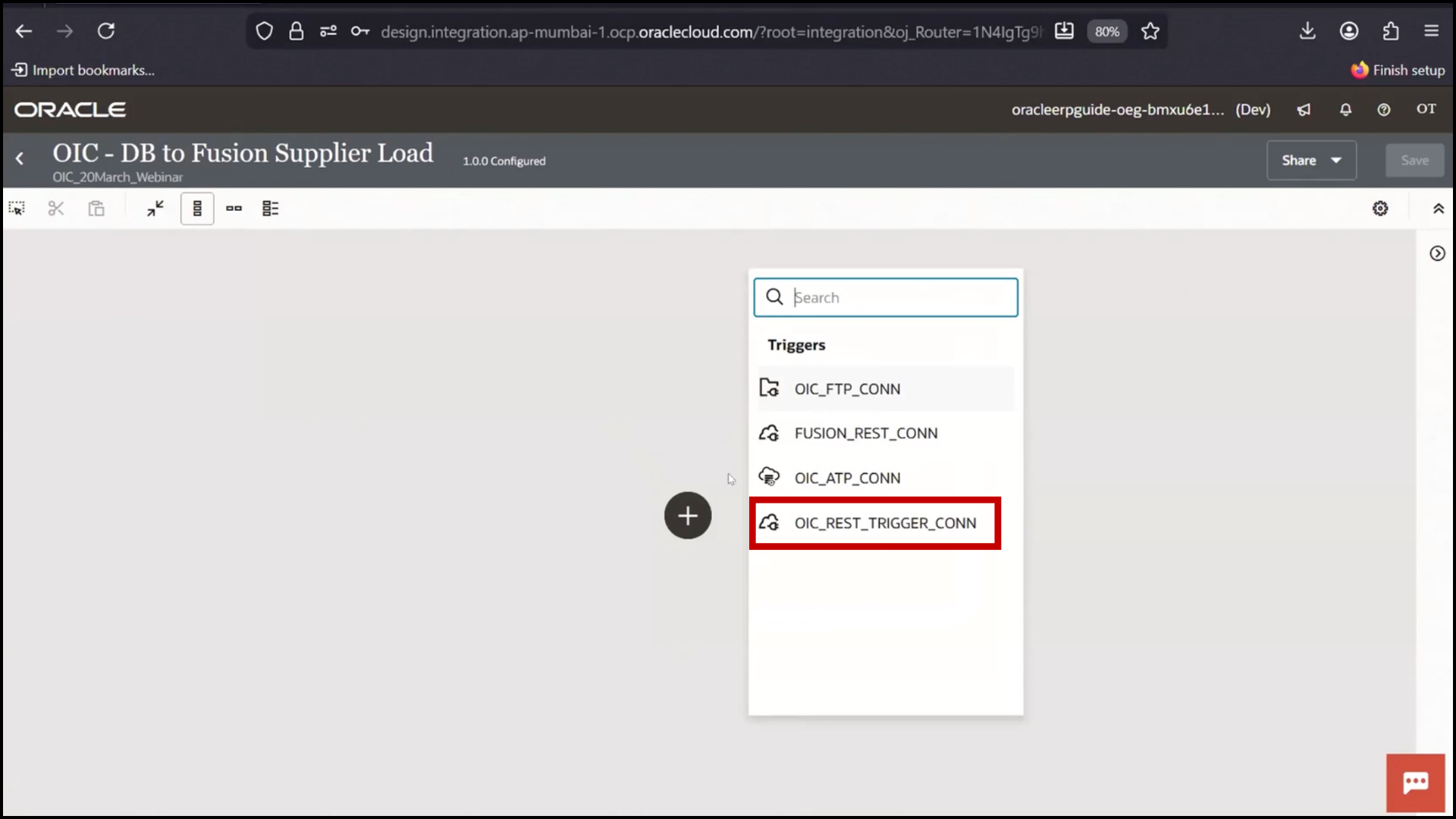
5. Identify the trigger connection and select that connection
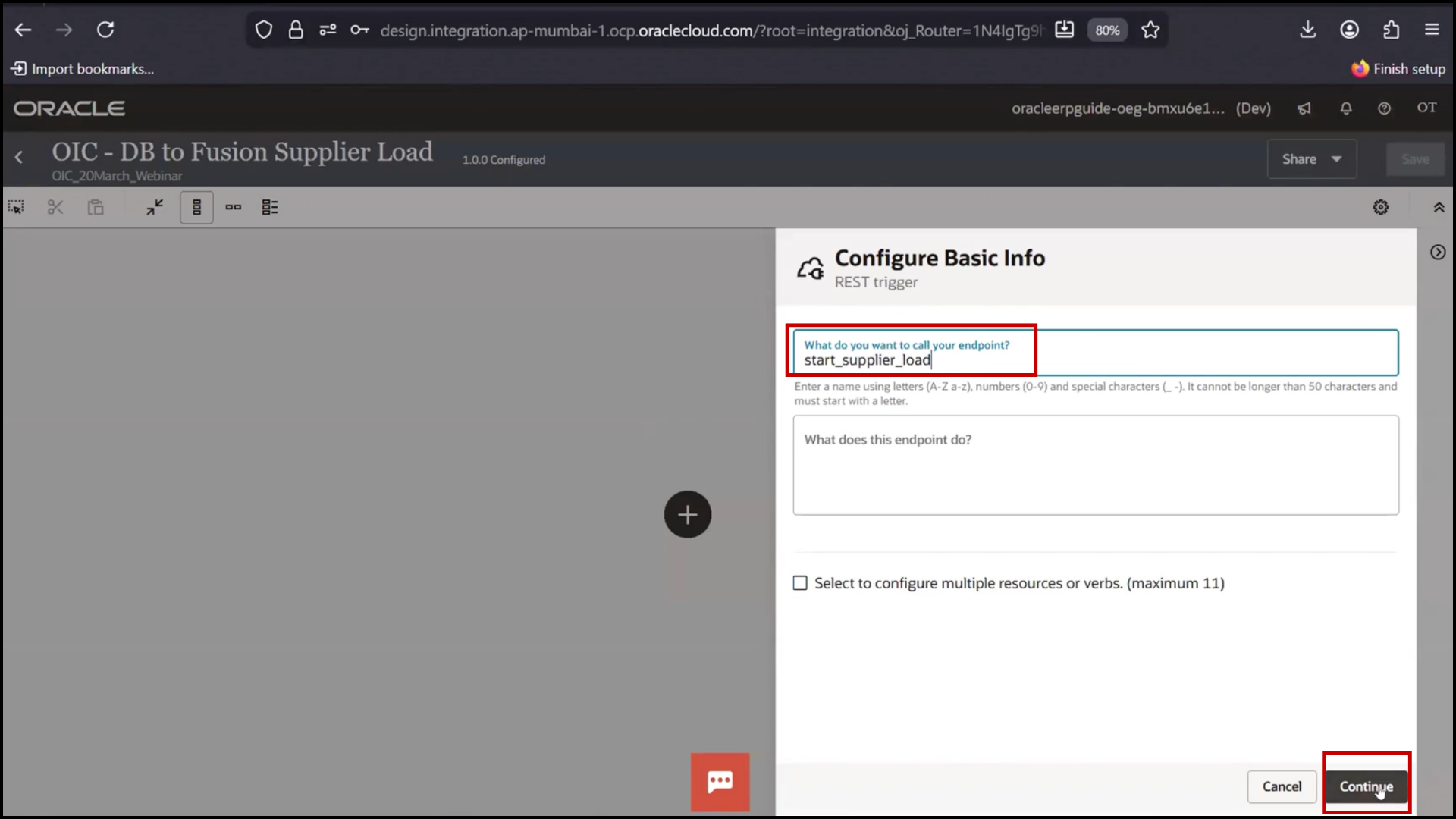
6. Now configure basic info and click continue.
7. Now Configure Resource Configuration
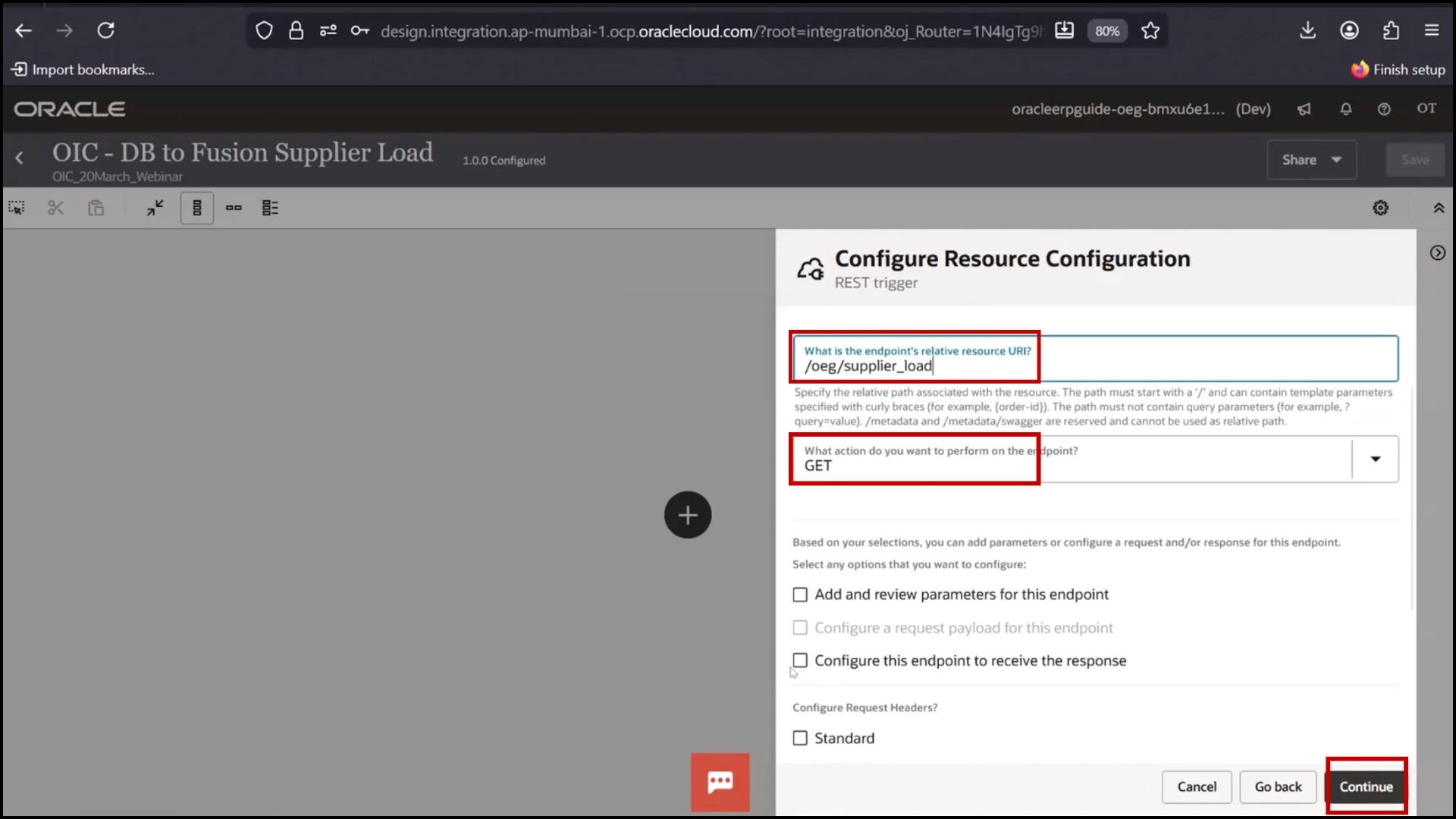
8. Provide the relative endpoint:
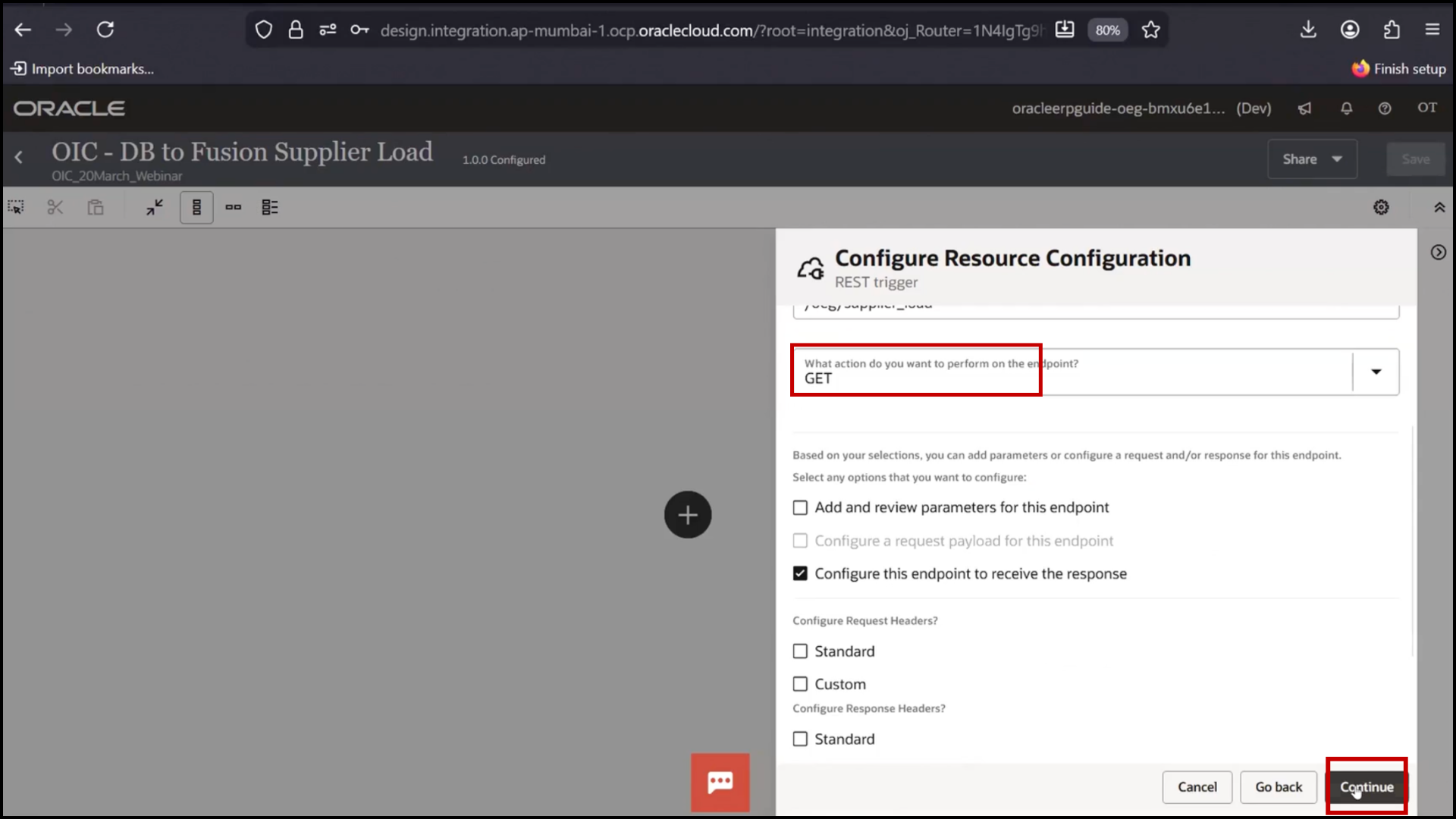
9. Select the type of REST API
10. Configure and click Continue
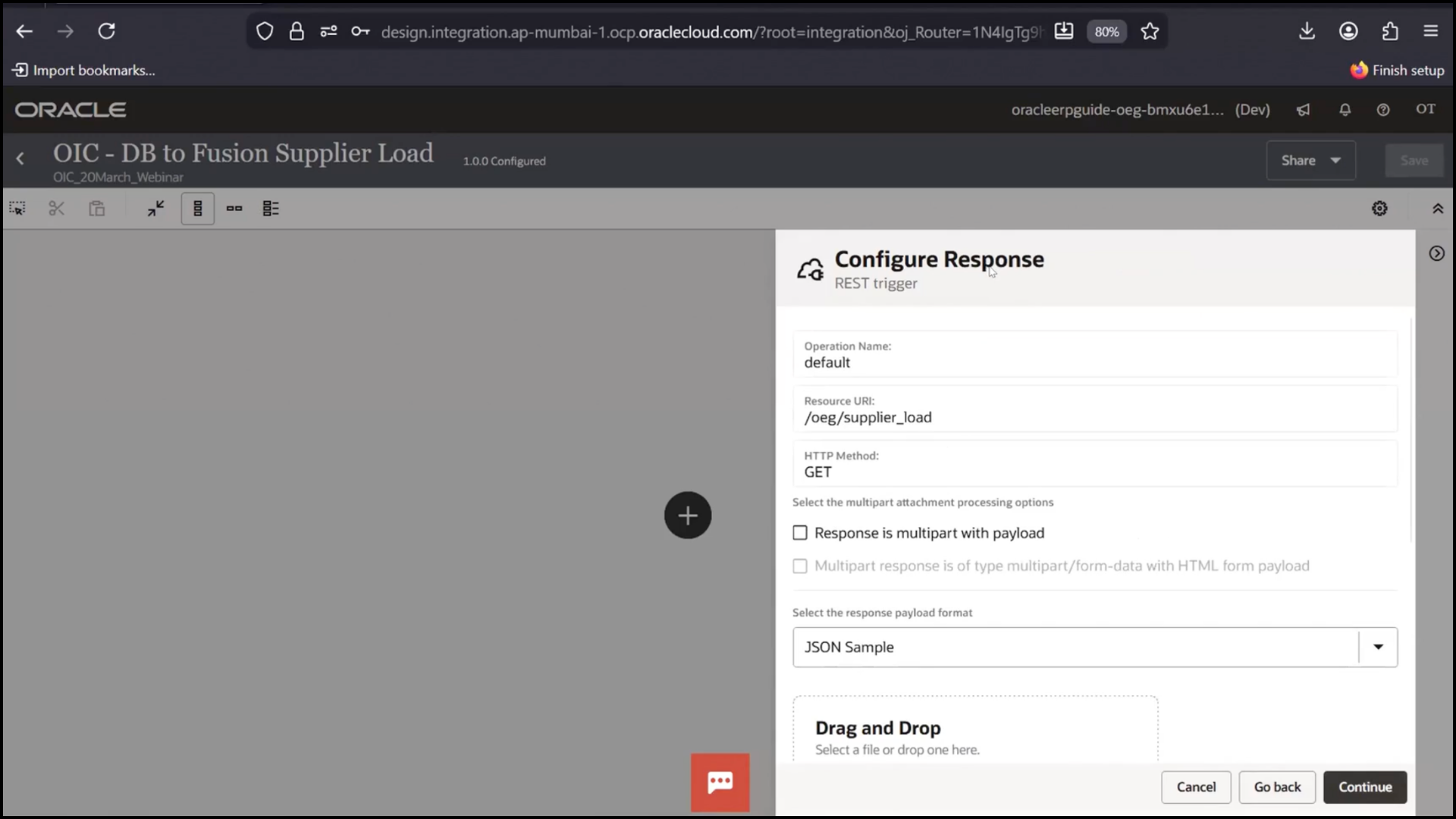
11. Provide sample JSON:
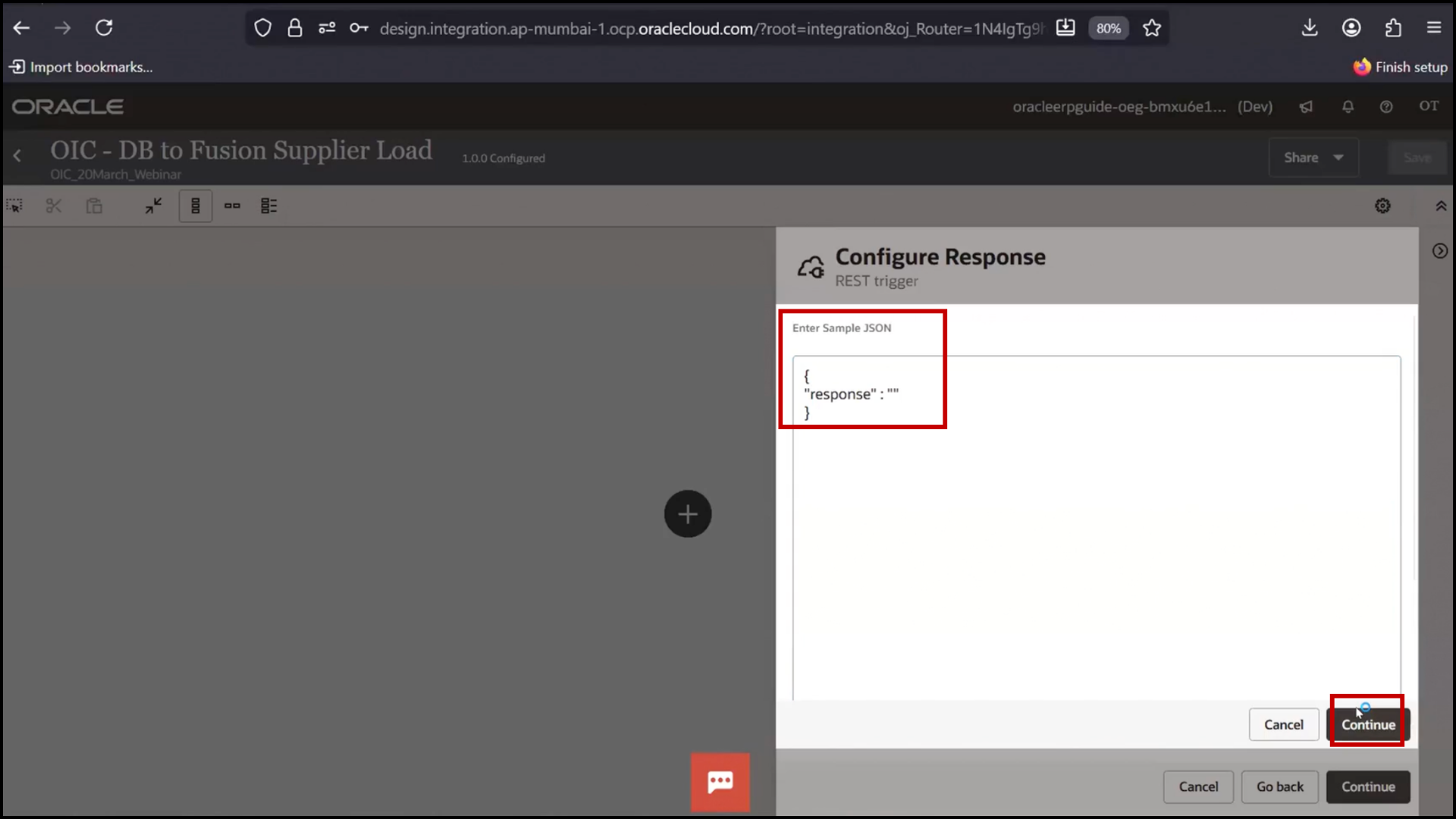
12. Click “Continue.”
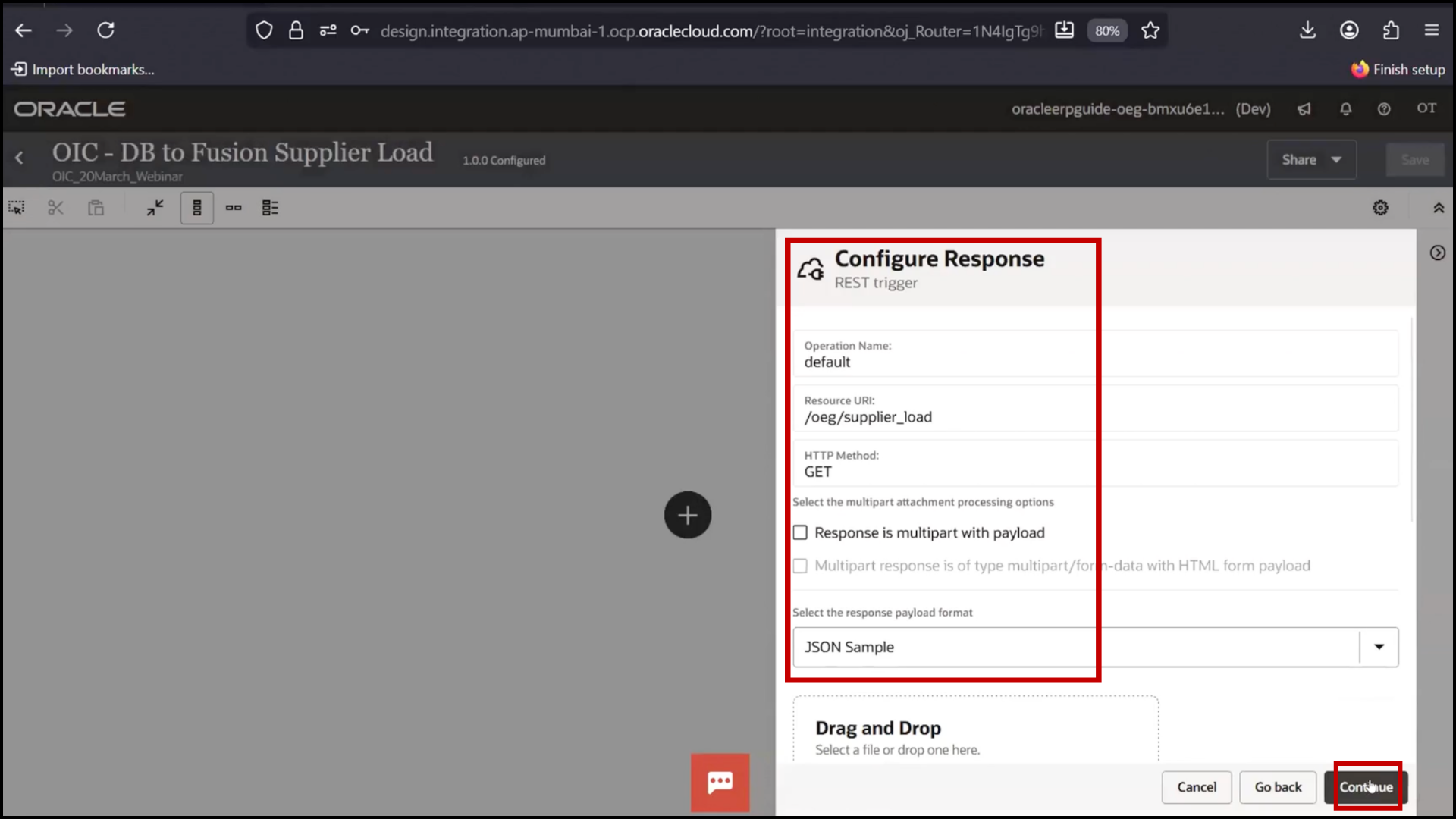
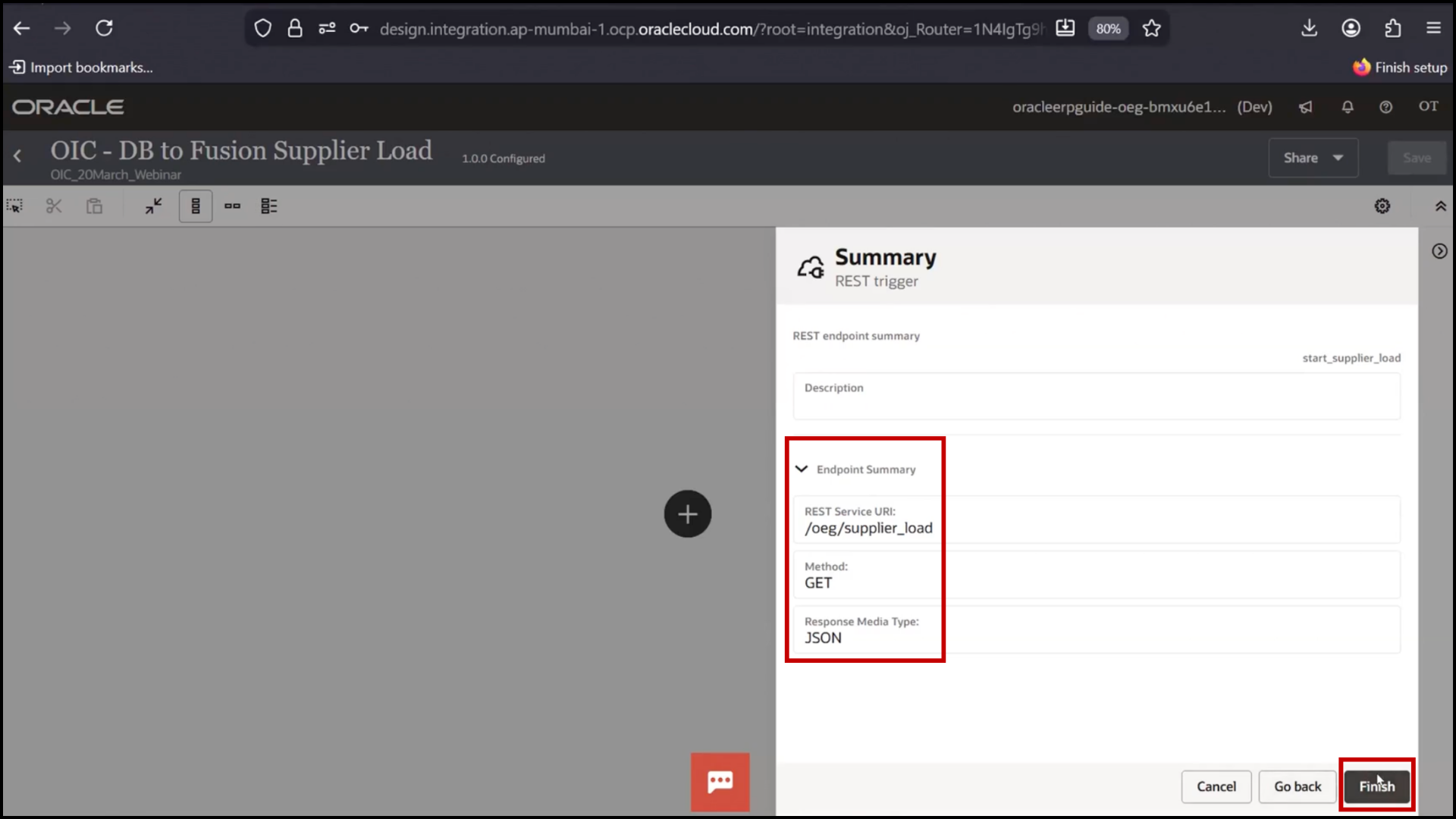
13. Click “Finish.”
14. Save
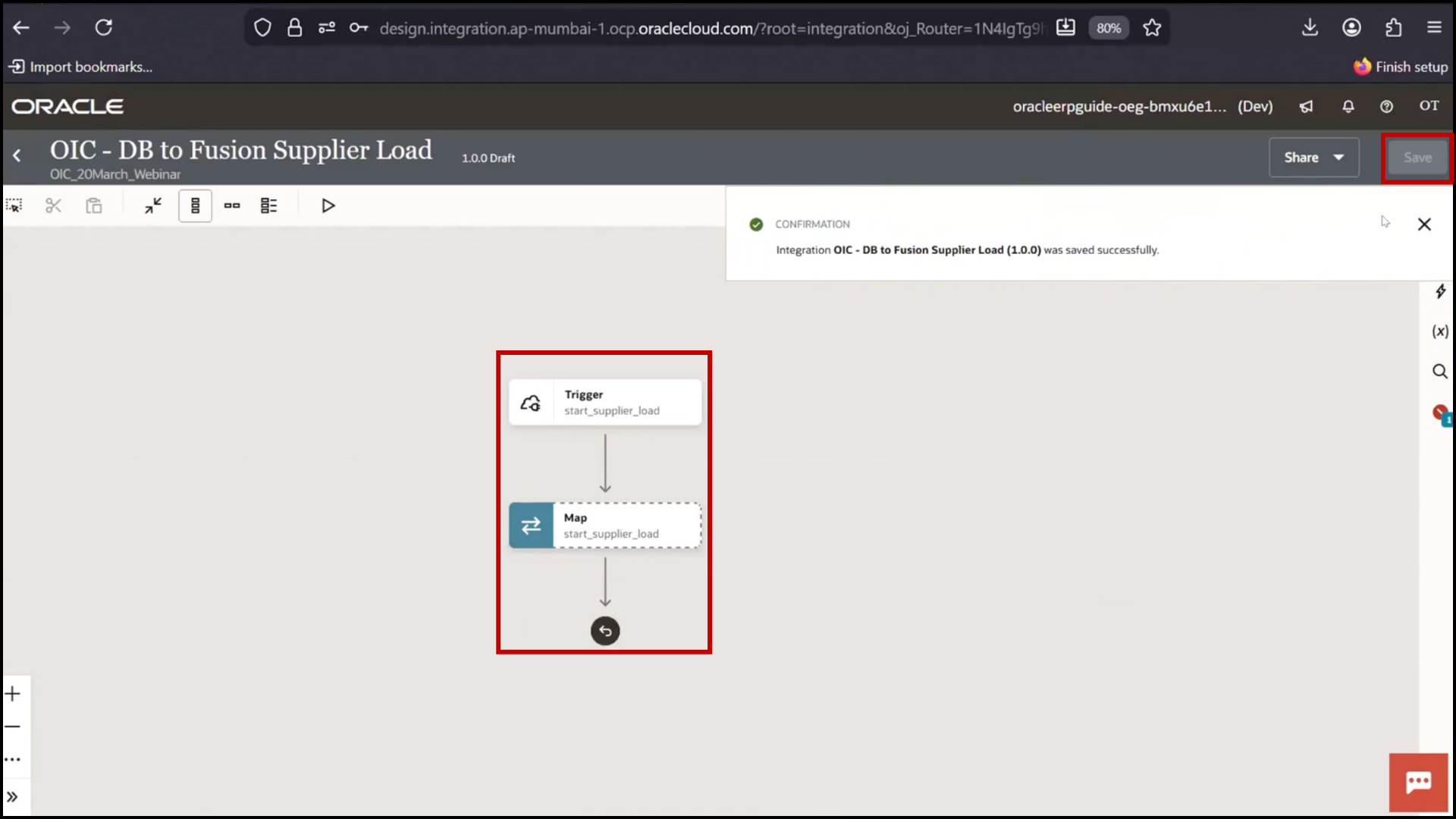
Resolving Default Error (Business Identifier)
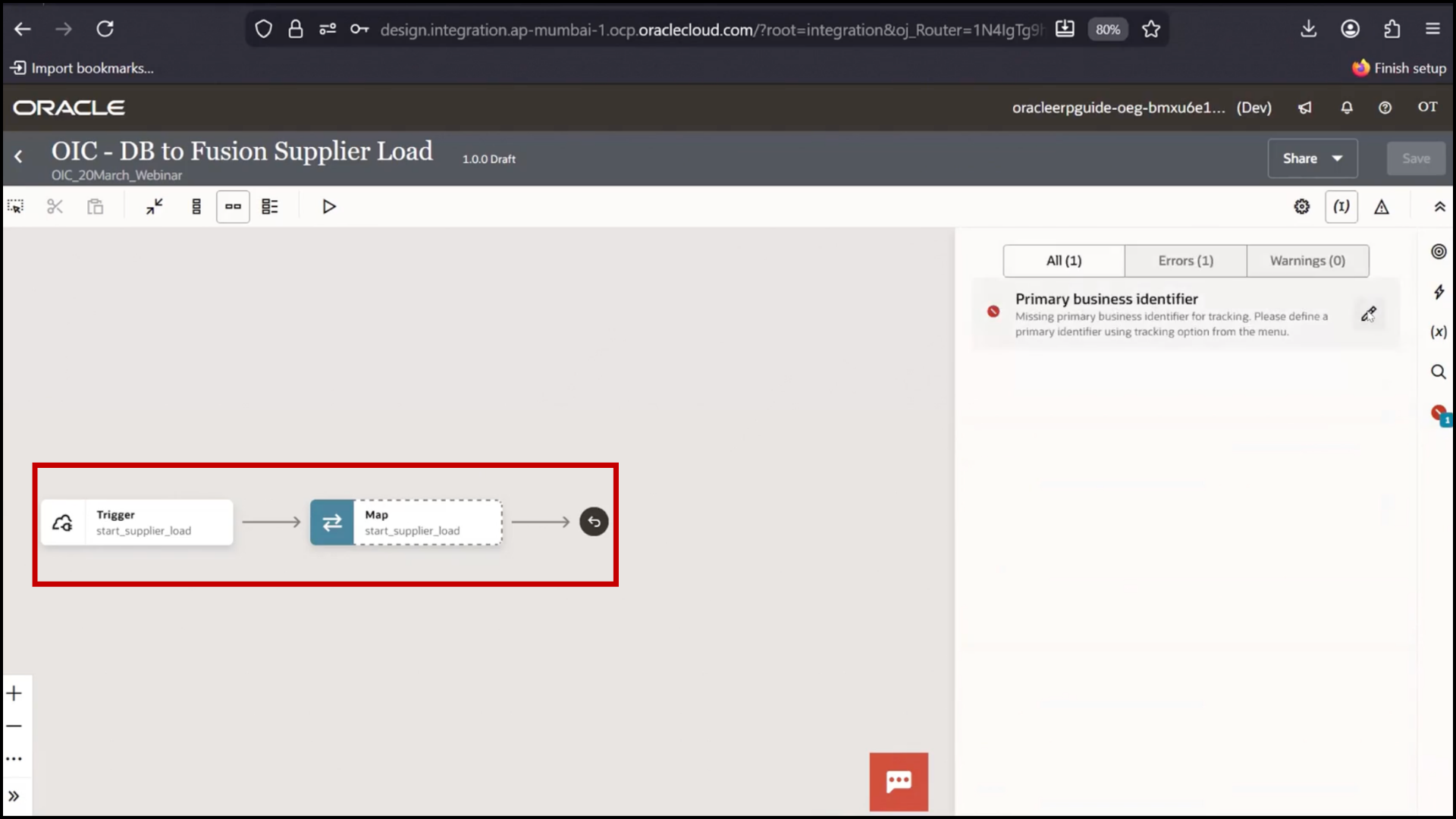
1. Observe integration status shows “Draft.”
2. Click on the error icon
3. Identify error: Primary Business Identifier missing
4. Click “Edit.”
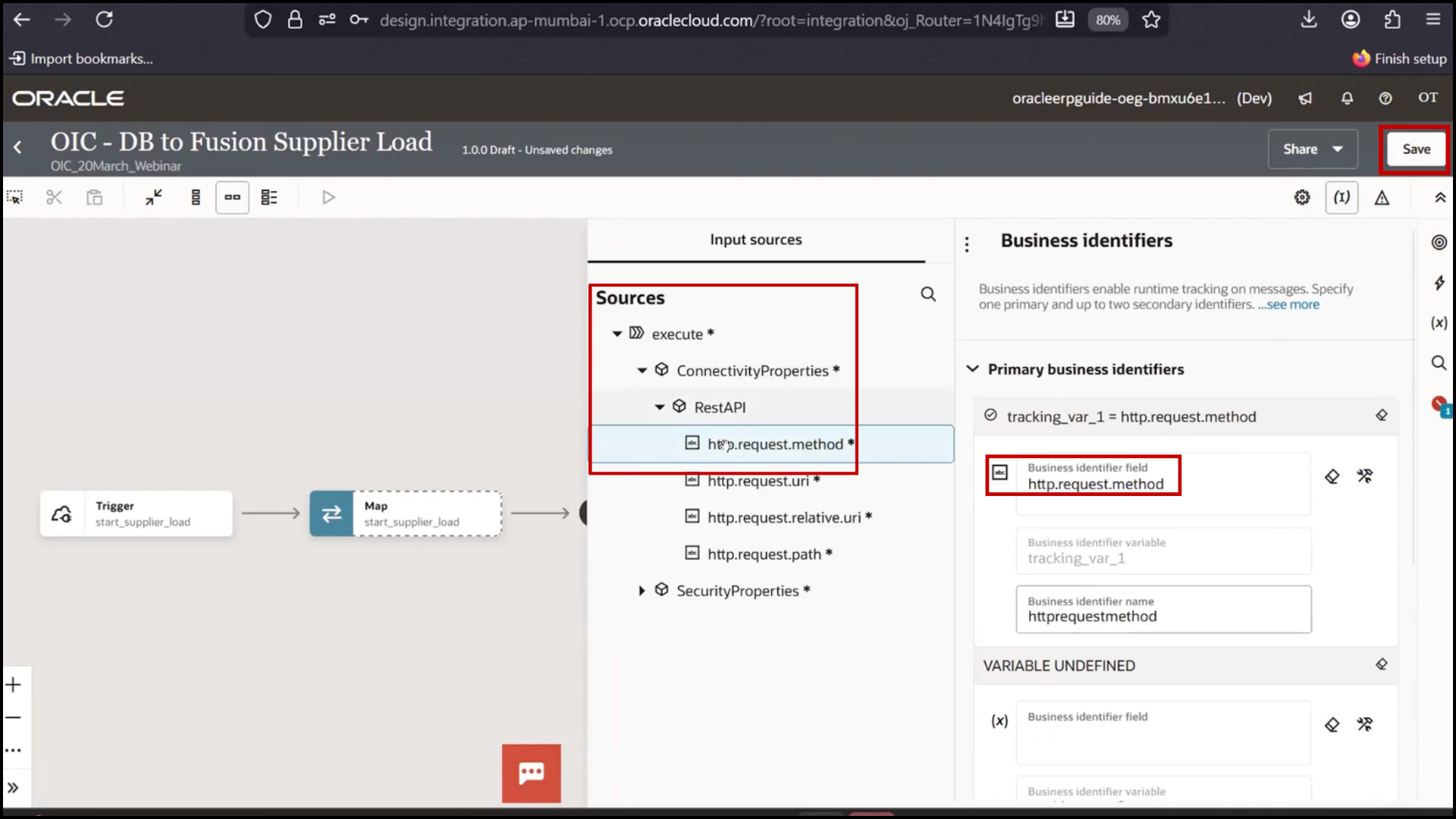
5. Open Business Identifier section
6. View Tracking Variables 1, 2, 3
7. Assign Primary Tracking Variable (mandatory)
8. Use Method as tracking variable
9. Click “Save.”
Verifying Configuration State
1. Observe integration status changes to “Configured.”
2. Confirm integration can now be tested
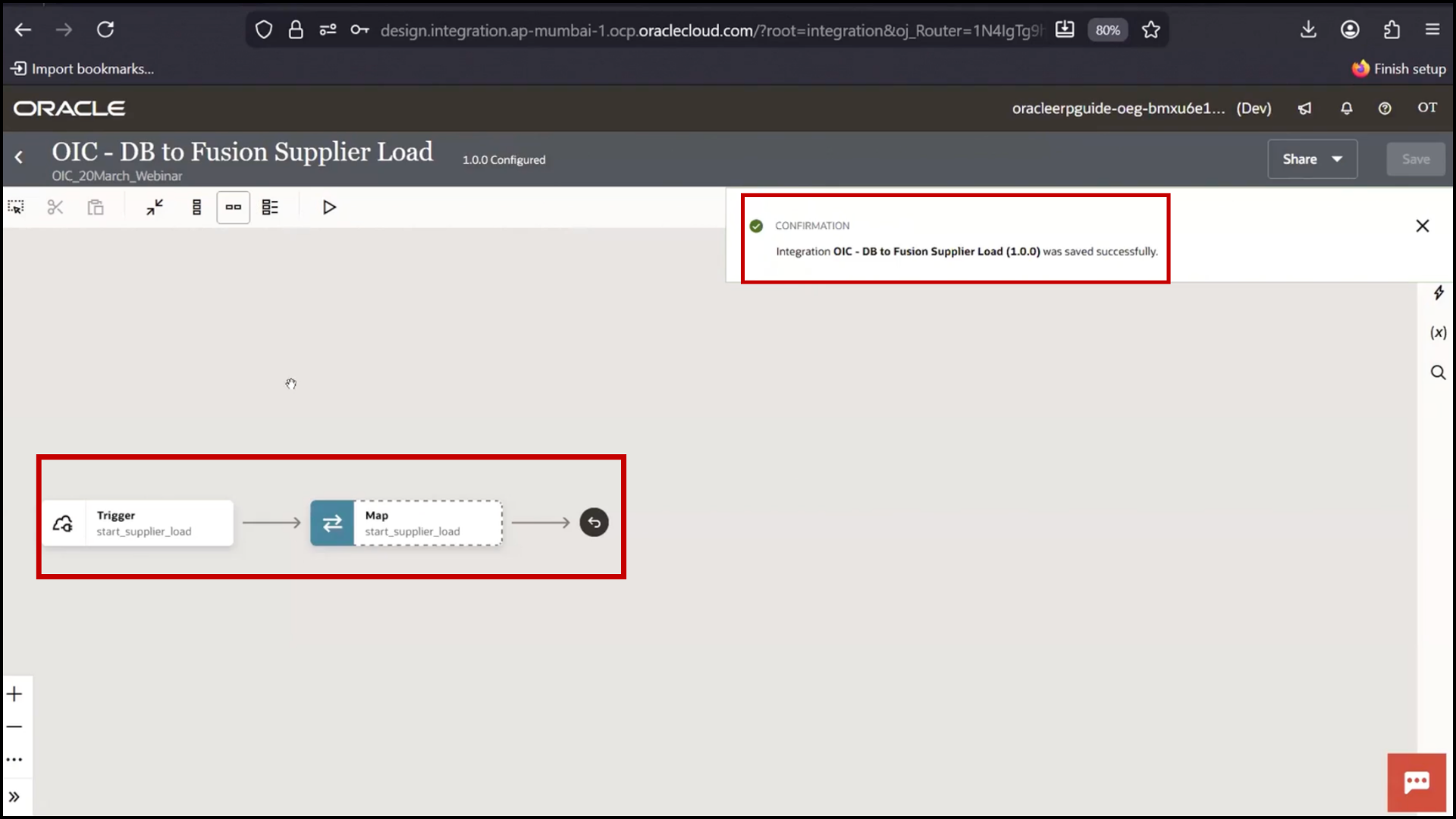
Note: Currently only trigger is configured
Adding Database Extraction Step
1. Click on + icon after the trigger.
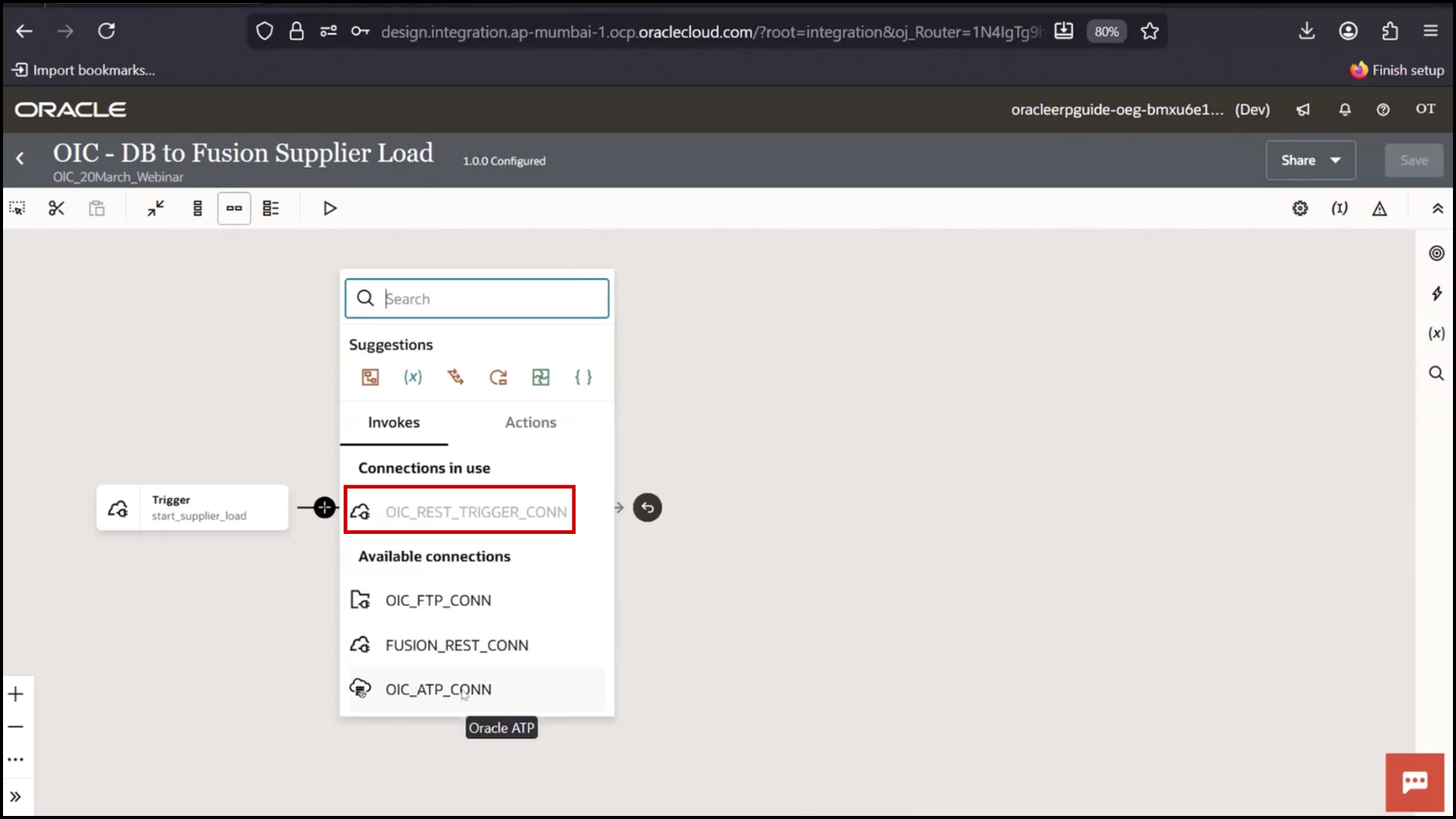
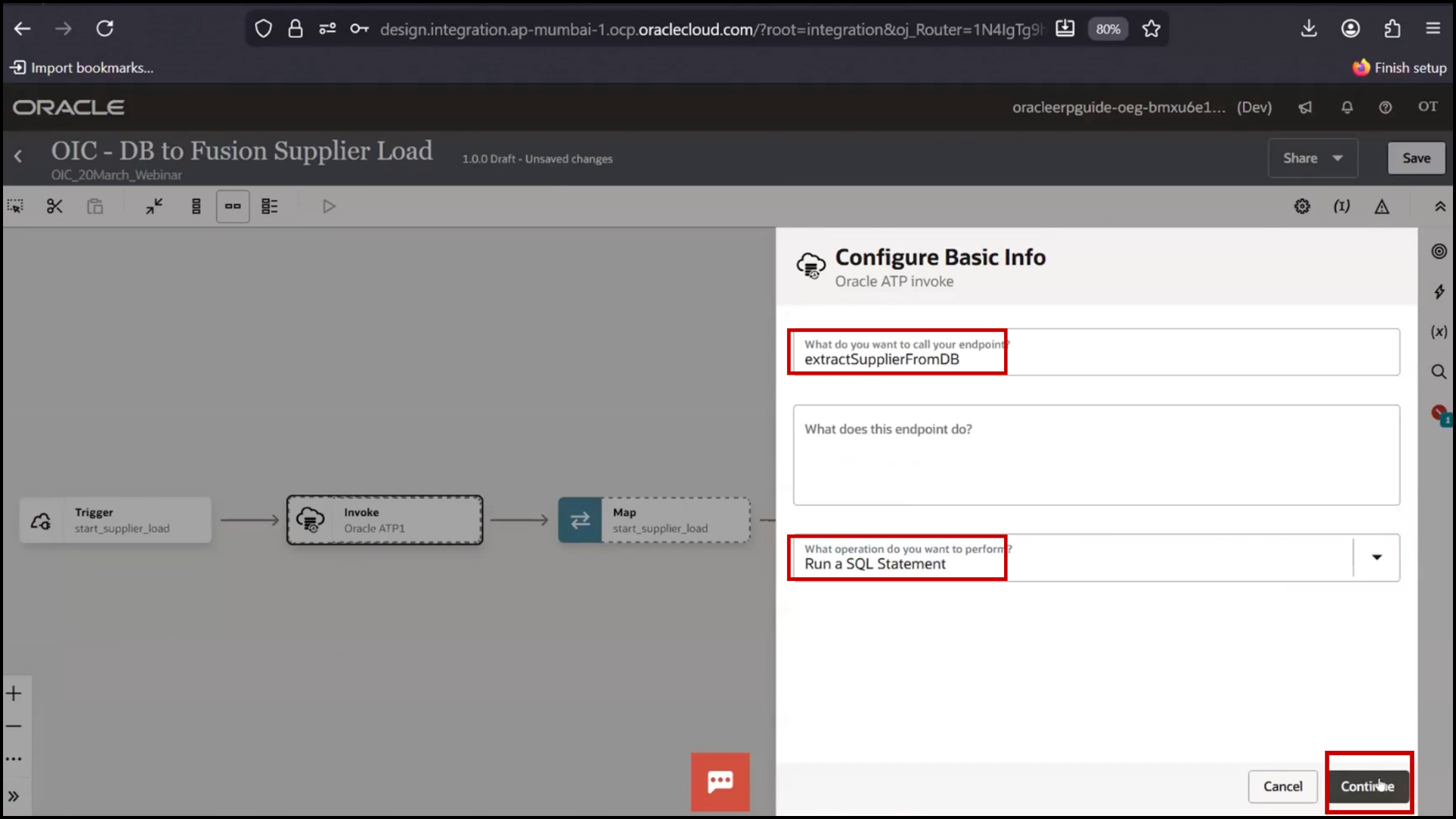
2. Select ATP Database Connection
3. Enter name: Extract suppliers from DB
4. Click “Continue.”
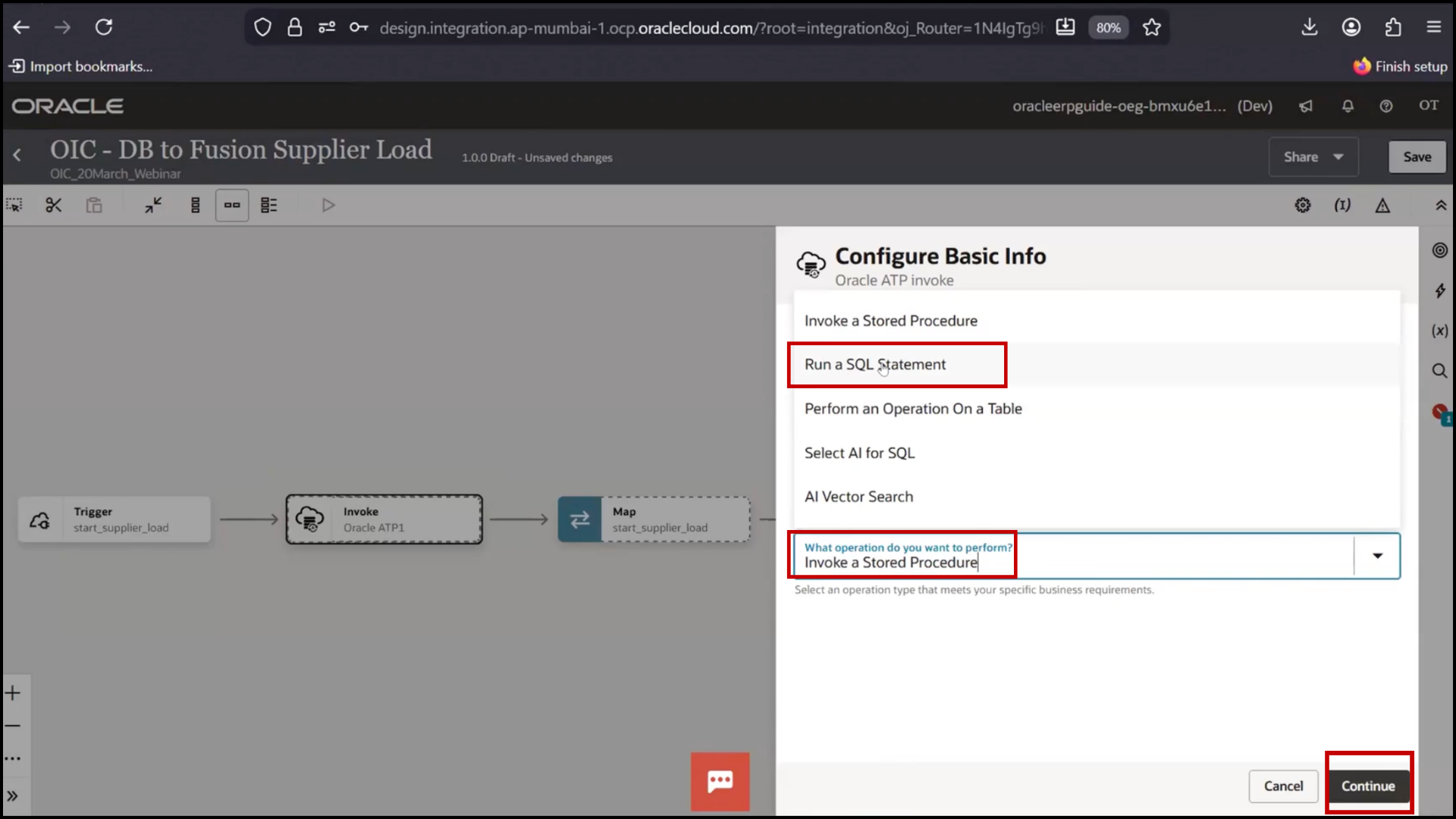
5. Select Run SQL Statement option
6. Click “Continue.”
Writing SQL Query
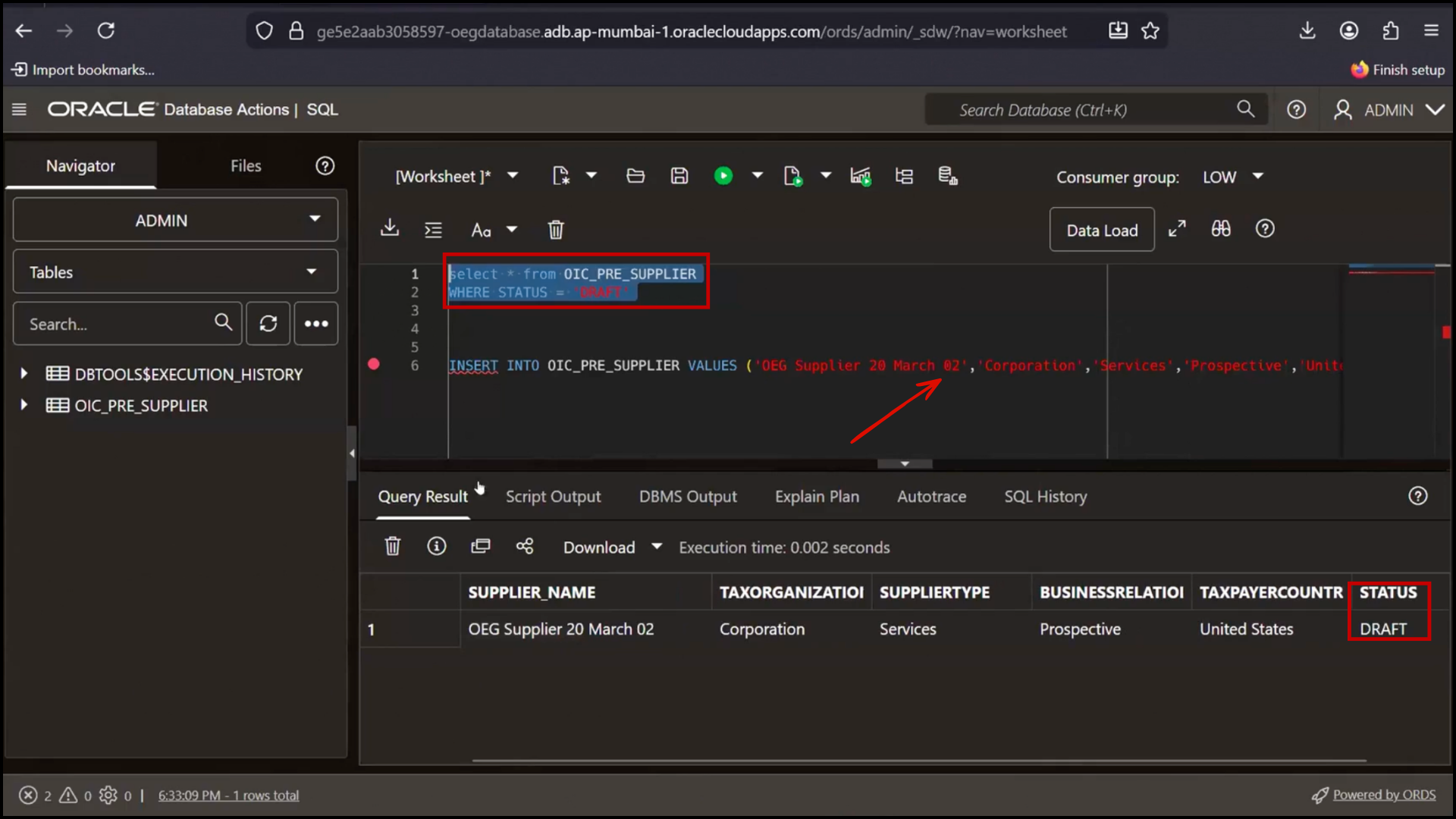
1. Go to the database and prepare the query.
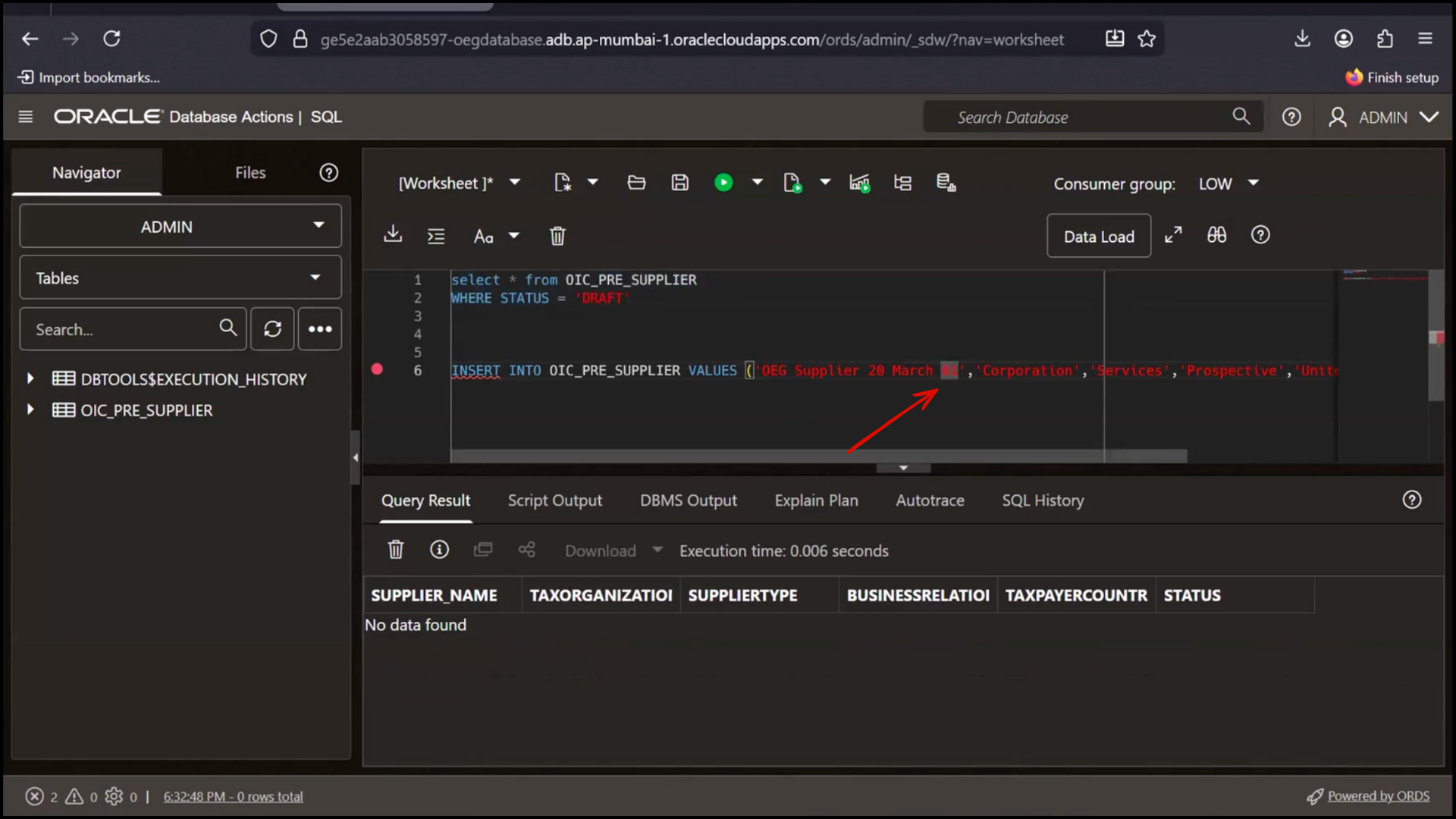
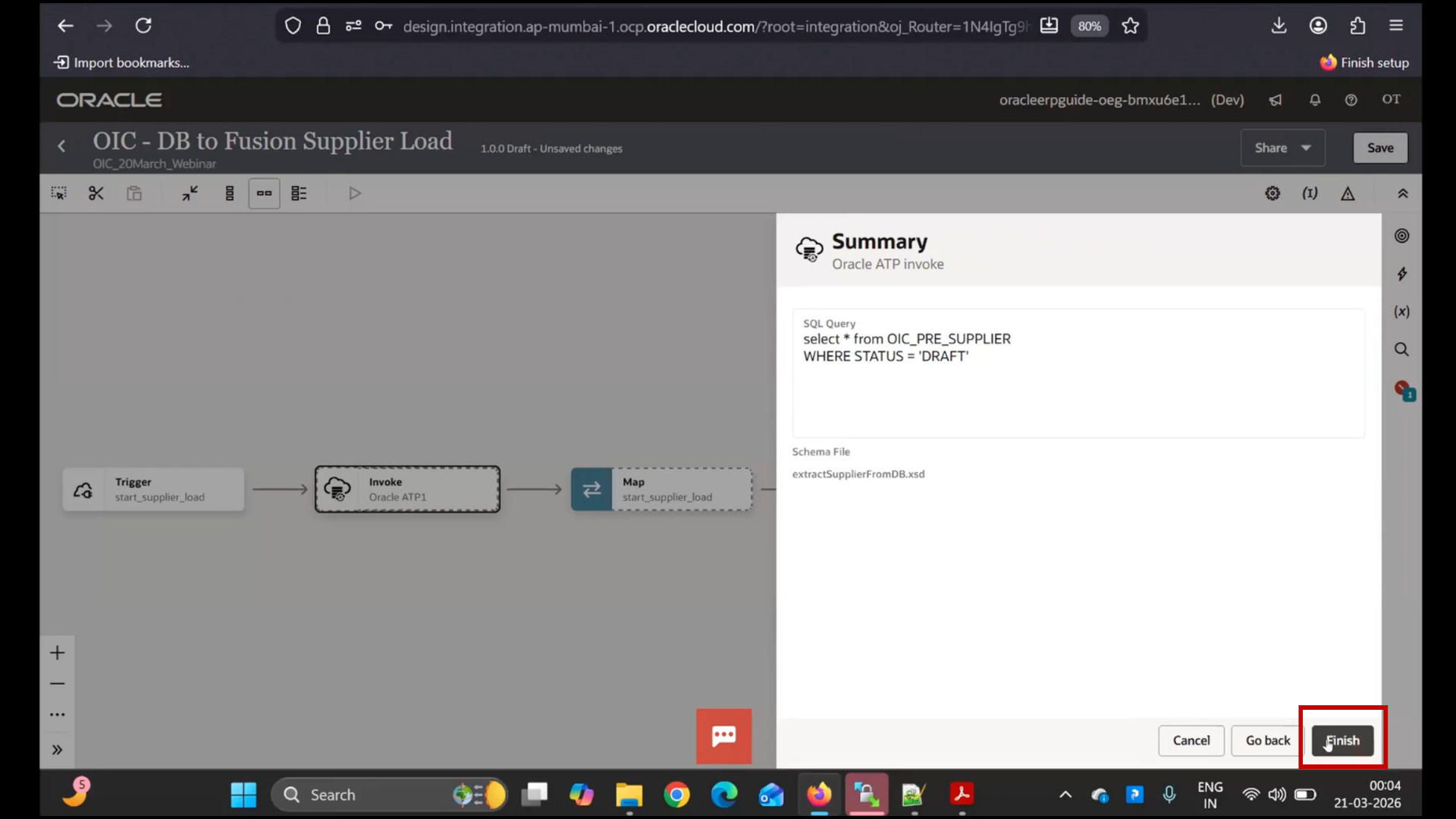
2. Write query:
select * from OIC_pre_suppliers where status = ‘Draft’
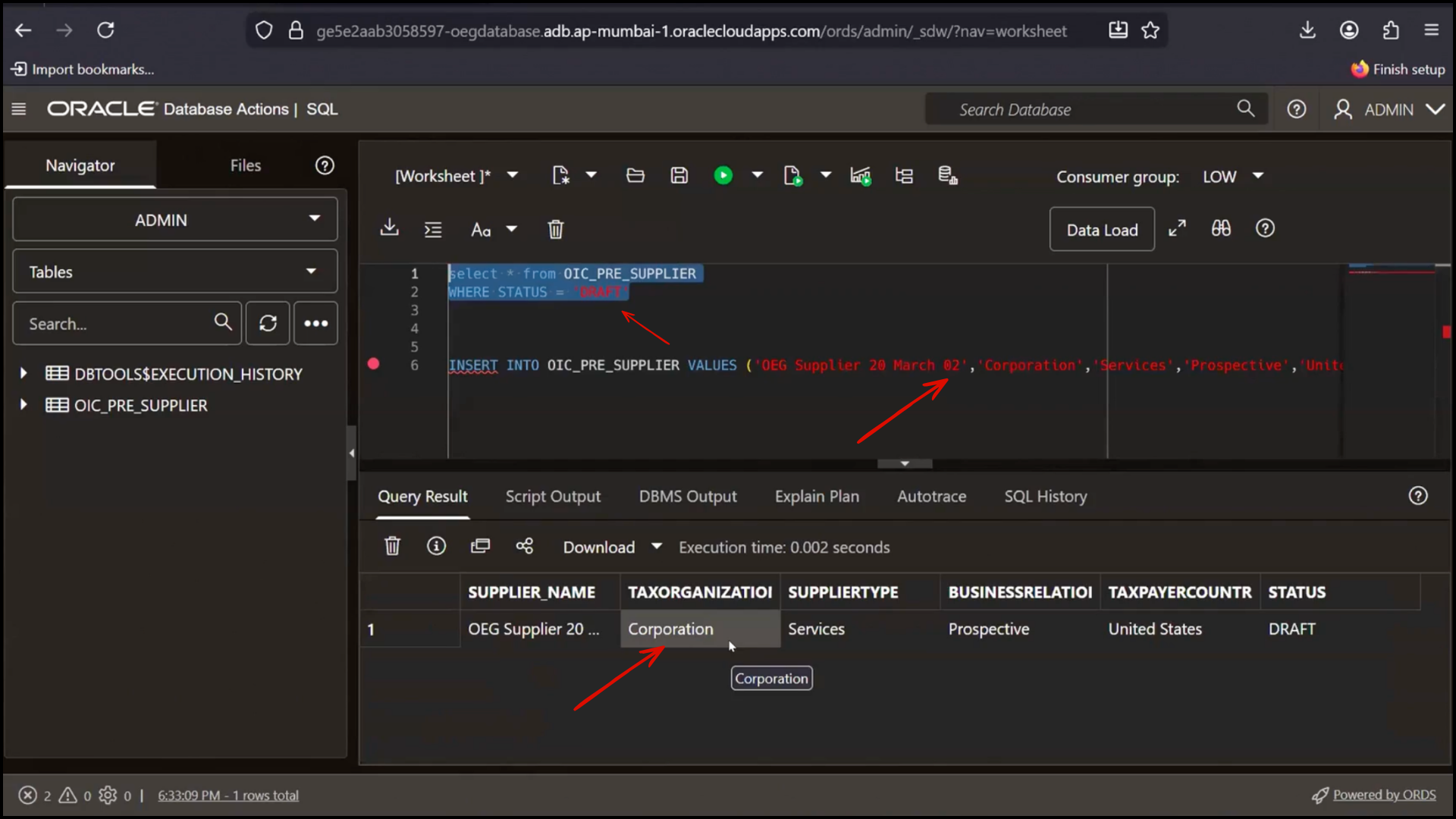
3. Ensure only Draft records are selected
4. Return to OIC
5. Paste query in SQL section
6. Click “Validate.”
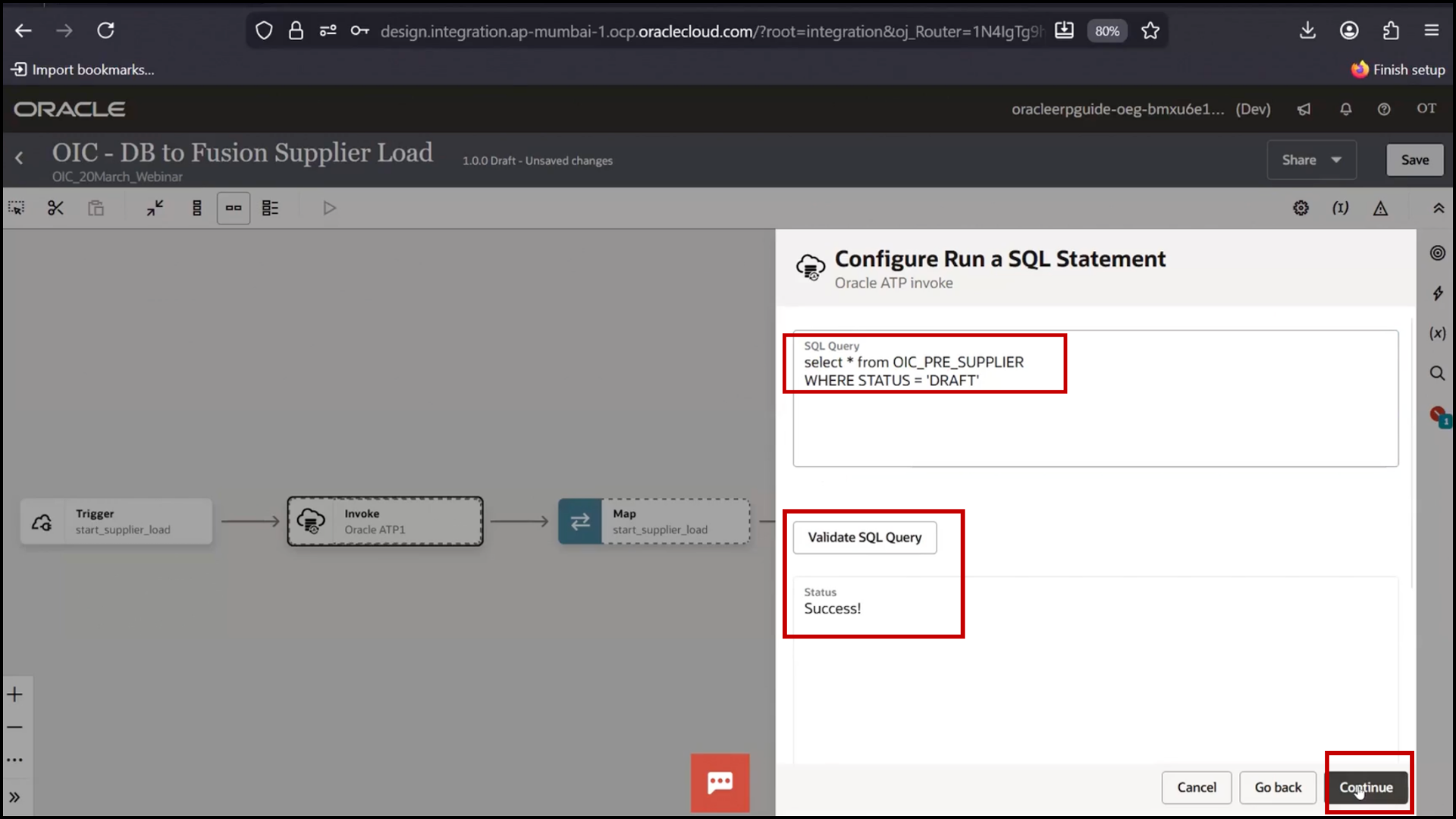
7. Confirm Validation Successful
8. Click “Finish.”
Saving and Understanding Mapper
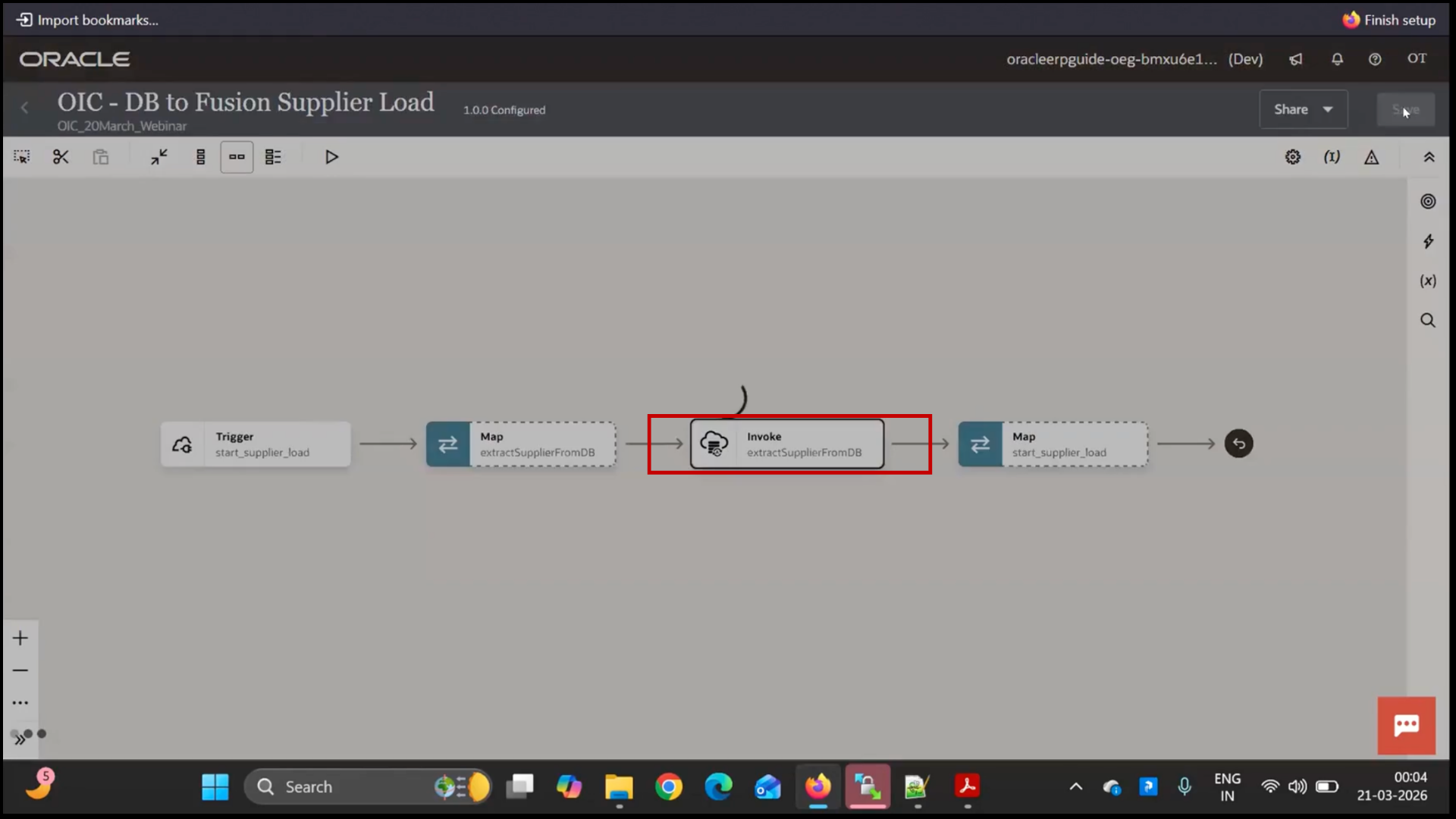
1. Observe Unsaved Changes
2. Click “Save.”
3. The note mapper appears for activities
4. Understand mapper is used to pass data
Activating and Testing Integration (Partial Flow)
1. Click “Activate.”
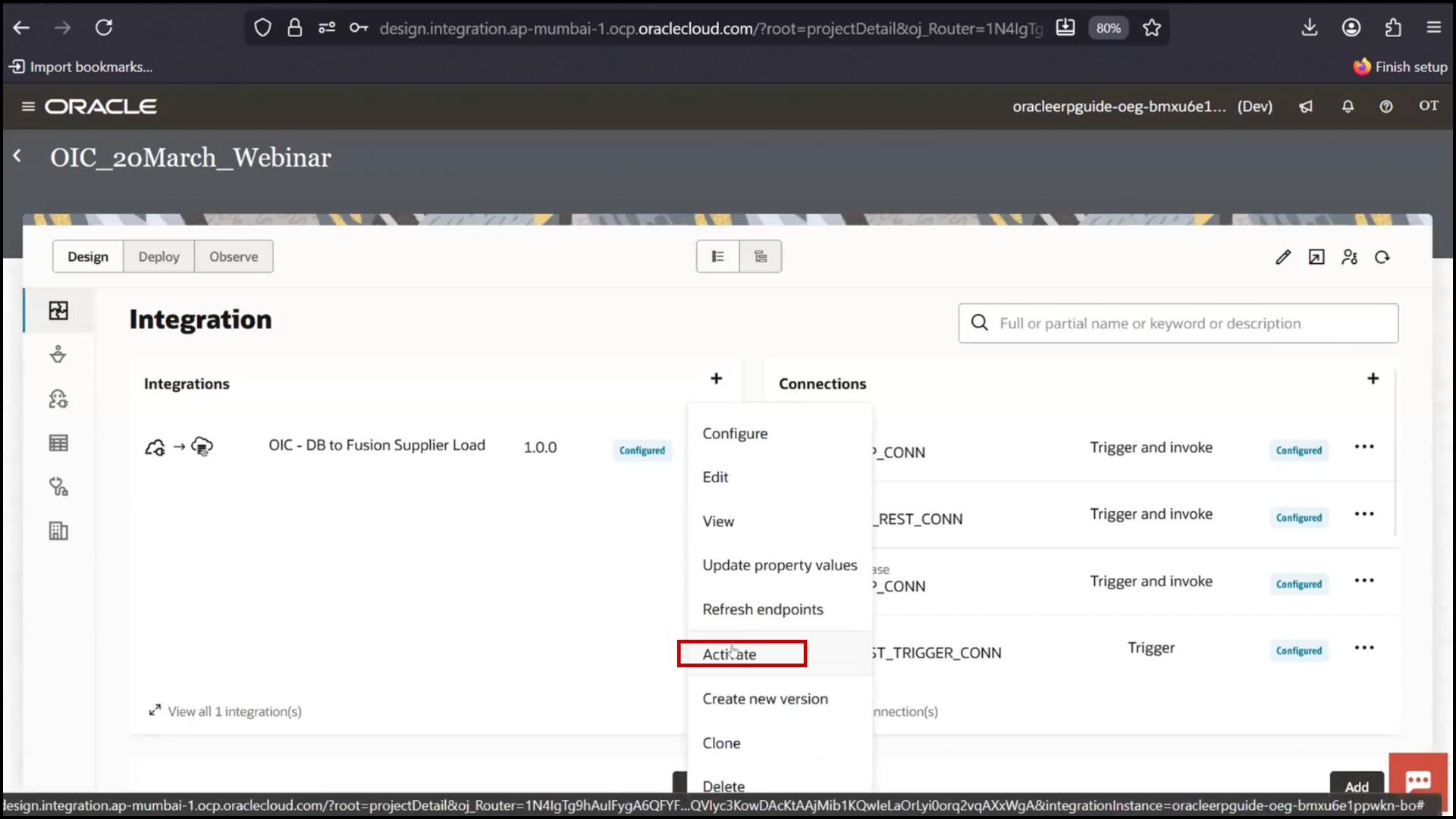
2. Select Debug mode
3. Click “Activate.”
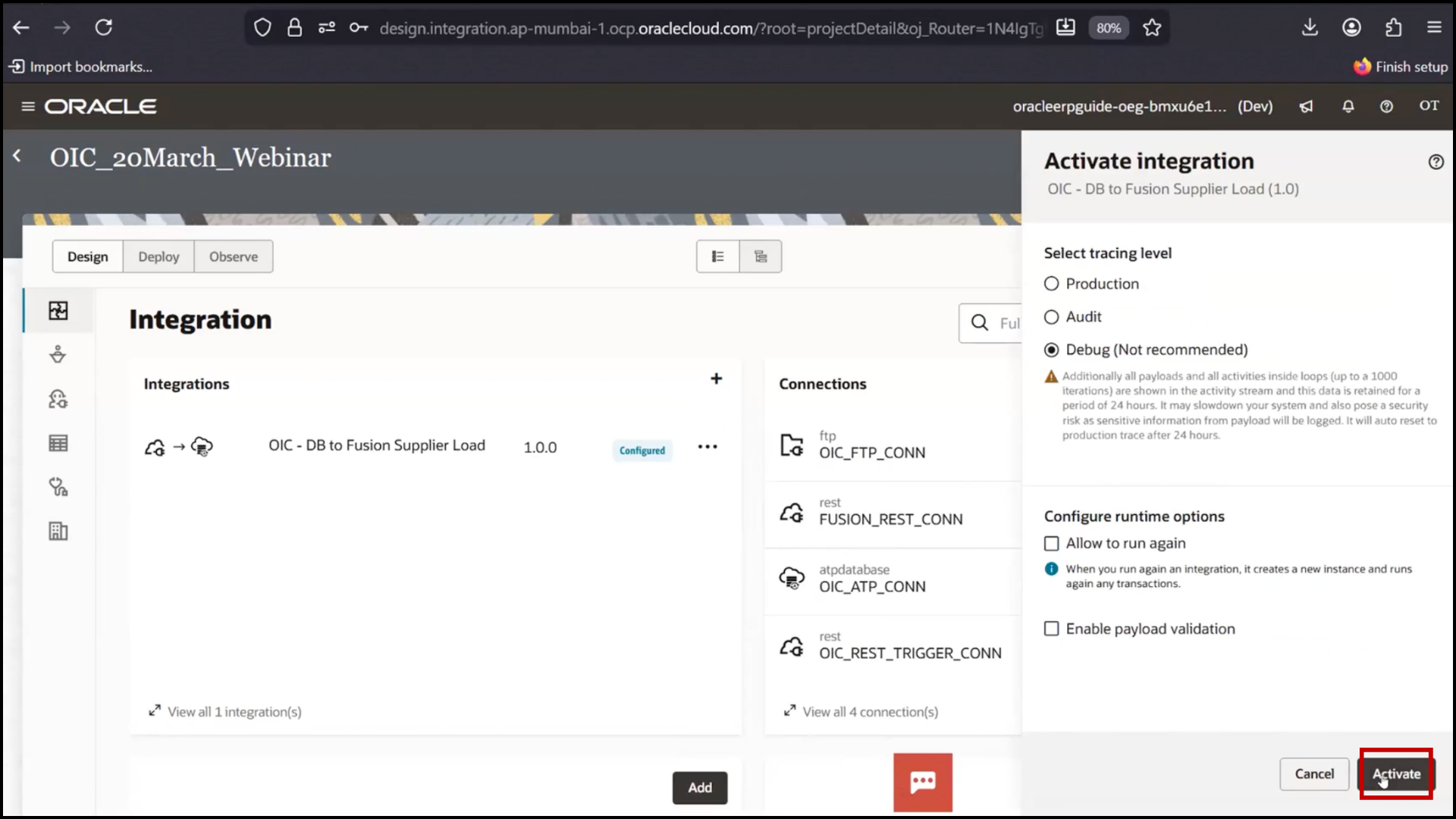
4. Wait for Activation in Progress
5. Click “Refresh.”
6. Confirm status changes to active.
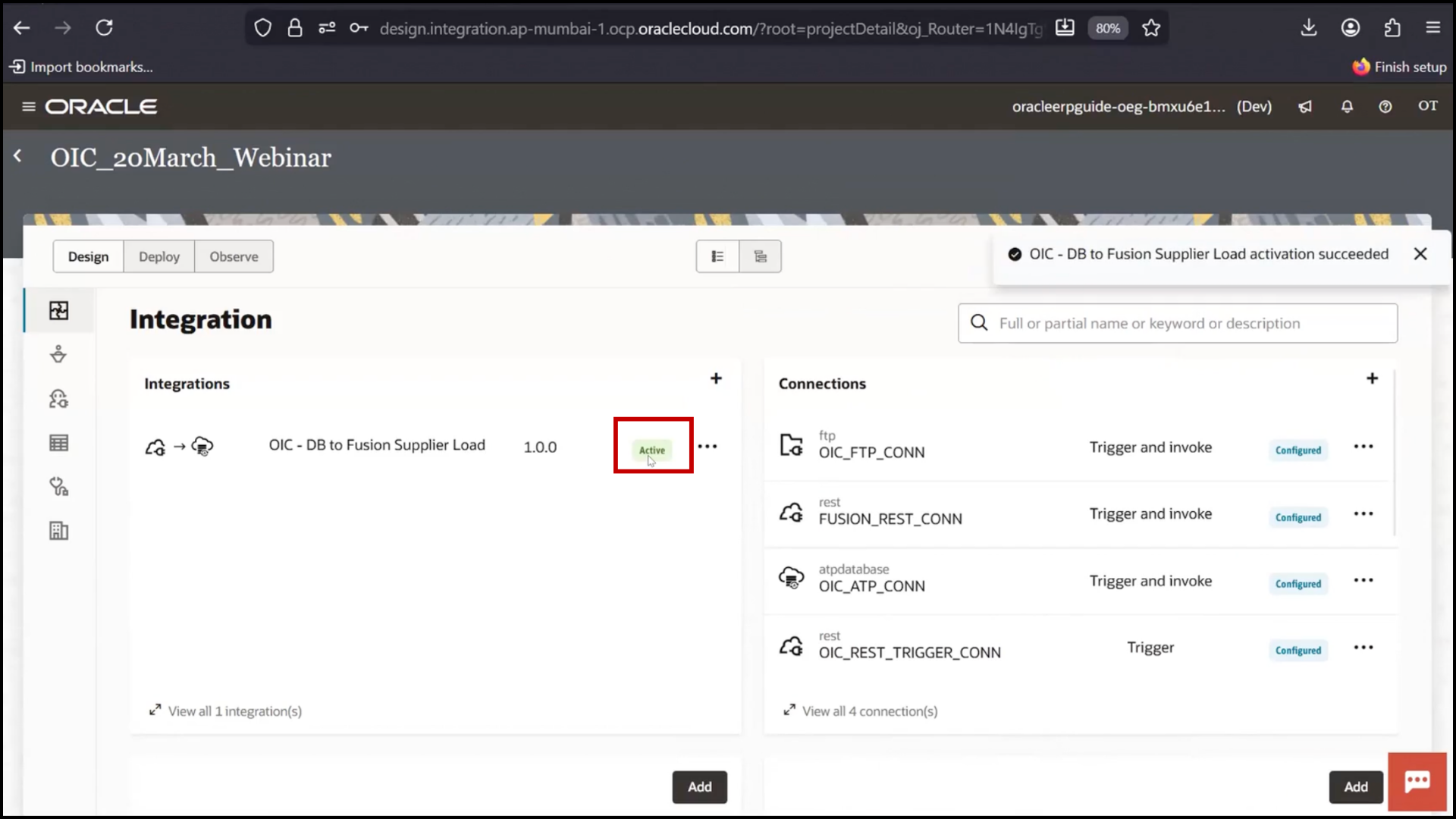
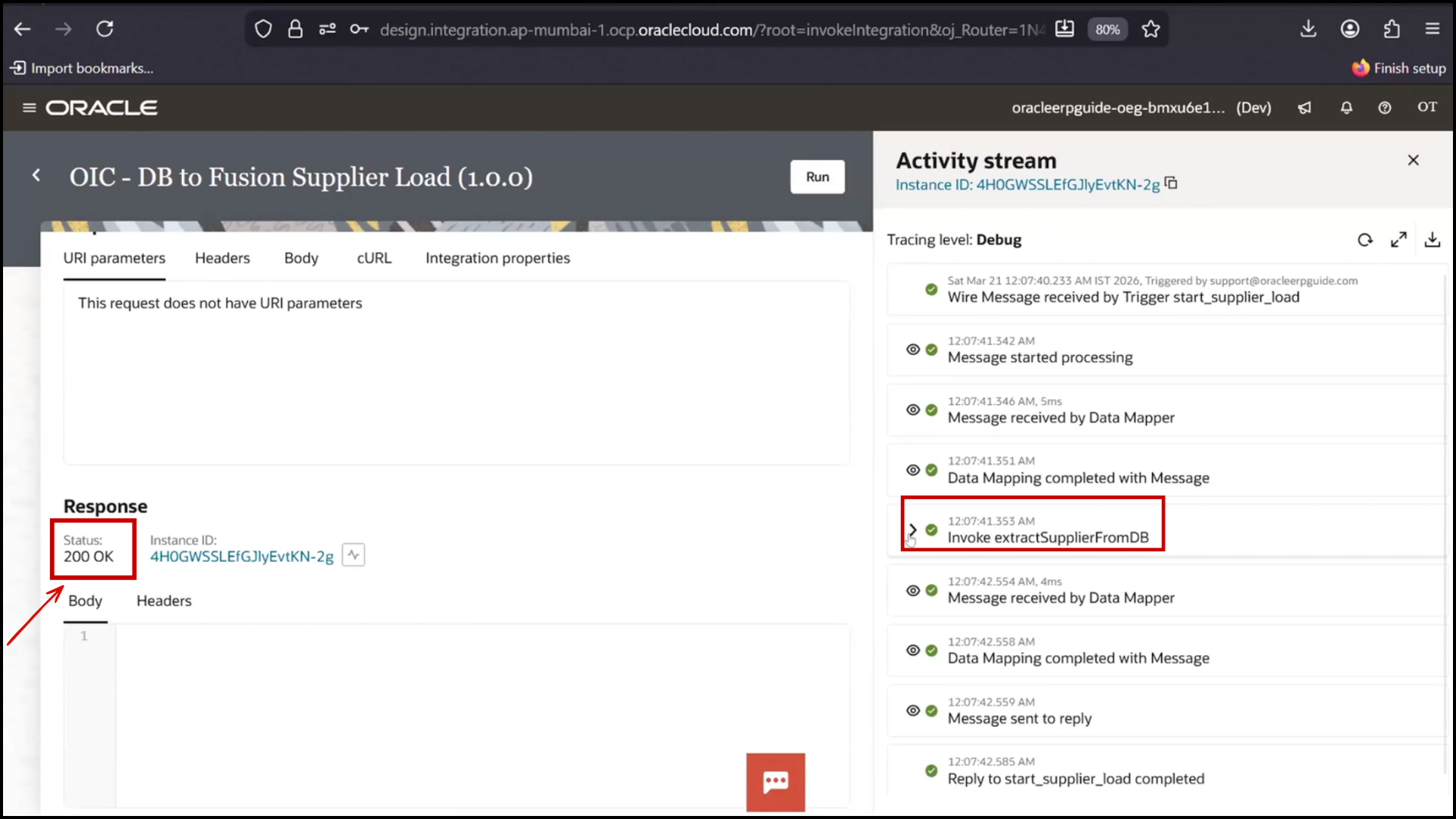
7. Click “Run.”
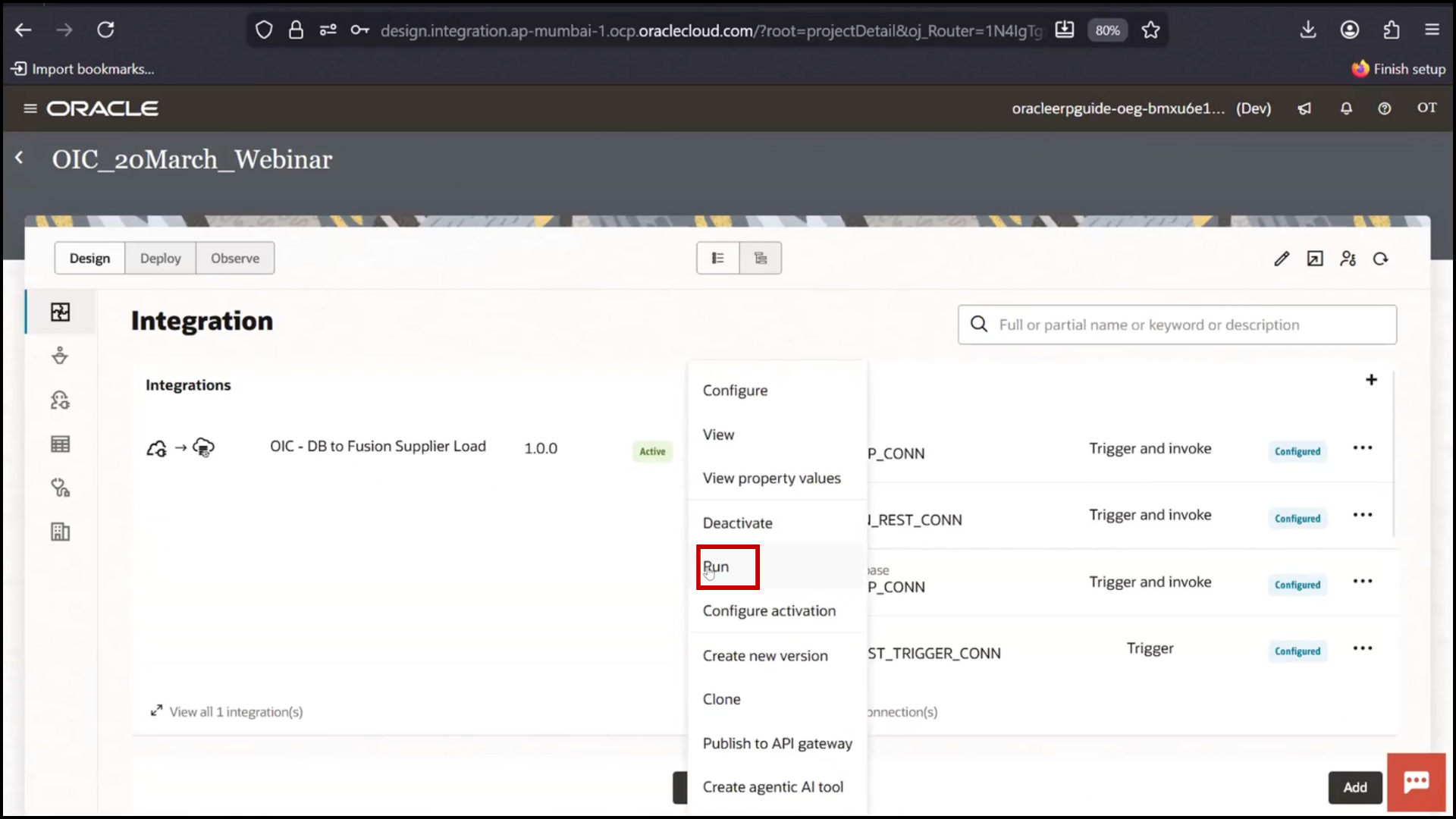
8. Configure and Run
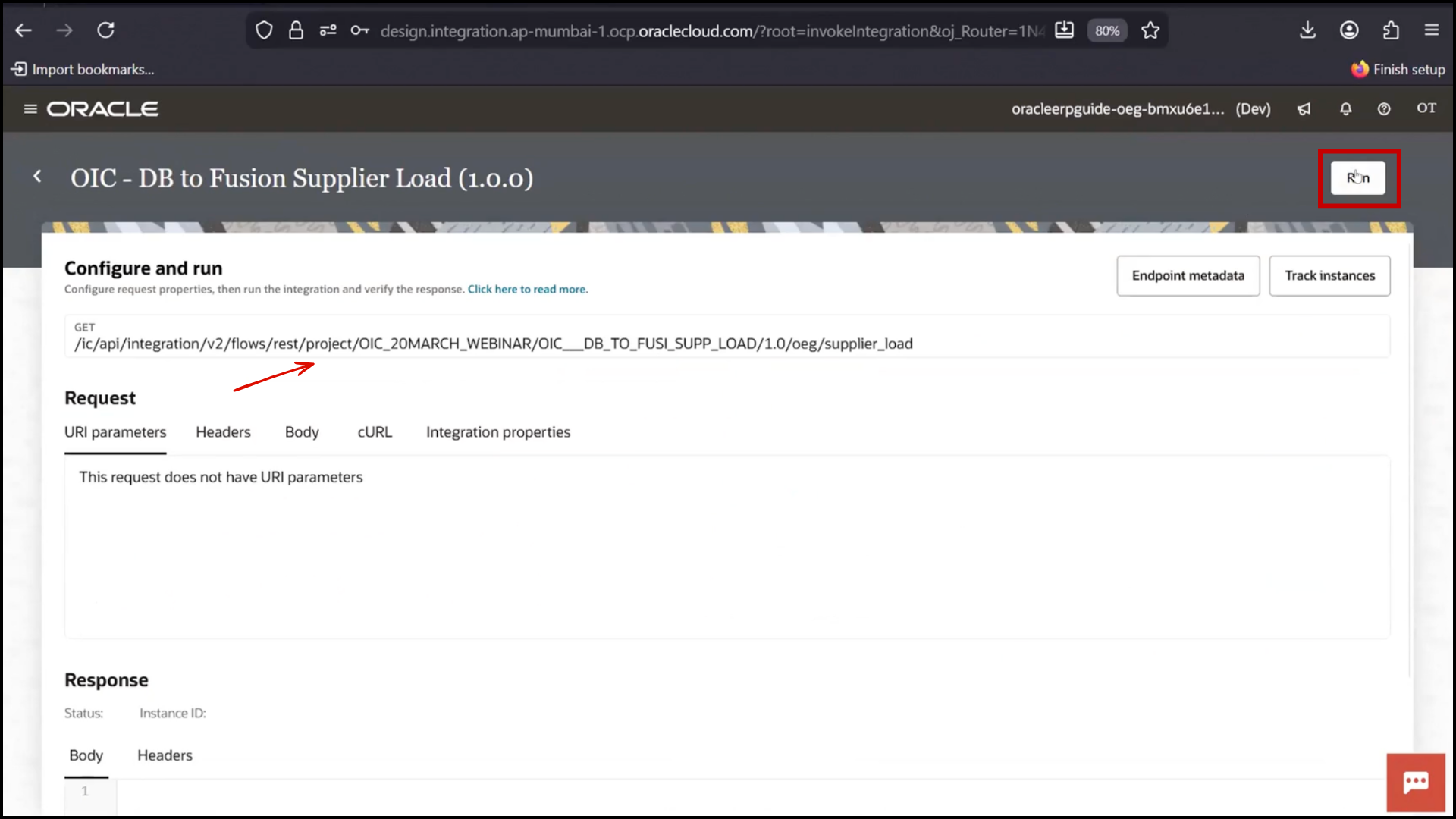
9. Check Status: 200 OK
Monitoring Execution
1. Observe execution status (completed).
2. Note: no output returned
3. Go to Monitoring / Logs
4. Open Instance ID
5. View Flow Diagram
6. Check Activity Stream
7. Verify all steps in green
8. Click “Extract suppliers from DB.”
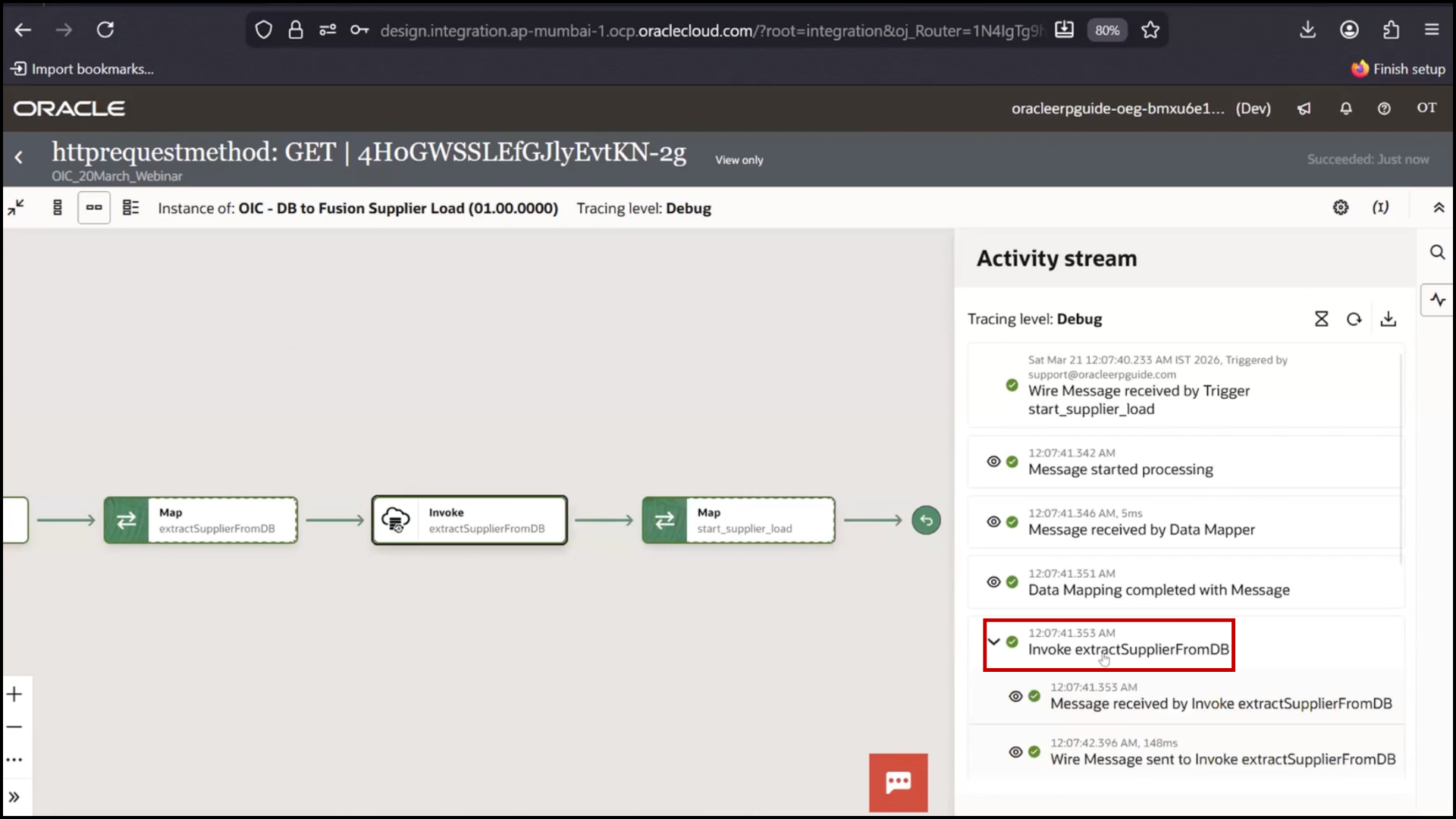
9. View payload data
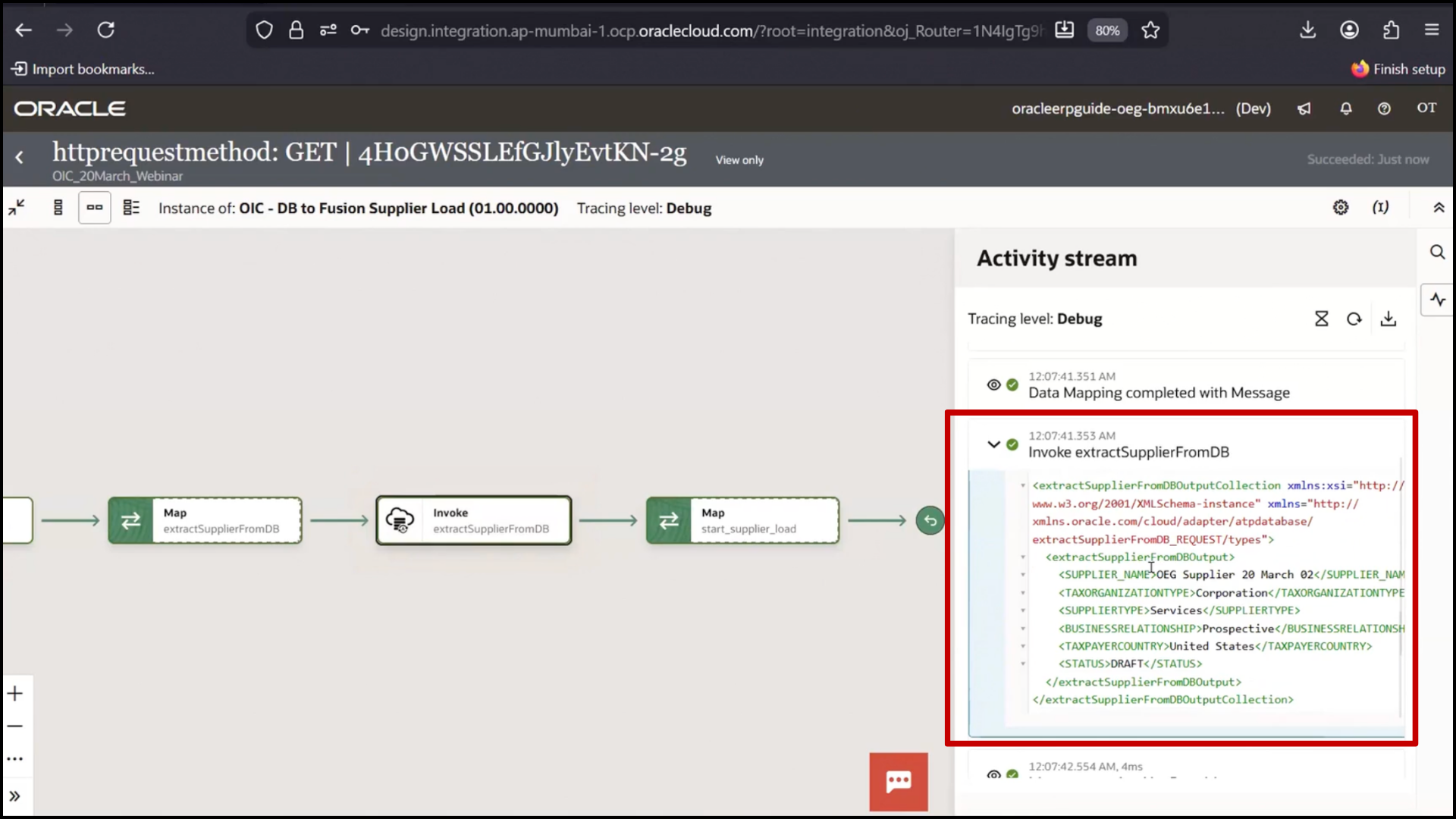
10. Confirm only the draft record is fetched