OIC Integration: Creating Connections | Part 2

Building and Configuring Connections in OIC (Part 2)

Step 1: Navigate to OIC Connections

1. Login to OIC – Click on “Project” and create a project by giving it a name “OIC_DateMonth_Purpose.”
2. Click “Designer.”
3. Click Connections
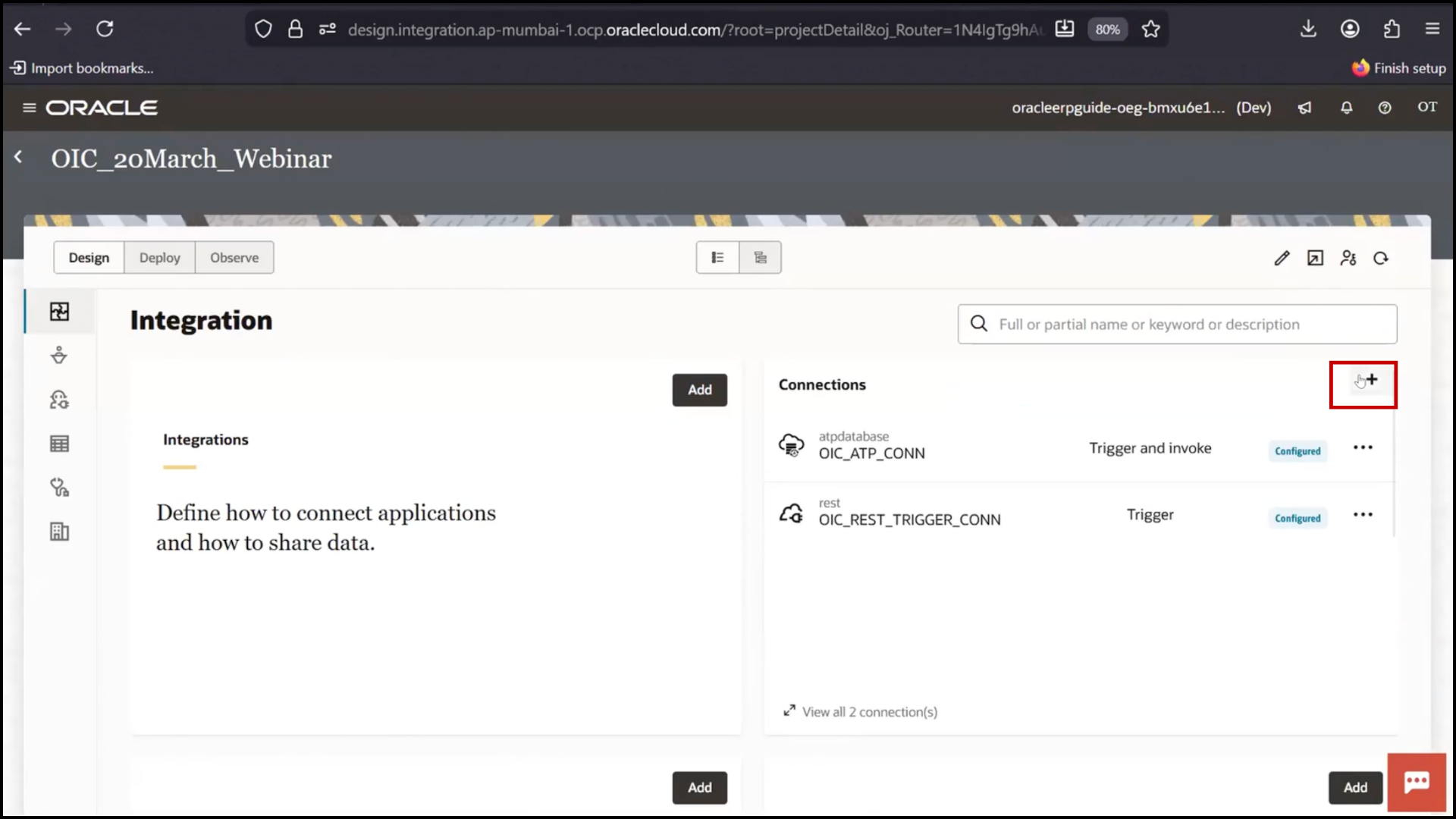
4. Click Create5.

Step 2: Create REST Trigger Connection

1. Click Create
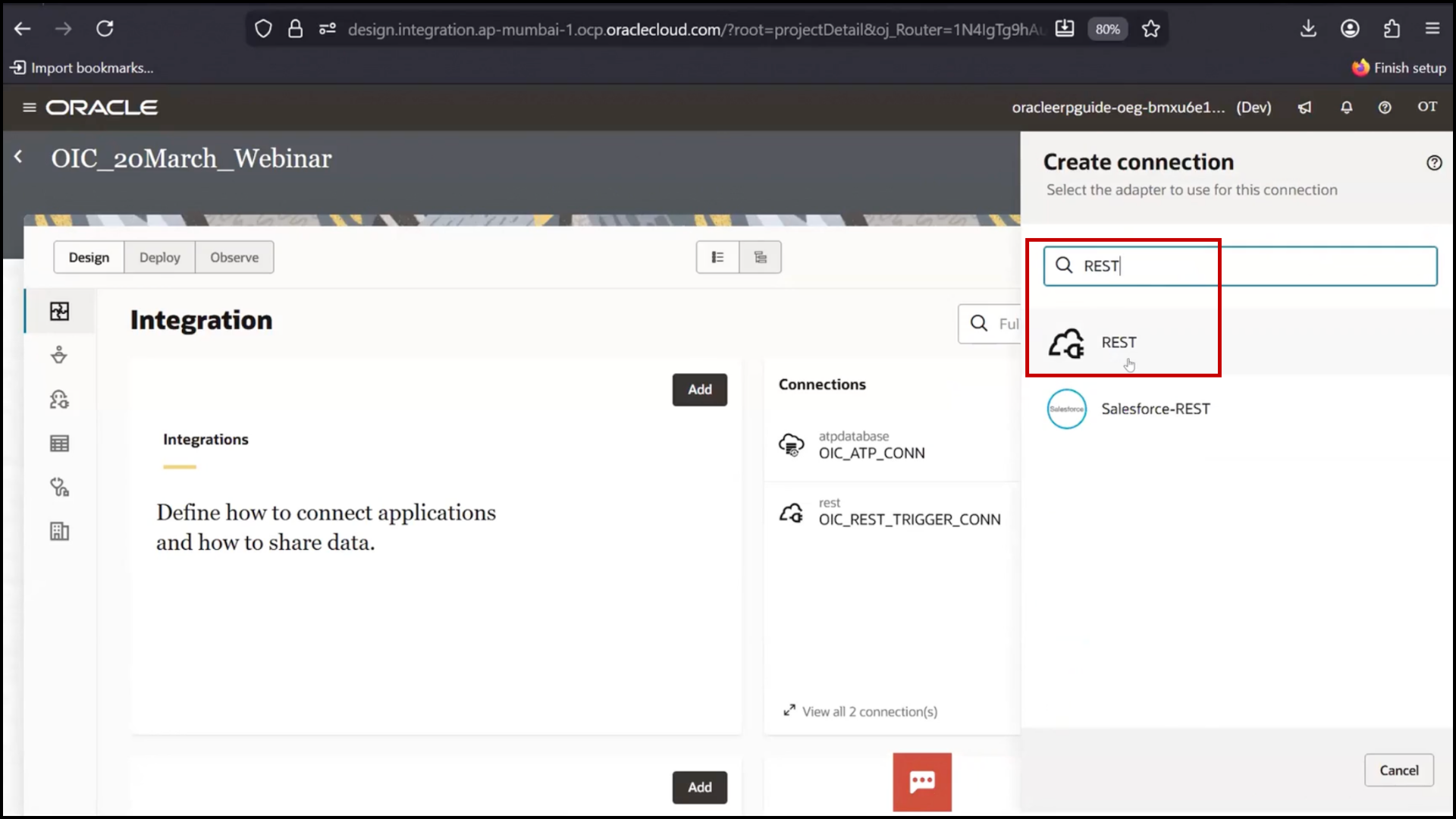
2. Search and select REST Adapter
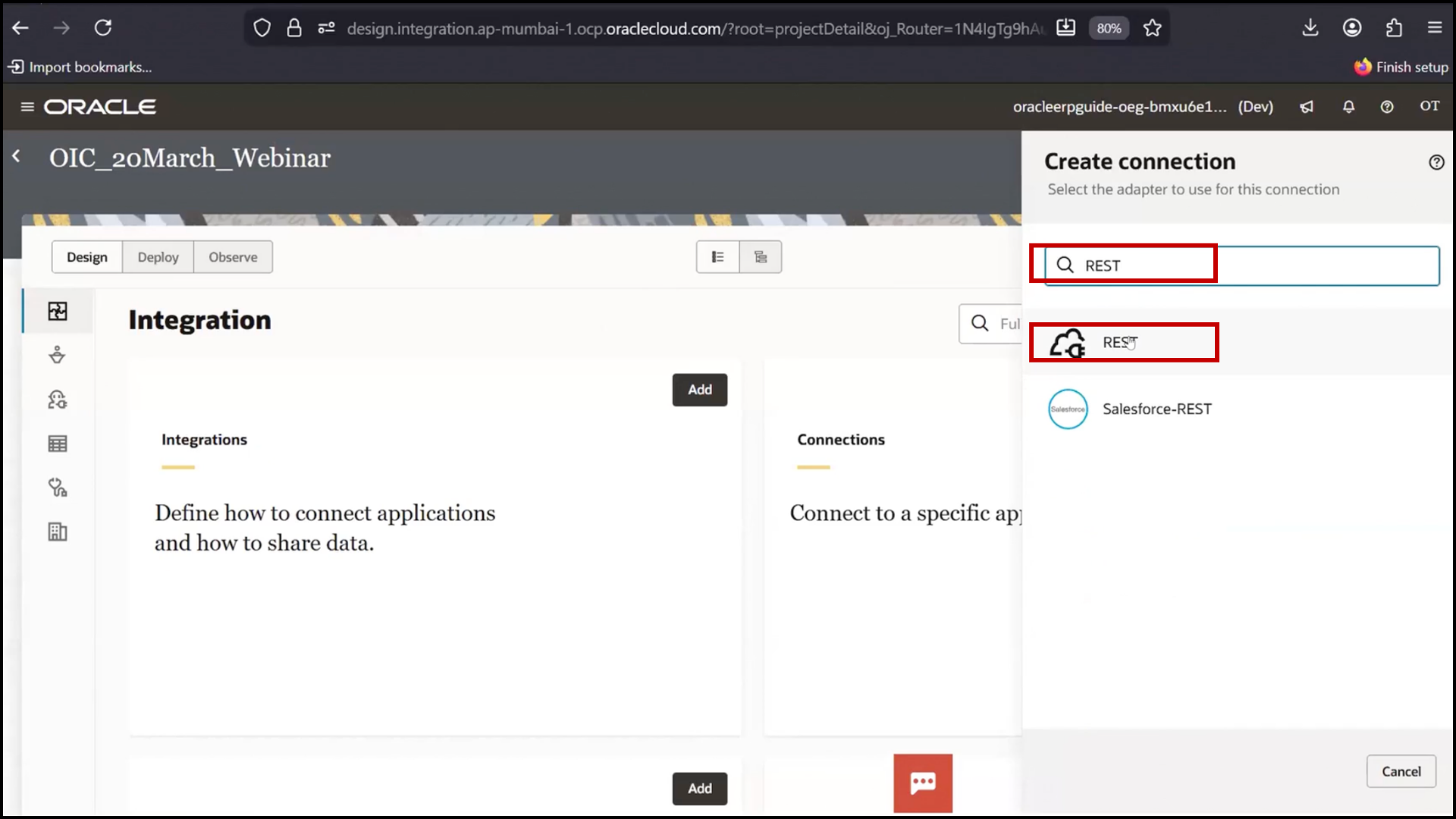
OIC connections screen: selecting REST Adapter in Oracle Integration Cloud (OIC)

3. Enter:
Name: OIC_REST_Trigger_Connection
4. Role: Trigger
5. Click Create
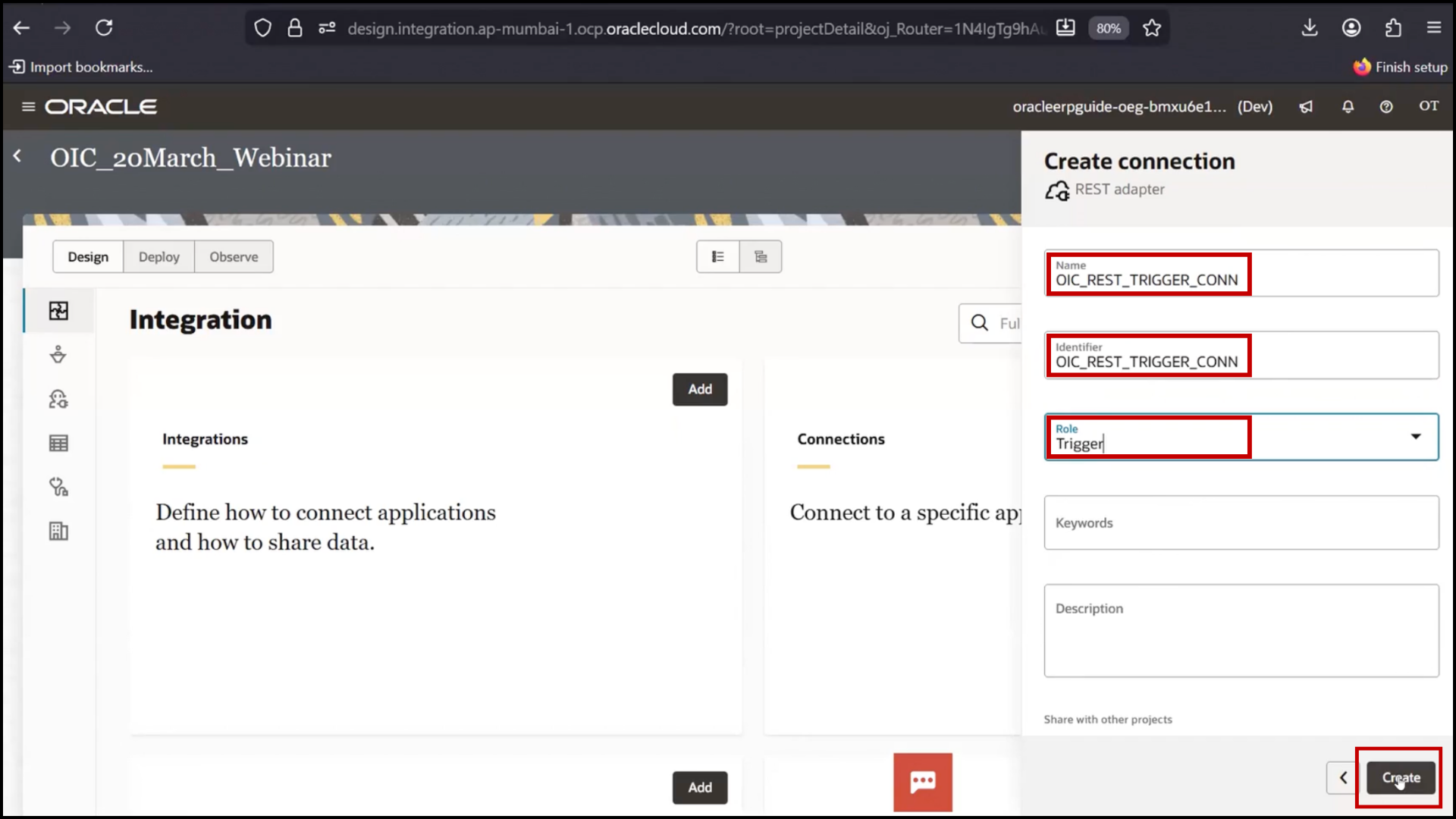
OIC connections screen clicking Create to add new connection in Oracle Integration Cloud (OIC)

6. Configure Security:
7. Choose Basic Authentication or OAuth
8. Click “Test” since “Test” is a mandatory process
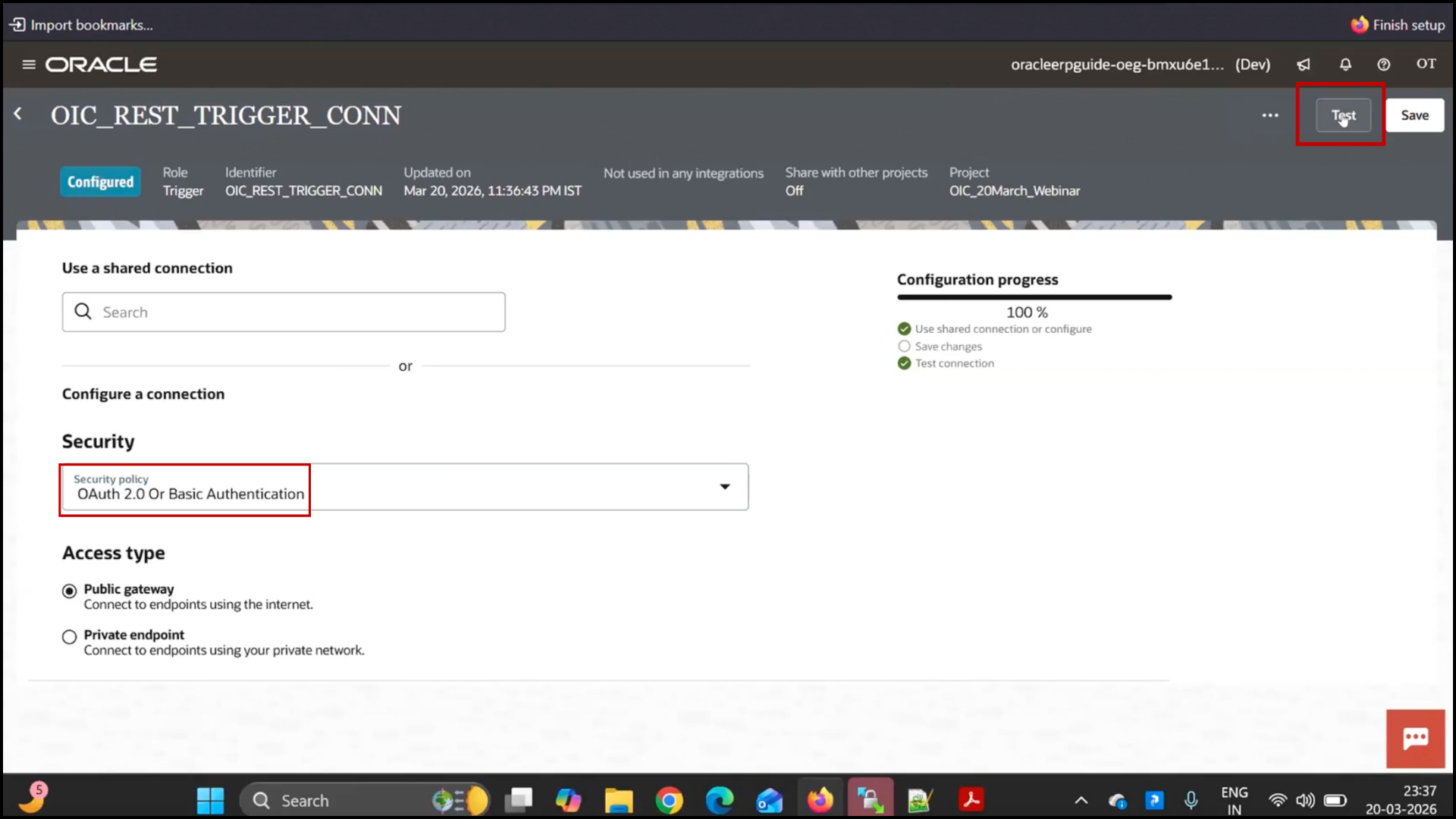
OIC connection configuration screen clicking Test to validate connection in Oracle Integration. Cloud service

9. Wait for:
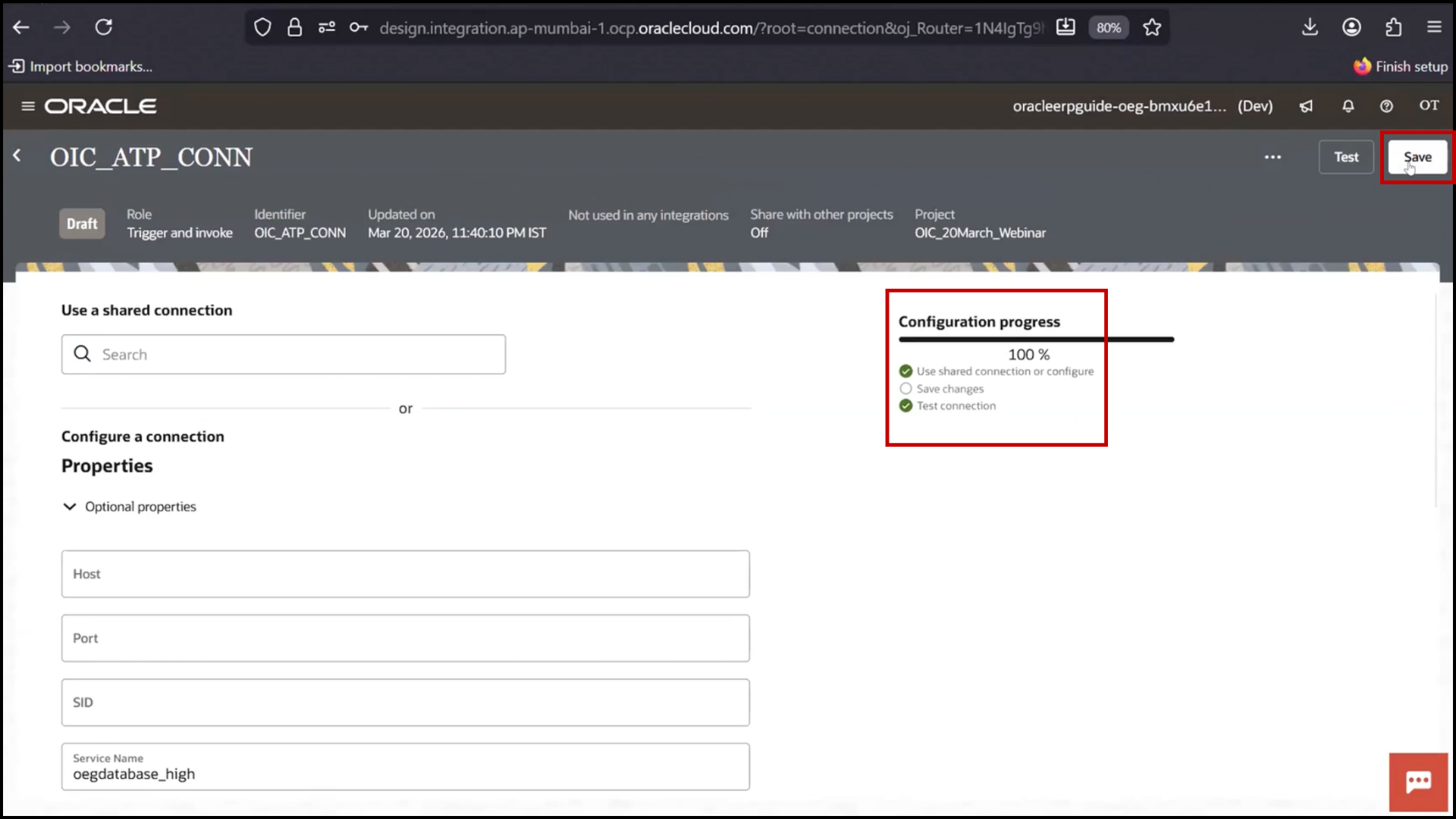
Status: 100% Complete
10. Click Save
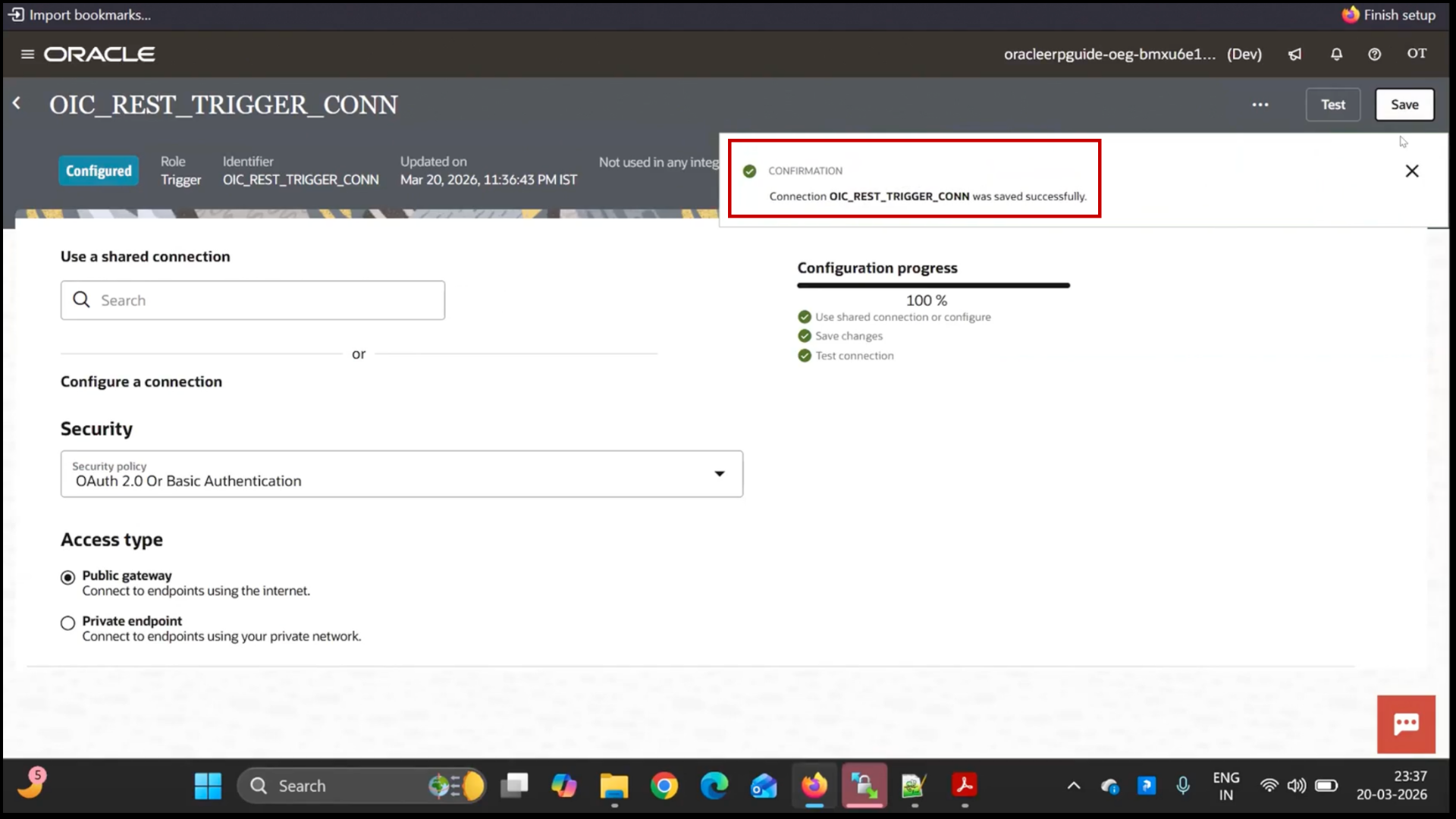
OIC connection test status showing 100% complete and saving connection in Oracle Integration Cloud (OIC)

Step 3: Create ATP Database Connection

1. Click Create
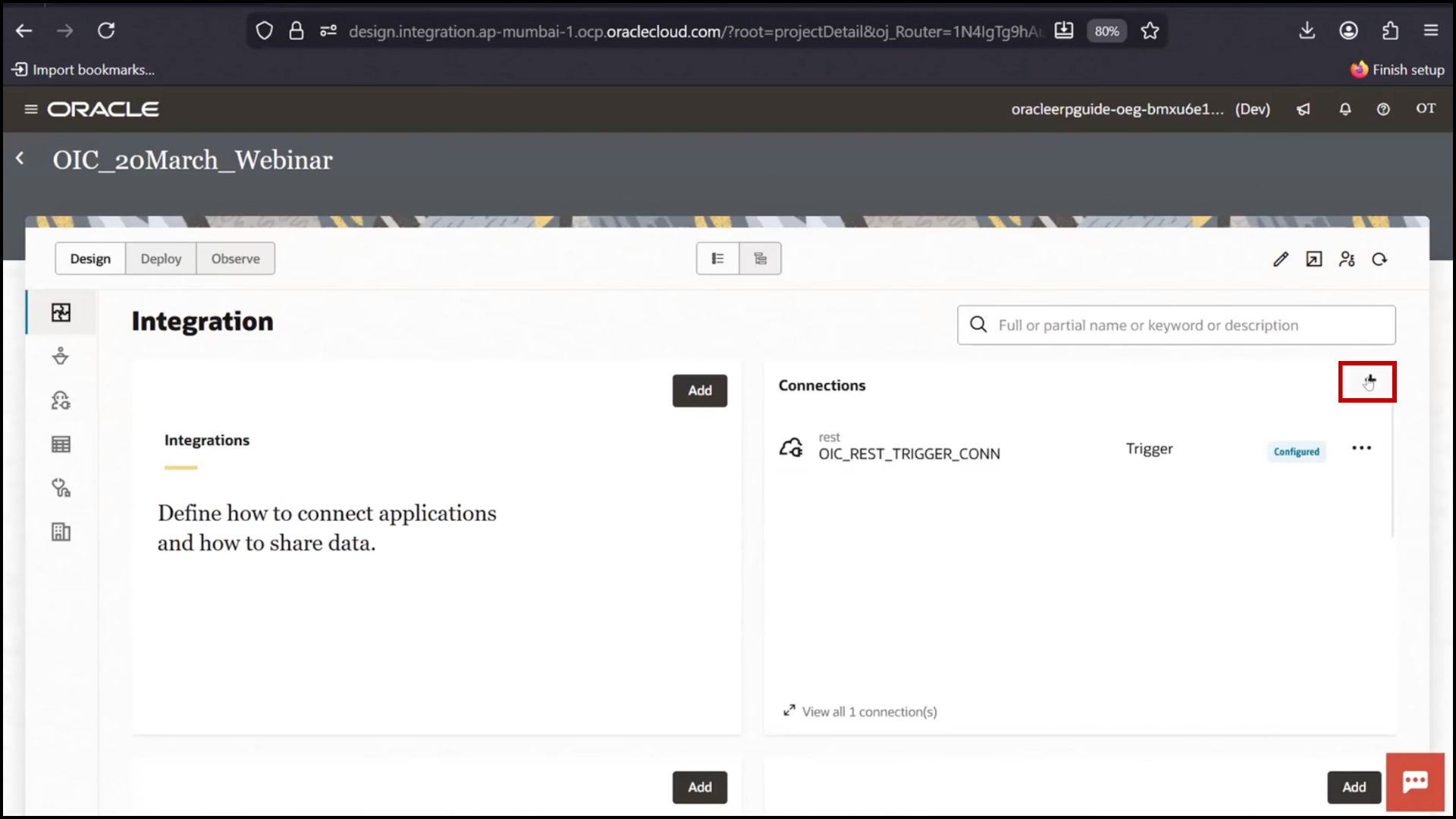
OIC connections screen clicking Create a setup for ATP database connection in Oracle Integration Cloud (OIC)

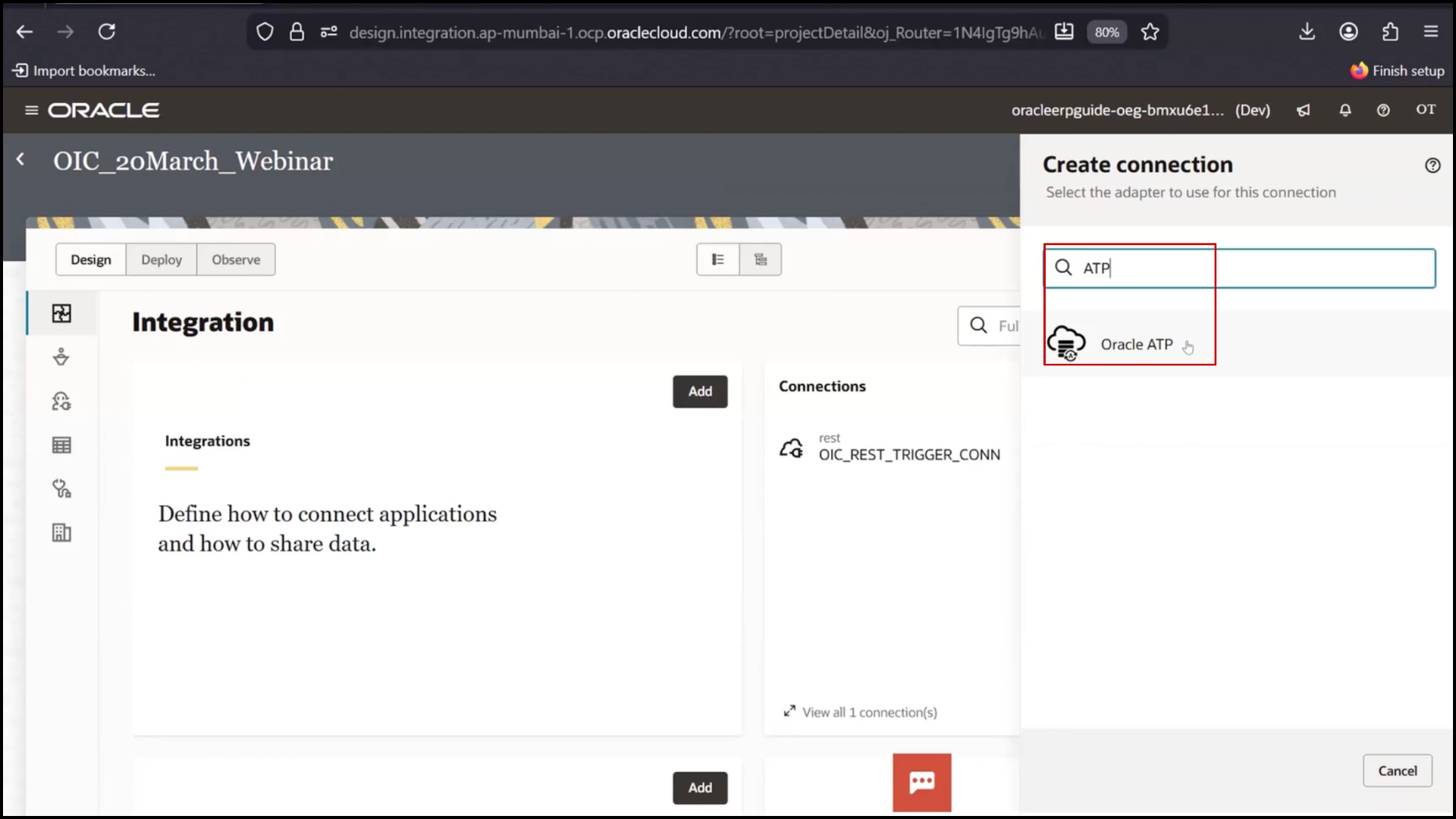
2. Select Oracle ATP Adapter

OIC connections screen: selecting Oracle ATP Adapter for database integration in Oracle Integration Cloud (OIC)

3. Enter:
Name: OIC_ATP_Connection
4. Role: Trigger and Invoke
5. Click Create
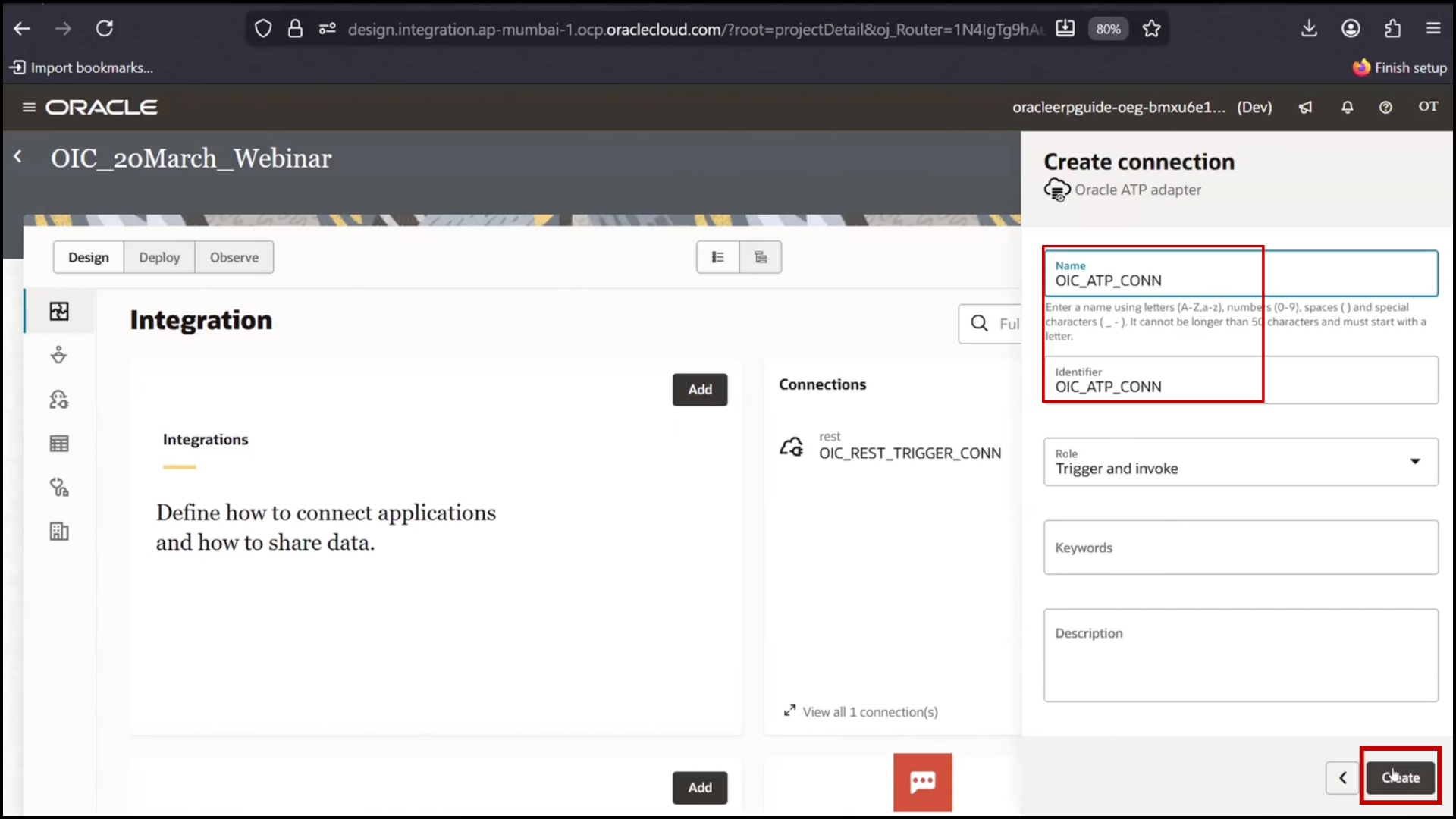
OIC connection setup screen selecting Trigger and Invoke role and clicking Create in Oracle Integration Cloud (OIC)

To establish a secure connection with the database, certain credentials and configurations are required. This includes the wallet, wallet password, database username, and database password. Once all these details are correctly provided, the system can successfully communicate with the database.

These credentials are typically obtained from the relevant stakeholders. If the database is managed internally, you should coordinate with the Database Administrator (DBA) or the admin team to request the required access details. In cases where the database is managed by the client, you will need to reach out to the client and formally request the necessary credentials.

Ensuring proper access and secure handling of these details is essential for establishing a successful and secure database connection.

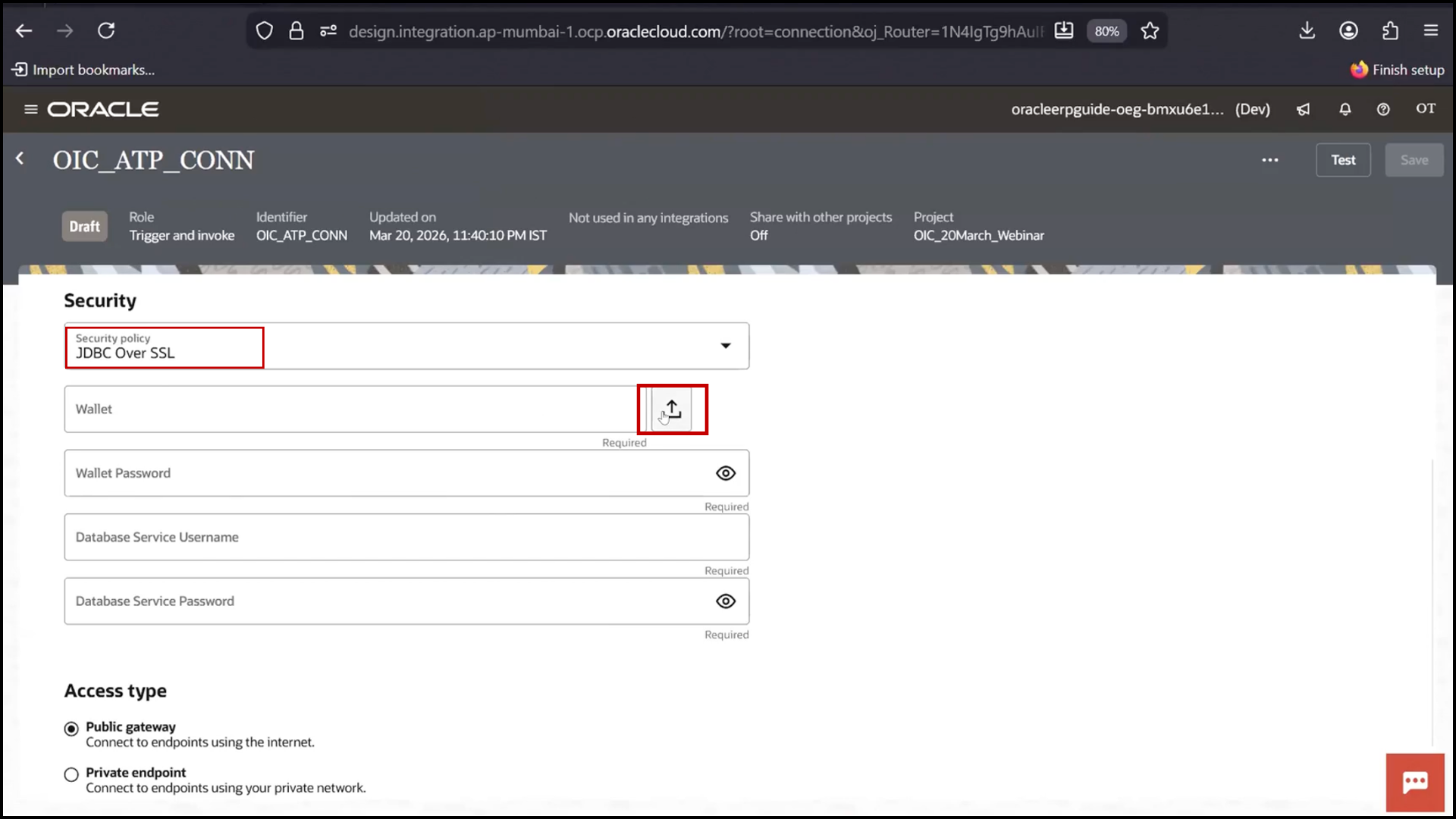
6. Configure:
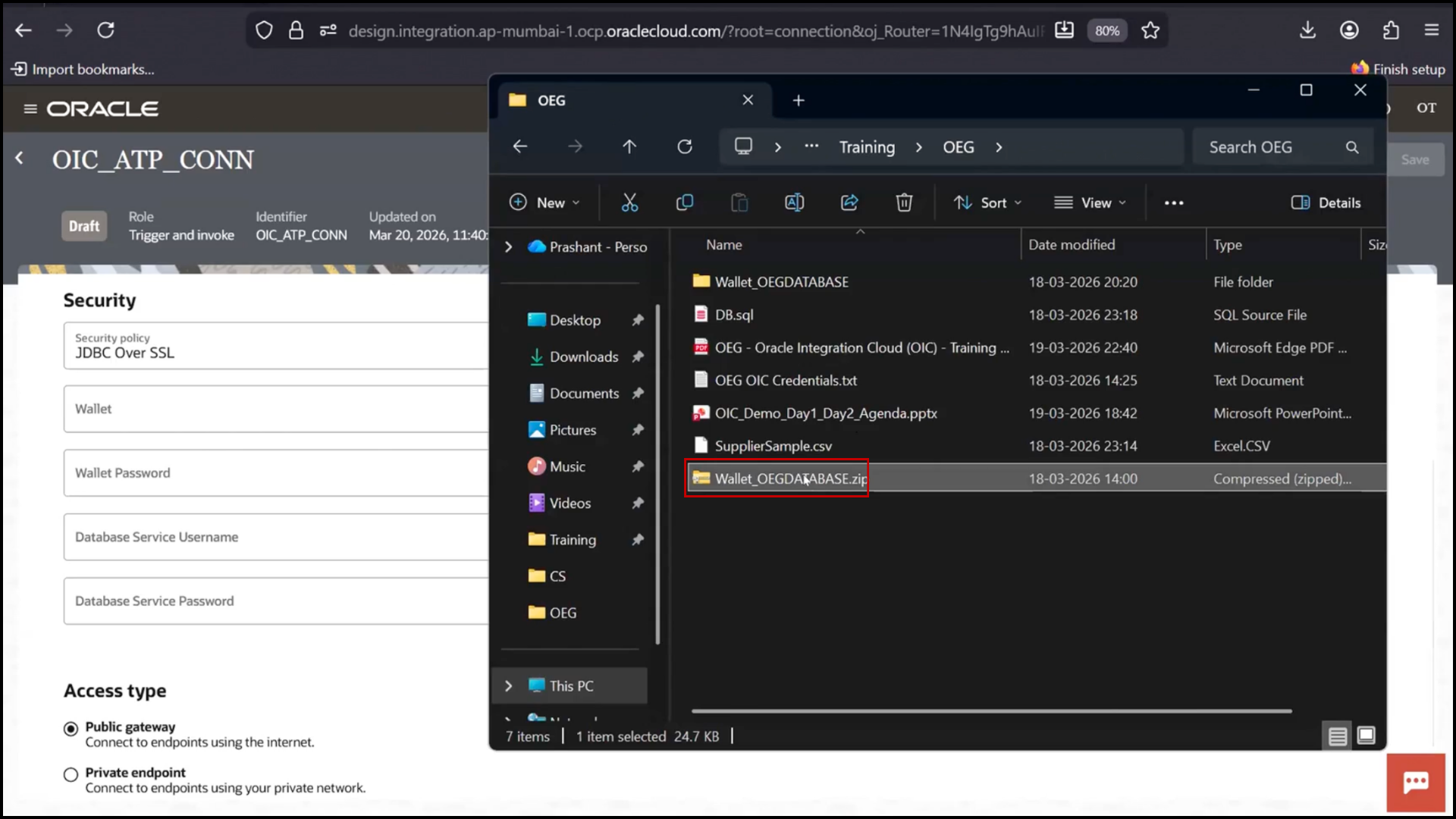
OIC connection configuration screen setting up parameters for Oracle ATP integration in Oracle Integration Cloud (OIC)

7. Upload Wallet File

OIC ATP connection screen uploading wallet file for secure database access in Oracle Integration Cloud (OIC)

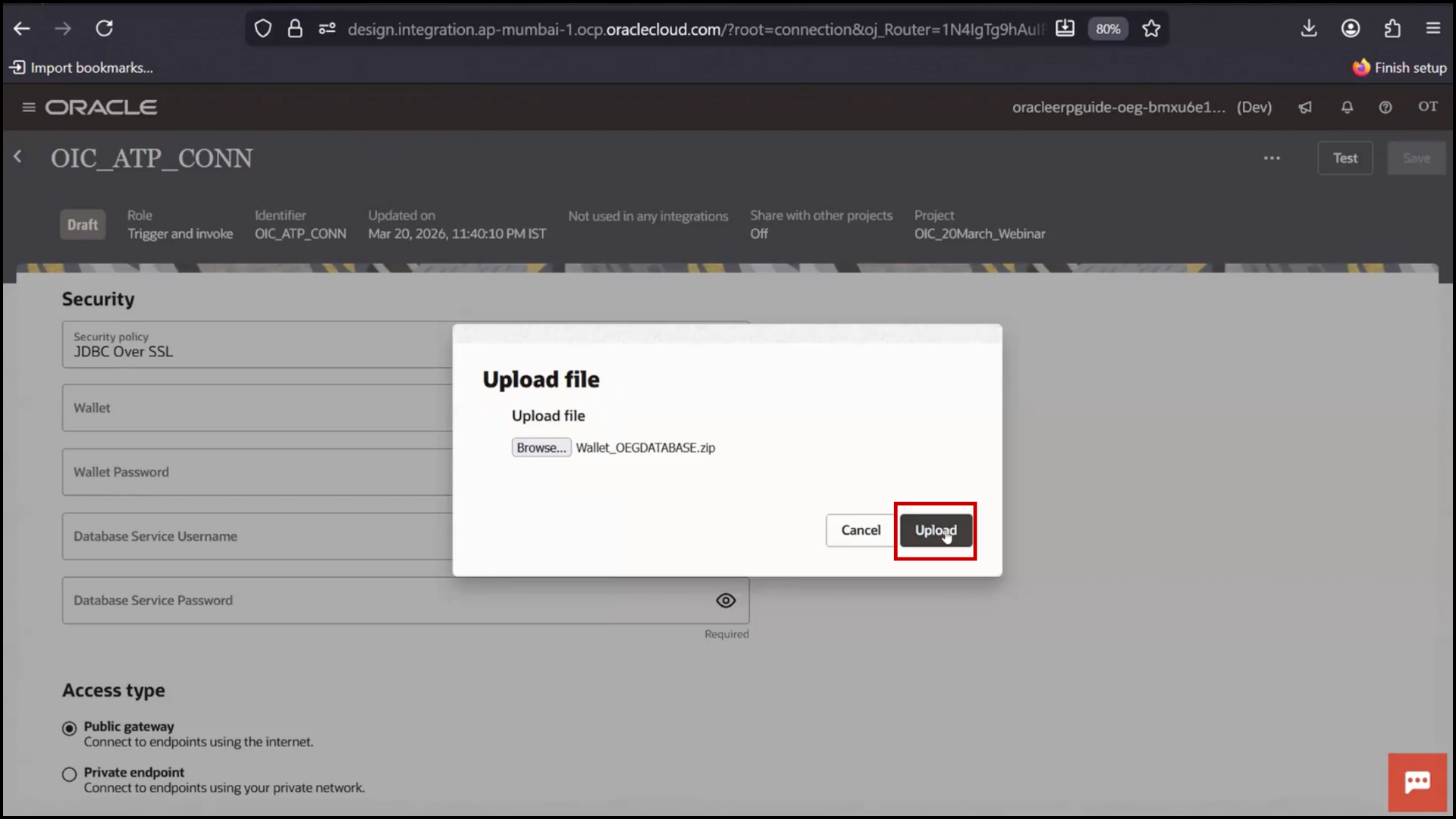
8. Click Upload

OIC ATP connection screen clicking Upload to add wallet file in Oracle Integration Cloud (OIC)

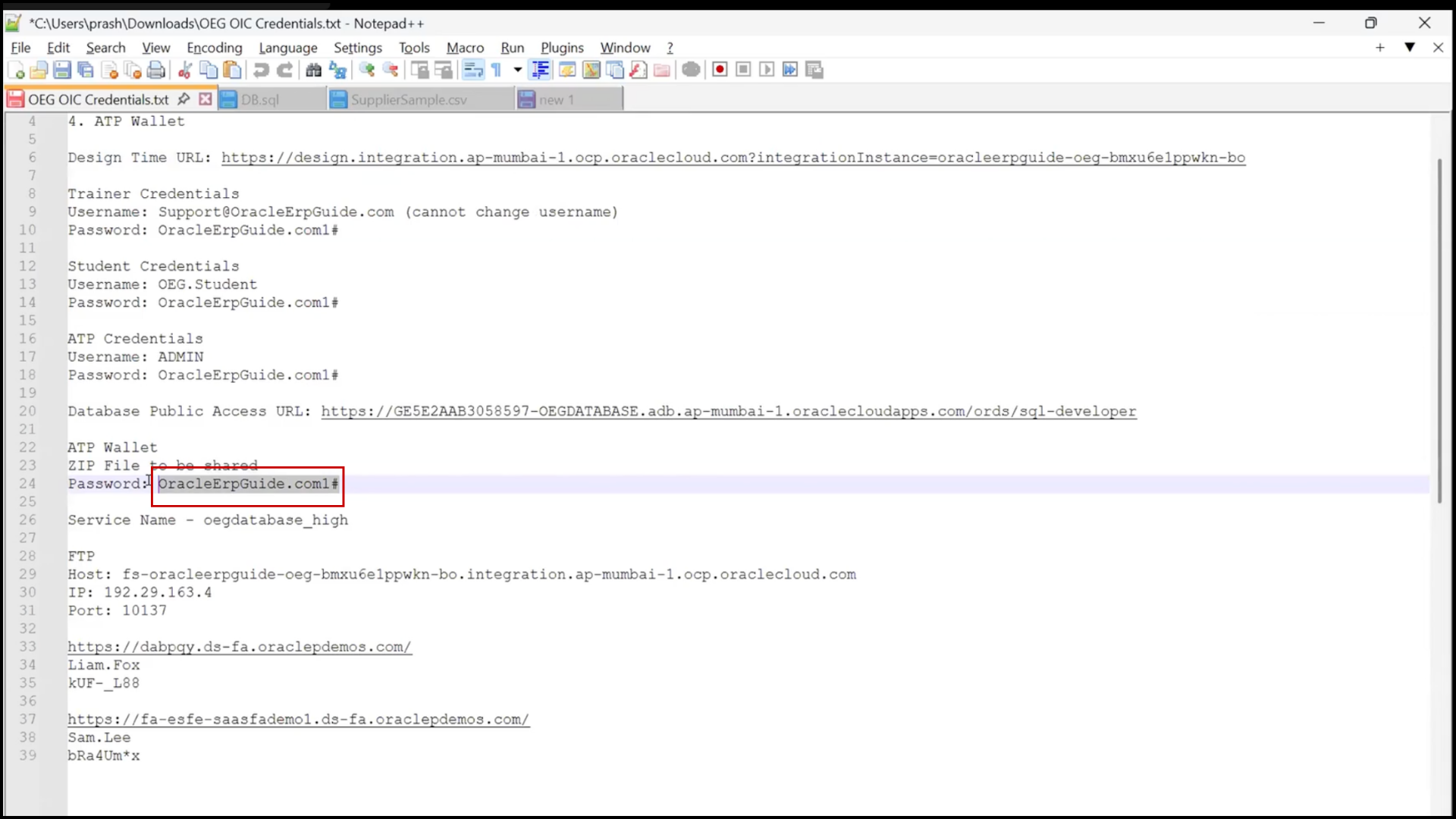
9. Enter Wallet Password

OIC ATP connection screen: entering wallet password for secure authentication in Oracle Integration Cloud (OIC)

10. Enter DB Username (admin)
11. Enter DB Password

11. Important Step:
a. Add Service Name (mandatory in this case)
b. Click Test
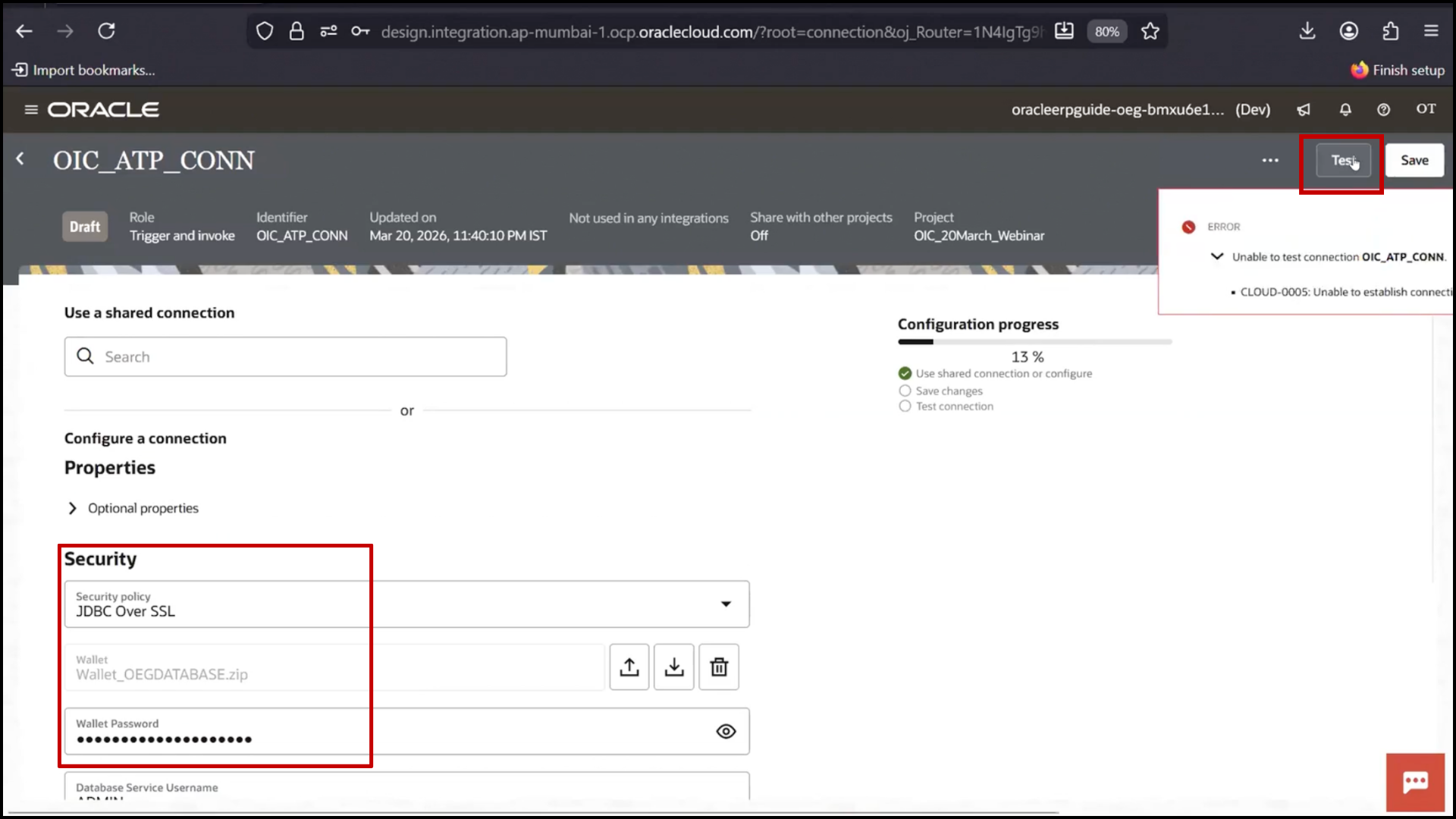
OIC ATP connection screen: adding service name and clicking Test for validation in Oracle Integration Cloud (OIC)

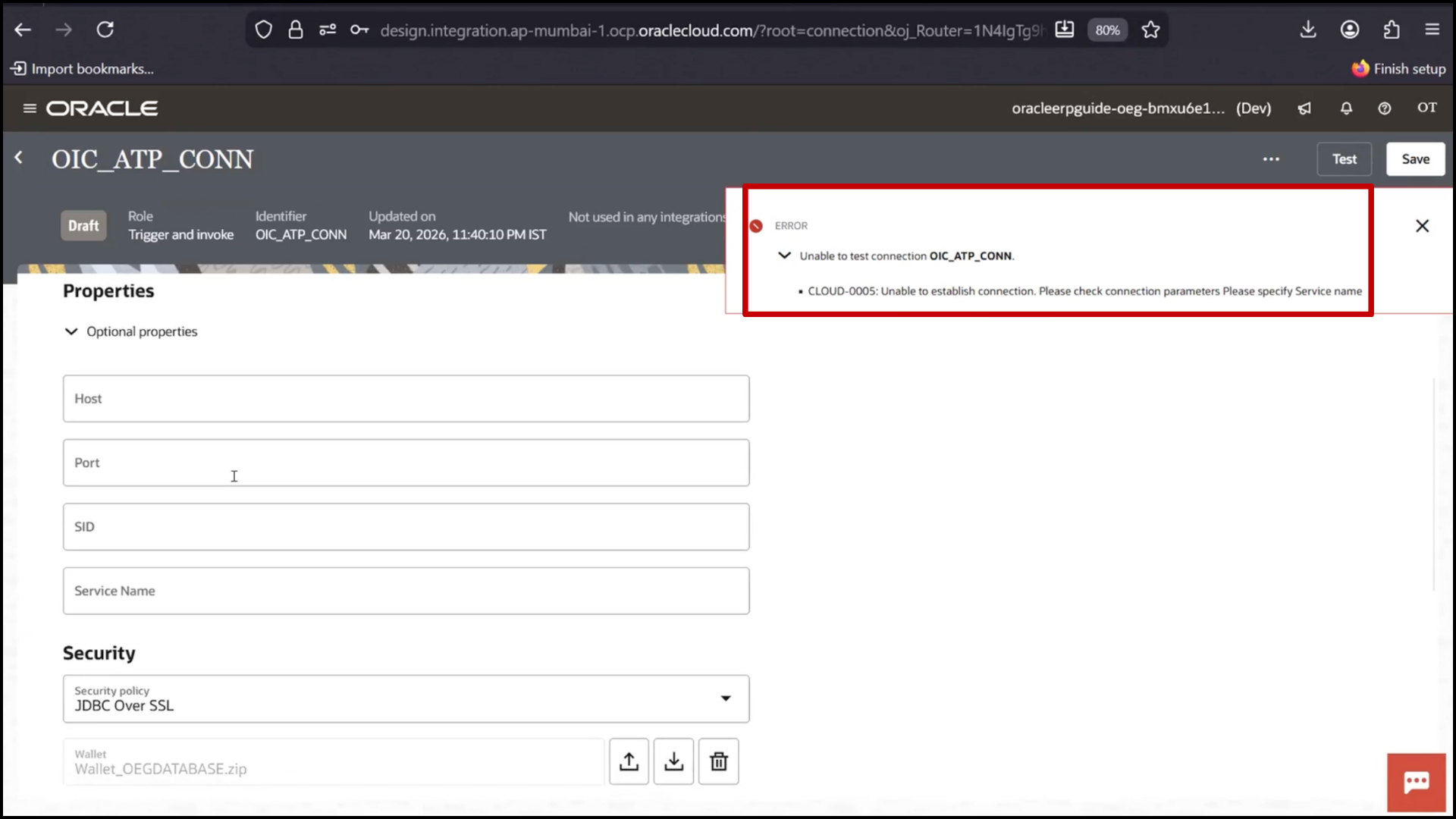
12. If error:

OIC ATP connection screen showing error during test validation in Oracle Integration Cloud (OIC)

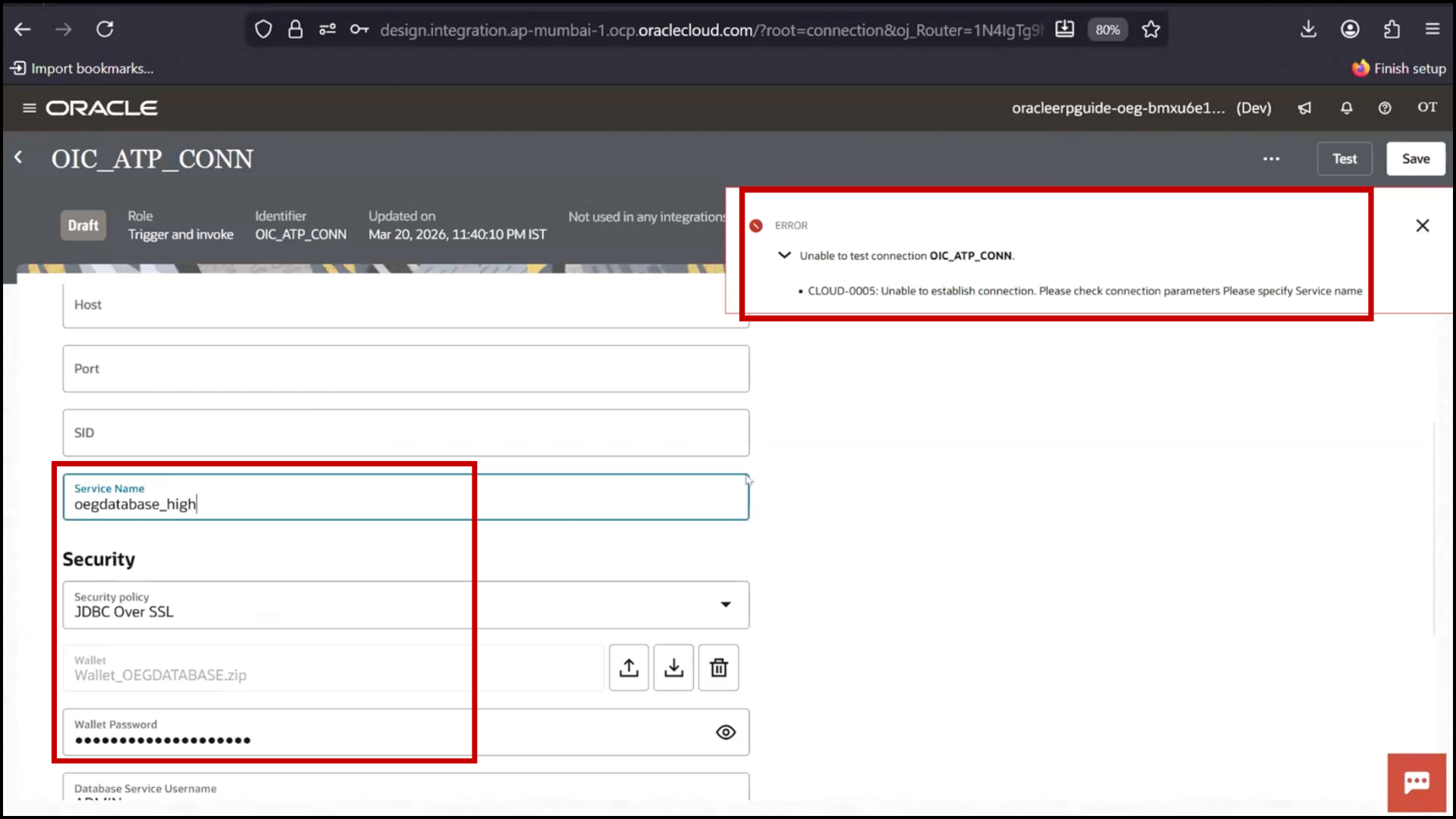
13. Check missing fields
14. Re-enter service name
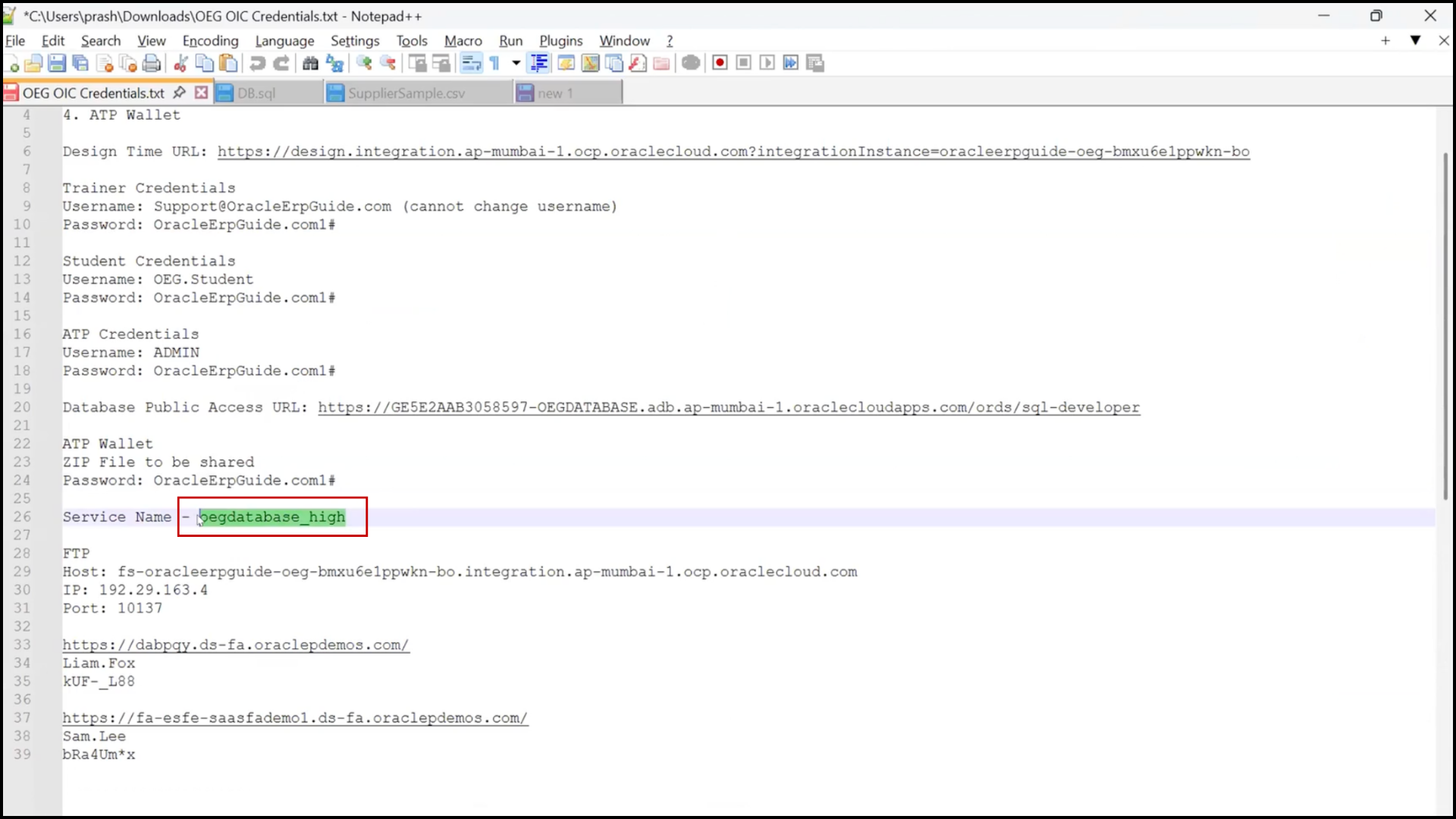
OIC ATP connection error resolution screen checking missing fields and re-entering service name in Oracle Integration Cloud (OIC)

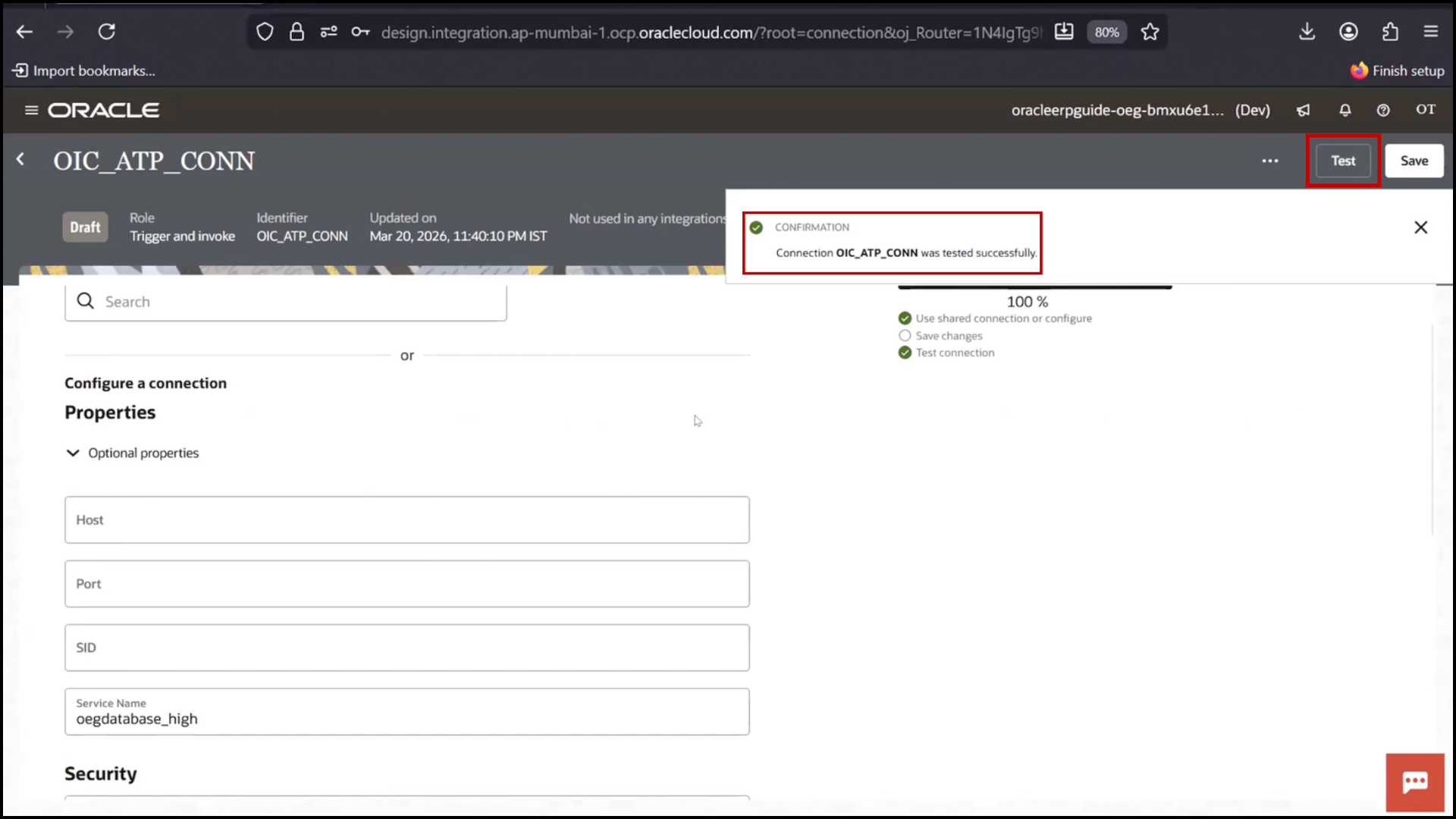
15. Once successful,

OIC ATP connection screen showing successful validation after test in Oracle Integration Cloud (OIC)

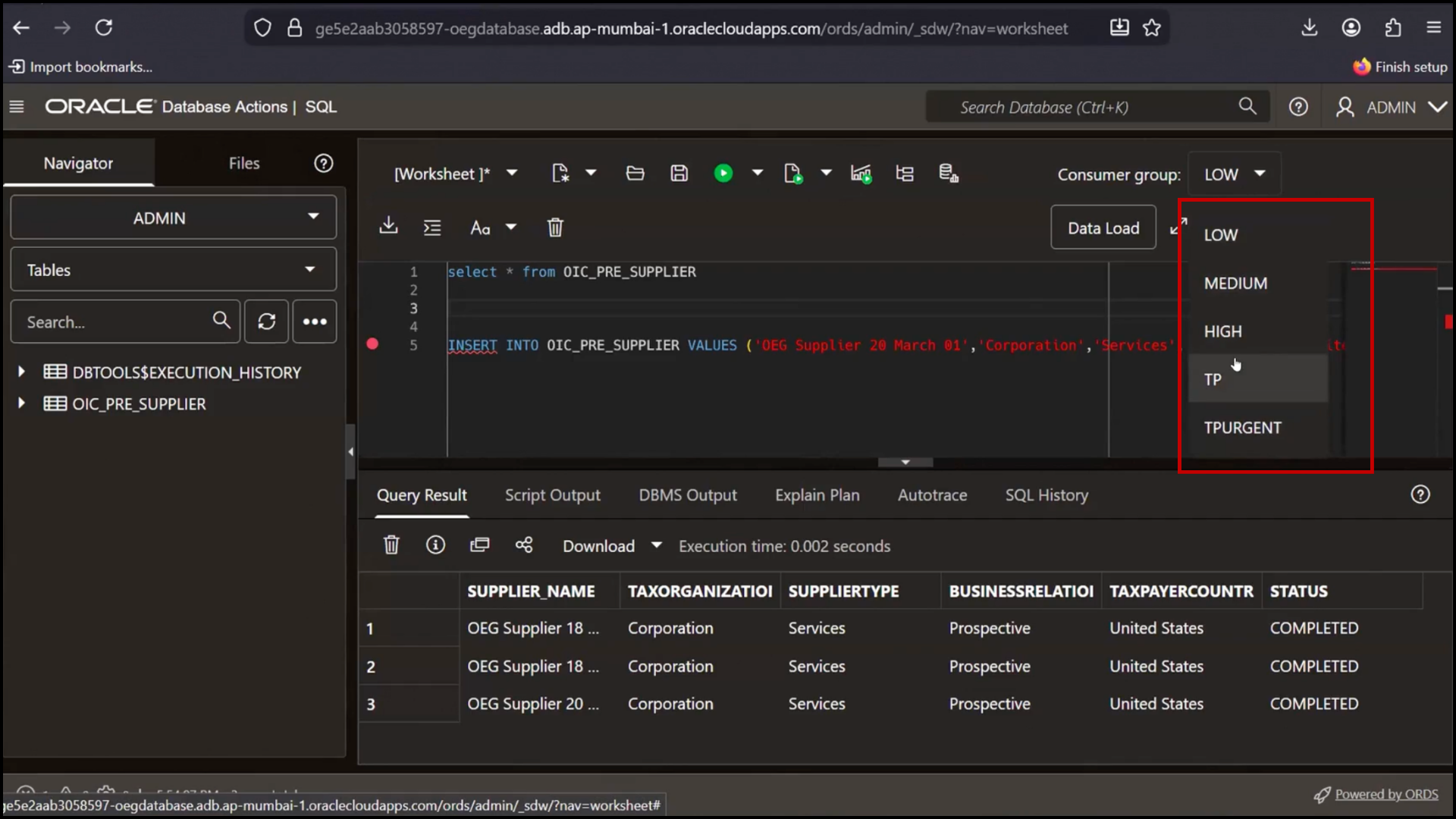
16. Priority can be set

OIC ATP connection configuration screen setting priority after successful test in Oracle Integration Cloud (OIC)

17. Click Test

OIC ATP connection screen clicking Test to validate configuration in Oracle Integration Cloud (OIC)

18. Click Save

OIC ATP connection screen clicking Save after successful test in Oracle Integration Cloud (OIC)

Step 4: Create Fusion REST Connection

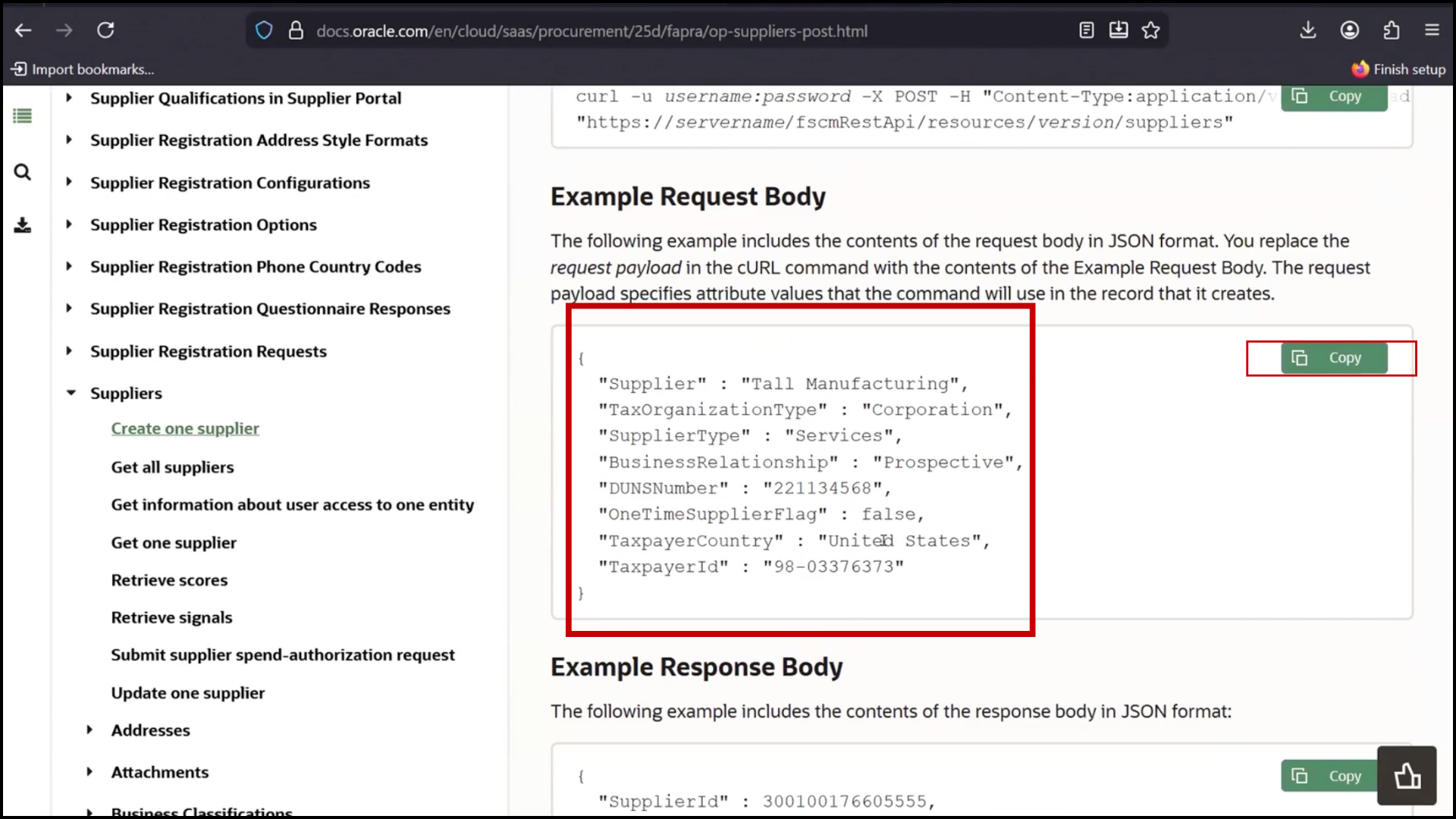
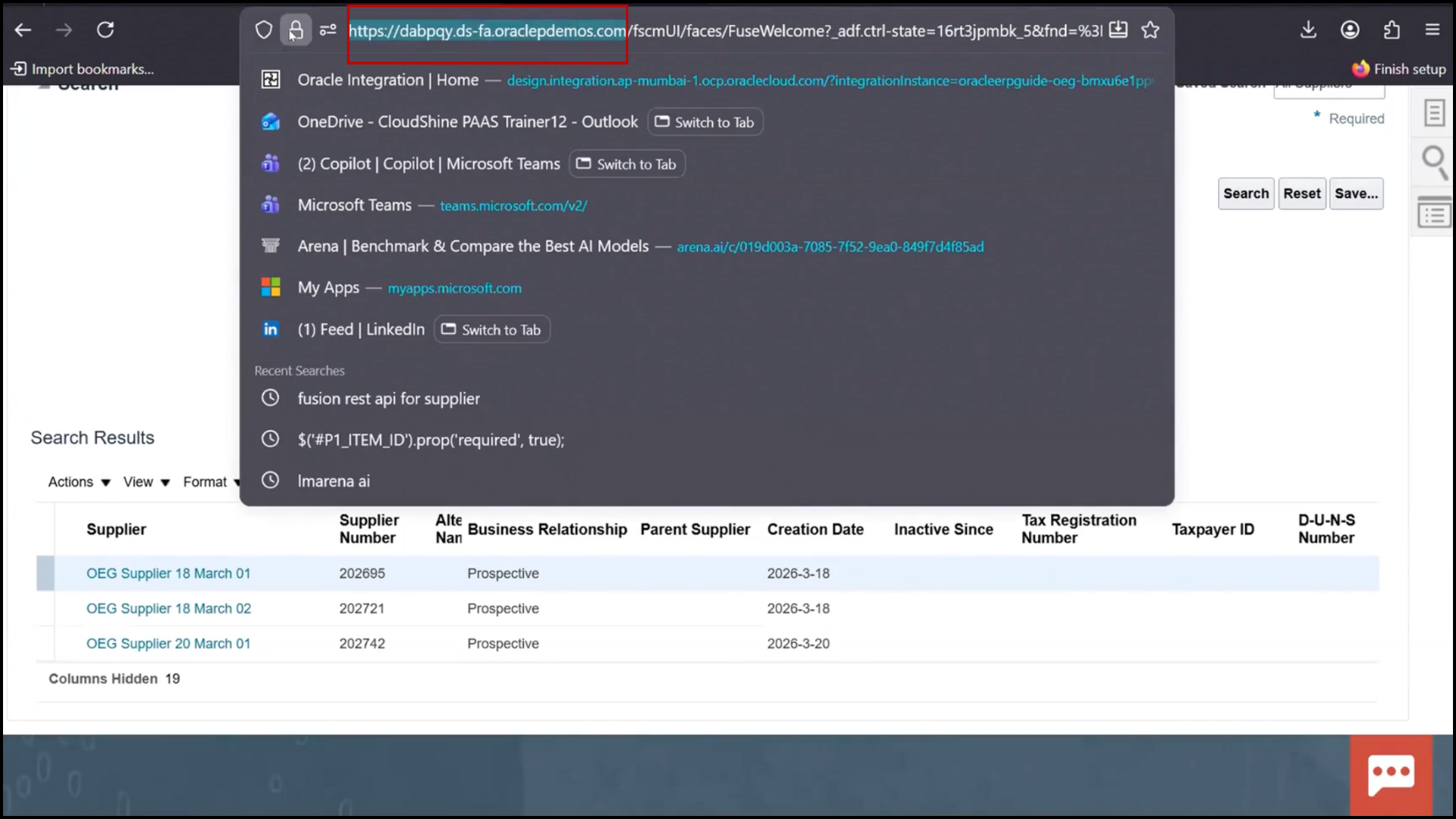
1. You can refer to the official Oracle documentation by searching for “Fusion REST API for Supplier.”
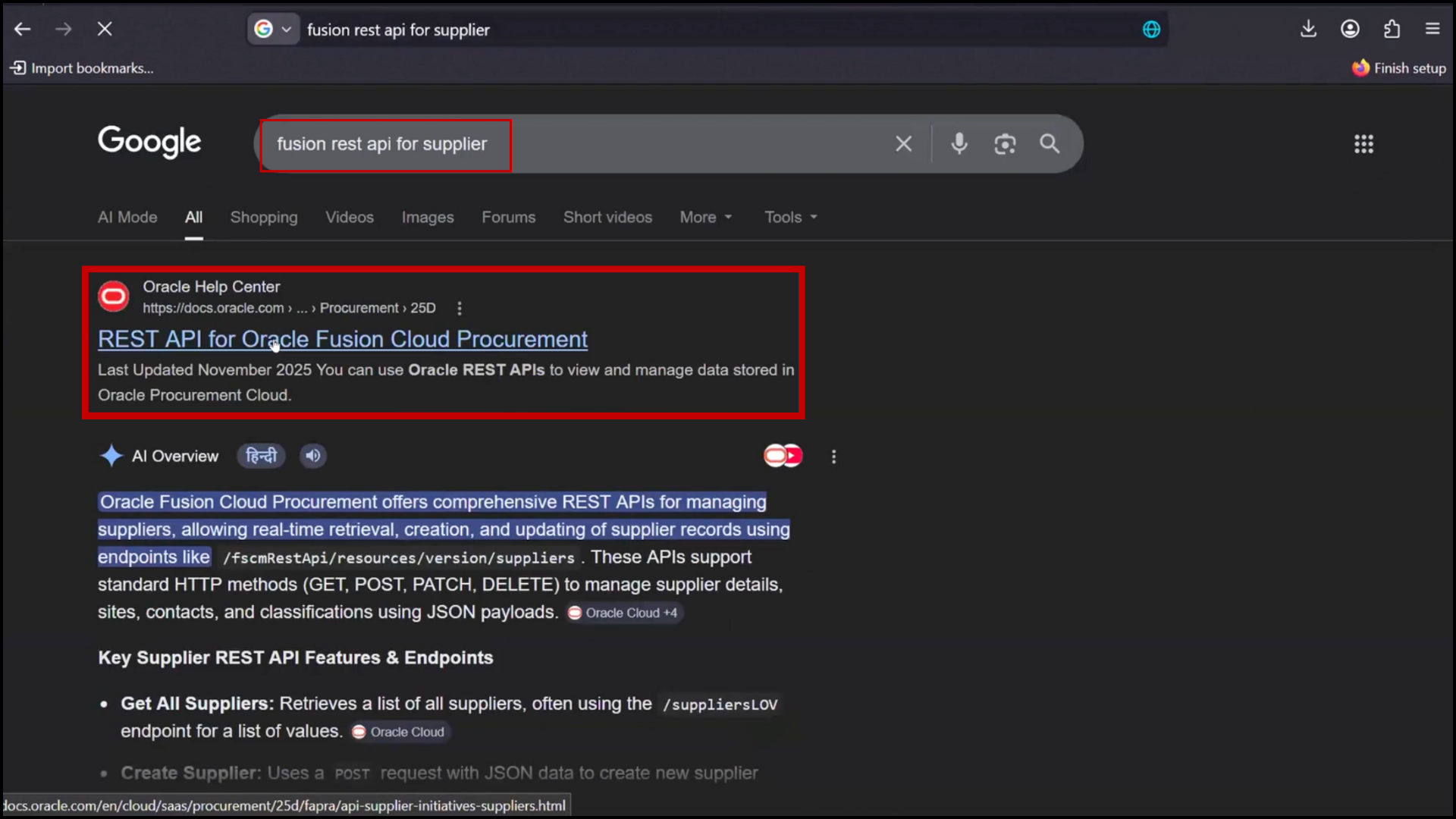
Oracle Integration Cloud documentation reference for Fusion REST API for Supplier in Oracle SaaS enterprise integration

2. Go to Supplier, Create supplier; Post Link
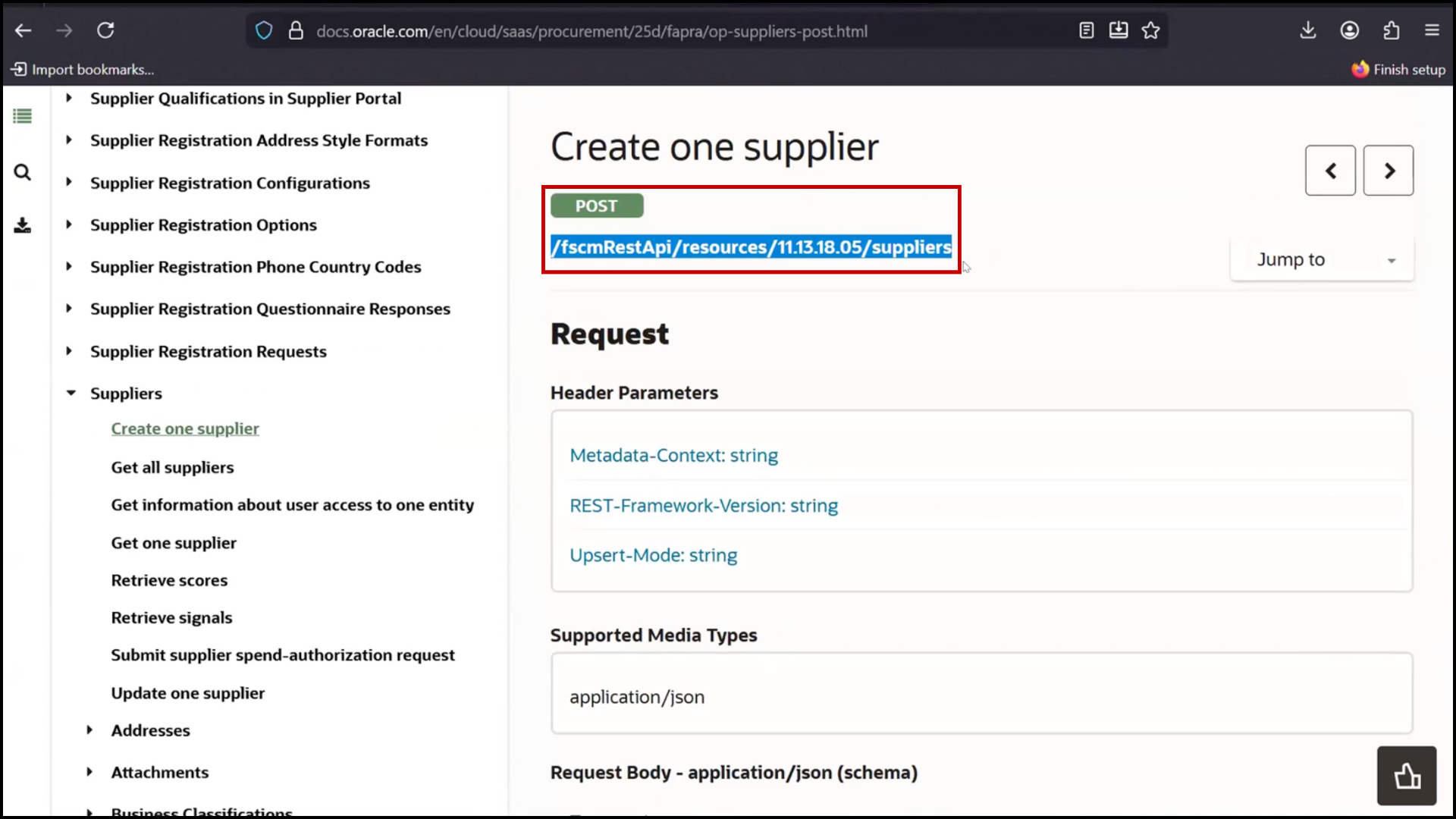
Oracle Fusion REST API screen navigating to the supplier create supplier POST link in Oracle Integration Cloud service

3. Copy Code

Copy code from integration configuration screen in Oracle Integration Cloud (OIC) SaaS platform

4. Click Create

OIC connection screen clicking Create to set up Fusion REST API connection in Oracle Integration Cloud (OIC)

5. Select REST Adapter

Alt text: OIC connections screen selecting REST Adapter for Oracle Integration Cloud service and API integration

6. Enter:
a. Name: Fusion_REST_API
b. Click Create
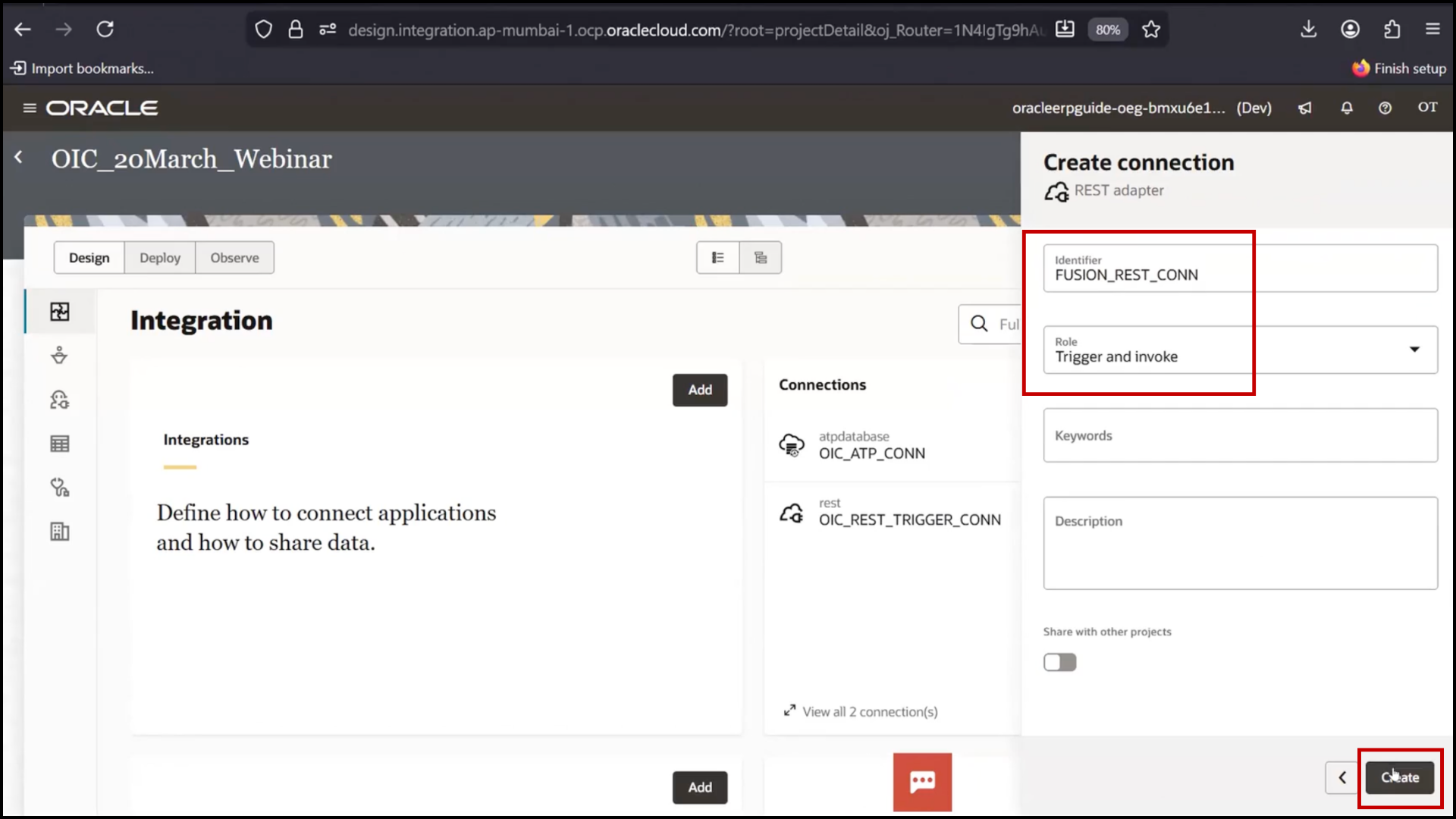
OIC connection screen entering Fusion_REST_API name and clicking Create in Oracle Integration Cloud (OIC) SaaS integration

7. Configure:
8. Base URL (Fusion instance URL)
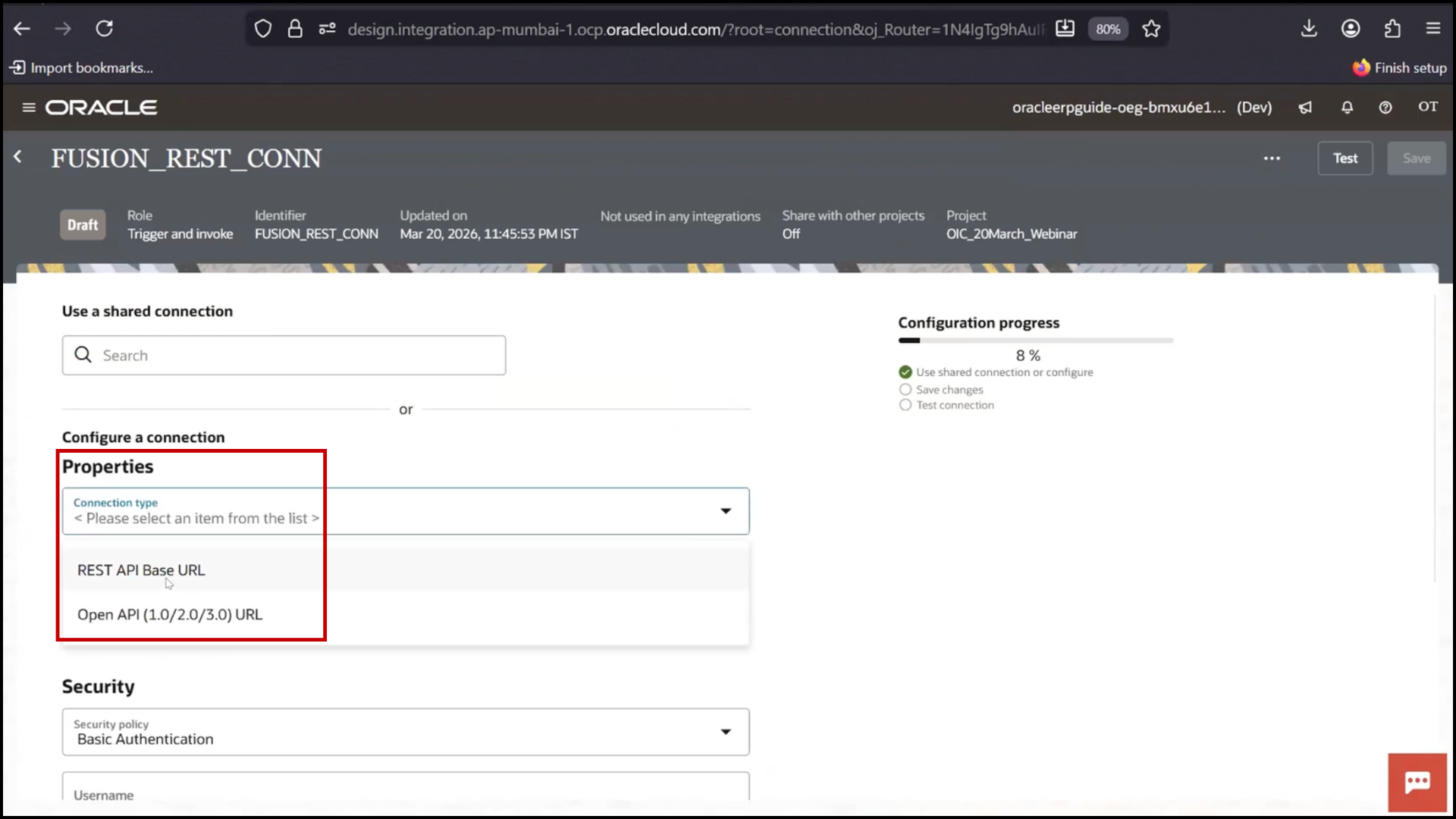
OIC Fusion REST connection configuration screen entering base URL of Oracle Fusion instance in Oracle Integration Cloud (OIC)

9. Copy URL

Oracle Integration Cloud (OIC) screen copying Fusion instance base URL for REST API configuration in Oracle SaaS integration

10.Username
11. Password
12. Click Test
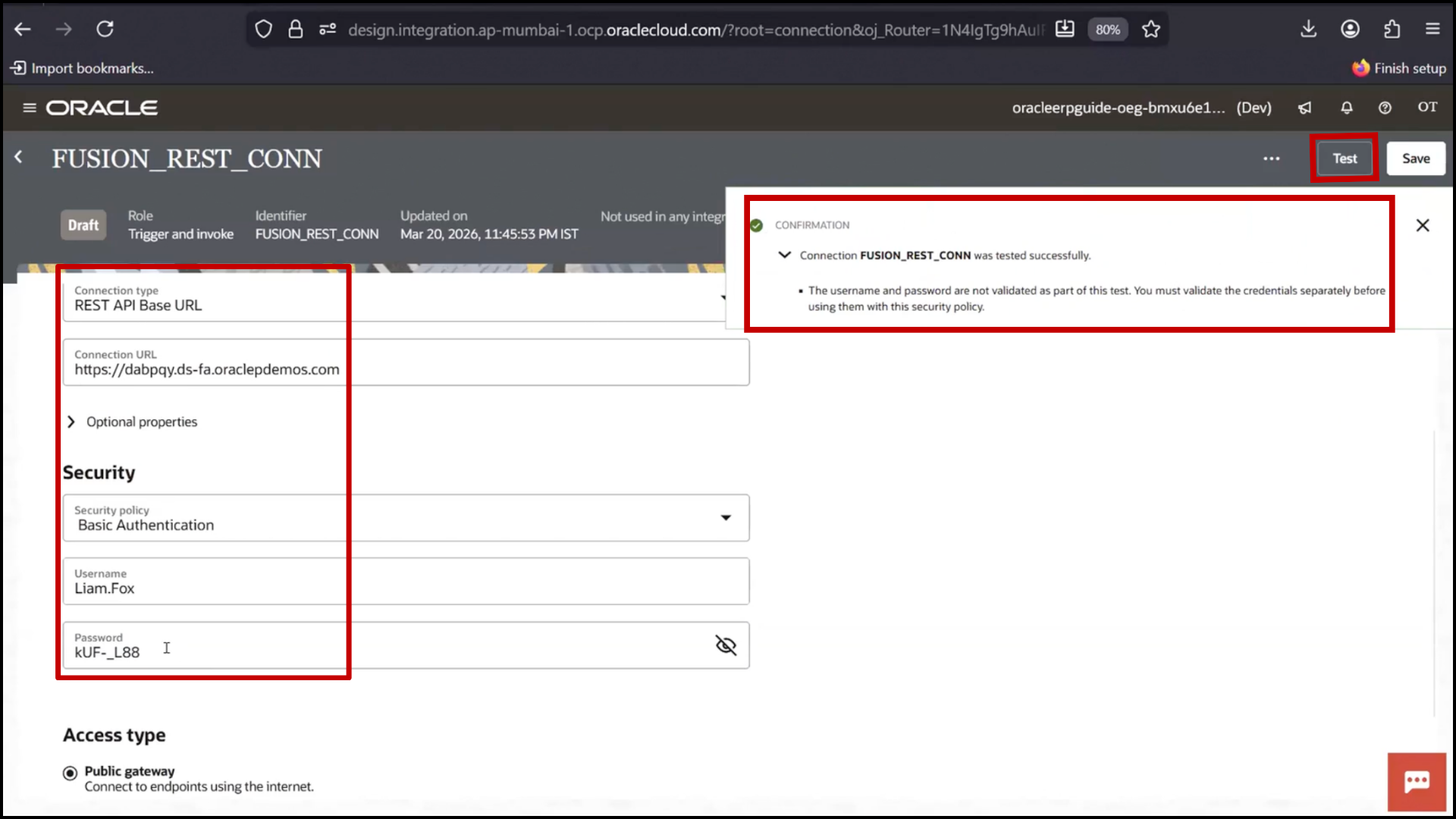
OIC Fusion REST connection screen: entering username and password and clicking Test in Oracle Integration Cloud service

13. If failure:
14. Check credentials.
15. Remove extra spaces

16. Click Save.
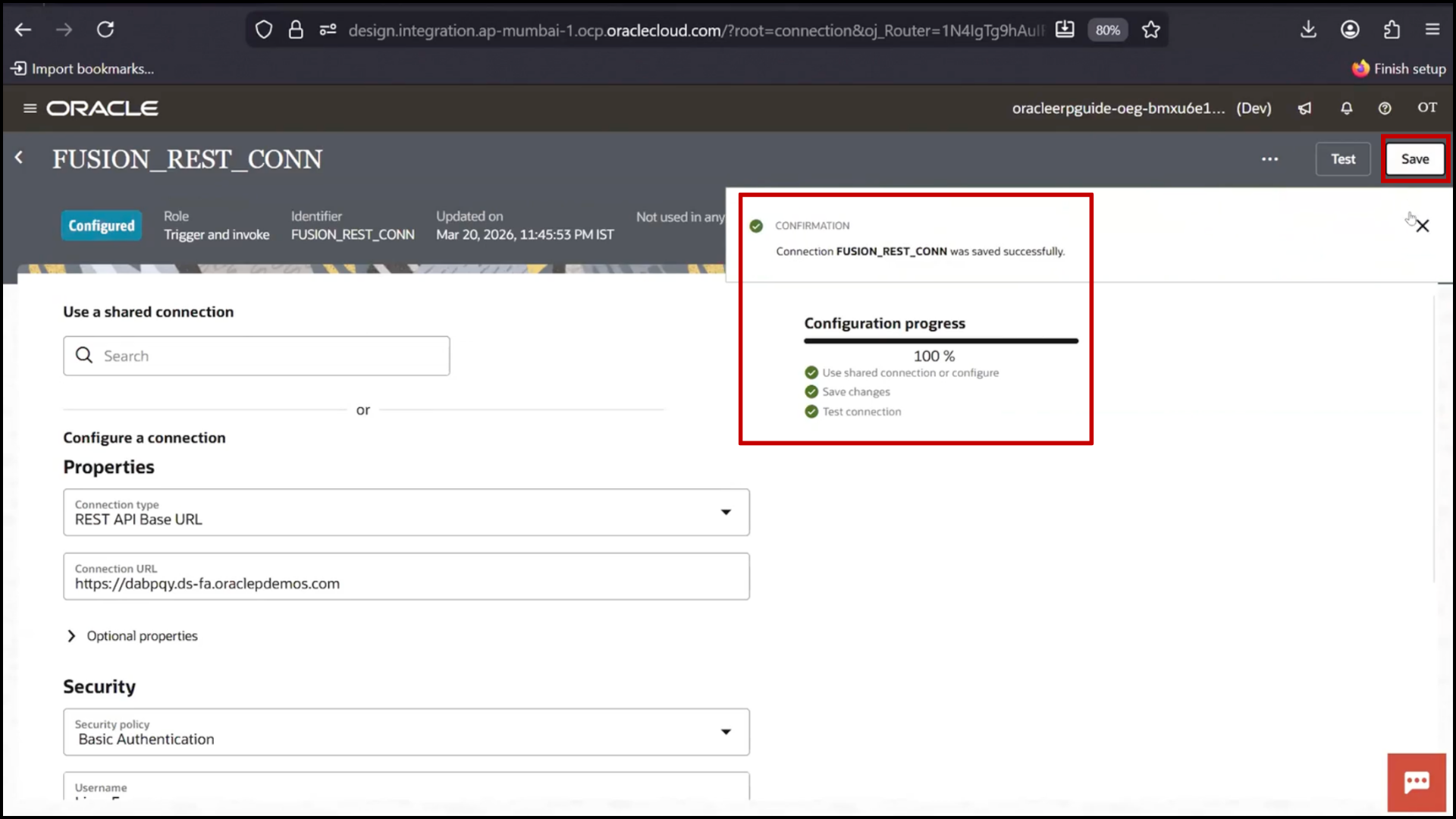
OIC Fusion REST connection screen: entering username and password and clicking Test in Oracle Integration Cloud service

Step 5: Create FTP Connection

1. Click Create
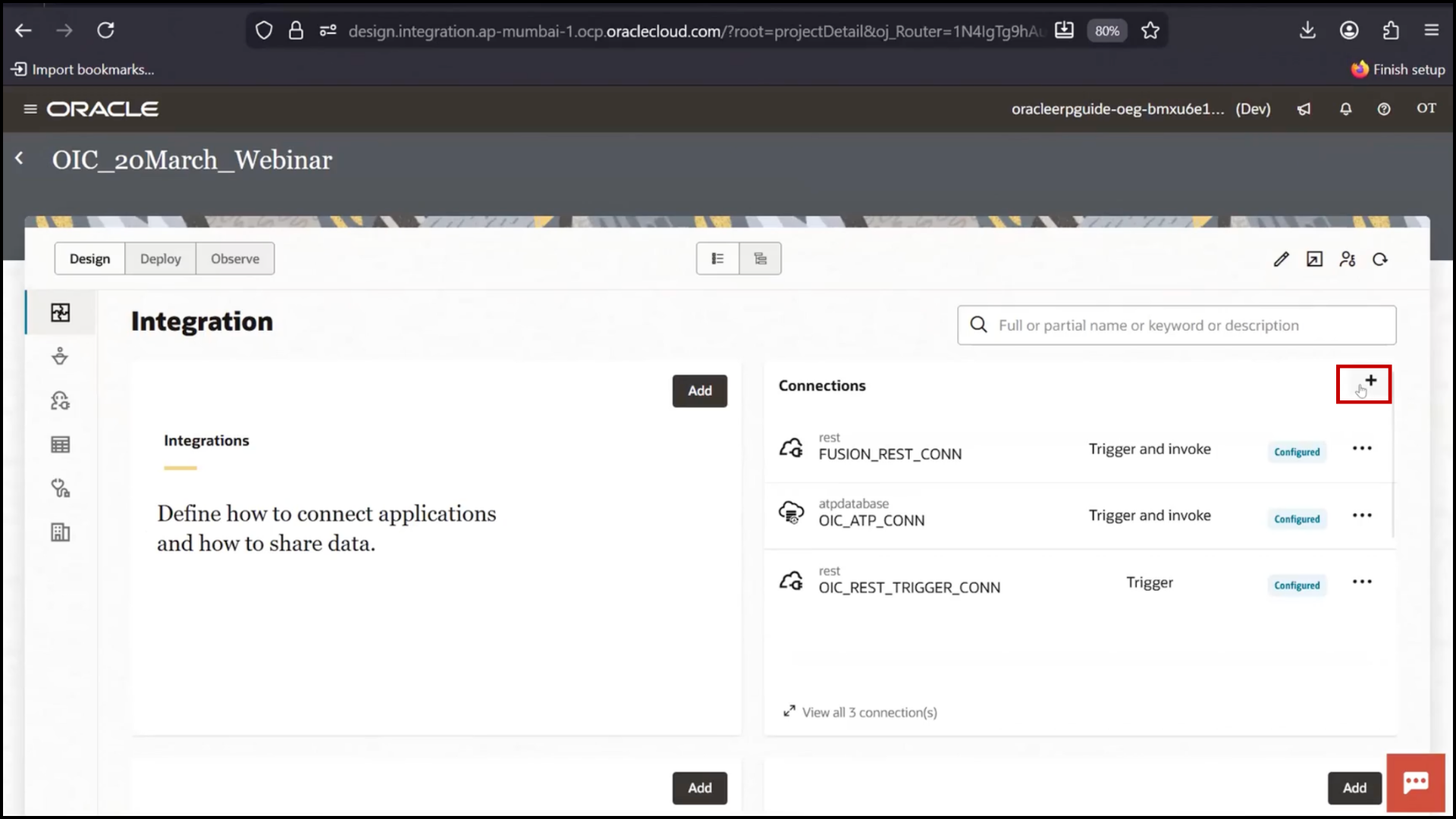
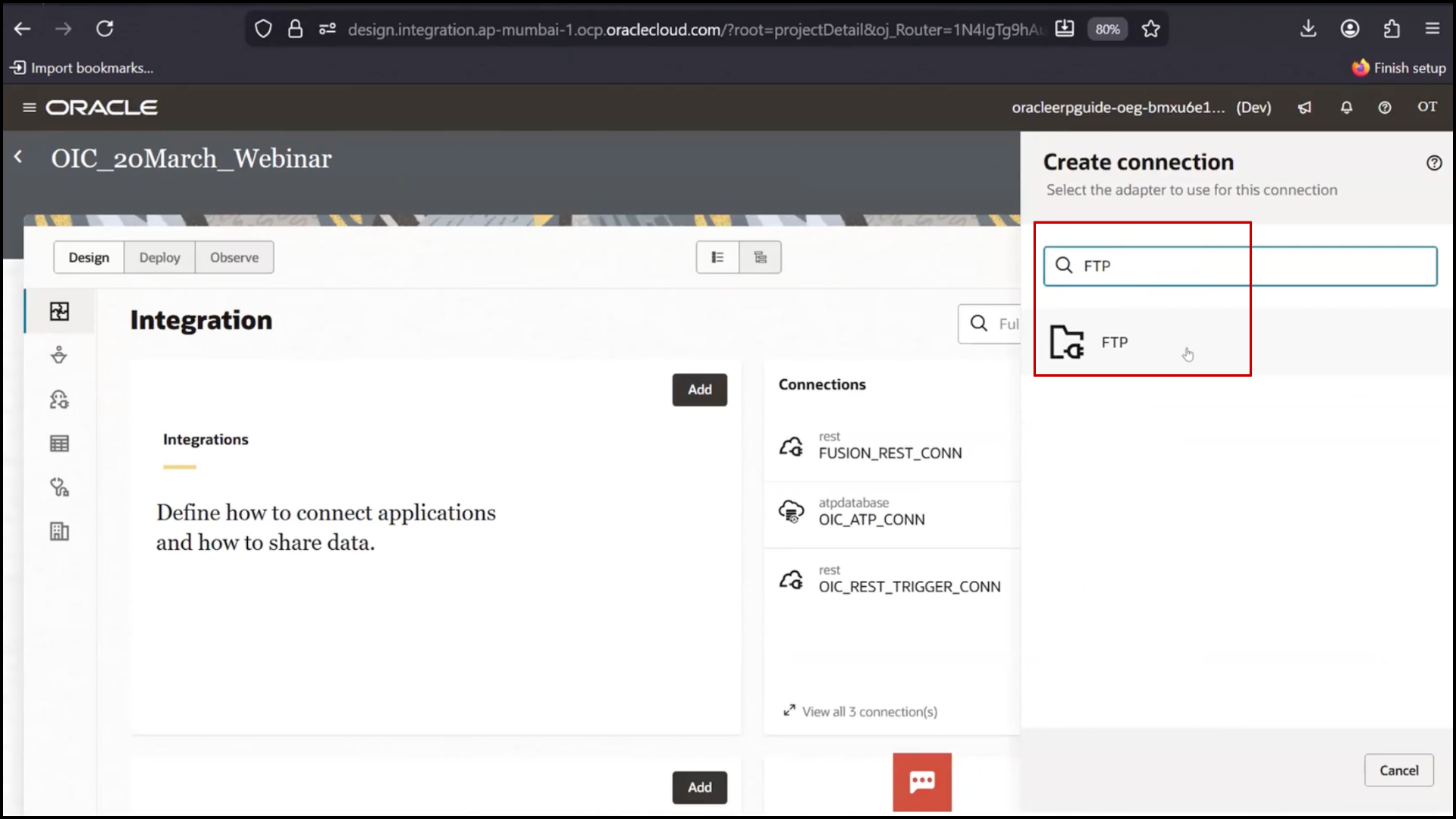
OIC connections screen clicking Create a setup for FTP connection in Oracle Integration Cloud (OIC)

2. Select FTP Adapter

OIC connections screen selecting FTP Adapter for file transfer integration in Oracle Integration Cloud (OIC)

3. Enter:
a. Name: OIC_FTP_Connection
b. Click Create
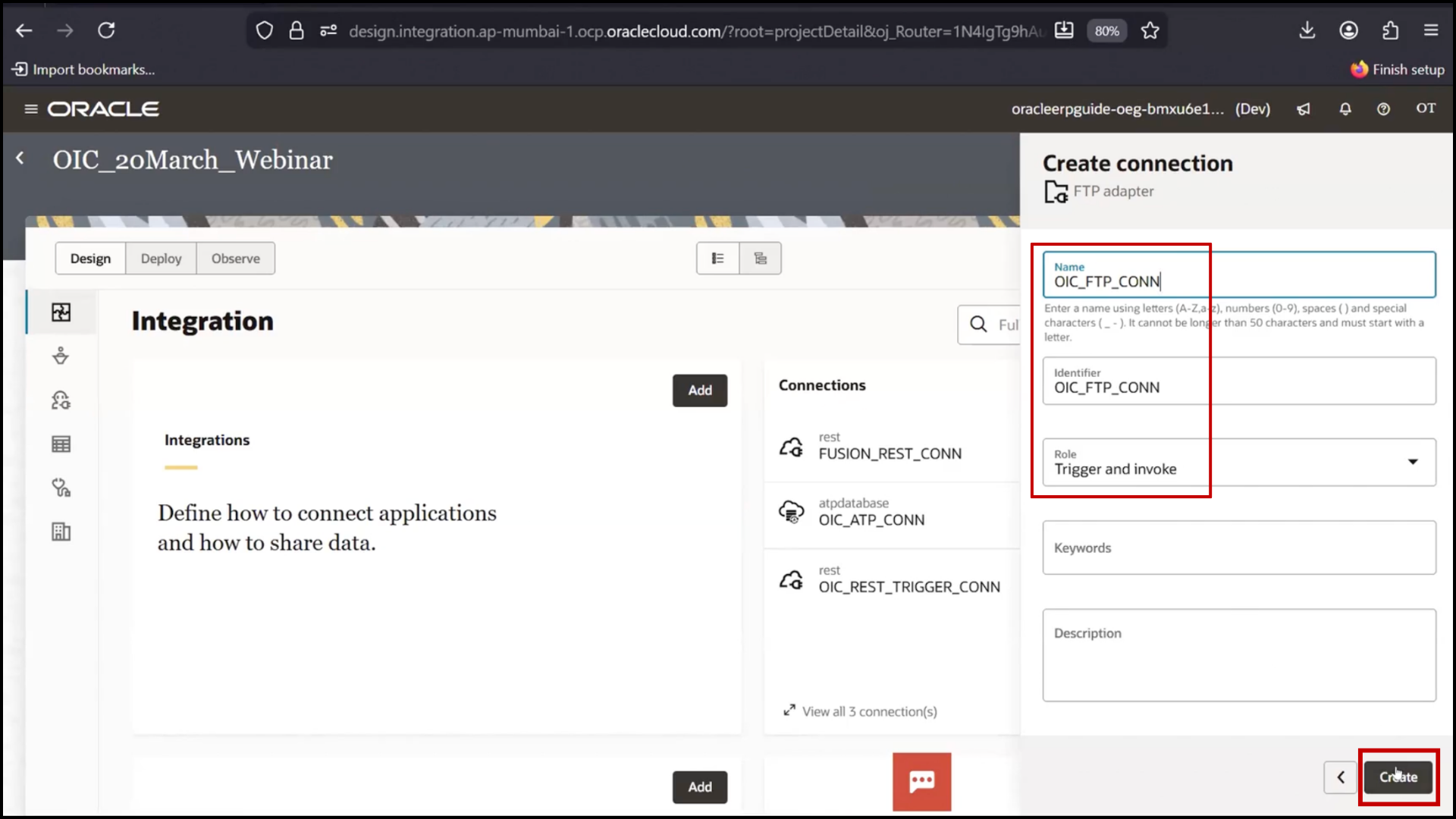
OIC connection screen entering OIC_FTP_Connection name and clicking Create in Oracle Integration Cloud (OIC)

4. Configure:
5. Host (IP address)
6. Port
7.Username
8. Password

9. Important Step:
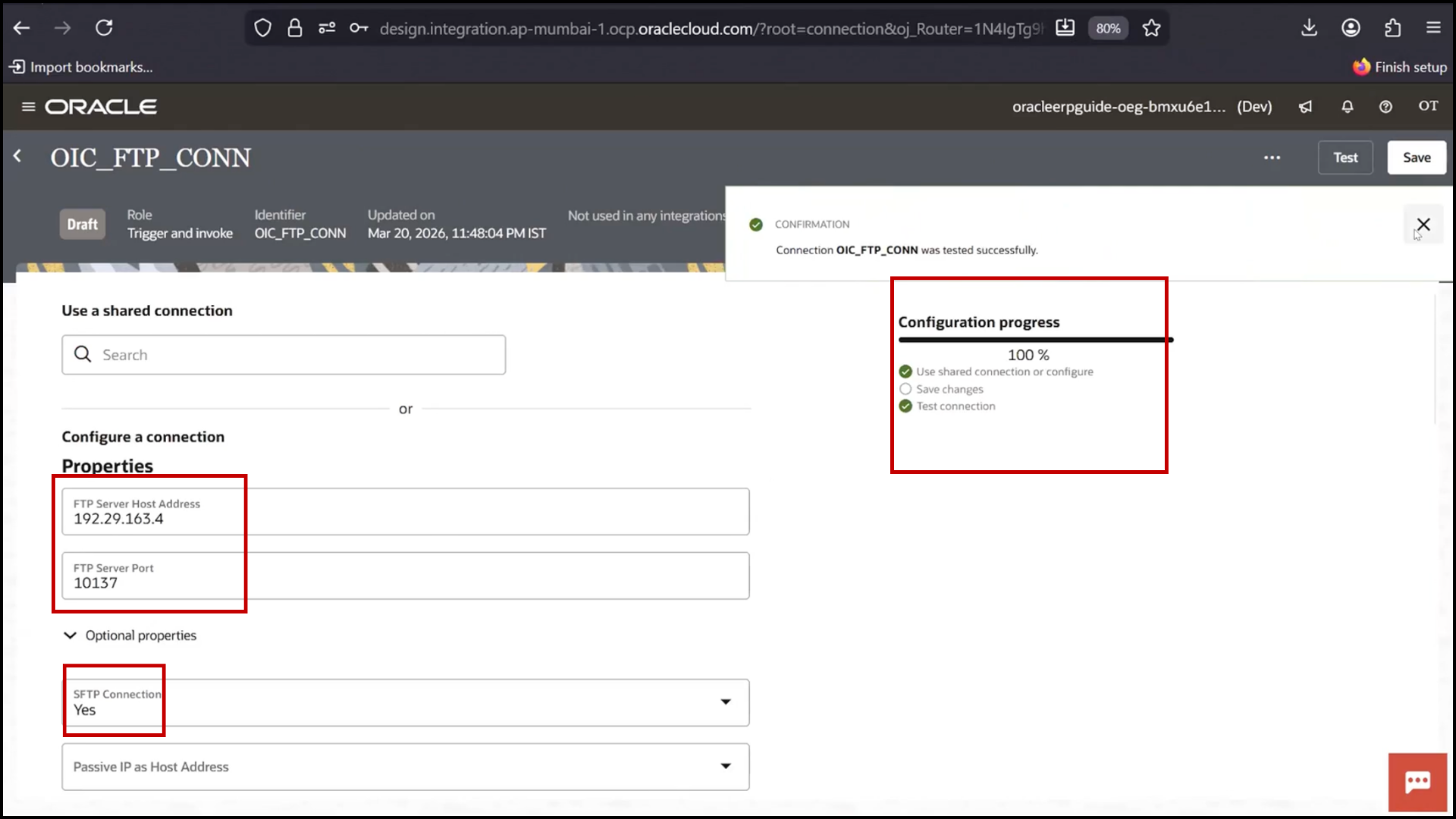
a.Enable SFTP = Yes

b. Click Test
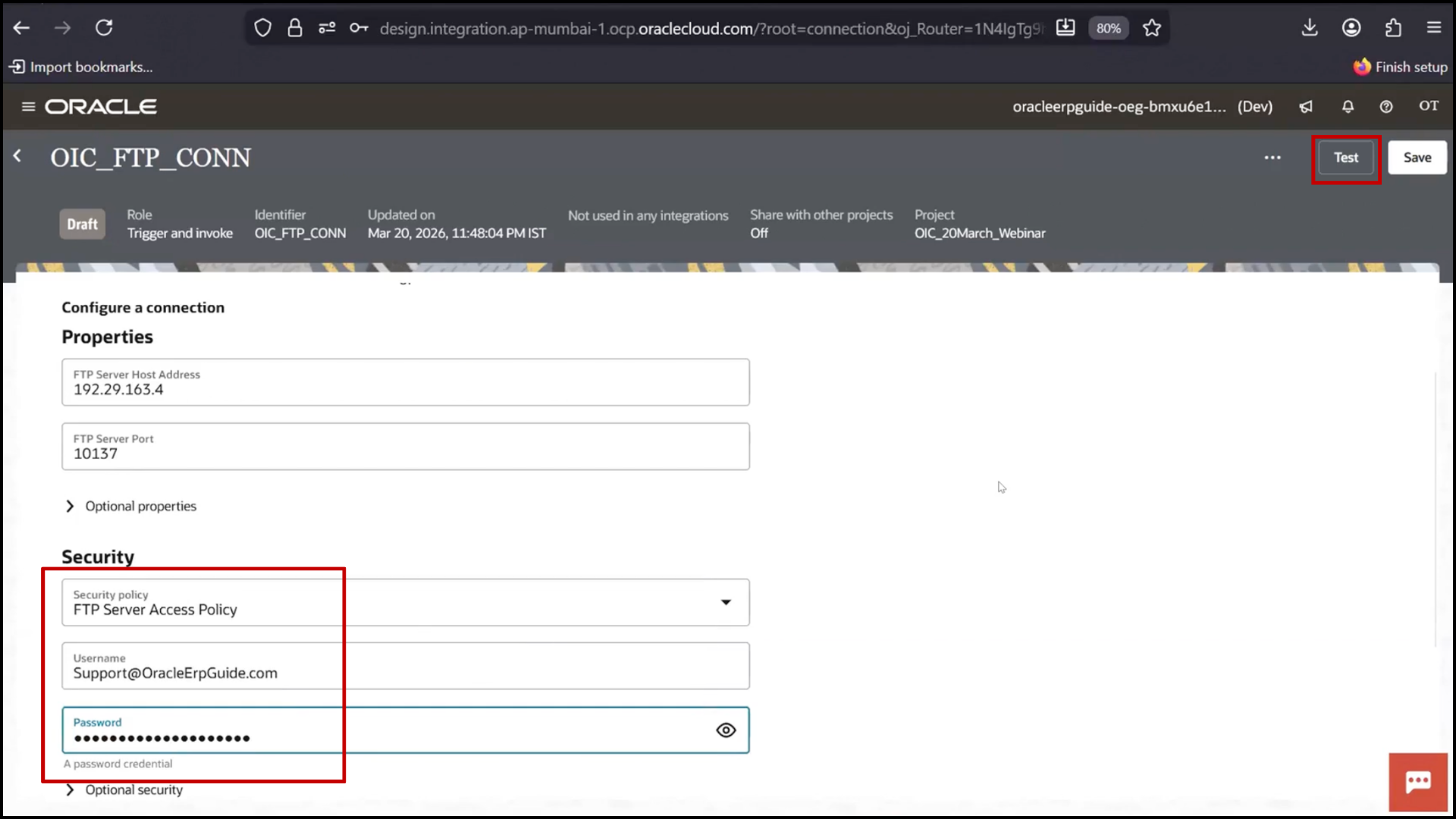
OIC FTP connection configuration screen enabling SFTP and clicking Test for secure file transfer in Oracle Integration Cloud (OIC)

10. If error:
a. Check host/port
b. Enable SFTP, Say yes
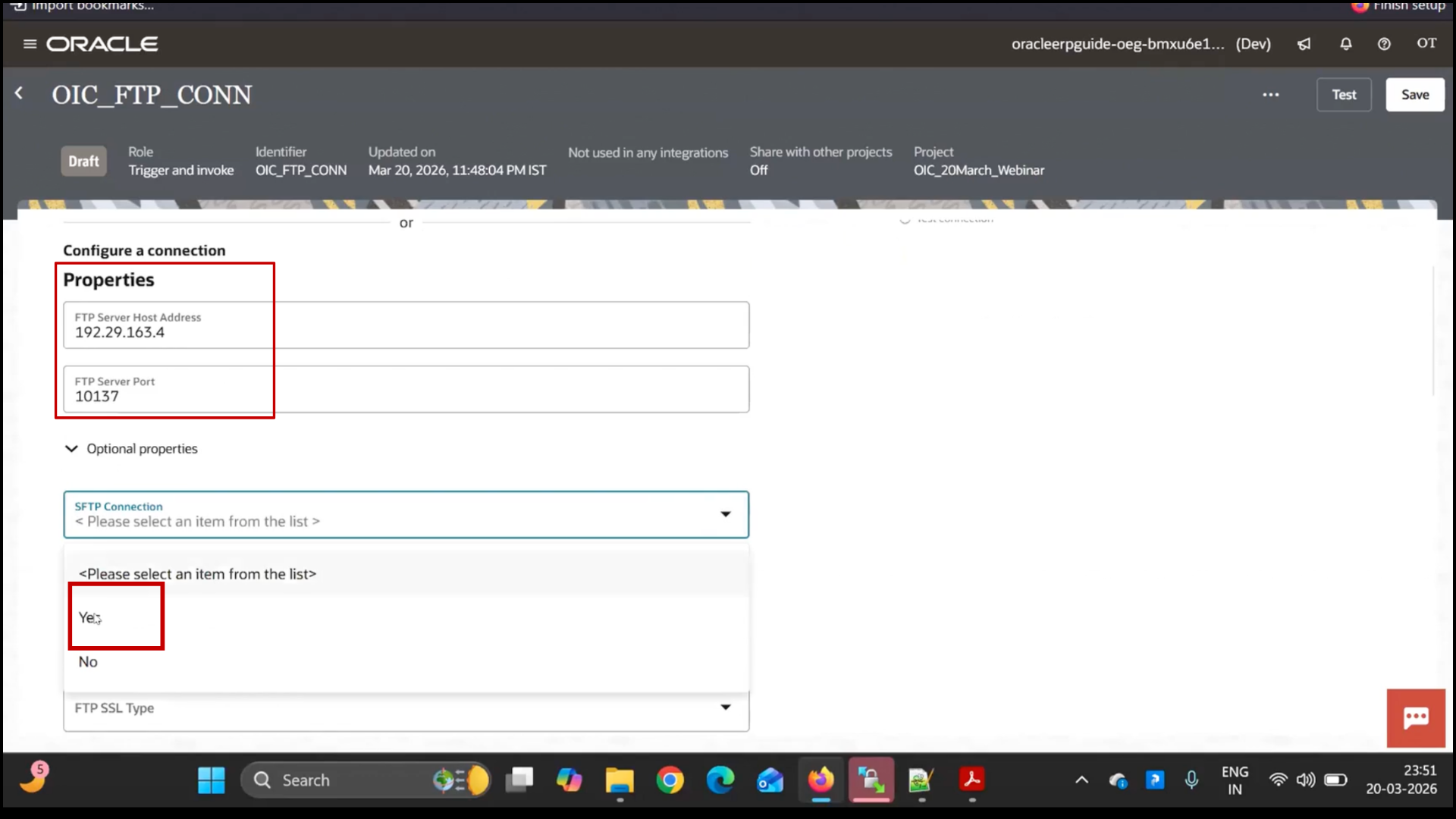
OIC FTP connection error screen checking host and port settings and enabling SFTP in Oracle Integration Cloud (OIC)

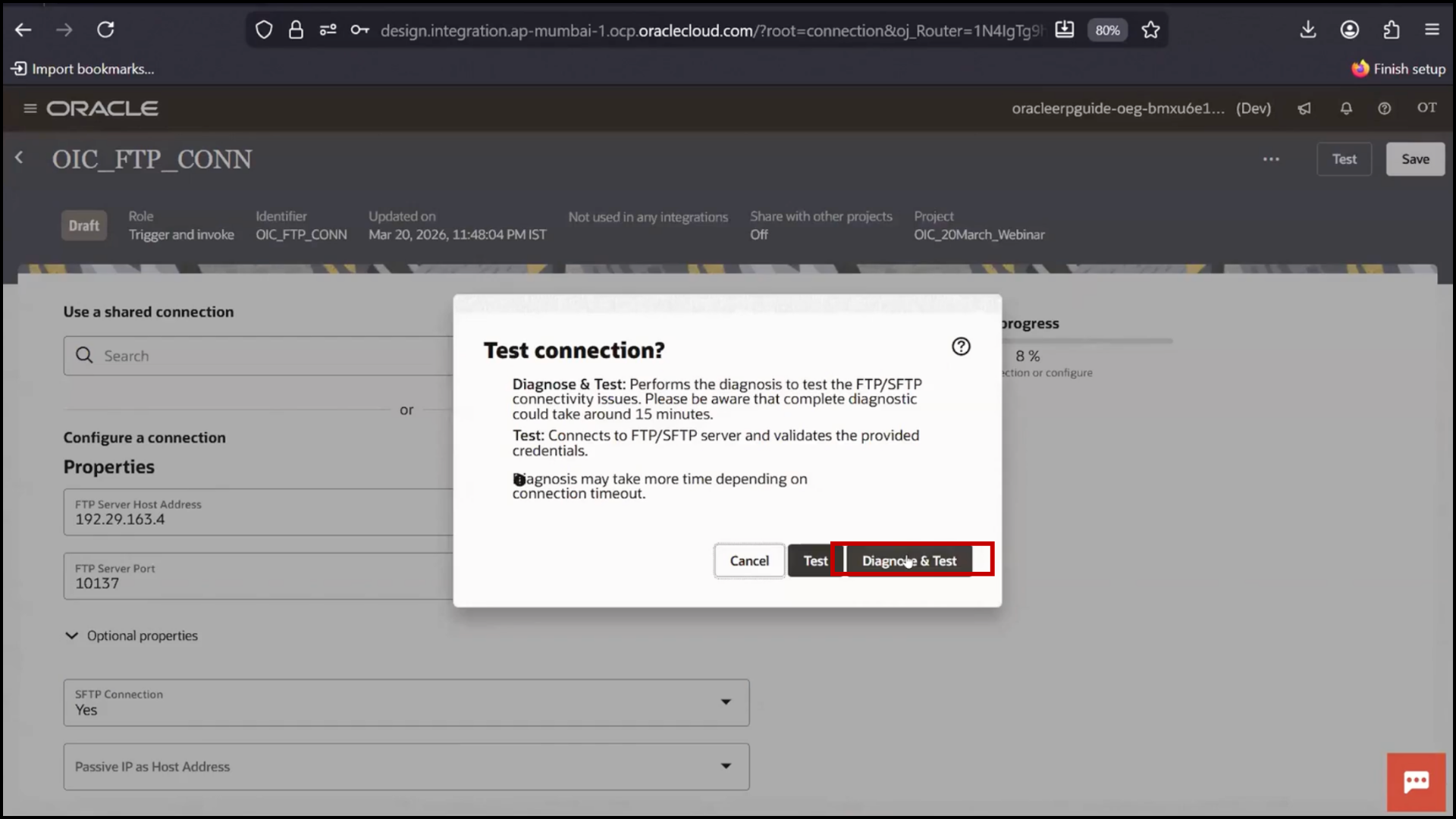
11. Diagnose and Test

OIC FTP connection screen running diagnose and test to validate configuration in Oracle Integration Cloud (OIC)

12. Click Test and Click Save

OIC FTP connection screen clicking Test and Save to validate and store configuration in Oracle Integration Cloud (OIC)

Important Concept Explained by Trainer

Even if a field is marked optional:

It may be required depending on system configuration

Examples:

Service Name in ATP
SFTP flag in FTP

Integration Architecture

The integration includes:

REST Trigger → Starts flow
Database Adapter → Fetch data
FTP Adapter → Upload file
REST Adapter → Push data to Fusion

Shopping Cart