
AGIS – Advanced Global Intercompany System (With Invoicing)
AGIS flow can also require Invoicing (AR Invoice and AP Invoice) between the Group Companies
Example
Initiator:
Ledger: GOOGLE PRIMARY LEDGER
Business Unit: GOOGLE OPERATIONS
Bal Seg. Value: 10 (GOOGLE OPERATIONS)
Receiver:
Ledger: GOOGLE USA
Business Unit: GOOGLE SERVICES
Bal Seg Value: 20 (GOOGLE SERVICES)
We will do the necessary Setup in following Steps to carry out AGIS Transactions between the above Companies
Additional Setups for I/C Transactions with Invoicing
Apart from all the Setups/Configurations discussed above, some additional configurations are required as follows
Roles necessary to perform Setups
Note that the Person who is doing following setups need to have following Roles
- All Users
- Employee
- Intercompany Accountant
- Intercompany Accountant — Assign after the Orgs are created. Assign Data Access after the role is assigned. Security Context as “Intercompany Organization” and Security Context Value as [Your I/C Org]
- Receivables BU Roles (To Create Customers etc)
- Payables BU Roles (To Create Suppliers etc)
Receivables Roles are as follows
- Revenue Analyst
- Revenue Manager
- Accounts Receivable Manager
- Accounts Receivable Specialist
- Billing Manager
- Billing Specialist
Also assign data access for the above roles. Security Context as “Business Unit” and Security Context Value as [Your Business Unit Name]
Payables Roles are as follows
- Supplier Administrator
- Supplier Manager
- Accounts Payable Manager
- Accounts Payable Specialist
- Accounts Payable Supervisor
Also assign data access for the above roles. Security Context as “Business Unit” and Security Context Value as [Your Business Unit Name]
AR/AP Related Setups
In Addition to Roles, you may need to perform Module Requisite Steps E.g.
- The AR/AP Modules should be configured Properly
- Procurement Agent must be defined in payables etc.
Refer Oracle Fusion Receivables and Payables Course Videos for such detailed steps
Create a Transaction Type

Go To Task “Manage Intercompany Transaction Types”
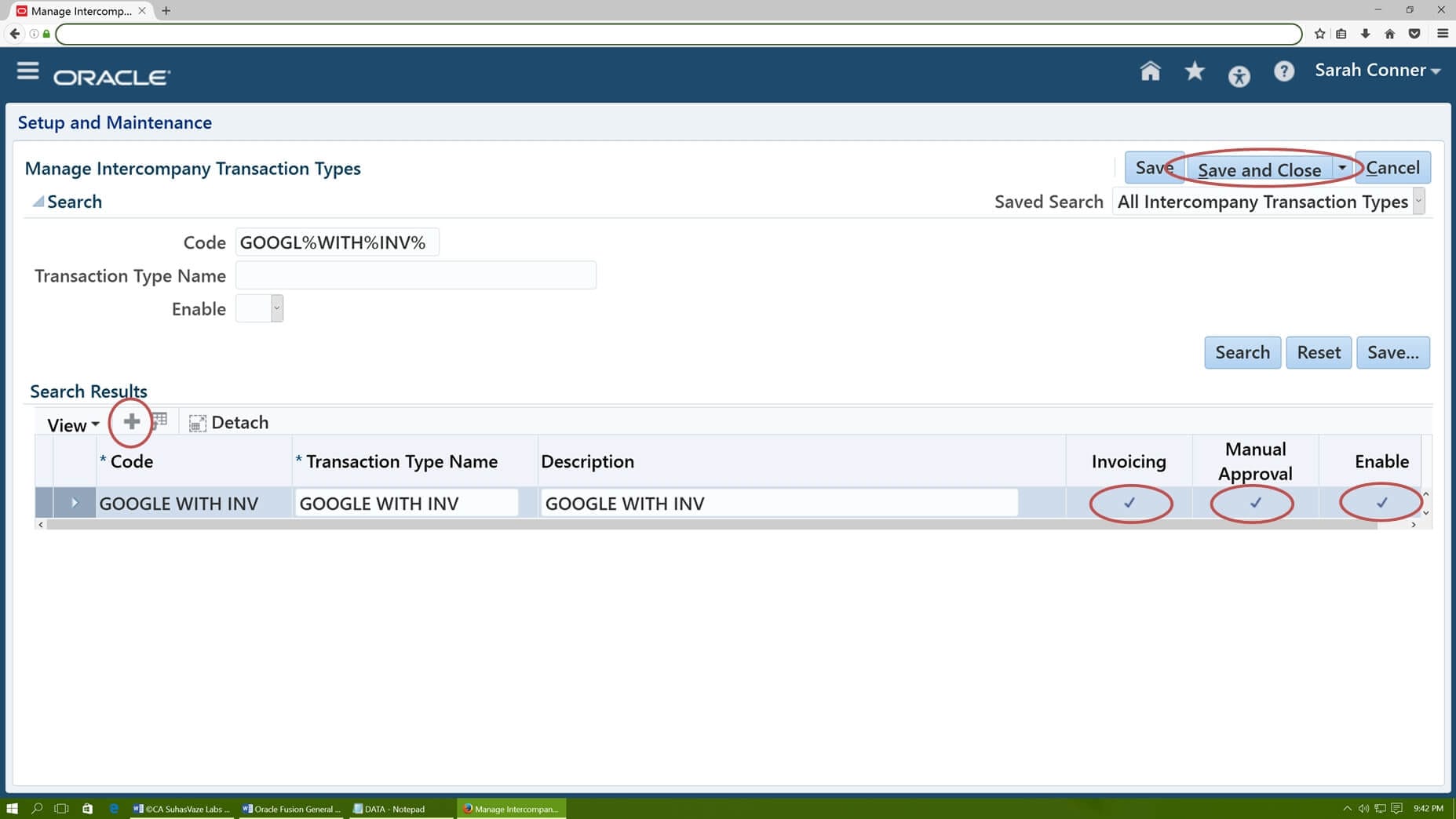
Click “+” to Create a Transaction Type.
Create a Transaction Type as above. Check [X] Invoicing and [X] Manual Approval. [X] Enable the same. Click “Save and Close”
Open Intercompany Periods
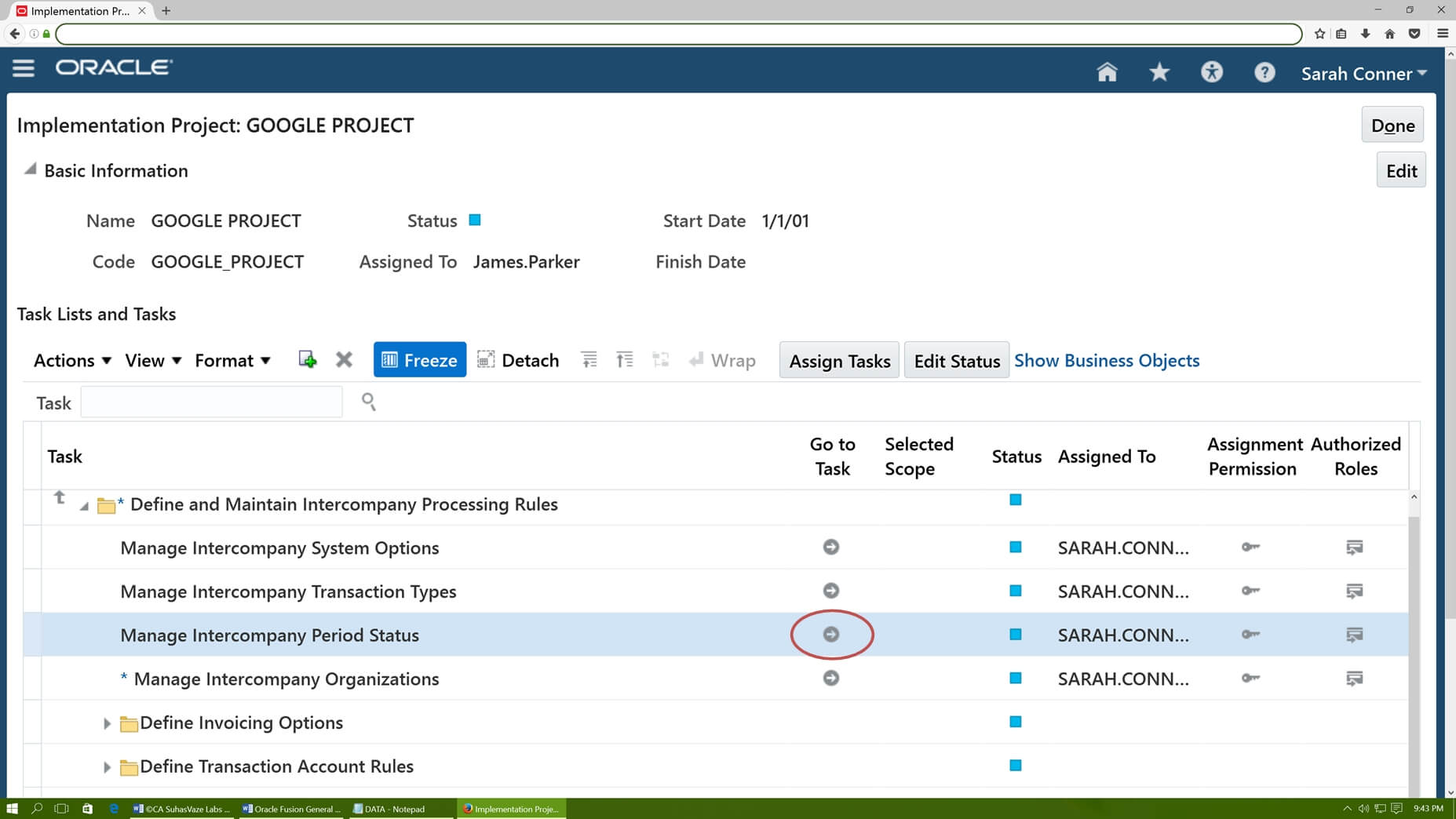
Go to Task “Manage Intercompany Period Status”
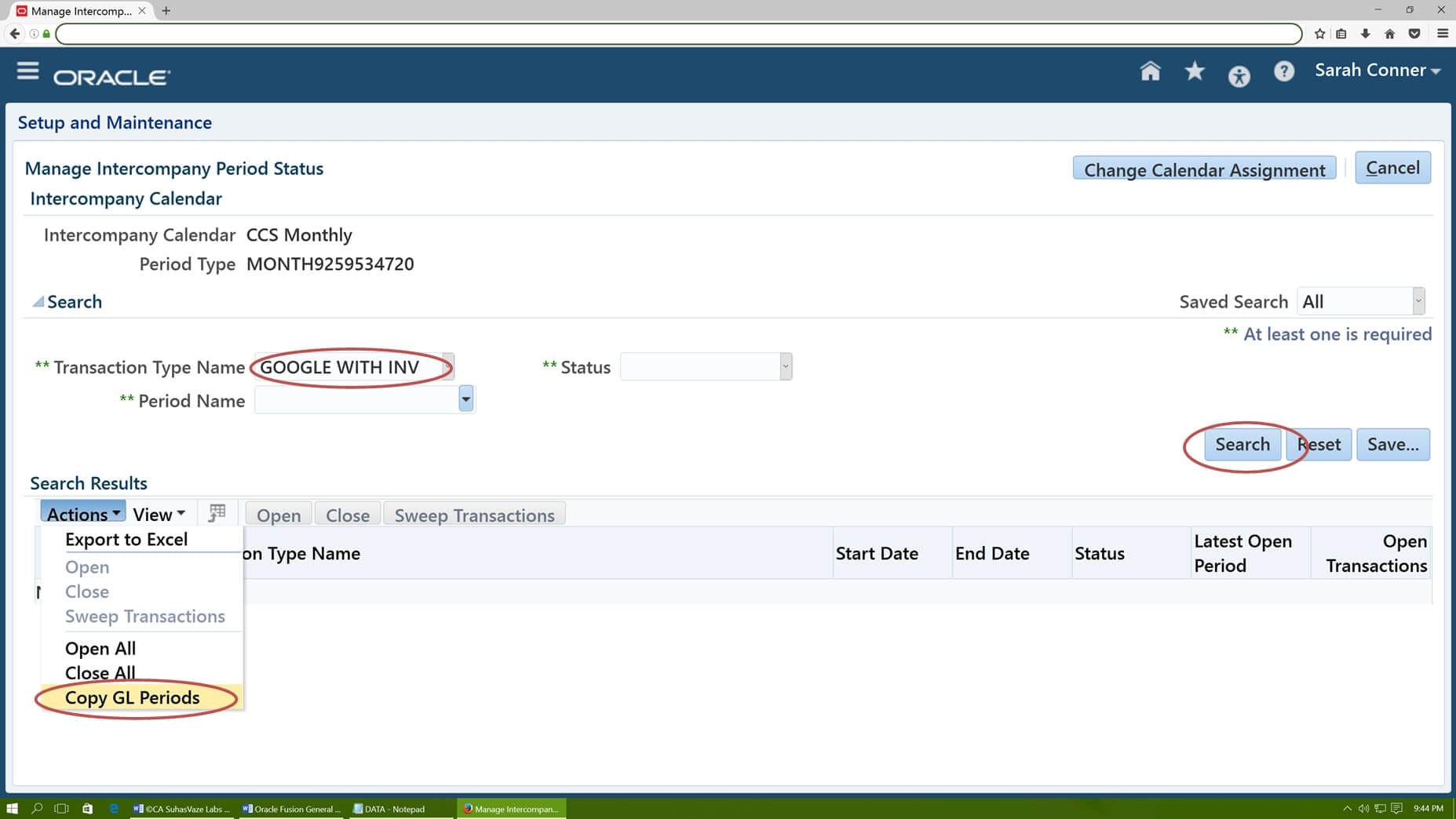
If Periods do not appear in Search, do “Actions > Copy GL Periods” first
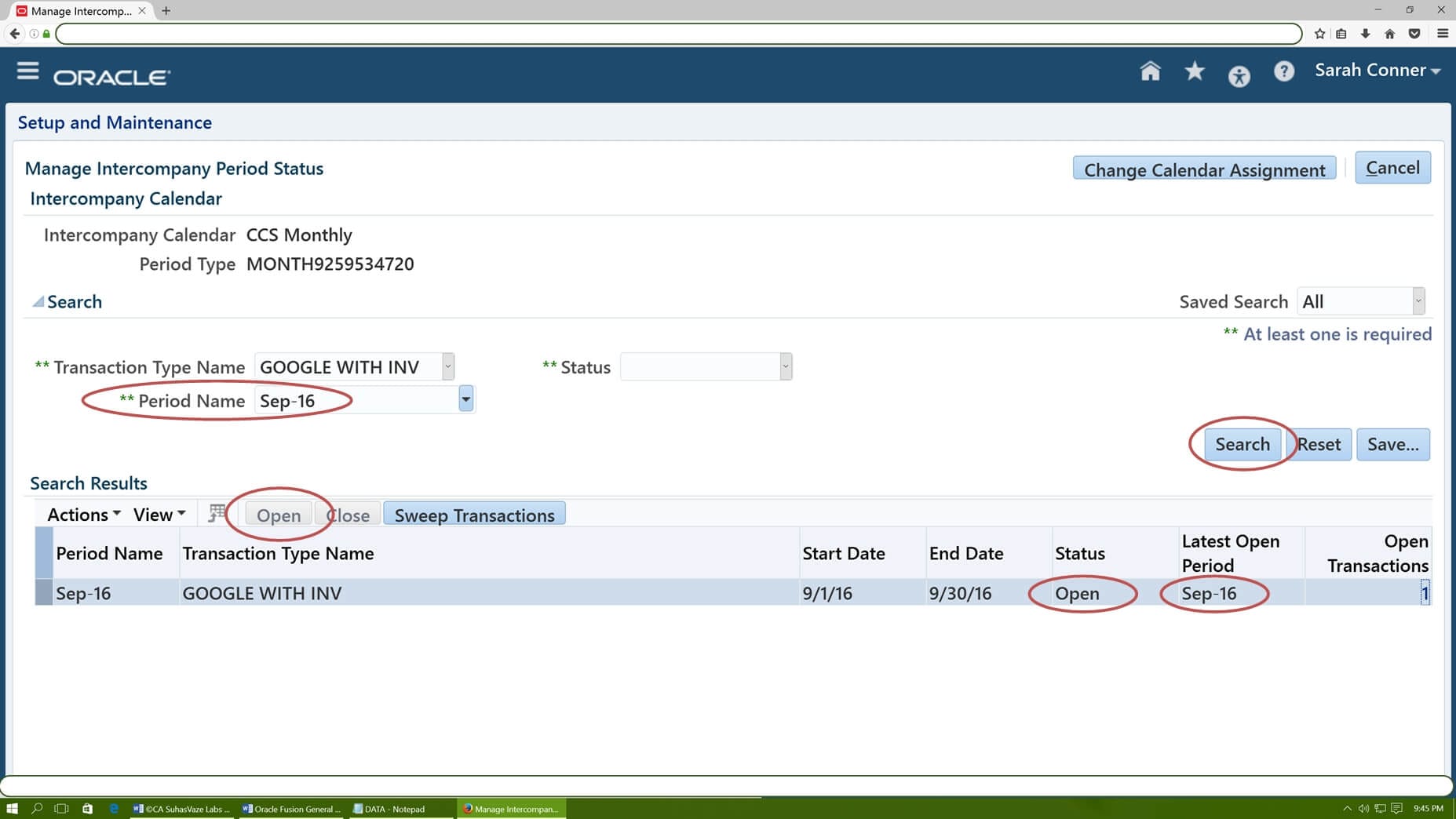
Search the Current Period. Select it. Click “Open” if the same is not yet opened.
Create and Enable Intercompany Organizations
Create Intercompany Organizations for GOOGLE OPERATIONS (Already Created as “GOOGLE OPS & SERVICES) and GOOGLE SERVICES. Enable the Organizations and Assign to User.
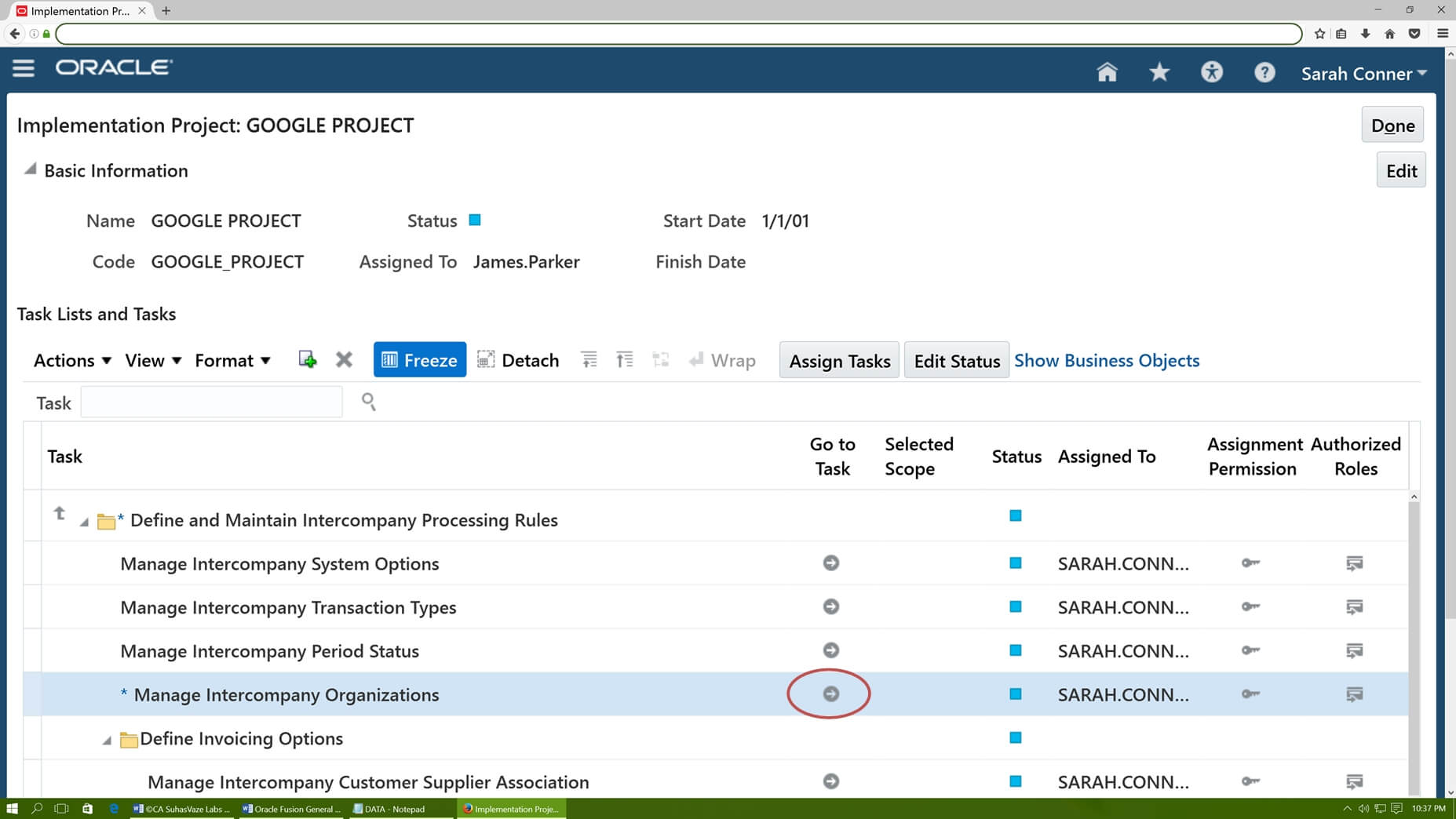
Go to Task “Manage Intercompany Organizations”

Search and See the Organization for “GOOGLE OPERATIONS” BU as above. (If it does not exist, then Create it by Clicking “+”)
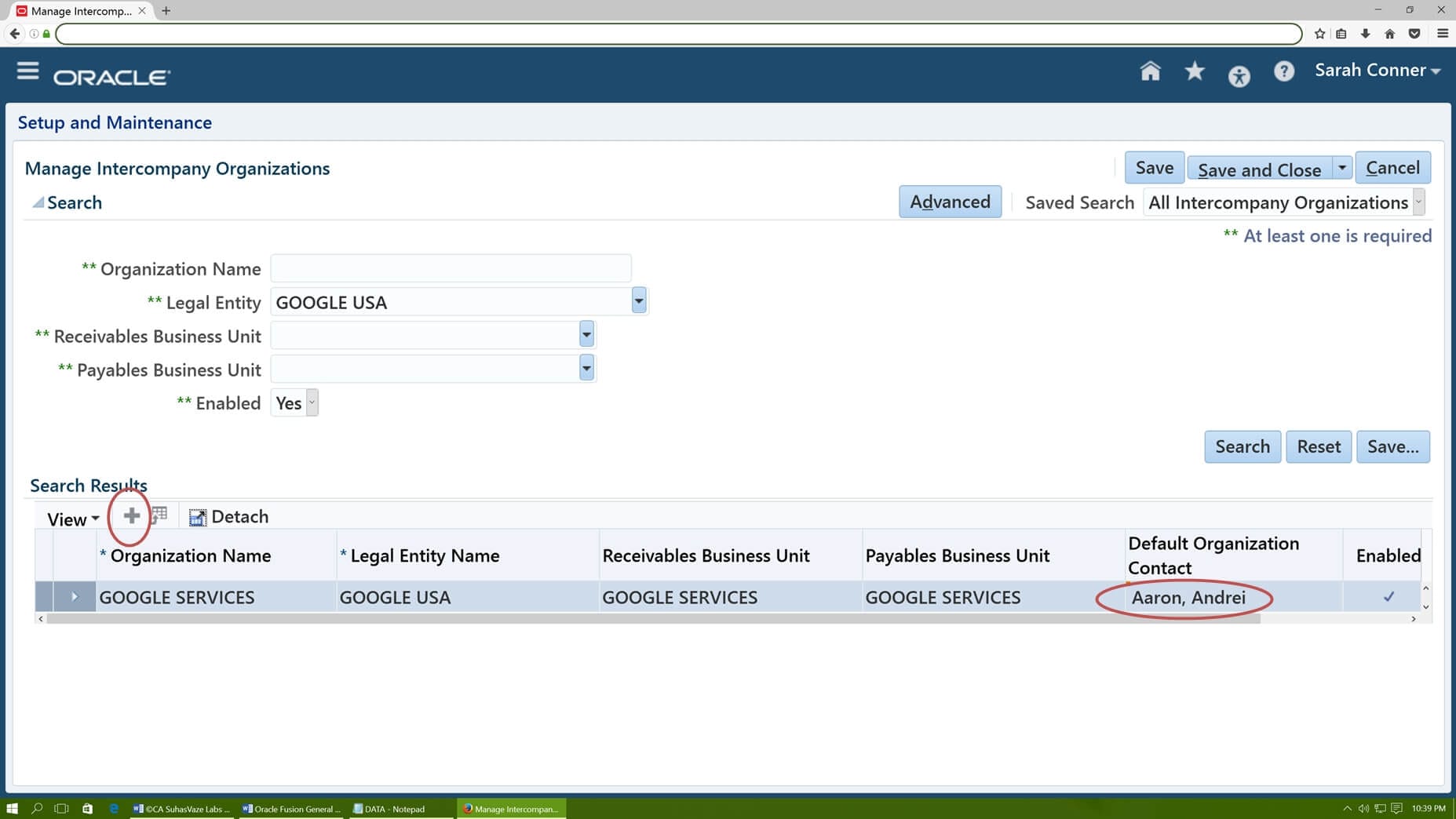
Search and See the Organization for “GOOGLE OPERATIONS” BU as above. (If it does not exist, then Create it by Clicking “+”)
Note that Both Organizations are assigned “Default Organization Contact” as “Aaron Andrei”
IMPORTANT NOTE: In a Production (Real-life) scenario, typically two different Organizations will have different Users (Default Org Contact) who will carry out the Transactions on behalf of the organization. They will be sitting in different places and Intercompany will enable a Transactional communication between them. However, for the sake of simplicity – to avoid multiple logouts and logins etc, the same person is assigned (Aaron, Andrei) in this example.
Define Suppliers and Customers
To create AR/AP Invoices, you need to have Customer and Supplier definition Respectively.
E.g. To create a Receivables Invoice in GOOGLE OPERATIONS BU, we need a Customer defined as ‘Internal-GOOGLE SERVICES’ and Vice Versa. Which means we need to define
1. A Customer and a Supplier in GOOGLE OPERATIONS BU and also
2. A Customer and a Supplier in GOOGLE SERVICES BU
For How to Define Customers and Suppliers, please refer Receivables and Payables Course Guides. (While Defining the Customer, Choose Account Type as “Internal”)
Following Steps show Creation of Customer (in GOOGLE OPERATIONS – Initiator BU) and Creation of Supplier (in GOOGLE SERVICES – Receiver BU)
Same Steps can be used to Create Supplier (in GOOGLE OPERATIONS – Initiator BU) and Creation of Customer (in GOOGLE SERVICES – Receiver BU)
Define a Customer in Initiator BU
Initiator BU is GOOGLE OPERATIONS. We are going to create “Internal-GOOGLE SERVICES” Customer with an Account Site for GOOGLE OPERATIONS BU

See the Customer “Internal-VISION SERVICES” as above. Note the Account Type is “Internal”. Click on Account Number.
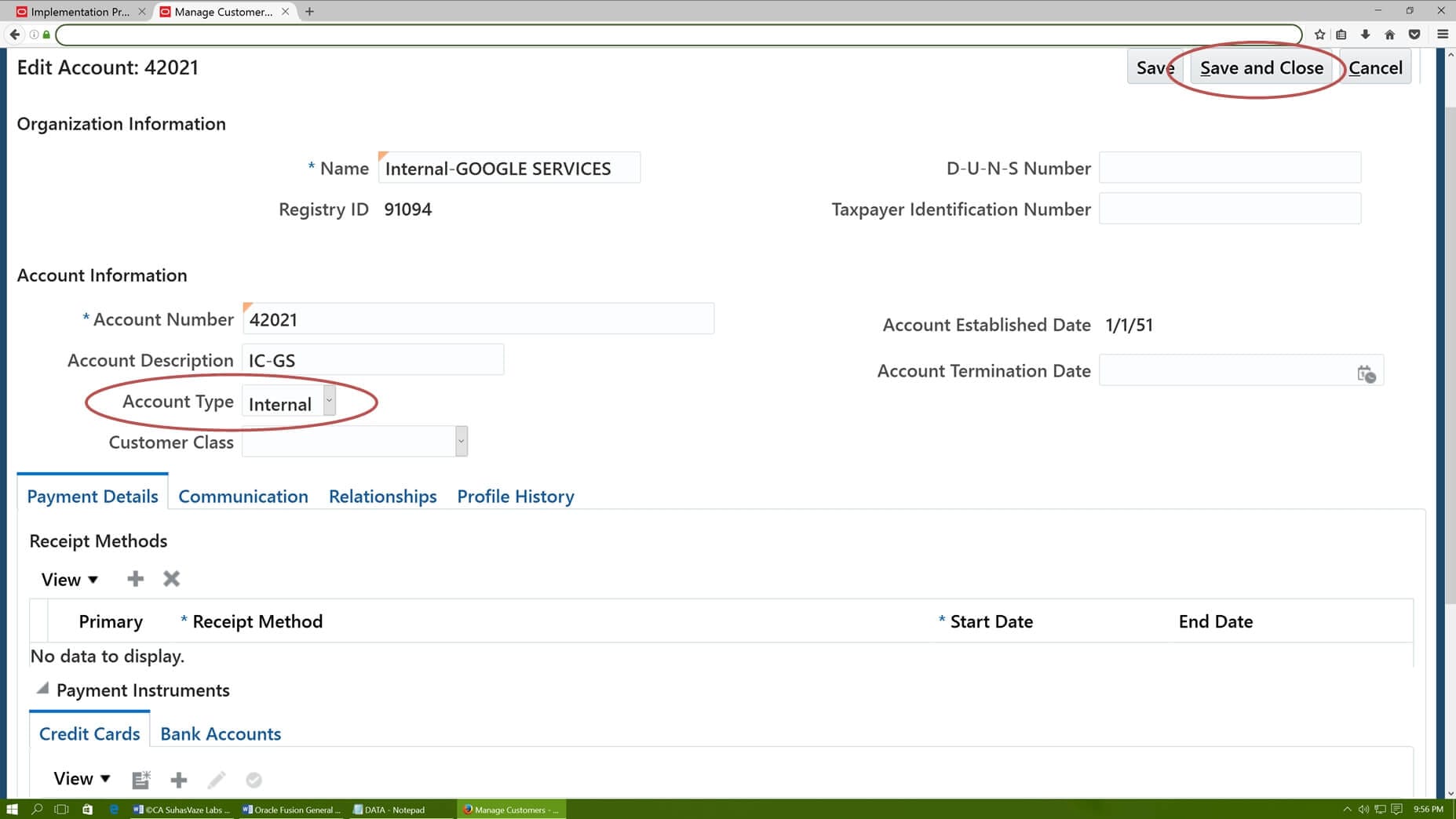
Note the Account Type = “Internal”. Click “Save and Close” and Click on Account Site Number.

See the Account Site. Scroll Down.

Scroll Down further

Create a Bill To Site (Ship To is not mandatory). Scroll Up and Click “Save and Close”
Create a Supplier in Receiver BU
Receiver BU is GOOGLE SERVICES. We are going to create “Internal-GOOGLE OPERATIONS” Customer with an Account Site for GOOGLE SERVICES BU

Navigate to HamburgeràSuppliers (In Procurement). Then Click “Create Supplier” from Right Side. (Following Snaps show the Supplier from “Manage Suppliers” Menu)

Search and Select the Supplier. Click Edit Pencil Icon.

See the Address in “Addresses” TAB.
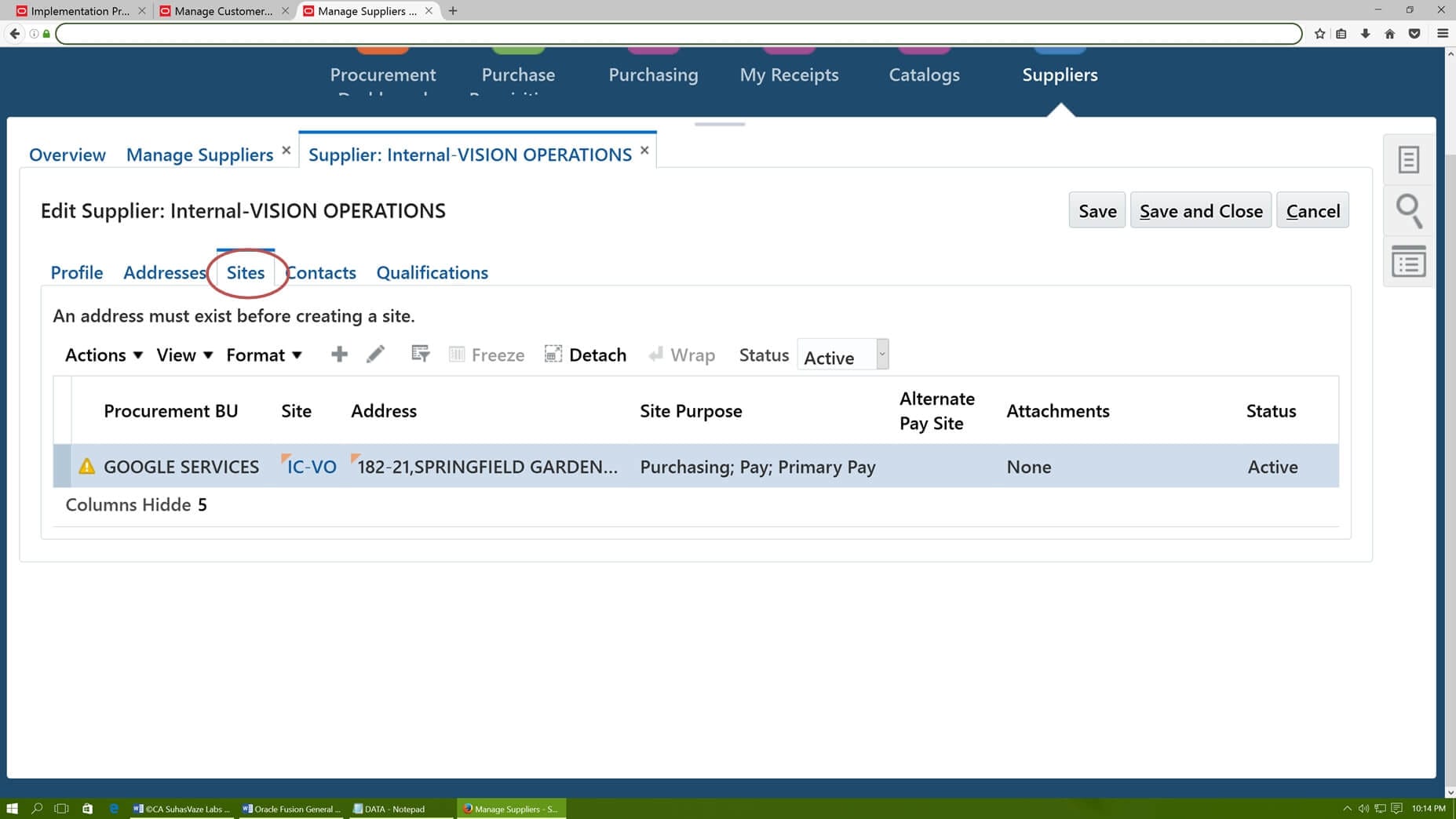
Click on “Sites” TAB. See that a Site for “GOOGLE SERVICES” BU is created as above. Click Edit Pencil to View Site Details.
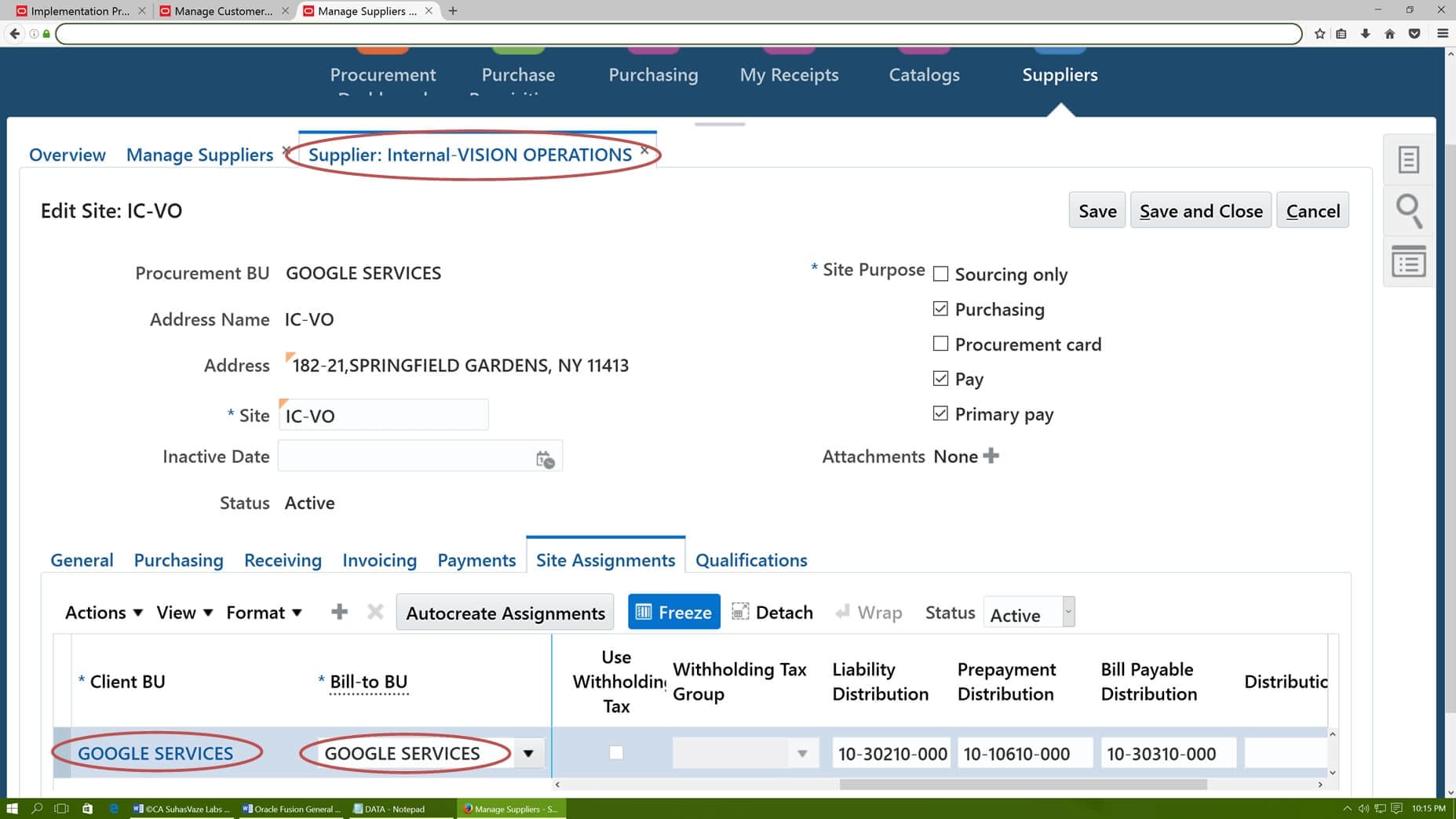
See the Site Details as above.
Setup Invoicing Options – Receivables Assignments

Go to Task “Manage Intercompany Receivables Assignment”
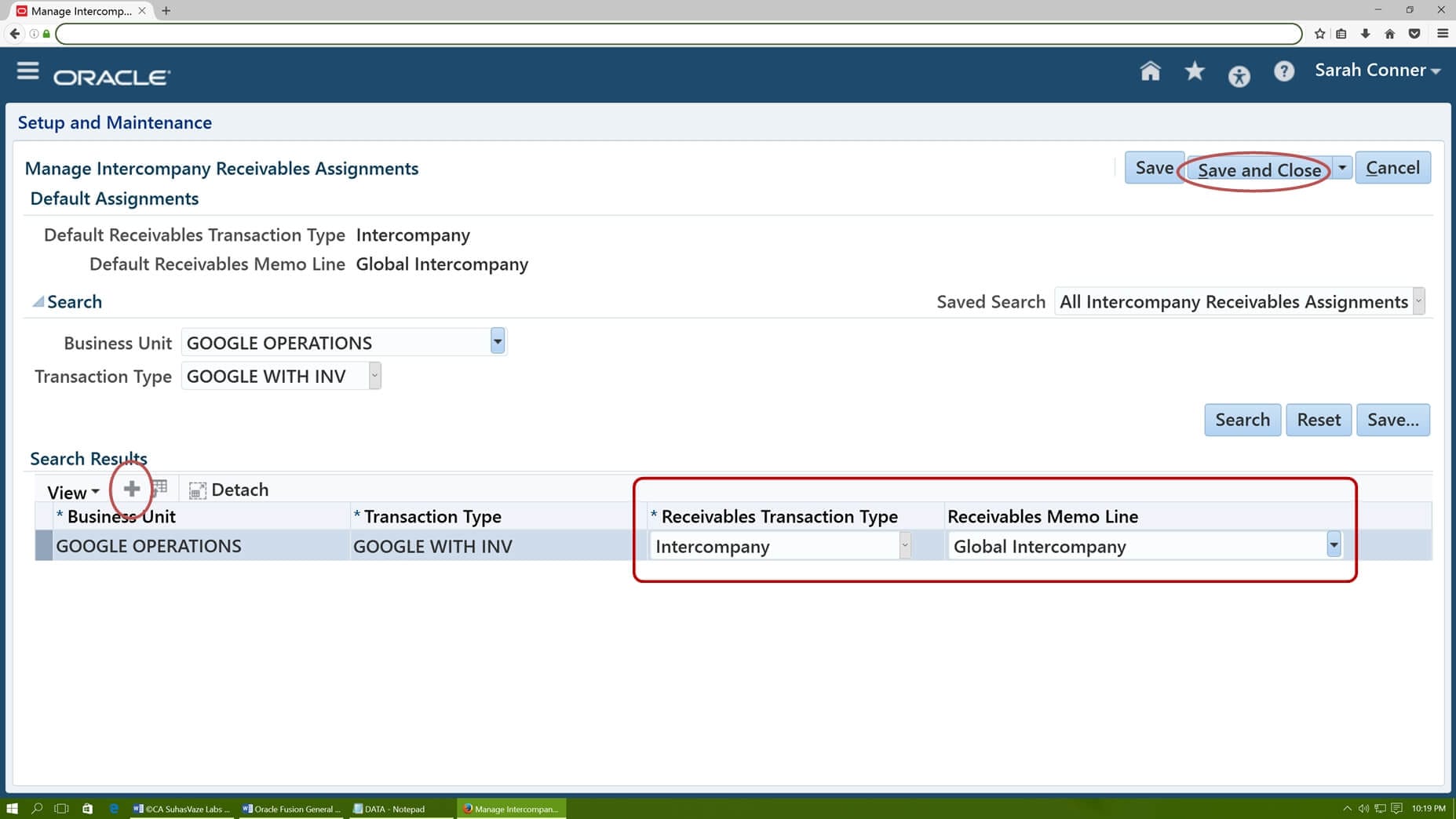
Click “+” and Create Receivables Assignment for “GOOGLE OPERATIONS” BU as above. A Receivables Transaction Type and Standard Memo Line is attached to the Intercompany Transaction Type (GOOGLE WITH INV)
IMPORTANT NOTE: You need to similarly create a Receivables Assignment for “GOOGLE SERVICES” BU if you intend to Credit “GOOGLE SERVICES” in intercompany transaction
Click “Save and Close”
Setup Invoicing Options – Customer/Supplier Associations
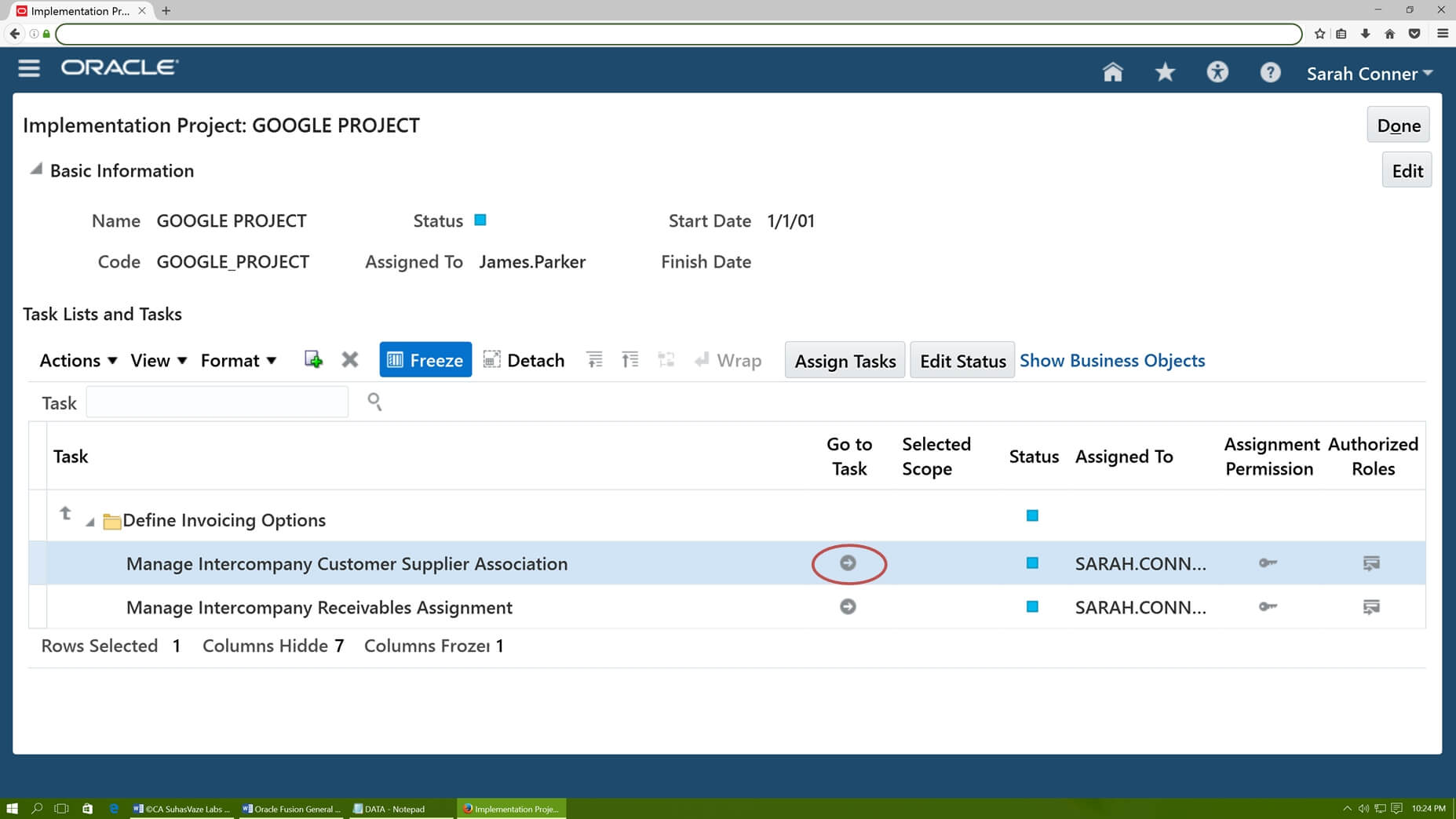
Go to Task “Manage Intercompany Customer Supplier Association”
Customer/Supplier Associations for Initiator

See that “GOOGLE INC” Legal Entity is represented by Supplier “Internal-VISION OPERATIONS” as above. (Note that You will also have to Create a Customer “Internal-VISION OPERATIONS” and assign above – if you intend to Debit GOOGLE OPERATIONS – i.e. GOOGLE INC in intercompany transactions). Click “Save and Close”
Customer/Supplier Associations for Receiver

See that “GOOGLE USA” Legal Entity is represented by Supplier “Internal-VISION SERVICES” as above. (Note that You will also have to Create a Supplier “Internal-VISION OPERATIONS” and assign above – if you intend to Credit GOOGLE SERVICES – i.e. GOOGLE USA in intercompany transactions). Click “Save and Close”
Intercompany Balancing Rules
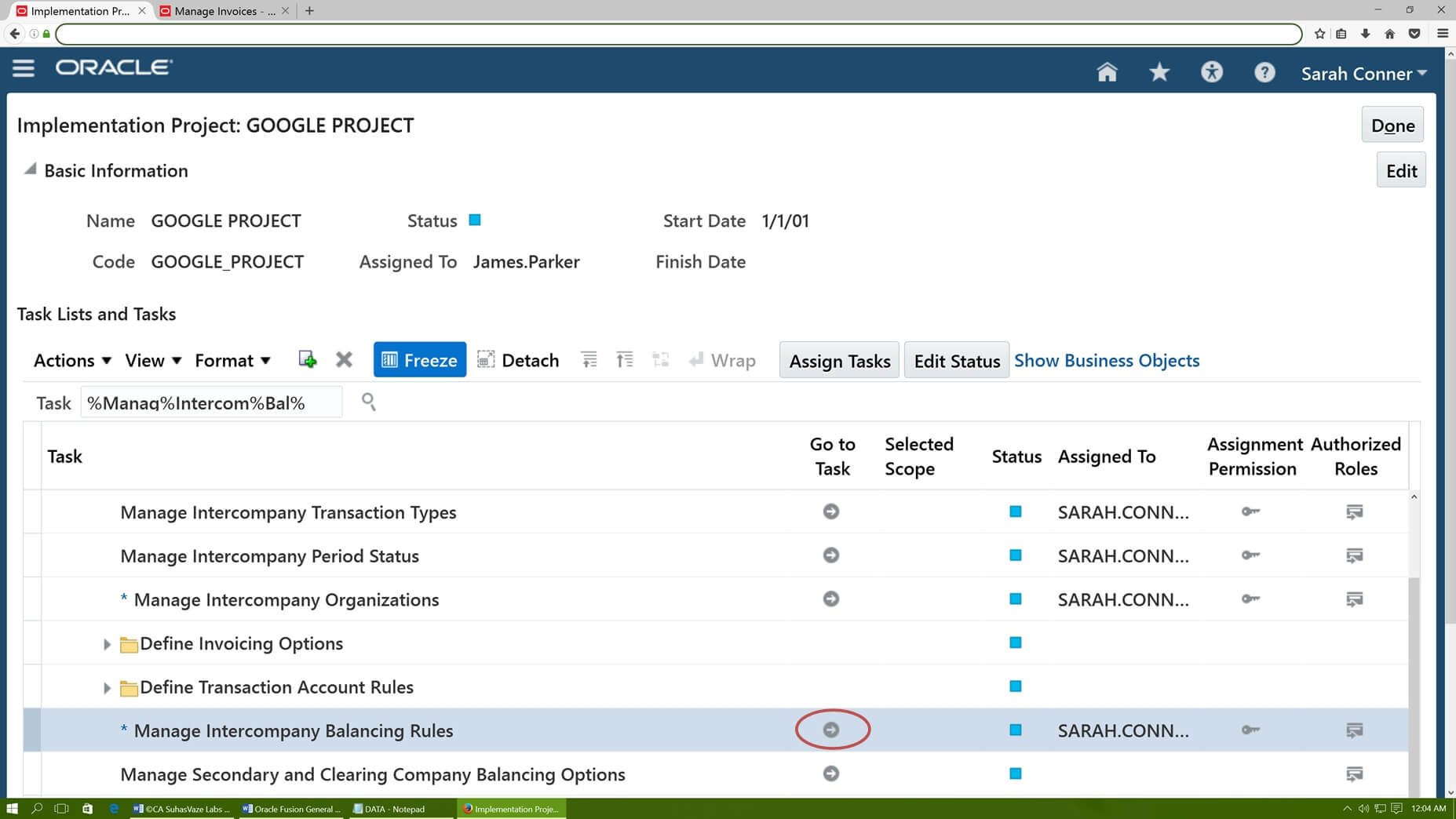
Go to Task “Manage Intercompany Balancing Rules”
Intercompany Balancing Rules – For Provider
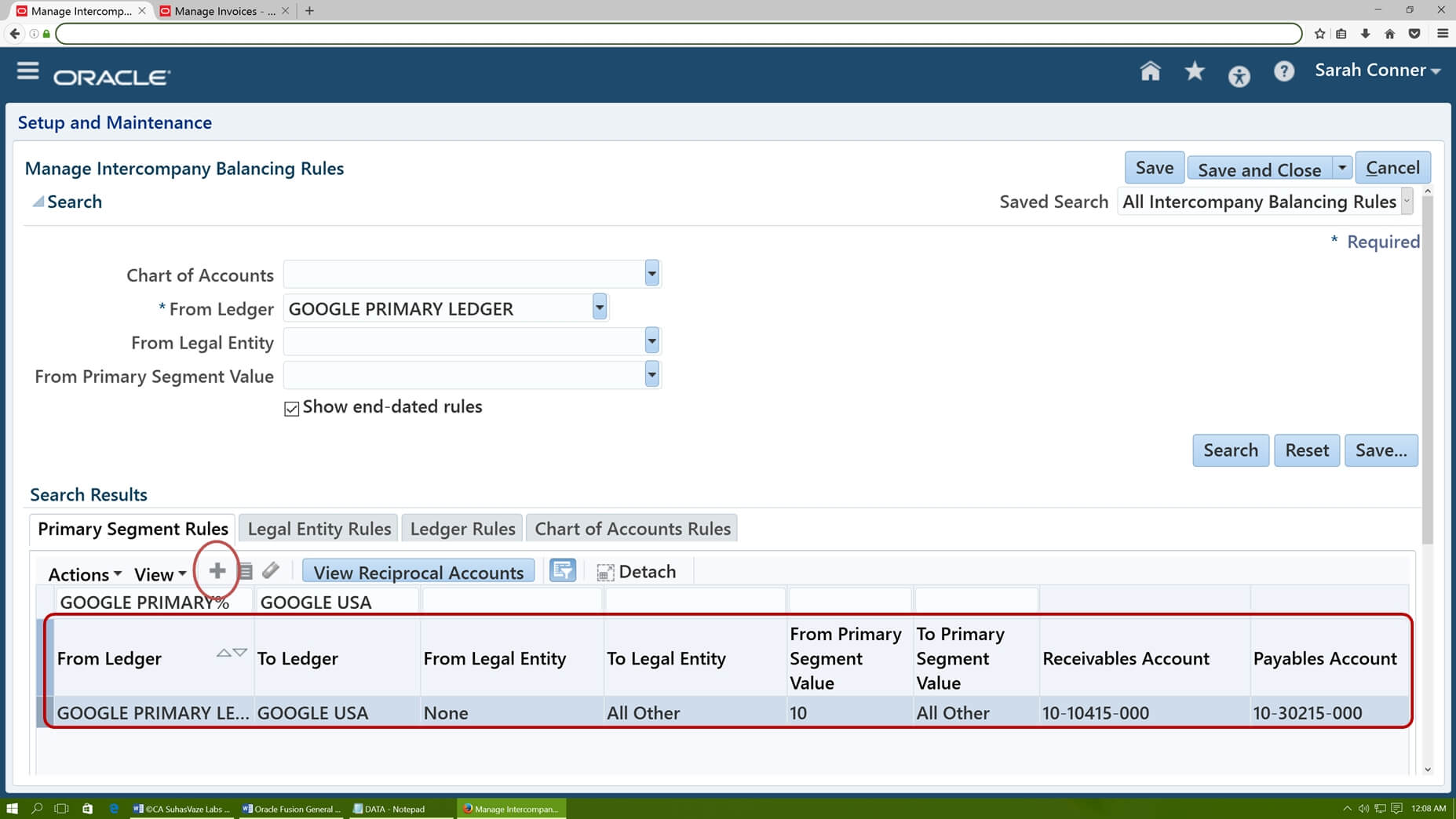
Scroll Right in the table (You have to scroll down and then move the thumb to right)
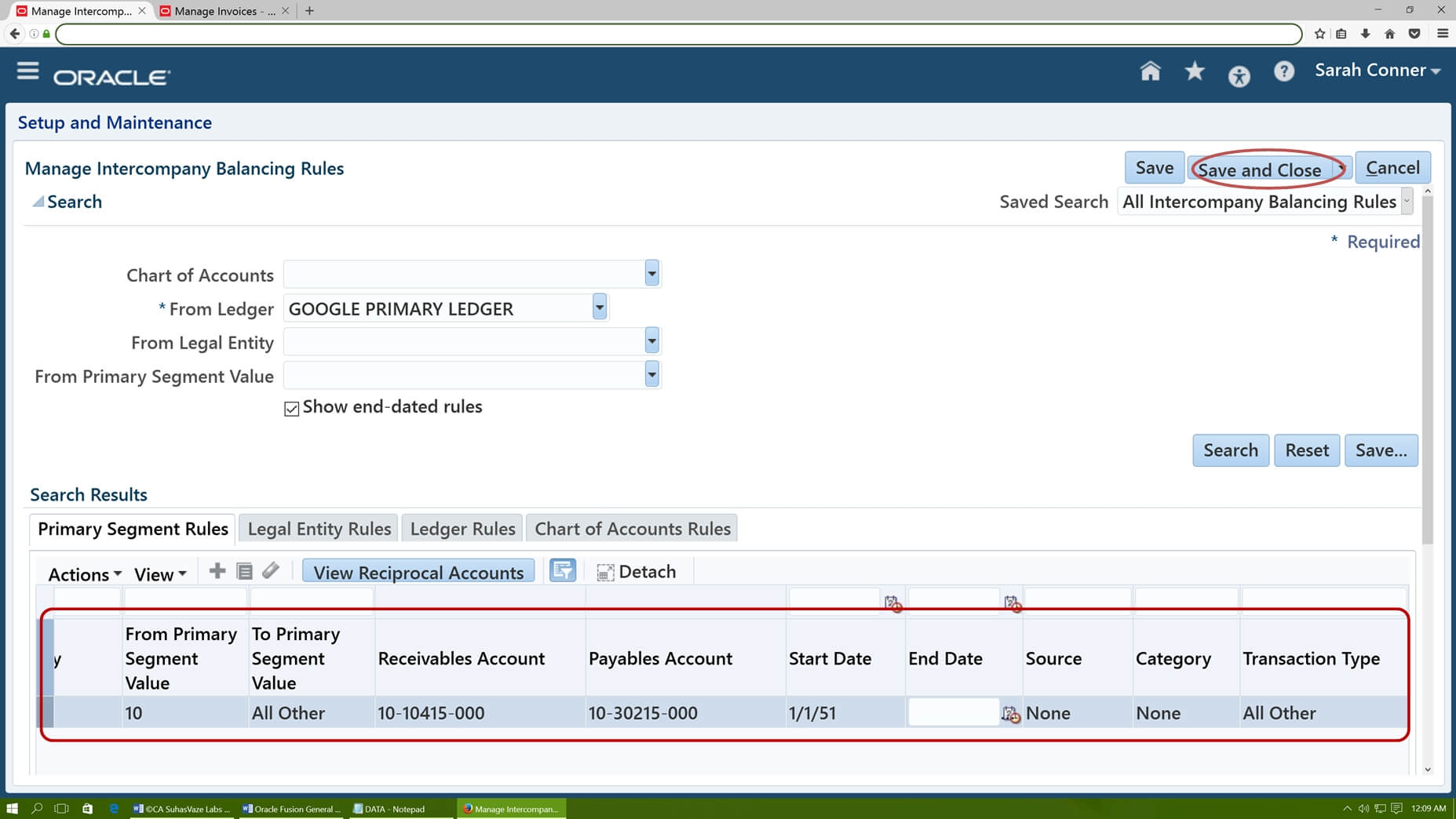
Define the Intercompany Balancing Rules as above for Provider. Click “Save and Close”
Intercompany Balancing Rules – For Receiver

Scroll Right in the table (You have to scroll down and then move the thumb to right)
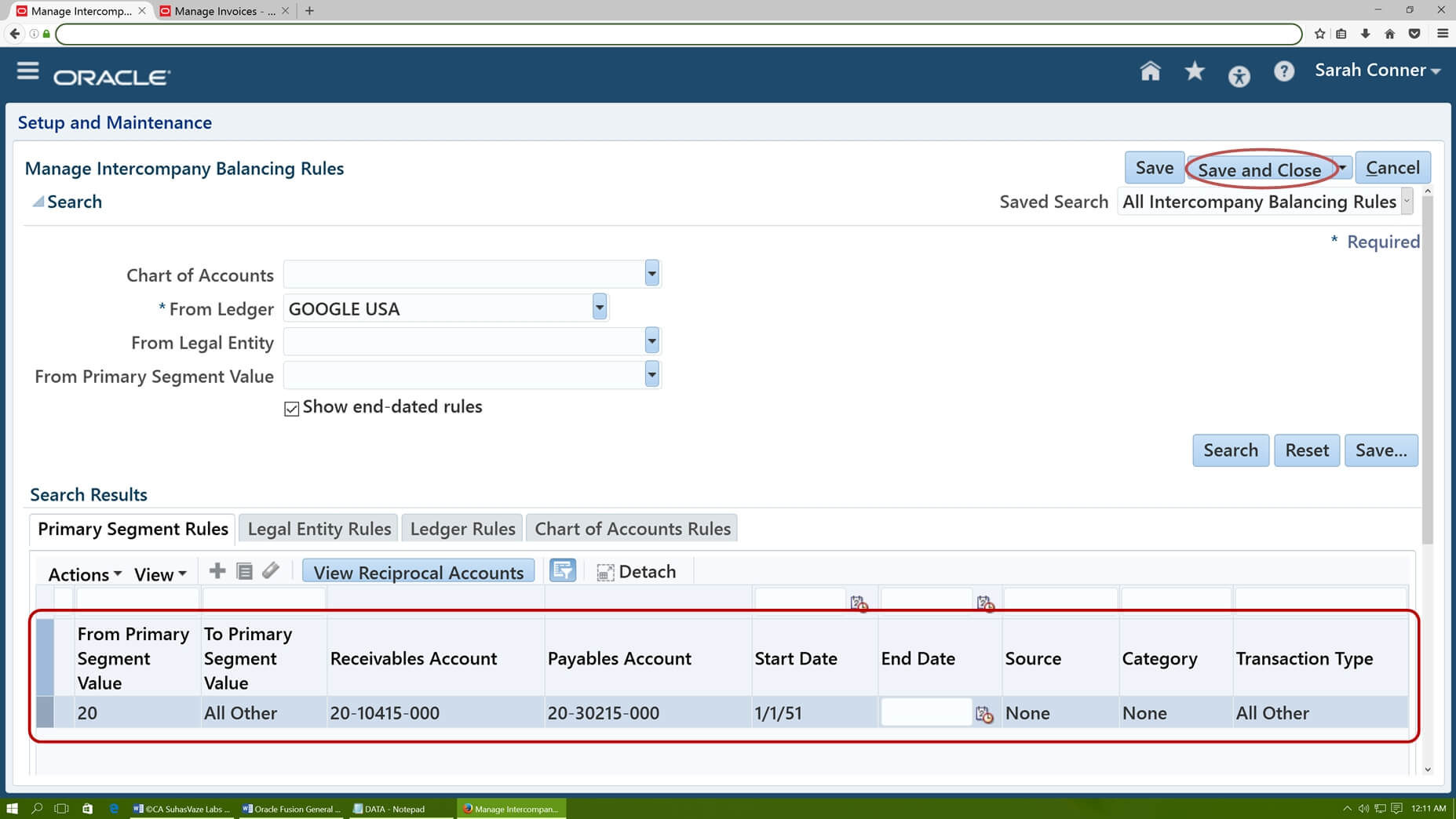
Define the Intercompany Balancing Rules as above for the Receiver. Click “Save and Close”
Assign Roles
Assign Roles to ANDREI.AARON (Default Contact for Intercompany Organizations)
Make sure that he has Role Intercompany Accountant with data access for the above created intercompany organizations “GOOGLE OPS & SERVICES” and “GOOGLE SERVICES” in this example
AGIS Transaction Flow (With Invoicing)
Inter-company Transaction Flow Diagram

Intercompany Transaction Flow
As Default Contact for Intercompany Organizations is ANDREI.AARON, we will log in as this User to Perform Transaction Flow
Initiate an Intercompany Transaction
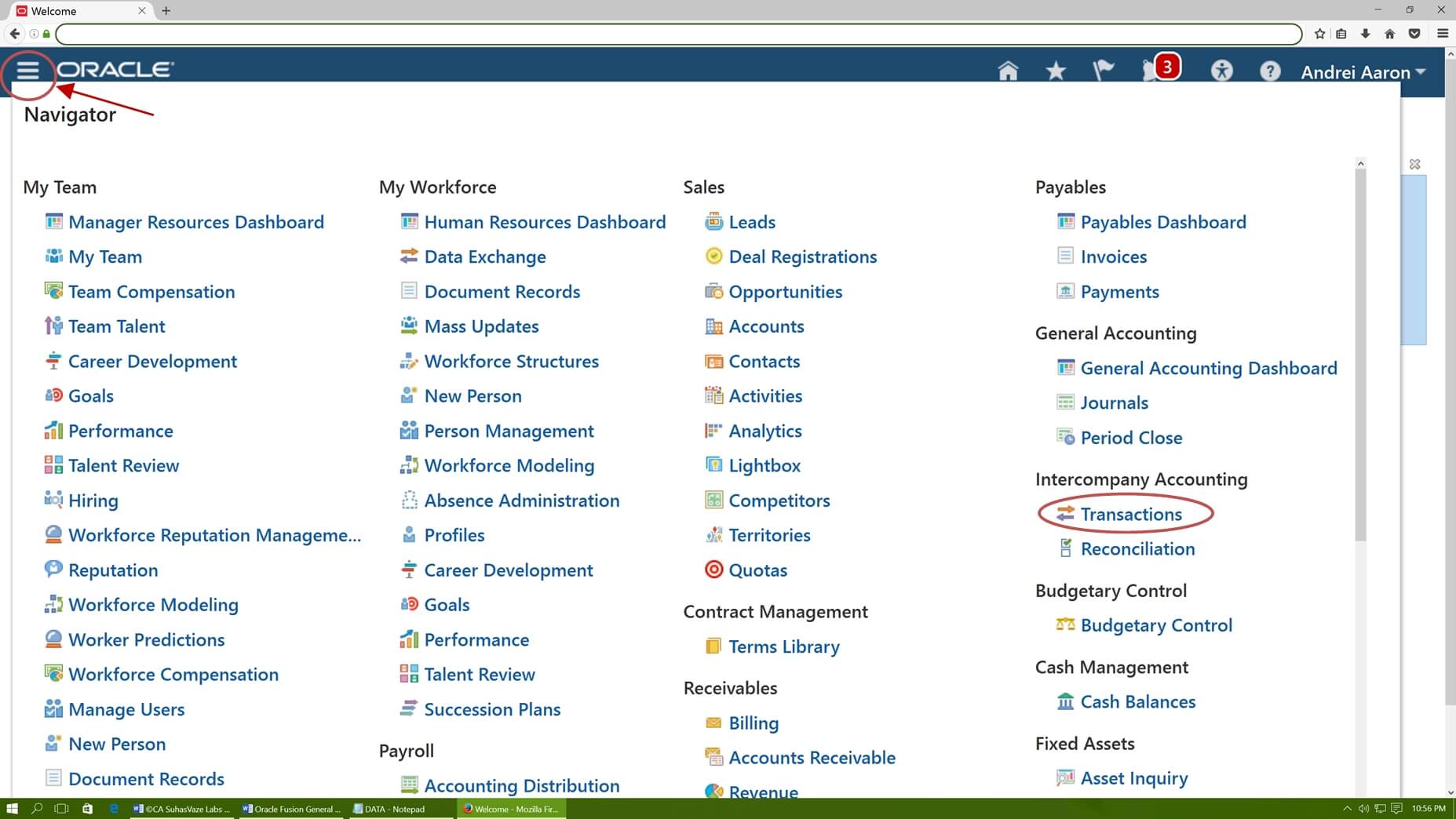
Navigator > Transactions (In Intercompany Accounting)
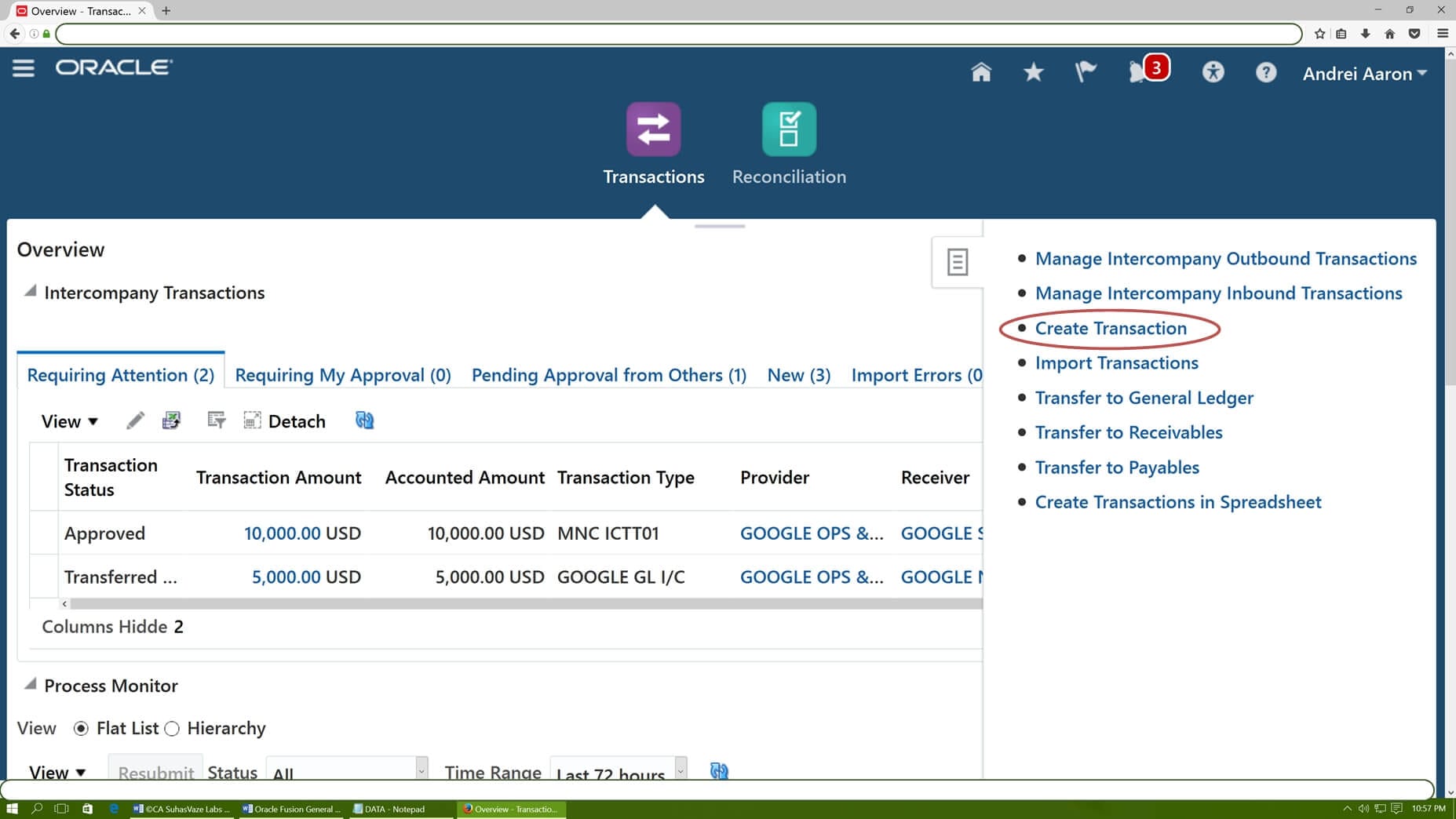
Click “Create Transaction” from Right Side Menu
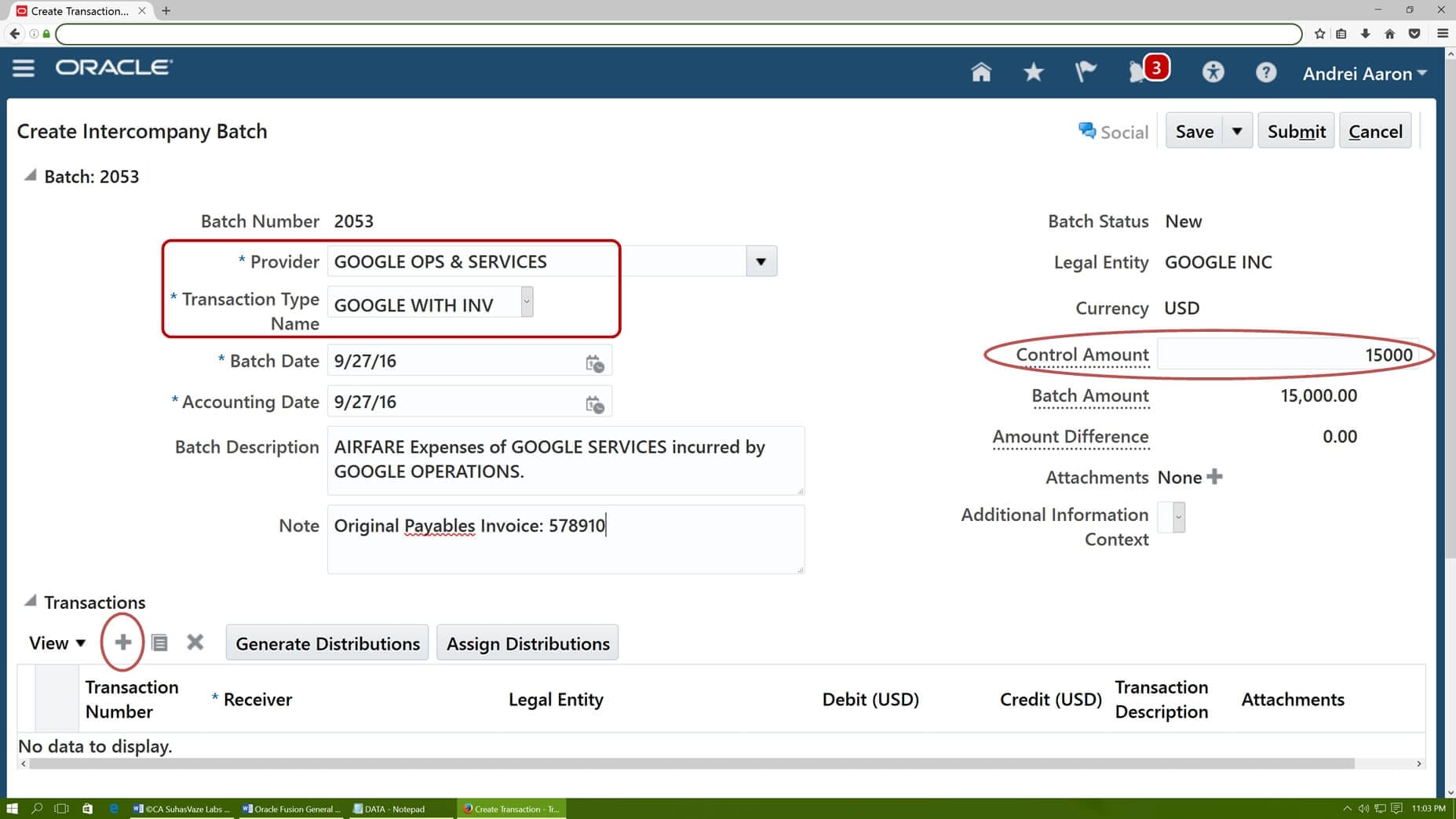
Enter Provider Org (Initiator), Select the Transaction Type (With Invoicing – i.e. “GOOGLE WITH INV”) as created in earlier steps and Enter Data as above. Click on “+” to Create an Intercompany Transaction.

Enter Receiver and Debit Amount.
Enter Initiator’s Distributions
Click “+” in “Provider” TAB for Distributions
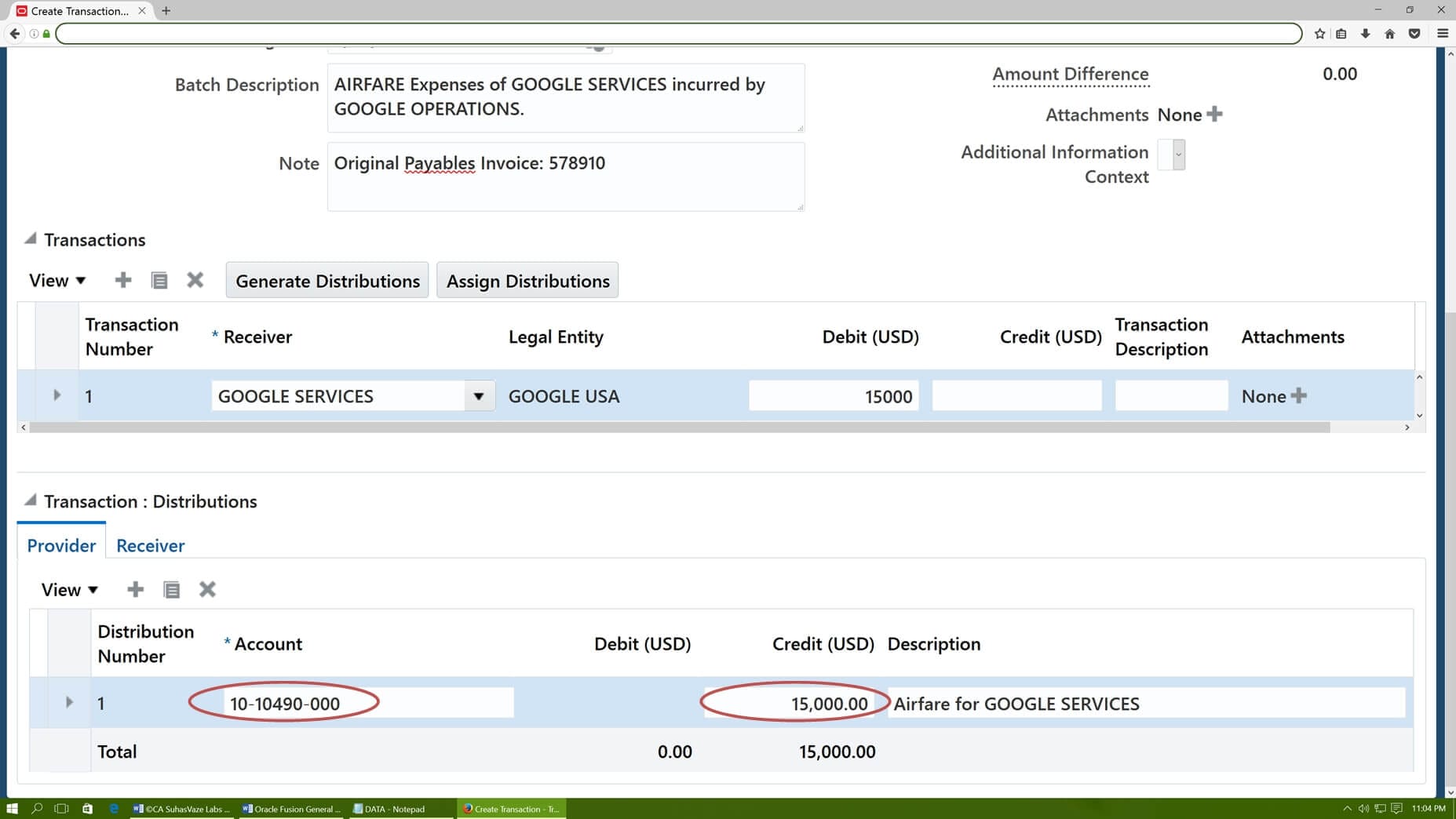
Enter “INTERCOMPANY CLEARING” Account (The Same Account should be debited in Original Payables Invoice when Airfare was paid by GOOGLE OPERATIONS for GOOGLE SERVICES)

Scroll Up and Click “Save”. Note Batch Number 2053. Then Click “Submit”
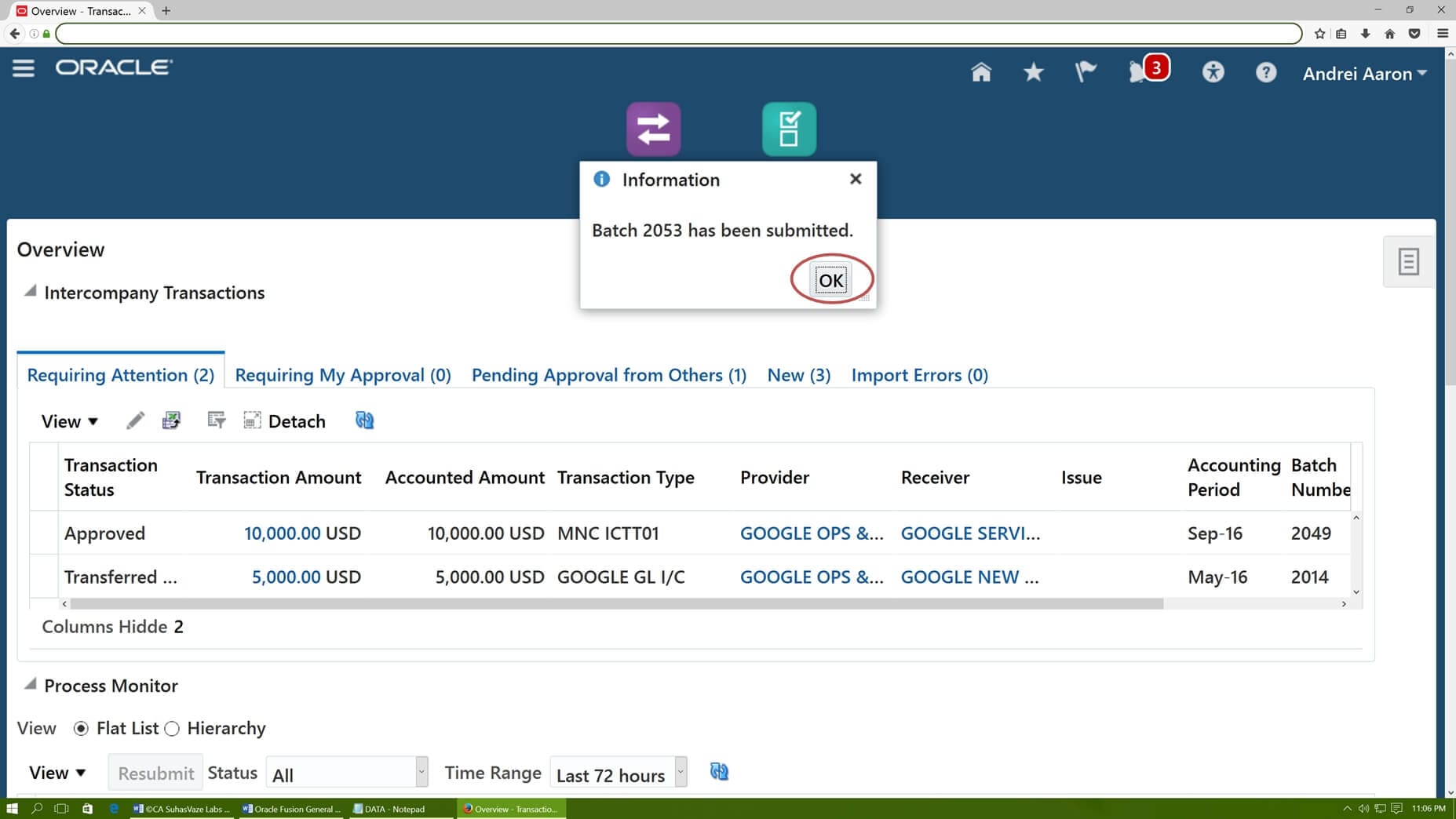
See the Confirmation.
Receiver receives the Transaction

Click “Manage Intercompany Inbound Transactions”

Search Transaction by Batch Number and Select Transaction. (See Status is “Received”). Click Edit Pencil Icon.

Scroll Down
Enter Receiver’s Distributions
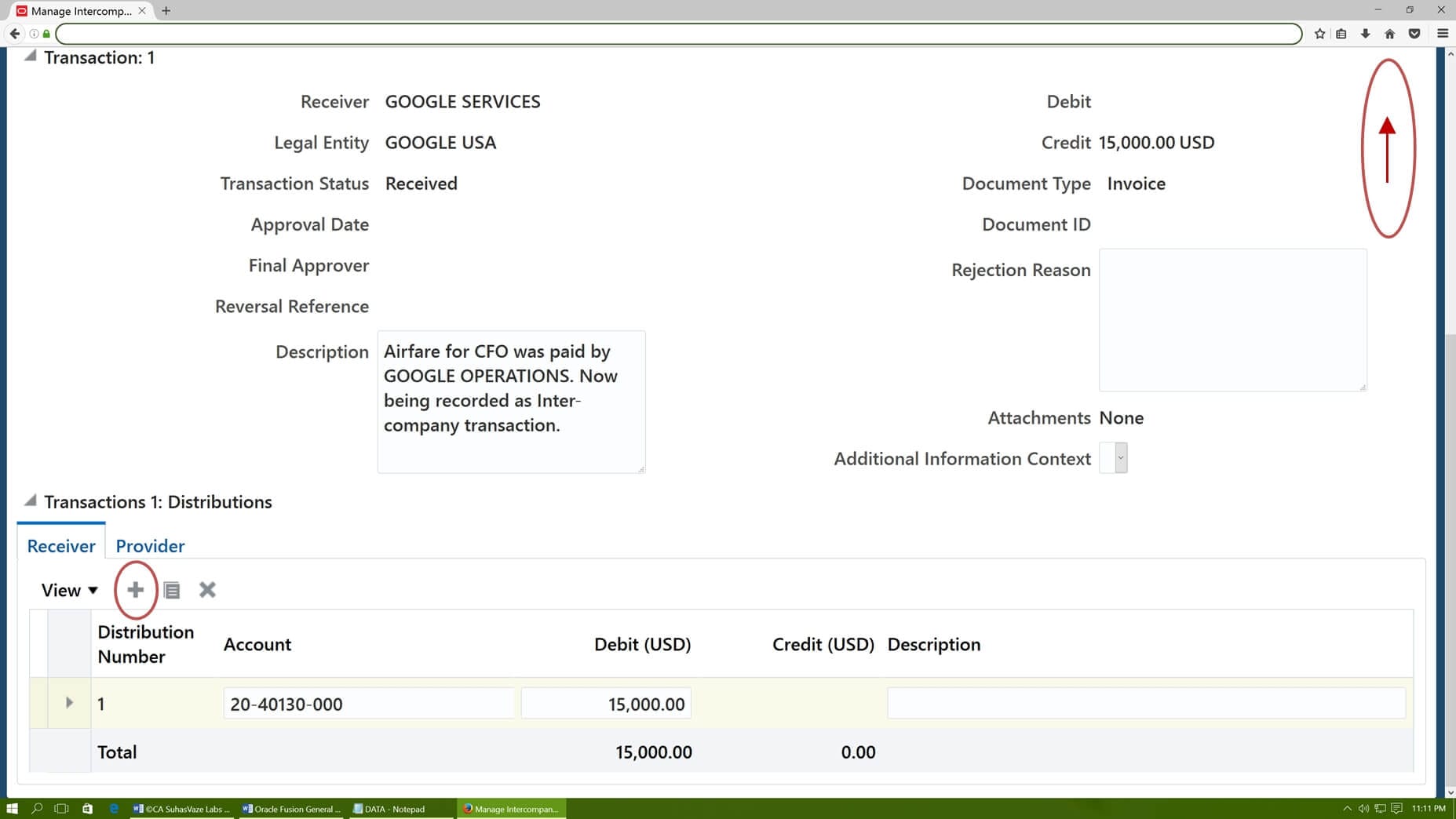
Click “+” and Enter Receiver’s Distributions if the same are not entered earlier. Scroll Up
Receiver Approves the Transaction

Click “Save” First. Then Click “Approve”. (Please note, if you directly click on “Approve”, you may receive and Error)
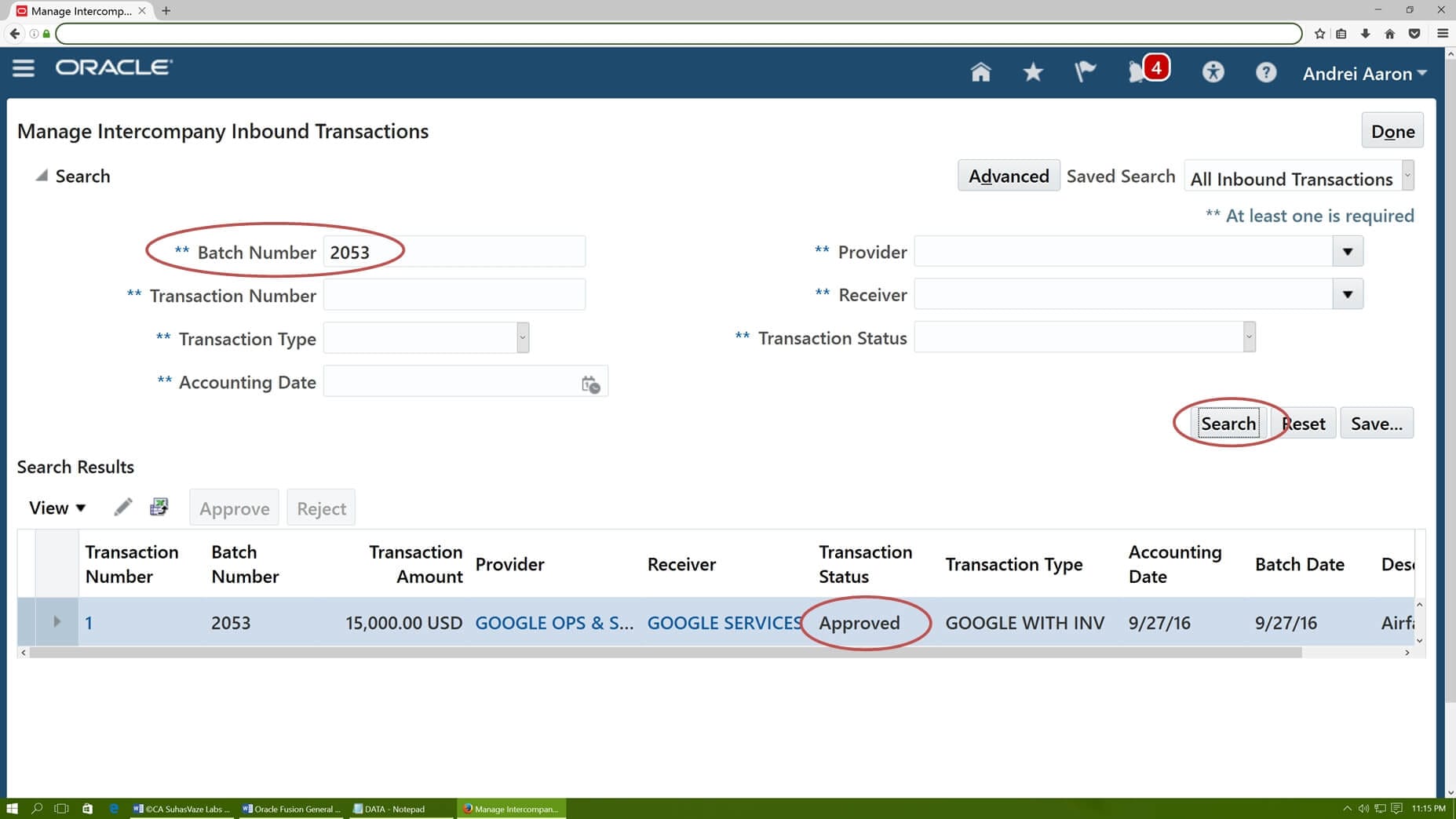
Click “Search” to refresh and see that the Transaction Status has changed to “Approved”. Click “Done”
Transfer to Receivables
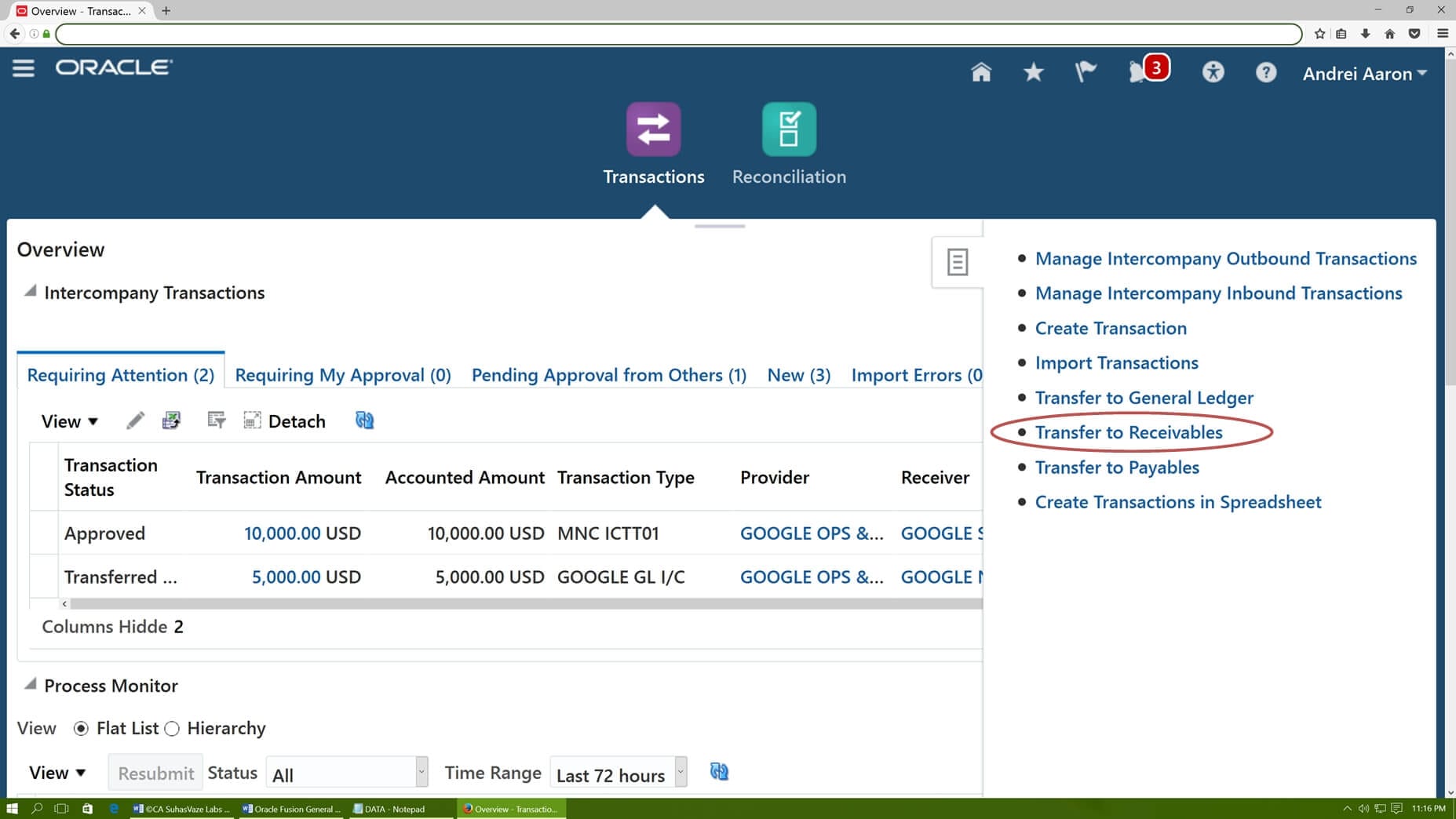
Click “Transfer to Receivables” in the Right Side Menu
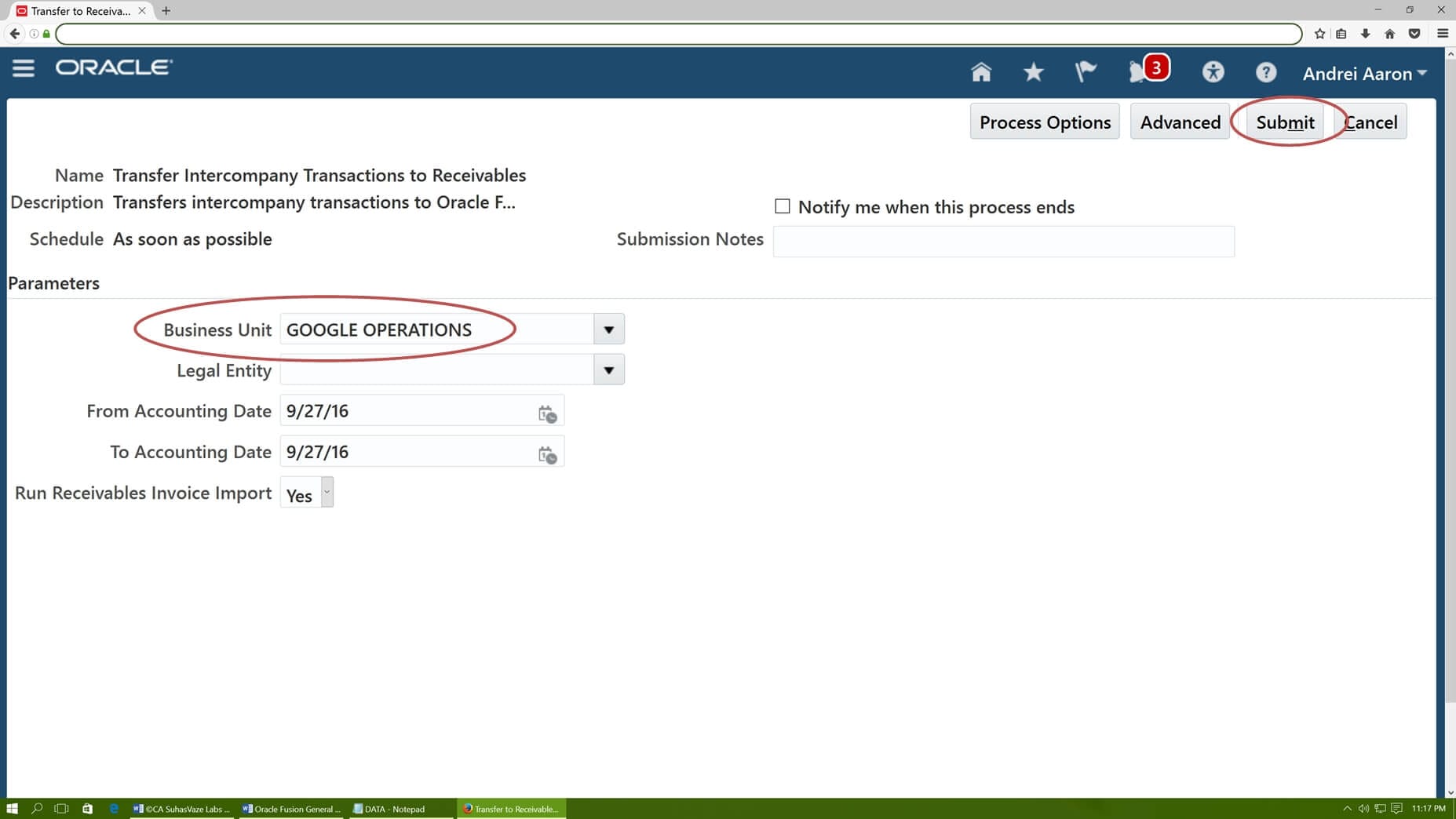
Give Parameters (BU and Today’s date). Click “Submit”

Note Process ID. Click OK
View Process Statuses

See that the Processes have Succeeded.
View “Import AutoInvoice Execution Report”
Click “Import AutoInvoice: Execution Report”. In the Lower Area. Scroll Down. Click on “null” to View Output.

See that 1 Invoice is Successfully Processed. Scroll Down.


Click “Manage Intercompany Inbound Transactions”

Search Transaction and See that the Transaction Status is “Transferred to Receivables”
Transfer to Payables

Click “Transfer to Payables” from Right Side

Enter Parameters as above (BU and Today’s Date). Click “Submit”

Note the Process ID. Click OK.
View Process Statuses

See that the Processes have succeeded.
View Import Payables Invoices Report

Click on the Output Name “APX… Document1”

Scroll Down

See that there are NO REJECTIONS in the Report. This Report does NOT show the successful transactions. It only shows if there are any Rejections.
View Transaction Status

Go to “Manage Intercompany Inbound Transactions”. Search the Transaction and See that the Status is “Complete”
Find and Account for Intercompany AR/AP Invoices
Sign In as SARAH.CONNER@ORACLE.COM again
Find Receivables Invoice
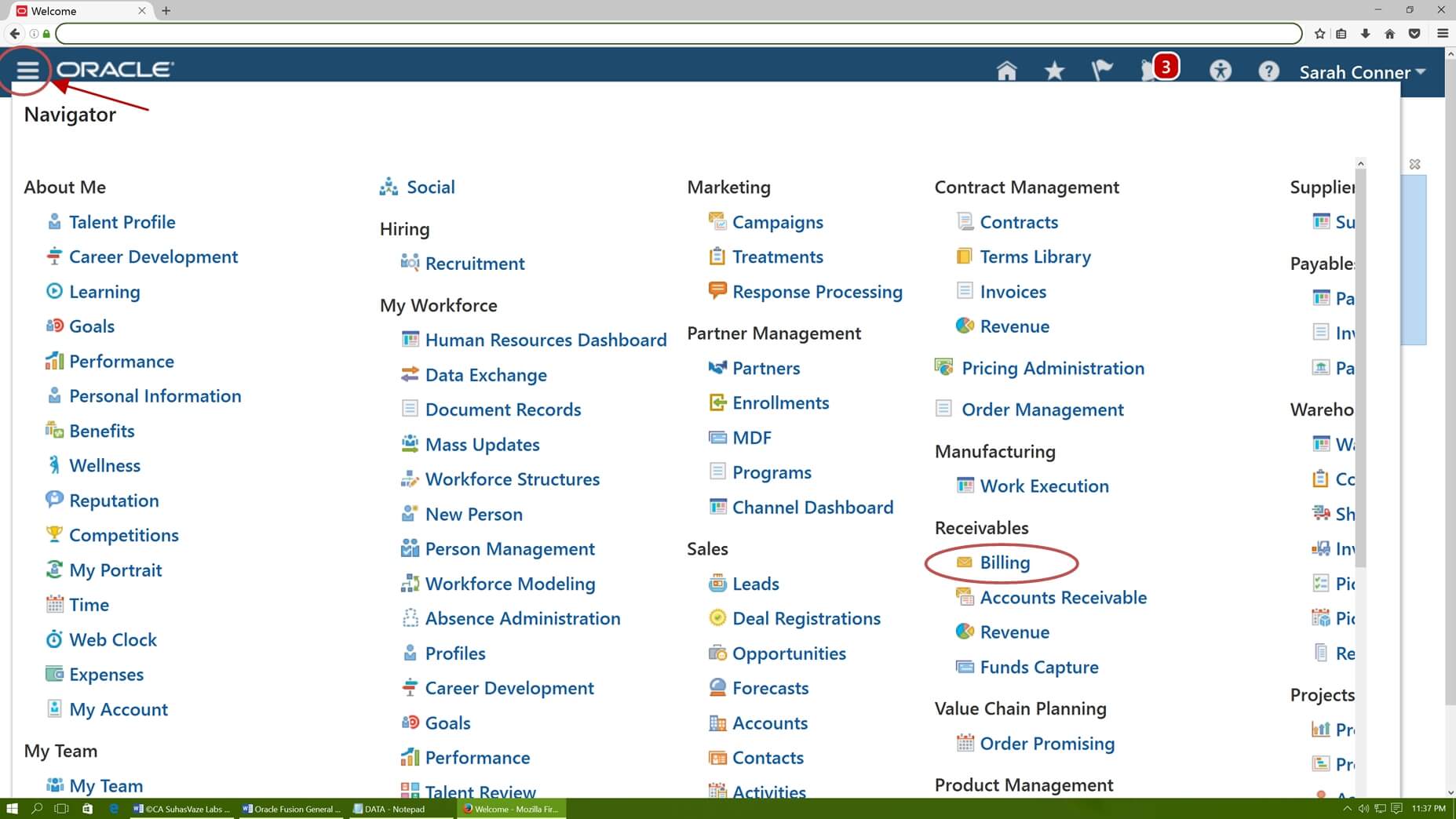
Navigator > Billing (Under Receivables)

Click “Manage Transactions” from Right Side Menu

Search and Select the AR Intercompany Invoice Auto-Generated in the Intercompany Transactions Process. Click on Transaction Number 12001.

Scroll Down
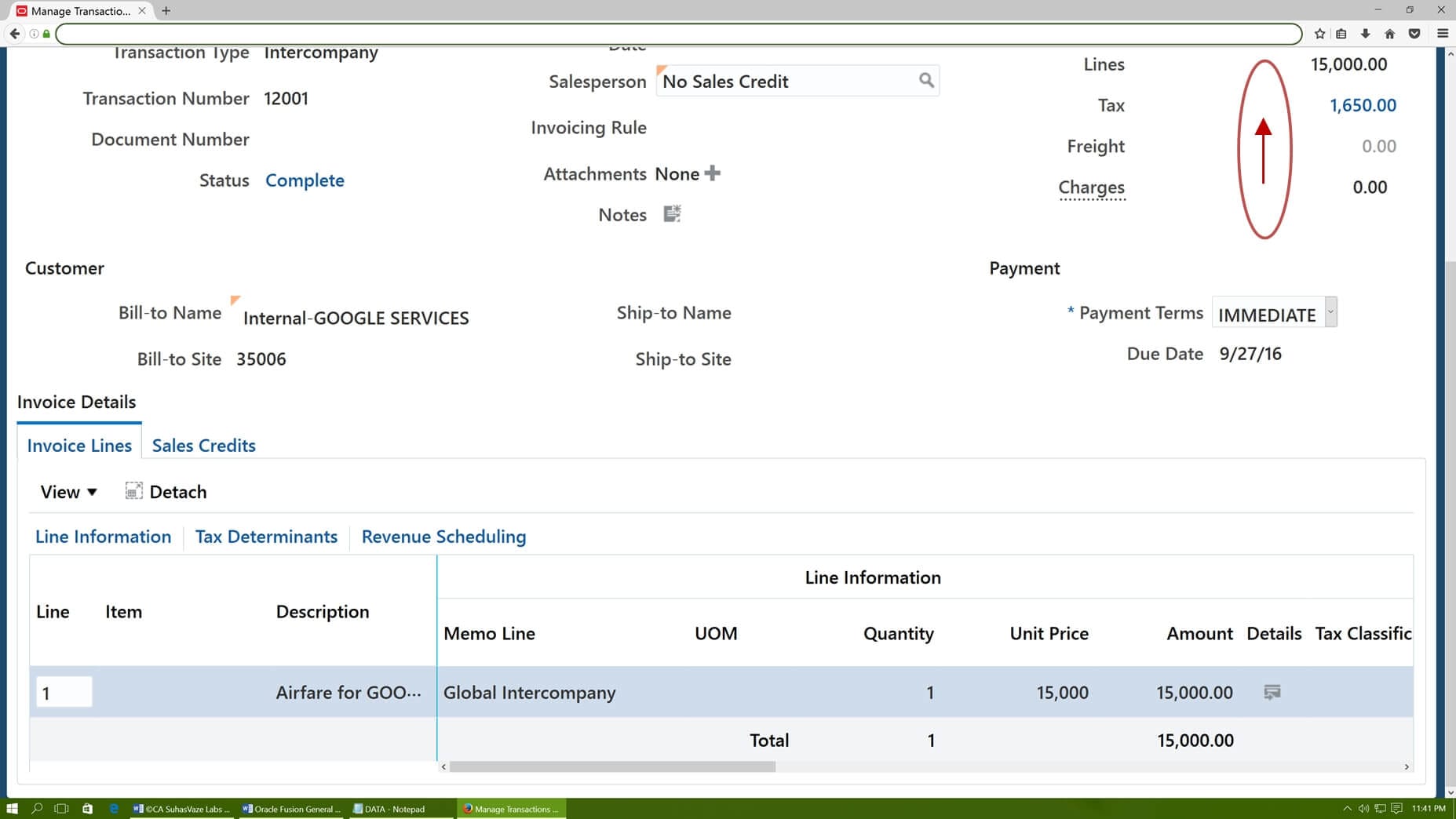
View the Intercompany Transaction Lines (Invoice Lines). Scroll Up
Do Invoice Accounting and View Accounting
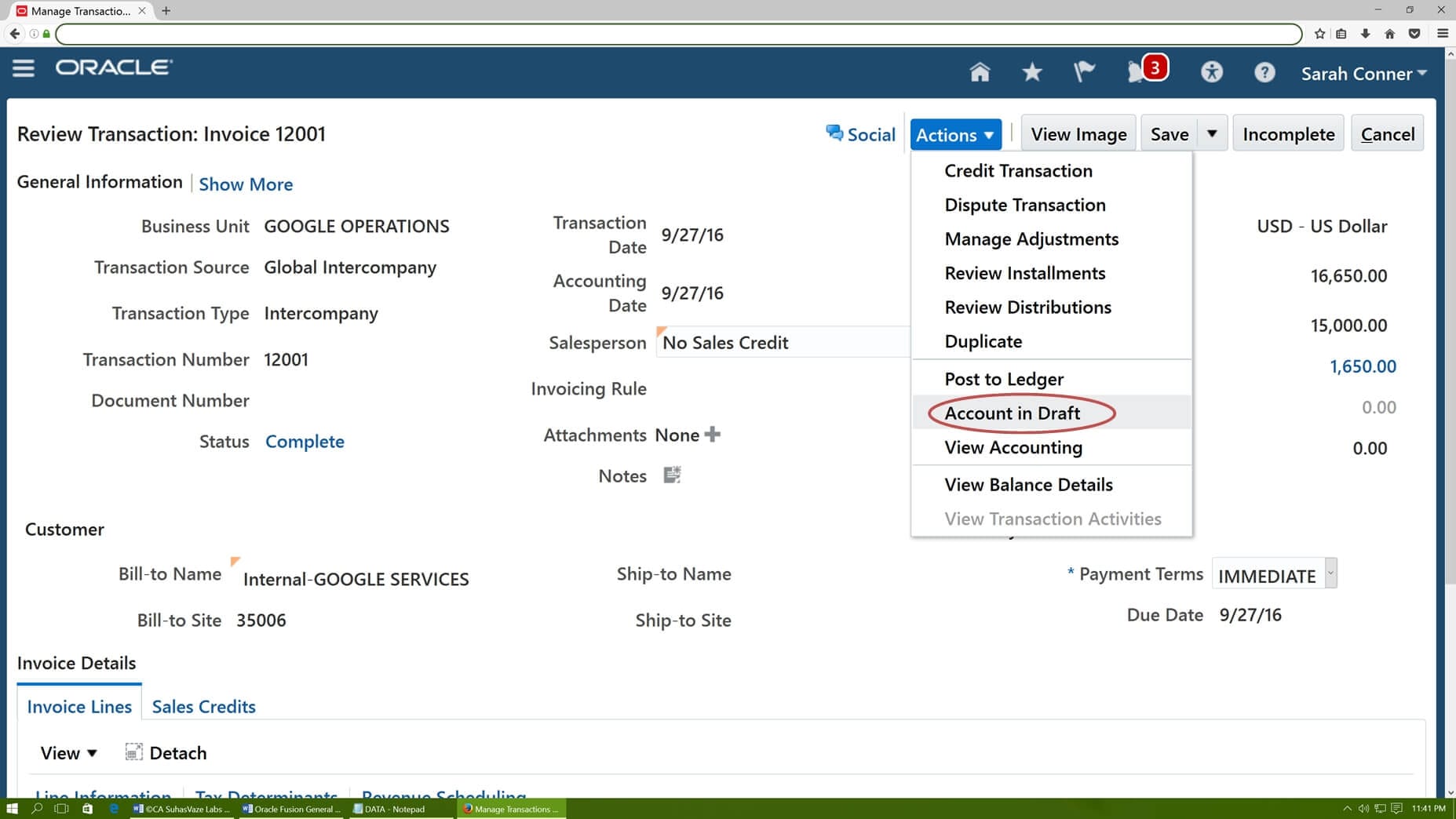
Click “Actions > Account in Draft” (Then Click “View Accounting”)

The Accounting Entry (except tax) is as follows
Intercompany Receivable A/c: 10415 15,000
Intercompany Clearing A/c: 10490 15,000
Notes:
- 10490 – Intercompany Clearing A/c is the A/c we enter in Provider’s Distribution.
- 10415 – Intercompany Receivables A/c has been taken automatically from “Intercompany Balancing Rules”
- The Tax is calculated as a Custom Tax Regime has been defined in Fusion Tax Module – Only for Receivables Transactions. The same can be turned off. Refer Fusion Tax Course Guide
Find Payables Invoice
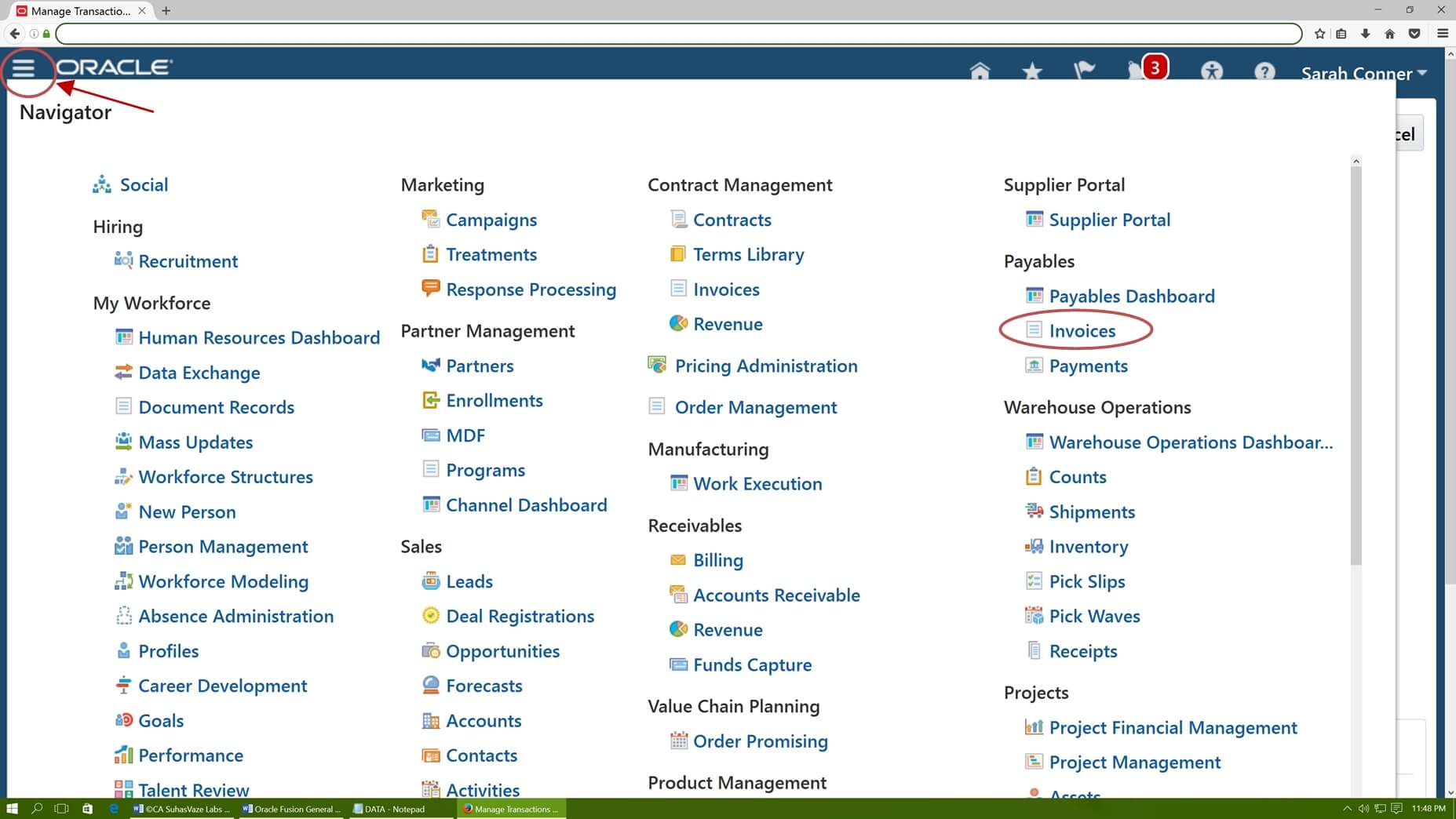
Navigator > Invoices (Under Payables)

Click “Manage Invoices”
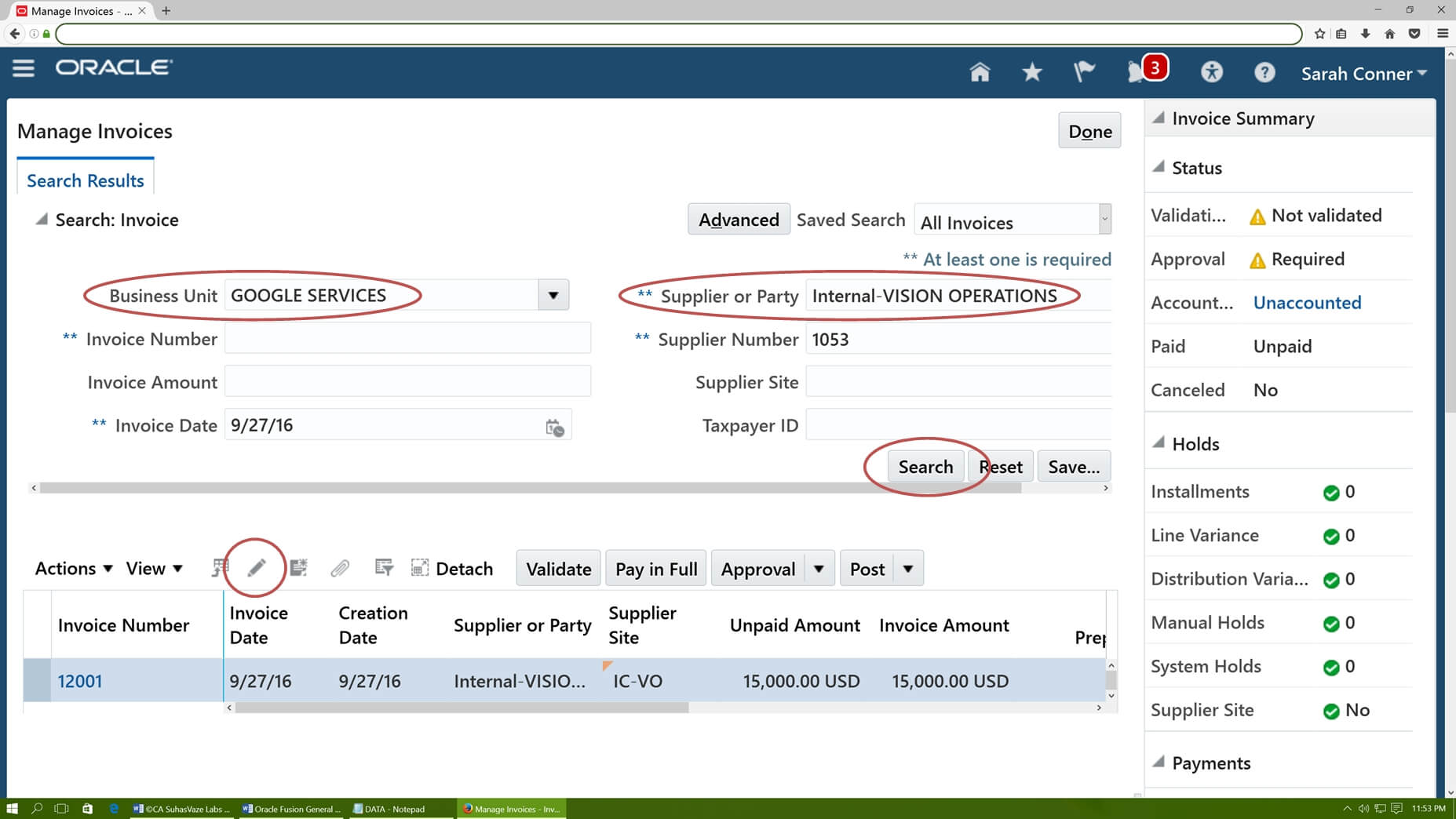
Search and Select the Payables Invoice. Click on Edit Pencil Icon.
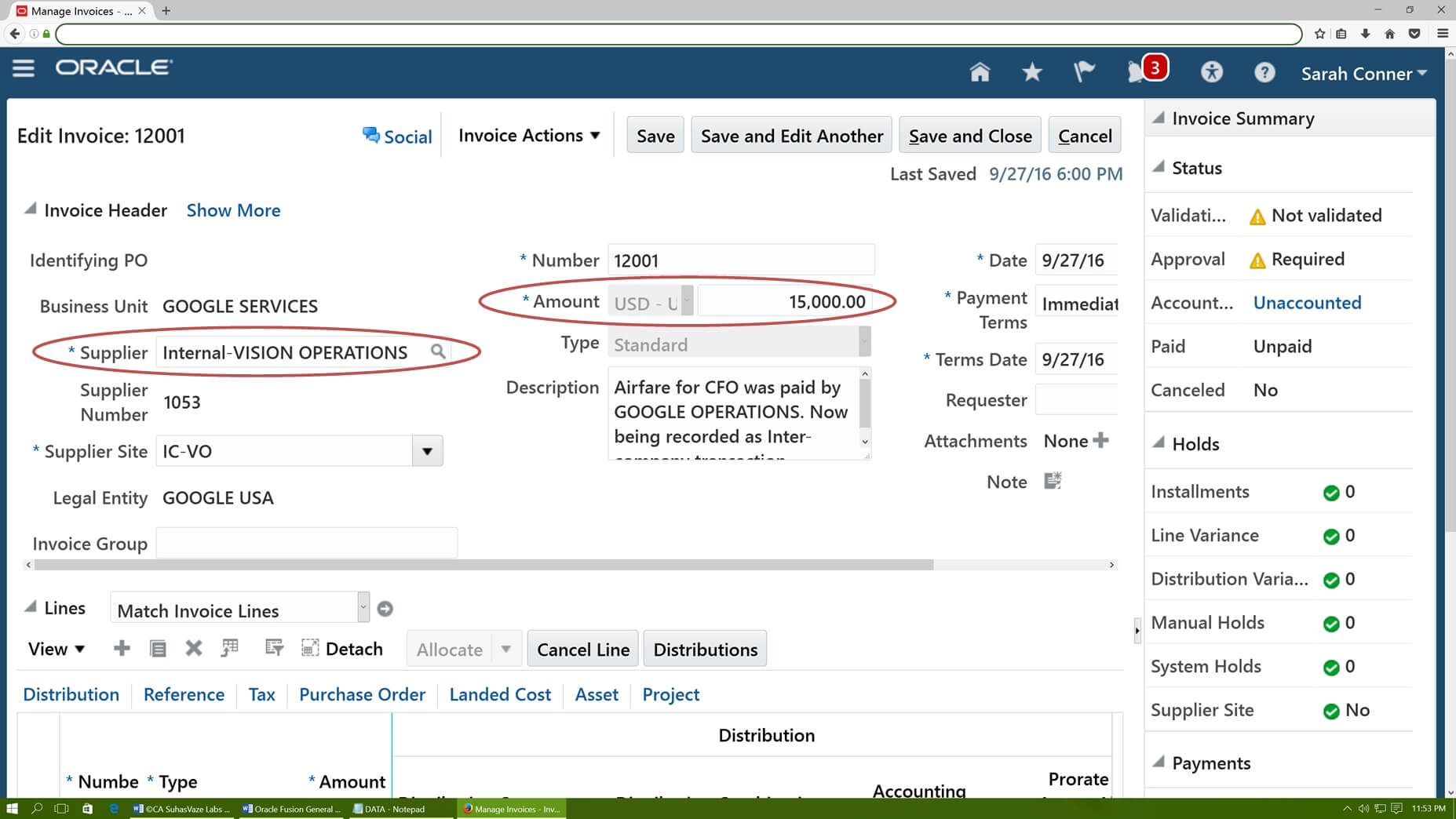
View the Invoice as above.
Validate Invoice
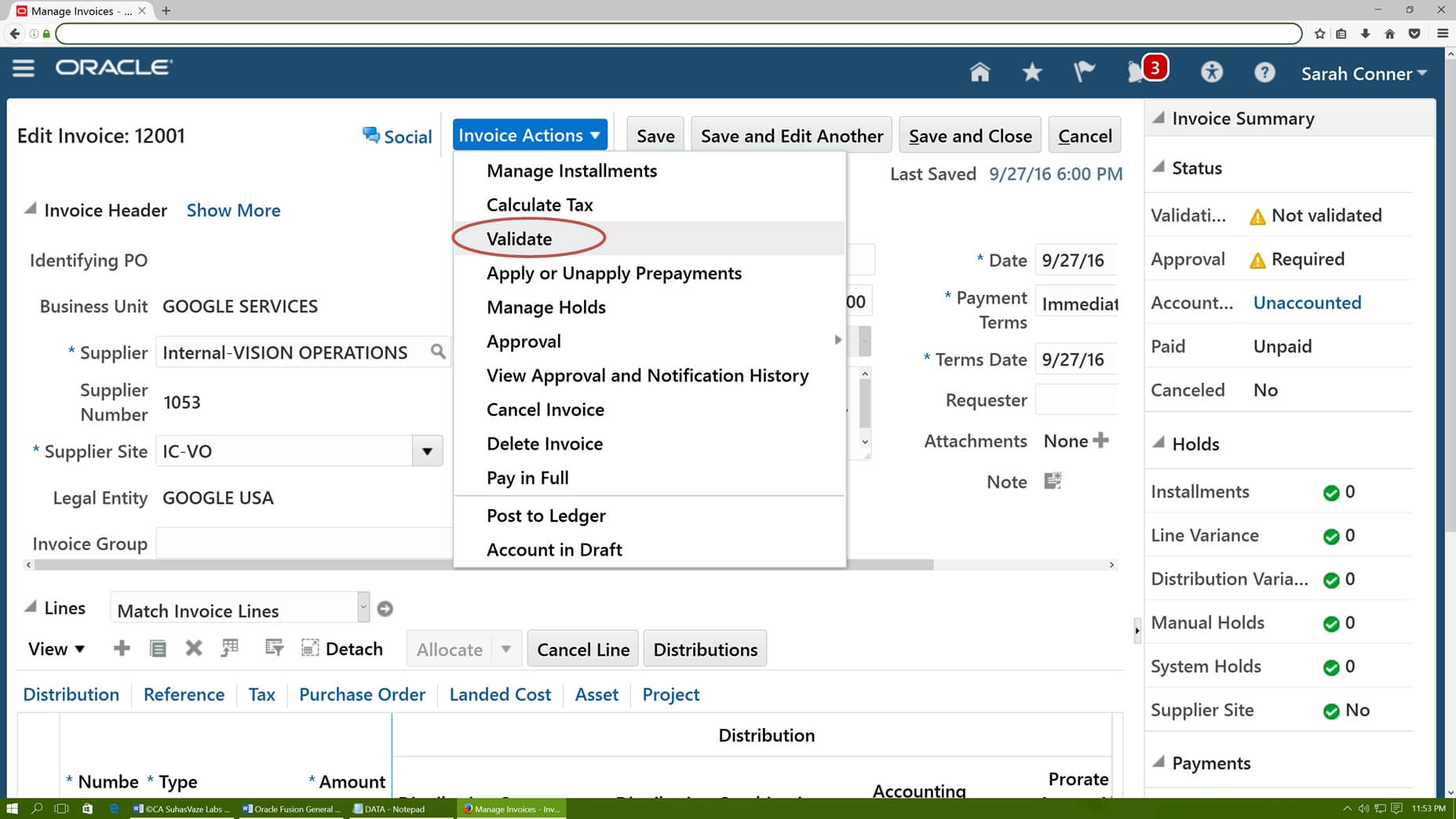
Click “Invoice Actions > Validate”
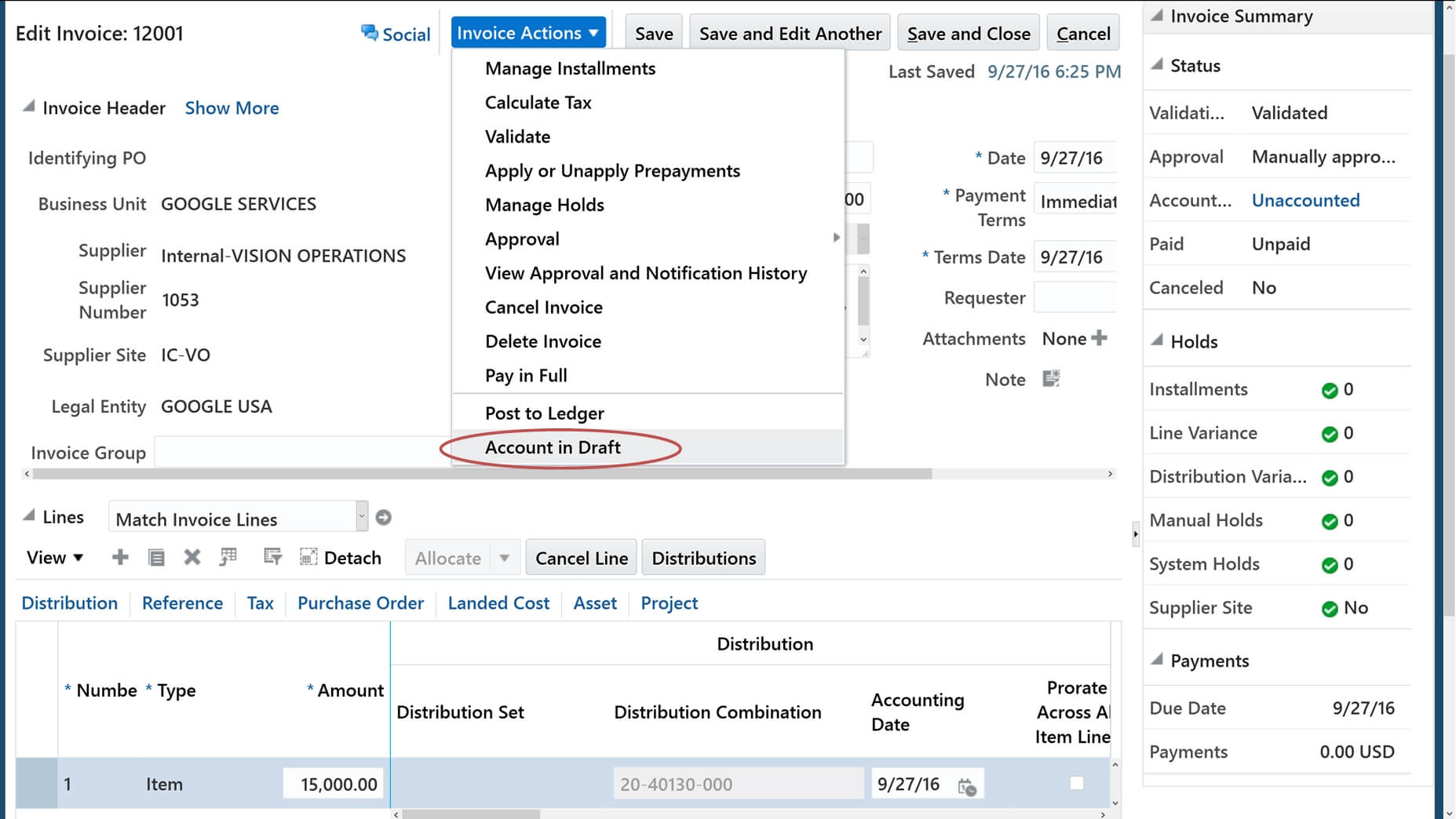
Click “Invoice Actions > Approval > Force Approve” & Click “Invoice Actions > Account in Draft”
View Accounting
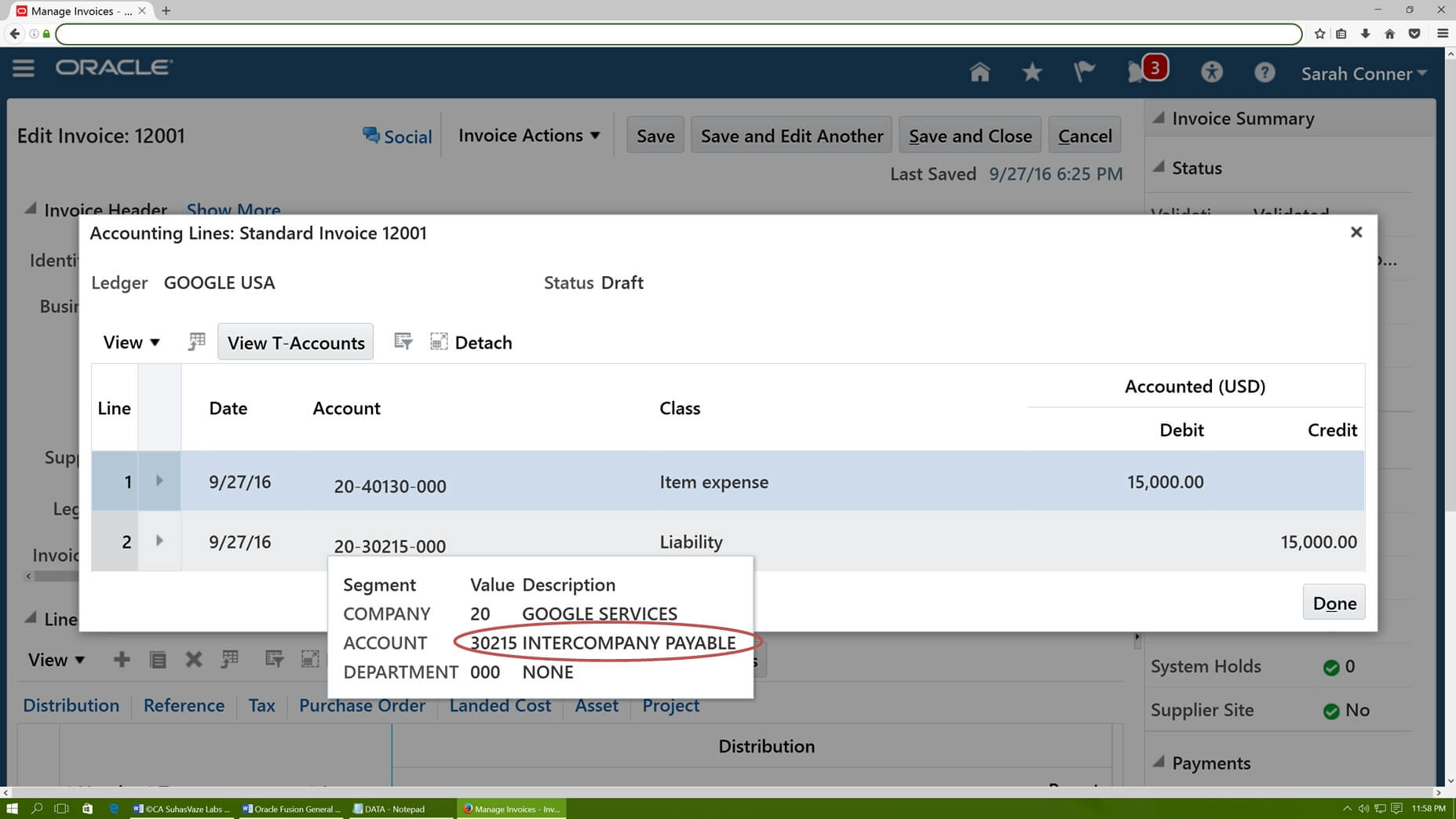
View the Accounting as above.
The Accounting Entry is
Airfare Expenses A/c A/c: 40130 15,000/-
Intercompany Payables A/s A/c: 30215 15,000/-